

This is the fifth installment of project management using excel series.
Preparing & tracking a project plan using Gantt Charts
Team To Do Lists – Project Tracking Tools
Project Status Reporting – Create a Timeline to display milestones
Time sheets and Resource management
Part 5: Issue Trackers & Risk Management
Project Status Reporting – Dashboard
Bonus Post: Using Burn Down Charts to Understand Project Progress
Tracking issues and risks is where most of the project management time goes. Once the project planning and organizing activities are in good shape, most of the project management activities are around risk management and issue tracking. In this installment of project management using excel, we will learn how to create a simple issue tracker template using excel and how to analyze issues using excel.
Issue Tracker Template
Excel is perfect for making an issue tracker template. Its grid structure and easy interface makes it totally easy to create and maintain an issue log. Here is a simple issue tracker template you can create in less than a minute.
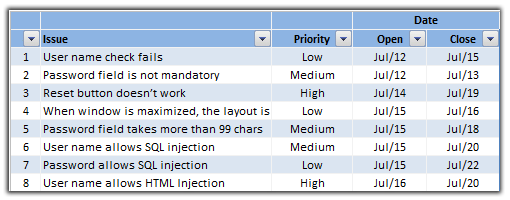
The above template becomes very easy to manage with excel features like data validation, filters and tables (lists in 2003 and earlier).
More Robust Issue Log Template
While the above issue tracker template is good for most project needs, often you might need something little more robust. Of course, doing this is just a matter of adding few columns. For eg. it is common for project managers to keep track of the various types of issues and who is logging them, who is closing the issues. Here is an issue log template that is more robust.

Analyzing and Reporting Issue Status
Issues are part of everyday project management. It is important to keep track of various issues in the project and understand their progress. There are various ways to monitor the progress of issues using excel charts and pivot tables. In this tutorial, we will learn how to make the open vs. closed issues chart (see below).

- To make the chart, we will use the issue tracker data from the template shown above.
- We need to generate issue counts for the last 30 days from a chosen date like this:

- The counts can be easily generated by using the COUNTIF Excel formula [Excel SUMIFS formula tutorial] like this:
=COUNTIF(issueOpenDates,Date) - We can easily make the counts cumulative.
- Finally select the 3 columns above and make a line chart with 2 series. Adjust the chart formatting you have a simple “open vs. closed issues in the last 30 days chart”
- The above chart can be a great way to start discussion about issue run rate.
Risk Management using Excel
We can use similar ideas to prepare a risk management plan using excel. The risk log is similar to issue log. But when it comes to risk analysis, the usual practice is to make a risk matrix to highlight key risks. This can be easily done in excel with the help of Risk maps. This is your home work to figure out (or click on the below risk map image to download the template).

Download the Issue Tracker Templates
You can download the excel issue log template from here. Click the below link based on your excel version and the file type you prefer.
- Download Issue Tracker Template
- Download Issue Tracker Template [Excel 2003 compatible file]
- Download 24 Project Management Templates for Excel
What next?
The ideas presented here can be extended to do more complex analysis of issues and risks in your project. However the issues tracker systems can only go so far if we don’t ask right questions. Often when the project is going through a rough patch, it might be better to keep the issue trackers simple and focus on the work.
In the next installment of project management using excel, we will combine all the five parts and build a project status reporting dashboard.
If you are new to the series, please read the first 4 parts as well.
- Preparing & tracking a project plan using Gantt Charts
- Team To Do Lists – Project Tracking Tools
- Project Status Reporting – Create a Timeline to display milestones
- Time Sheeet Templates and Resource Management using Excel
- While at it, also check out the bonus post about Burn Down Charts.
What is your experience with issue tracker systems
Share your ideas and opinions on using issue trackers. What is the best and worst you have seen? In one project, we have used a very complicated issue log (actually a defect log) that took almost 5 minutes to create an issue. The system would produce nice looking 3d bar and 3d pie charts depicting the issue distribution, ownership and status. Our morning scrums were a disaster when someone choose to present these. What about you?
Resources for Project Managers
Check out my Project Management using Excel page for more resources and helpful information on project management.





