

This is the last installment of project management using excel series.
Preparing & tracking a project plan using Gantt Charts
Team To Do Lists – Project Tracking Tools
Project Status Reporting – Create a Timeline to display milestones
Time sheets and Resource management
Part 5: Issue Trackers & Risk Management
Project Status Reporting – Dashboard
Bonus Post: Using Burn Down Charts to Understand Project Progress
Communication is a very important aspect of project management. Communicating with stakeholders, sponsors, team members and other interested parties takes up quite a bit of project manager’s time.
In almost all the projects I have been part of, the first and foremost question anyone used to ask us is, “how is the project going?”. There is no one line answer to this. A project status dashboard or project status report can help us express the project status in a crisp yet effective manner.
In today’s installment of project management using excel series, we will learn how to make a project management dashboard using Microsoft excel. [related: Making Dashboards using Excel]
To make the project management dashboard, you must answer the following questions,
- Who is the audience of this dashboard?
- Top management or project sponsors or team members or other departments?
- What are they interested to know?
- Day to day issues or High level stuff or Plans or Budgets?
- What is the frequency for updating the dashboard?
- Weekly, Bi-weekly or Monthly or Once in a blue moon?
The answers to these questions will determine what goes in to the dashboard and how it should be constructed.
For our example, I have assumed the following scenario, but you can easily change the dashboard constituents based on your situation.
- Audience of the report: Project Sponsorship Team
- Interested to know: Project Progress wrt Plan, Blocking issues, Overall timeline and Delivery Progress
- Frequency: irrelevant (could be weekly or bi-weekly)
Step 1: Make an outline sketch of the dashboard
Based on the above answers, we vaguely know what should go in to the dashboard. Based on this, we should make an outline sketch of the dashboard. This will help you structure the dashboard on an excel spreadsheet. For our example, this is the outline I have prepared.

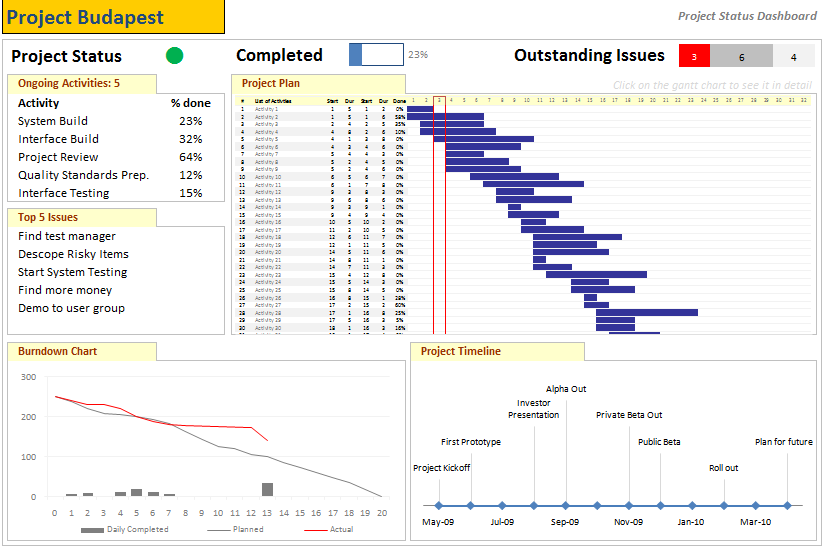
the finalized dashboard will look like this: (click here for a bigger version)
Step 2: Get the data to be placed on dashboard
Making a dashboard in excel is a complex and intricate process. Knowing the outline of the dashboard is only the 10% of work. Getting your data to calculate the dashboard metrics (or KPIs) is the most vital part of any dashboard construction.
In our outline, the sections 1,2 and 3 are purely data and 4,5 and 6 are charts prepared from data.
To facilitate this, first, let us create a worksheet named “data” where we can capture user inputs. These inputs can be further manipulated to make the dashboard.
For our dashboard, we need the following inputs,
- Overall project status and progress
- List of ongoing activities and issues
We will derive other inputs from the following,
- Project Plan Gantt Chart discussed in Part 1 will provide us the project plan
- Project Timeline Chart in Part 2 will give us the timeline chart
- Burn down chart will give us the project deliverable status
- Issue Tracker discussed in Part 5 will give us the metrics related to issues
Step 3: Put everything together and make a dashboard
[PS: I have greatly simplified the process of dashboard construction to keep the article readable. Please note that this step usually takes a few of hours and has lot more detail]
Now that we have all the bits of our data ready, we just need to bring them together to make a dashboard.
We will use the following excel concepts,
- Excel Camera Tool to get a live snapshot of the project gantt chart
- Conditional Formatting to show Red, Green or Amber traffic light to depict the project status
- Thermo-meter chart to show the project progress against 100% total
- We will create a stacked bar chart of outstanding issues by using SUMIFS formula. [counts for issue status=”open” and issue priority=”high”, issue status=”open” and issue priority=”medium”, issue status=”open” and issue priority=”low”]
Let us place the remaining pieces of dashboard from already constructed charts and available data,
- Burn-down chart to show the project deliverable status
- Project Time line to show the project milestones over a period of time
- We will create references to the “issue” and “activity” data and show only the first 5 items.
See the below illustration to understand how each part of the dashboard is constructed.

That is all, our dashboard is ready now.
Download the project management dashboard excel file
Unlike other downloads on Chandoo.org, this file is locked. You can purchase unlocked version along with 23 other project management templates – Click here to buy it.
- To download the locked version of project management dashboard excel file click these links: excel 2003, excel 2007
- To get an unlocked version of the dashboard along with 23 other templates, click here.
Tell us about your Project Management Dashboard / Status Report
Tell me about your project management dashboard, project status report formats and how it is constructed. Do you use excel or some other tool (like powerpoint, word) to prepare the report? How the report / dashboard generated? Is the process automated or manual? What have you learned from using / making such status reports?
Resources for Project Managers
Check out my Project Management using Excel page for more resources and helpful information on project management.
Also check out below posts to make your project management files awesome.
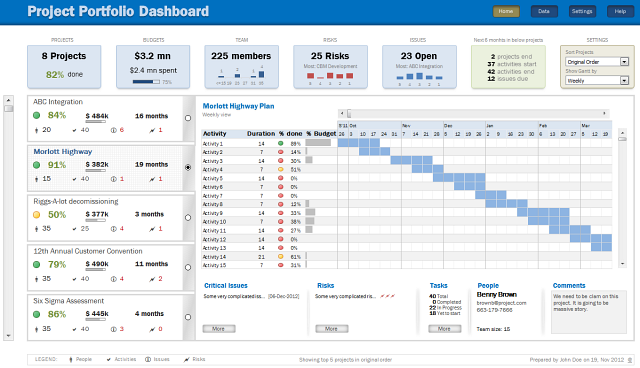
- Project Portfolio Management Dashboard
- Gantt Box chart – depict uncertainty in your projects
- Excel Risk Map template
What next?
This is the last installment of project management using excel series. I am looking for ideas to extend this series in useful manner. Please use comments to tell me what other activities of project management can be made easy using Microsoft Excel. I will try to write follow up posts if the topics are interesting.
Thanks a lot for reading the series and suggesting valuable inputs to make it better. I have learned a lot about project management and excel writing this series. I hope you have picked up few concepts too.
Tell me your feedback using comments.


