

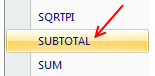
 Today we will learn Excel SUBTOTAL formula and 5 beautiful reasons why you should give it a try.
SUBTOTAL formula is used to find out subtotal of a given range of cells. You give SUBTOTAL two things – (1) a range of data (2) type of subtotal. In return, SUBTOTAL will give you the subtotal for that data.
Unlike SUM, AVERAGE, COUNT etc. which do one thing and only one thing, SUBTOTAL is versatile. You can use it to sum up, average, count a bunch of cells.
Here is the SUBTOTAL syntax:
=SUBTOTAL (TYPE OF TOTAL, RANGE OF CELLS)
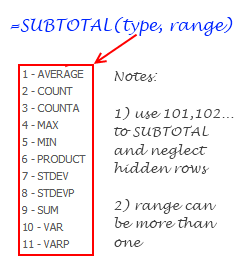
So, for example, =SUBTOTAL(9,A1:A10) will give us the sum of all values in A1:A10, provided none are filtered(more on this filtering thing below). That is because “9” stands for SUM in SUBTOTAL lingo. If you want a count of values, you can use “2”.
Hmm, that sounds like any other formula, what is so special about it?
Well, SUBTOTAL is not just any other formula, it is a special one. We don’t need to be Jedi masters to tell that force is with SUBTOTAL.
Here I have listed 5 reasons why this is such a special formula.
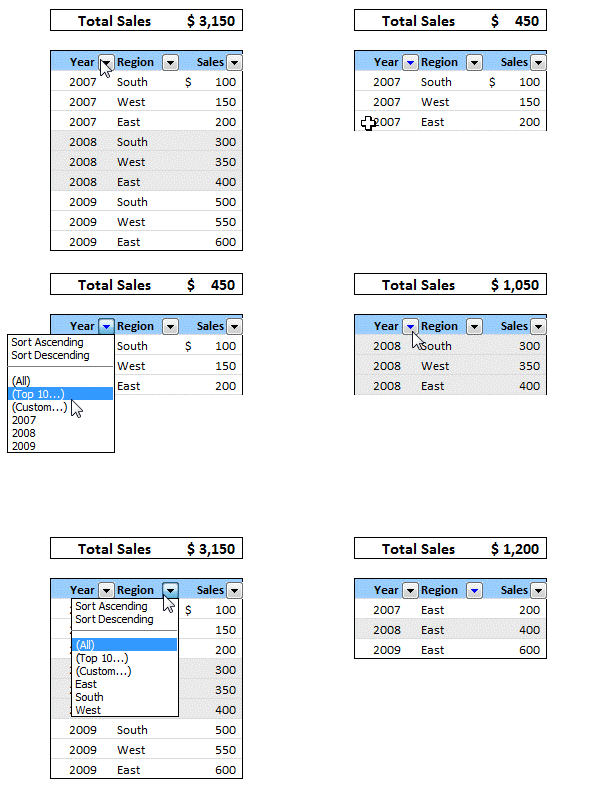
1) You can use SUBTOTAL to find sum of filtered values
I think the title says it all. See this example to know more.
2) You can use SUBTOTAL to ignore values in hidden rows
Often, we use hide rows feature in excel to remove irrelevant items from view. You can use SUBTOTAL with special type codes so that values in hidden rows are neglected.
For eg. SUBTOTAL(9,A1:A10) finds the sum of values in cells A1:A10 where as SUBTOTAL(109,A1:A10) will find sum of values in visible rows only.
3) You can use SUBTOTAL to dynamically summarize data
Since the “type of total” is a parameter to SUBTOTAL, we can use that to make a dynamic summary like this:
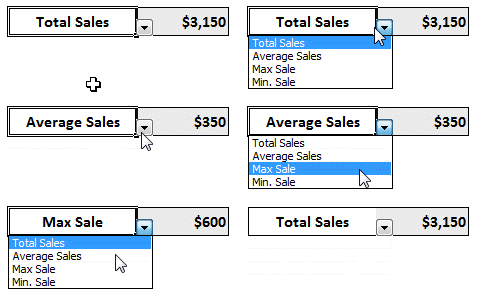
This is very handy in dashboards or when you don’t have space for everything.
4) If there are subtotals in SUBTOTAL range, they will be neglected
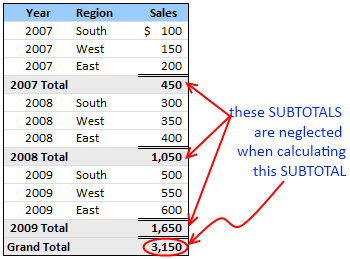
This is a killer feature of SUBTOTAL. If you have any SUBTOTAL formulas in the input range of another SUBTOTAL formula, these values are neglected so that double counting is avoided. Need I say more?
5) You can automatically create SUBTOTALs using Excel Data Tools
While SUBTOTAL formula looks kind of neat, writing them when you have tabular data can be a drag. But you don’t have to worry about that. In Excel’s Data menu / ribbon, there is an option on called “Subtotals” that automates the whole process for you.
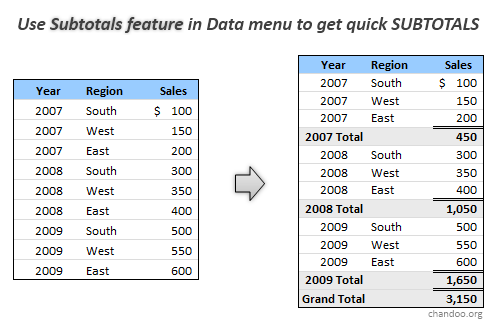
To generate automatic SUBTOTALS, just select your table of data, go to Data ribbon (or menu) and click on “Subtotals”. This will launch a Subtotal dialog where you can easily specify the type of total grouping you want.
That simple!
Related Excel Formulas:
SUMPRODUCT | VLOOKUP | SUMIF & COUNTIF
Have you used SUBTOTAL formula?
I have never really bothered to test SUBTOTAL formula until few days ago. Now that I found some really cool uses for it, I am itching to implement some of them in future. What about you? Have you used SUBTOTAL formula before? Do you got any tips to share? Please use comments to discuss.


75 Responses to “What is Excel SUBTOTAL formula and 5 reasons why you should use it”
I use SUBTOTAL all the time, could not live without it.
Another neat feature about SUBTOTAL is that you will be able to collapse/expand sections of your data set with the +/- buttons that magically appear to the left of the rows containing a subtotal which was created with the Data menu (Excel 2003).
I have been using the subtotal formula for years. It's especially useful when you have very large lists. Instead of putting your SUBTOTAL function at the bottom of each row, place it at the top of the columns that you want totals, counts, averages, etc.
If you frequently extract data from transaction systems, for example, billing records - the subtotal function placed at the top of you data (above the headings) is a particularly useful way to summarize data in conjunction with filtering.
The only problem with SUBTOTAL is its inability to perform a SQL COUNTD (Count Distinct) function. This can be a big problem if you want to summarize (for example) billing records that include invoice line-item details.
Using Excel's AVERAGE subtotal function will not result in the correct answer. It will compute the average of all of the rows in the list. In SQL, COUNTD effectively deals with this problem. I've read about some exotic methods that address this problem. All of them are a bit of a pain to implement.
A nice feature of using the Subtotal is that you can nest subtotals. Simply remove the check from the checkmark out of Replace Current Subtotals.
I LOVE subtotals!!! When I discovered them, really sped up a lot of my accounting work in a second. Thanks for this blog I share it with everyone I work with 🙂
Great post. I've never used SUBTOTAL much myself as I tend to jump straight to Pivot Tables, however your post has ensured I will be exploring it a bit more!
I love your posts and have learned so much from them. I am always eager to get the next one. My only suggestion is that you slow down the animation on the examples. They go so fast it is hard to quickly understand what you are trying to show us. Other than that...great job.
I have used subtotals in the past, but never dreamed they were so versatile. I never could figure out how to add subtotals while ignoring other subtotals in the range. Wow! This is great.
Great work on this XL stuff. I've been using SUBTOTAL for years, and especially together with Filters, they add powerful productivity to a spreadsheet full of too many numbers. I think a clarification is needed for this line: "So, for example, =SUBTOTAL(9,A1:A10) will give us the sum of all values in A1:A10, provided none are filtered(more on this filtering thing below)."
Actually, while it is true if nothing is filtered, =SUBTOTAL(9,A1:A10) is terrific in a filtering situation: as you add filtering, it does indeed change to reflect the filtered values. That is its strength. And as Dan said, put those SUBTOTALS at the top of the tables, above the Headers for example (with at least one blank row between them!), and they are then obvious to the reader, and already labelled.
As to using the "109" function, to ignore "hidden" row data, I stay away from it, for two reasons: one, I don't like a "Total", or "SUBTOTAL", showing that the reader cannot check on their own - if they find it doesn't add up, their confidence in the entire spreadsheet is broken; two, I think sometimes when setting and resetting filters that these hidden rows become unhidden.
hth
Steve
I really like to use it to create reports for teachers' testing data because it also will create a page break (when using the menu). I can download an entire school's data, subtotal and print for each teacher in a matter of minutes . . . .
COL A COL B
a 100
a 50
SUBTOTAL 150
NOT A SUBTOTAL 1000
b 125
b 25
SUBTOTAL 150
c 145
c 5
SUBTOTAL 150
GRAND TOTAL 1450 ADDS EACH SUBTOTAL
FORMULA PLUS THE "NOT A
SUBTOTAL" ROW.
USE WITH CAUTION; THE "GRAND TOTAL" IS A SUBTOTAL FORMUA
FOR ALL OF THE ROWS. THE RESULT OF 1,450 IS CLEARLY MISLEADING.
Controlling the 'Type of Total' variable with option buttons is a great way of saving real estate on Dashboards & adding a small wow-factor to end user functionality.
could you explain a little more about how to create the SUBTOTAL to dynamically summarize data? i mean how the formula vary according to the selection from the drop down of the otions button.
Thanking you in anticipation.
regards
@Dan... I have no idea about the COUNTD and other database functions. Never had the opportunity to use them either.
@Patricia: That is a good one, thanks for sharing it.
@Annie... Thanks for the love 🙂
@Glen.. yeah Subtotals are very robust. I have realized that only last week while doing something else.
@Campingshadow... thanks for your feedback. I will slow down the animations in later posts 🙂
@Steve.. good points. Yes, I know that subtotals work with filters amazingly well. I have mentioned that in the post further down.
Also, I have used totals at bottom so that it is easy to read in the post. But one can easily override that by un-checking "totals at bottom" box.
@Don.. If the value "1000" doesnt contribute to SUBTOTALs, why is it part of the report?
@Justin: thanks...
“type of total” is a parameter to SUBTOTAL this working i cant do it pls. teach me
Thank you for this article. I use COUNTIFS and SUMIFS for most of my work as you can have tons of them and it won't slow down the calculations like the DBSUM and DBCOUNT, etc always seem to do . Have not really explored SUBTOTAL but like what has been brought to our attention. I would be really, really be pleased to see the COUNTIFS and the SUMIFS idea extended to MIN, MAX, AVERAGE, STDEV, PRODUCT, and VAR. (filters in the formula, not because the database is filtered and rows hidden) Again, Thank you for this article.
I too did not used it before.
But as you have highlighted these good points about SubTotals I intend to use it more and more.
Thanks.
Tables such as shown in 5 with nested subtotals are frequently used to summarize data
For a small data set, one quick way of generating this is the use of 'alt + =' keyboard shortcut.
instead of manually typing formulas or using the wizard nested sum can be generated
The best part is when 'alt + =' is used for the grand total it adds up only the subtotals and not all the figures.
Hi, great post, but can you explain in a bit more detail how number 3 works? Or else provide a sample file?
Thanks in advance.
@Sachin & Kev23f: good question. Here is a bit more detail. If you are not able to reproduce it, I can post the file online.
In a bunch of cells define types of totals you want. For eg. say cells D1:D3 have,
Sum
Average
Max
Now, let us use the cell A1 to control what type of total you want. Go to A1, select data validation > list and then specify D1:D3 as the source range (this will ensure that only one these three values can be typed in the cell and also shows an in-cell drop down to select the values - here is a tutorial: http://chandoo.org/wp/2008/08/07/excel-add-drop-down-list/ )
Now, write a formula in another cell (where will show the result based on selected summary type) like this,
=CHOOSE(MATCH(A1,D1:D3,0),SUBTOTAL(for sum),SUBTOTAL(for avg), SUBTOTAL(for max))
Help on MATCH formula is here: http://chandoo.org/wp/2008/11/19/vlookup-match-and-offset-explained-in-plain-english-spreadcheats/
[...] Then we are asking excel to tell how many values are there after filter in the same range using SUBTOTAL() formula [introduction to excel SUBTOTAL formula]. [...]
This is very easy using vlookup setup and drop-down validation list. Just put a validation list for all the "function_num" at some corner to control the Summary Types. AND using drop-down select the summary type. This way we can accommodate many summary types without creating a long formula, and changes can be easily made in the future.
Would anyone have excel template to form a baseline towards loan depreciation using VaR. Would you have a monte carlo simulation to represent your answer?
Brgds.
Stewart
Thanks, I'd like to know if subtotals can be used for calculation of a weighted average using in addition to the current column data from another column in the same table. Any suggestions?
Quick query ,,, this has been bugging me for a couple of hours and I probably know the answer, but having stared at this I think I am going numbers blind ...... I am building a Dashboard and have various table and charts with data, but I want to add a tracker that shows a Target volume, Order volume and a History view ..... across 13 wks ( so I guess 13 columns, albeit each column would be about 13 pixels each ) ,,,, kind of like a Bar chart, without actually using a Bar Chart.
@Giel
Subtotal can do Sums and Products but not of 2 or more columns
For a weighted Avberage you need to sum the products of each row so you have 2 options
1. Add another column to do the products and then use Sub Totals to Sum up the Products
2 Use Sumproduct, which can do the SubTotals and Weighted Averages in one formula and isn't reliant on having a sorted data set.
You can read about Sumproduct here: http://chandoo.org/wp/2009/11/10/excel-sumproduct-formula/
@John.. I think you are trying to add an incell chart. See the examples here: http://chandoo.org/wp/tag/in-cell-charting/
Im not able to function Subtotal as in my data i have qty and its subtotal. when im functioning subtotal it actually calculating subtotal and also qty which gives me double total in my final figure.
Plz suggest what to do
@Naveed
Replace your sub-totals with a Subtotal function
That way it will automatically update as you add data, and automatically total to a Grand Total ignoring previous sub-totals
Excellent discussions of subtotals. I have just discovered this to help analyze old 15 minute rainfall data and summarize it by day; great way to simplify 35000+ lines of data!
My only disappointment is I can't find a way to export my results to a usable table; I need 365 day values to organize for further analysis, and don't want to copy and paste them all out. Any ideas?
[...] 5 Tips on SUBTOTAL Formula [...]
thanks
@Dan Murray makes a good point. I'm having the same issue trying to find the average or sum of the top ten values but only the subtotaled rows. SUM functions can grab the top ten values but I want to be able to auto filter rows out and only average or sum the rows that haven't been filtered. Any thoughts?
This is a great post. However, please explain how to accomplish #3: to dynamically summarize data. How do you create the dropdown window? How does the formula in the results cell know what has been selected in the cell to its left. Please provide detail explanation.
Thanks,
David
Excellent tips here. It was easy to find help on the syntax of subtotal, but this rare gem told me why and where it was a good idea to use it. This should be incorporated into Excel's local and online Help
I am in the process of testing 2010 before our company converts. I am finding that subtotals is taking much longer in 2010 then in 2003 or 97. Any suggestions as to why?
Thanks
Walt
Is it possible to create a formula that looks for the subtotal and uses it?
Example worksheet:
COL A1:4 COL B1:4:
a code1
a code1
a code 7
a code 7
b 125
b 25
SUBTOTAL code 1 150
b 50
b 75
SUBTOTAL code 7 125
This is what I want to do in column C1:C4
c 125/150*.25 (i.e. value in b1/subtotal of code 1*x)
c 25/150*.25
c 50/125*.25
c 75/125*.25
I know I could set this up manually by looking for the rows with the subtotals, but the data in column a (i.e. code 1 could have 4 rows one time and 7 rows the next time I need to do the calculation)
The post is so good.
POINT NO 5 - You can automatically create SUBTOTALs using Excel Data Tools
Kindly refer to the table with sub totals in the above point.
Can we transfer/shift each set of data with its sub total to a different sheet in the same workbook or another workbook.
For example 2007 data is to move to a sheet, 2008 data to another sheet and so on......
[...] want to subtotal in the subtotal options. There's an issue with it entering subtotals in the row? http://chandoo.org/wp/2010/02/09/sub...formula-excel/ You can use the outliner on the left (Plus / Minus buttons... or click 1,2,3- to collapse to show [...]
Regarding point 4:
"4) If there are subtotals in SUBTOTAL range, they will be neglected
This is a killer feature of SUBTOTAL. If you have any SUBTOTAL formulas in the input range of another SUBTOTAL formula, these values are neglected so that double counting is avoided. Need I say more? "
I wonder what the differences would be in processing speed between using SUM or SUBTOTAL in a situation with a large model with lots of financial subtotals. Would using SUM or SUBTOTAL be faster for processing? I would think SUM would be faster due to referencing less cells, but I may be wrong.
Just curious.
Can median be calculated using sub totals ? How
I have trouble sometimes getting the subtotal to work when using tables. The option is greyed out and I can't seem to find any info on the reason for this. Any ideas? Thank you, Brenda
Hello,
After using subtotal formula there appears 1 2 3 in square box on the Left hand side of the sheet so that we may collapse the fields or expand them as per our requirements.
Can someone please tell me how to control those buttons with keyboard?
Thank you
@Harshit
The small squares with numbers are part of the Group/Ungroup functionality of Excel
It allows you to hide/Display various levels of Grouped Data
Have a quick look here:
http://chandoo.org/wp/2010/01/12/collapse-excel-charts/
Anyone ever try to use =subtotal(4, range) to pull the top 5 values. I can't seem to pull the 5 largest items from the entire column ignoring the imbedded subtotals. I've tried the Large function but that does not ignore the subtotal lines.
Any help is greatly appreciated. Thanks!
Interesting question Mark... You can use a helper column in your original table along with an array formula to do this.
See this file: http://img.chandoo.org/playground/top5-ignoring-subtotals.xlsx
Dear all,
I have a question that how can i do sub total of subtotal rows for ex.
if we have 3 floor and every floor has 5 shops from evry shop we get 3 type of income then how can i put subtotal formula so i can get total of every shop
Can you please give an example of #3: Using SUBTOTAL to dynamically summarize data?
Thanks!
yes, I would very much like to recreate point 3. Please elaborate. 🙂
[...] you can do a subtotal on the count of filtered records but countif will not work (as a subtotal) that is. see here for seperate subtotal numbers What is Excel SUBTOTAL formula and 5 reasons why you should use it | Chandoo.org - Learn Microsoft E... [...]
I love the subtotal but I am having a problem being able to ask the subtotal if the value is greater than 0 then to return that info or delete any subtotals that equal 0. I am sure this is a simple question to most on this site but I have tried everything I know and can not get it to work.
HI, I am trying to use the subtotal function to sum a bunch of different account in balance sheet but I am not getting the result right since all the account have different names.
How can I use the subtotal function in this case? What should I use in the "At Each Change In" section ?
Thanks!
HI,
I have applied the subtotals formula to get total of filtered data but the formula do not sum the filtered data automatically. i have to select the cell containing formula, press enter button so that i get the new total. it is quite irritating. i would be thankful to one with a solution
I want to create my own functions that are as wise as subtotal - do you have actual code of subtotal function?
Nice
It is very useful and interesting.
Do anyone know shortkey for subtotal "Formula) i.e =subtotal(9,criteria)
I am using Excel 2010. When I use the subtotal formula, function 102,to count non blanks in a column, I get the same value as if I use the regualar count formula, when I hide rows. Shouldn't this disregard hidden rows and adjust the output? Please help!
@Erin
Try 103 instead of 102
Well came here seeing if there was a solution this issue. The problem appears to be subtotal does not treat collapsed columns (rows it does) as hidden in Excel 2010.
@Patrick
can you post the file, email me or ask the question in the forums
http://chandoo.org/forum/
Thank you. Very helpful! I only use it for small personal spreadsheets but this was very helpful.
appears to be a little confusion esp Steve re subtotals...
The subtotal (9, ....) will add up all cells including hidden ones UNLESS the data is filtered..in that case it adds up what you can see is visible.
...I would not use this if there are hidden cells
The subtotal (109, .... ) will add visible cells only... good for reports..and is the opposite to what Steve said.
Soumis aux aléas de santé de l'individu,
ils présenteraient des symptômes de rigidité ou d'affaissement,
d'encombrement ou de perte de vitalité.
Can someone please provide the formula for #4? I already have subtotals in my range and I either need to only sum those subtotals or the individual rows that are rolling into those subtotals. Not both, because it is double-counting. Thank you in advance for your help!
Hi, someone up above mentioned Excel 2010 having subtotals being extremely slow... can anyone recommend a solution?
I have tried: turning Calculation off, removing conditional formatting, changing to an .xls file, paste special values only.
I have used subtotals extensively in the past and only just in the last few months having a problem... is there an update that anyone knows of that fixes the issue ?
Thanks
nice sub total
[…] =subtotal can produced the same sum of a column as the more well known sum formula but it works with filtering, =subtotal has a lot of tricks actually. […]
Thank you so much for this!!!! I never understood what the Subtotal function meant.. this saved me with my huge statistics assignment where we have to handle big amount of data and apply filters.
Thank you also for including gifs and showing how the subtotal action does its wonders! This made things sooo much more convenient. I even appreciate Excel more now.
I have a major question here : I have a data set where
column A has close to data in 55000 rows for which subtotal comes around : D = 66058988.62 (=SUBTOTAL(9,A:A))
If I would go ahead and apply filter to column A and un-select the value 0.00 the subtotal in row D where the formula (=SUBTOTAL(9,A:A)) was applied will change to 41463493.75.
I fail to understand here that how will 0.00 bring a difference to sub total. (Apologies for my ignorance but I am not really from accounts background so I might be missing something here)
Please help me understand here.
I use subtotal daily. I copy paste just the information needed to another tab (i always wonder if thats necessary) then i subtotal i then only need the subtotal amount to do a Vlook up later so then copy and paste values of subtotal amount column then filter by total copy paste values on another tab then i have to text to columns the info to remove the word total i then have info to be able to vlook up the subtotal amt later i wish there were an easier way lol.
How to have a cumulative total not the running total
Never use subtotals. There is nothing subtotals can give you that pivot tables cannot. Subtotals screw up nice clean flat file data sets. Learn pivot tables.
over at this website
casino x
One amazing feature missed off this list; Subtotal can output a spillable array. The formula =SUBTOTAL(9, OFFSET(A1#,0,0,SEQUENCE(ROWS(A1#)))) will output an array that cumulatively adds up the dynamic array A1#, no matter what size A1# is. SUM() can't do this as it only ever outputs a single value.
That is CRAZY!!!
Donut for you SpannerB.
I have been using SCAN for this.
=SCAN(0,B2#,LAMBDA(a,b,a+b))