

This is a guest article by Theodor on how to Compare Sales of One Product with Another
Ok, now here’s one for you.
Suppose you’d like to come up with a sales report on different products, comparing their evolution on the same period of different years (say Jan ’09 vs. Jan Jan ’10). At the same time, you’d like to keep an eye on their yearly trend (entire 2009 vs. entire 2010).
No big deal, you’ll say, but here’s the twist: the products have not been available for the entire time span taken into consideration. Let’s say you’ve only had Product 1 available for sale for Feb ’09 onwards, while it had been discontinued from October ’10. If you’re really looking for a Like-For-Like (LFL) comparison, you’d only want to compare the months where you have data for both years. It’s false to claim you’ve had a sales boost of 300% when you entered the market with Product X in October 2009, selling 1000 units over 3 months and compare that to the full results of 2010, when you’ve sold 3000 units. In the first scenario you were averaging some 333 units/month, while later you’ve dropped to a mere 250/month. Nothing to brag about there, is it?
Ah, but we also have different product classes. One is aimed for the high-profile buyer (A-Class products), the second for the middle level (B-Class) and so on. Given that different products were added to each class’s portfolio and then later discontinued, we should see the total LFL development of each product class in the same graphical representation.
Hold on another second. One country is defining its quarters as Jan-Mar, Apr-Jun etc, while other might relate a quarterly result to a specific day in the company history (such as the company launch date, or since the new CEO took over or whatever). Wouldn’t it be nice to be able to compare equivalent datasets in any user-defined time span?
So how do you compare sales of one product with another?
Now I’ve always said that the second hardest thing mankind has ever done was to send men on the Moon and safely return them home. That’s only because the MOST difficult thing in the world has become to compare apples with apples. There are so many subtle differences between one dataset and the other (even though they both relate to the same source), that if one reporting template is to have a long life, it should first and foremost come with the built-in ability to allow the end user to drill down through the data and change criteria in order to get relevant results for today’s issue. And all that will change tomorrow, as there will lay a new and unexpected issue on the table.
With that in mind, when I create my templates I follow the self-made golden rule (which later I found many others have applied for themselves long before I knew Excel ever existed) – keep the raw data in one sheet, preferably hidden; use a second sheet for calculation, ALWAYS hidden, and provide a simple and useful graphical interface for the end-user in the third sheet. This will avoid any mishaps such as “Could you please put your formulas back in, I donno which button I pressed and….!!”
Comparing Sales of One Product with Another – Demo:
First see the demo of this technique. Then, we can learn how I created it.

Coming to the attached example – which only works in Excel 2007 and later, by the way:
- Your data is in sheet ‘data’, ordered by product and timeline (Jan-Dec, 2009 and 2010). I’ve created the values using the =randbetween() formula, and then copy-pasted the values only so they will not change anymore.
- To keep things more clear, I’ve placed the calculation formulas in the same sheet as that with the graph, just so you can compare values and figure out formulas more quickly, without having to switch between sheets all the time.

How the Sales Comparison Chart is made?
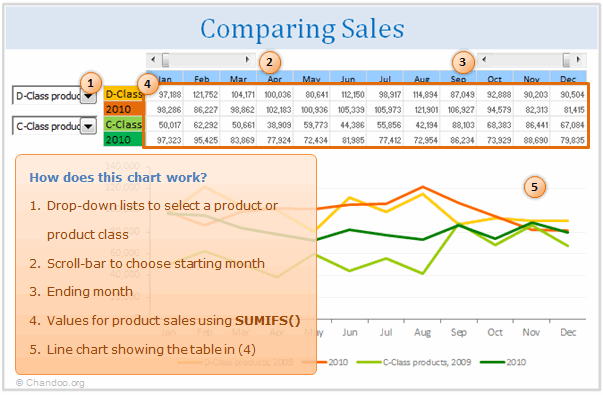
Now, to bring up values of a particular product, I’ve created a list in C44:C70 (values in column B are just for guidance). We can compare two products, which can be chosen from a couple of drop-down boxes linked to cells B6 and B8. Here’s where the values in column B help: basically, they tell me which item index from the drop-down corresponds to a product. I then placed the same item indexes in data!A7:A46. This is all because I am lazy and I find the sumifs() formula a blessing: all I have to do now is to add up the results that correspond to (1) the chosen Product in the drop-down, which is looked up by the index, and (2) the year, which is in data!E6:E45. [More on INDEX Formula]
An alternative in Excel 2003 would have been to concatenate the value of “Product 1″&”2009” for example, to get a unique identifier and not return the sales value of 2010 by mistake. Then vlookup() after the concatenated value. [Related: How to lookup based on multiple conditions]
These calculations are placed in ‘Yr sls’!F51:Q54. Note there’s an initial IF() there, to only display the values if the respective month is selected. There are two sliders up in the second row, which can help you ‘cut’ your desired portion of the year for comparison.
‘Yr sls’!F61:Q68, using sumifs() again, I added the sales values for each product class. Finally, in ‘Yr sls’!F45:Q48 are the final calculation, where if an item index lower than 8 (corresponding to Product 1) is selected, the values in F61:Q68 are brought up, else the values in F51:Q54.
So now we see our resulting values above the chart, in cells F6:Q9. The deviation is calculated in F5:Q5. But for the yearly totals, I only want to compare apples with apples, i.e. months in which sales have been recorded in both years. For that I used cells U6:AF9. The totals in R6:R9 are based on these isnumber() results. This allows you to have the exact deviation between similar months over an user-defined time span.
Ok, time to close. But not before your boss knows the exact portfolio of each product class! Look shortly in data!B6:B45. This is where, using countif(), we have the number of occurrences for each product class. Knowing that product class “A” will be repeated say 3 times, we’ll use this knowledge to look up the third occurrence of “A” and bring up the product next to it. Now take a peak in sheet “Legend”. Knowing we have to lookup for A 1, that’s how I wrote the formula. But also knowing that “A” will be repeated twice for each product (once for 2009, another for 2010) and not wanting to see duplicates in my product list, there’s a very simple solution: just use odd numbers!! This will only bring up every 2nd occurrence of a product. As I said, I like it simple 🙂 I just left the numbers in C5:C15 visible so you don’t have to fish around for them, the rest are simply I the same color as the background. A bit of conditional formatting does the rest.
Of course, before presenting this to any decision maker, you’d hide the rows and columns they’re not supposed to touch and present them with a clean looking table.
Download the Excel Workbook:
Click here to download the workbook with this example. Examine the formulas and chart in “Yr Sls” worksheet to understand how this is weaved together.
[Added by Chandoo]
Thank you Theodor
Thank you so much Theodor for teaching us some valuable techniques on how to compare apples with apples. I am sure our readers will find these ideas very useful.
If you like this post, say thanks to Theodor.
Do you compare & analyze sales data?
I do this all the time. As part of running my small business, every couple of months, I would take up sales data and see if something odd is going on. I make line charts comparing sales of this year with previous year, understanding the overall trend and compare one product with another.
What about you? Do you analyze sales data? What techniques do you use use? Please share using comments.
Learn more from these pages:
If you work a lot with data & do similar work as above, go thru these articles to learn more.


One Response to “CP034: Advanced Excel Essentials book talk with Jordan Goldmeier”
I like this book, but I'm biased