This is a guest article by Theodor on how to Compare Sales of One Product with Another
Ok, now here’s one for you.
Suppose you’d like to come up with a sales report on different products, comparing their evolution on the same period of different years (say Jan ’09 vs. Jan Jan ’10). At the same time, you’d like to keep an eye on their yearly trend (entire 2009 vs. entire 2010).
No big deal, you’ll say, but here’s the twist: the products have not been available for the entire time span taken into consideration. Let’s say you’ve only had Product 1 available for sale for Feb ’09 onwards, while it had been discontinued from October ’10. If you’re really looking for a Like-For-Like (LFL) comparison, you’d only want to compare the months where you have data for both years. It’s false to claim you’ve had a sales boost of 300% when you entered the market with Product X in October 2009, selling 1000 units over 3 months and compare that to the full results of 2010, when you’ve sold 3000 units. In the first scenario you were averaging some 333 units/month, while later you’ve dropped to a mere 250/month. Nothing to brag about there, is it?
Ah, but we also have different product classes. One is aimed for the high-profile buyer (A-Class products), the second for the middle level (B-Class) and so on. Given that different products were added to each class’s portfolio and then later discontinued, we should see the total LFL development of each product class in the same graphical representation.
Hold on another second. One country is defining its quarters as Jan-Mar, Apr-Jun etc, while other might relate a quarterly result to a specific day in the company history (such as the company launch date, or since the new CEO took over or whatever). Wouldn’t it be nice to be able to compare equivalent datasets in any user-defined time span?
So how do you compare sales of one product with another?
Now I’ve always said that the second hardest thing mankind has ever done was to send men on the Moon and safely return them home. That’s only because the MOST difficult thing in the world has become to compare apples with apples. There are so many subtle differences between one dataset and the other (even though they both relate to the same source), that if one reporting template is to have a long life, it should first and foremost come with the built-in ability to allow the end user to drill down through the data and change criteria in order to get relevant results for today’s issue. And all that will change tomorrow, as there will lay a new and unexpected issue on the table.
With that in mind, when I create my templates I follow the self-made golden rule (which later I found many others have applied for themselves long before I knew Excel ever existed) – keep the raw data in one sheet, preferably hidden; use a second sheet for calculation, ALWAYS hidden, and provide a simple and useful graphical interface for the end-user in the third sheet. This will avoid any mishaps such as “Could you please put your formulas back in, I donno which button I pressed and….!!”
Comparing Sales of One Product with Another – Demo:
First see the demo of this technique. Then, we can learn how I created it.

Coming to the attached example – which only works in Excel 2007 and later, by the way:
- Your data is in sheet ‘data’, ordered by product and timeline (Jan-Dec, 2009 and 2010). I’ve created the values using the =randbetween() formula, and then copy-pasted the values only so they will not change anymore.
- To keep things more clear, I’ve placed the calculation formulas in the same sheet as that with the graph, just so you can compare values and figure out formulas more quickly, without having to switch between sheets all the time.

How the Sales Comparison Chart is made?
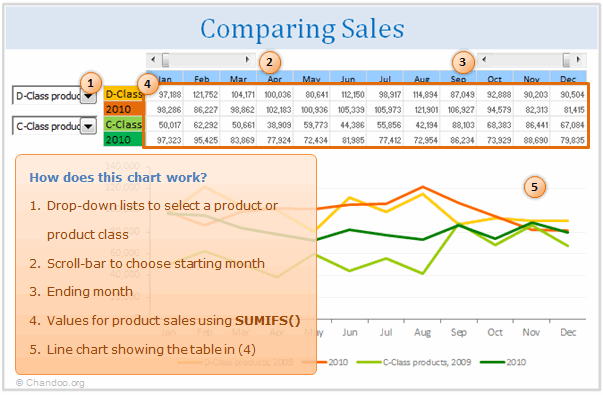
Now, to bring up values of a particular product, I’ve created a list in C44:C70 (values in column B are just for guidance). We can compare two products, which can be chosen from a couple of drop-down boxes linked to cells B6 and B8. Here’s where the values in column B help: basically, they tell me which item index from the drop-down corresponds to a product. I then placed the same item indexes in data!A7:A46. This is all because I am lazy and I find the sumifs() formula a blessing: all I have to do now is to add up the results that correspond to (1) the chosen Product in the drop-down, which is looked up by the index, and (2) the year, which is in data!E6:E45. [More on INDEX Formula]
An alternative in Excel 2003 would have been to concatenate the value of “Product 1″&”2009” for example, to get a unique identifier and not return the sales value of 2010 by mistake. Then vlookup() after the concatenated value. [Related: How to lookup based on multiple conditions]
These calculations are placed in ‘Yr sls’!F51:Q54. Note there’s an initial IF() there, to only display the values if the respective month is selected. There are two sliders up in the second row, which can help you ‘cut’ your desired portion of the year for comparison.
‘Yr sls’!F61:Q68, using sumifs() again, I added the sales values for each product class. Finally, in ‘Yr sls’!F45:Q48 are the final calculation, where if an item index lower than 8 (corresponding to Product 1) is selected, the values in F61:Q68 are brought up, else the values in F51:Q54.
So now we see our resulting values above the chart, in cells F6:Q9. The deviation is calculated in F5:Q5. But for the yearly totals, I only want to compare apples with apples, i.e. months in which sales have been recorded in both years. For that I used cells U6:AF9. The totals in R6:R9 are based on these isnumber() results. This allows you to have the exact deviation between similar months over an user-defined time span.
Ok, time to close. But not before your boss knows the exact portfolio of each product class! Look shortly in data!B6:B45. This is where, using countif(), we have the number of occurrences for each product class. Knowing that product class “A” will be repeated say 3 times, we’ll use this knowledge to look up the third occurrence of “A” and bring up the product next to it. Now take a peak in sheet “Legend”. Knowing we have to lookup for A 1, that’s how I wrote the formula. But also knowing that “A” will be repeated twice for each product (once for 2009, another for 2010) and not wanting to see duplicates in my product list, there’s a very simple solution: just use odd numbers!! This will only bring up every 2nd occurrence of a product. As I said, I like it simple 🙂 I just left the numbers in C5:C15 visible so you don’t have to fish around for them, the rest are simply I the same color as the background. A bit of conditional formatting does the rest.
Of course, before presenting this to any decision maker, you’d hide the rows and columns they’re not supposed to touch and present them with a clean looking table.
Download the Excel Workbook:
Click here to download the workbook with this example. Examine the formulas and chart in “Yr Sls” worksheet to understand how this is weaved together.
[Added by Chandoo]
Thank you Theodor
Thank you so much Theodor for teaching us some valuable techniques on how to compare apples with apples. I am sure our readers will find these ideas very useful.
If you like this post, say thanks to Theodor.
Do you compare & analyze sales data?
I do this all the time. As part of running my small business, every couple of months, I would take up sales data and see if something odd is going on. I make line charts comparing sales of this year with previous year, understanding the overall trend and compare one product with another.
What about you? Do you analyze sales data? What techniques do you use use? Please share using comments.
Learn more from these pages:
If you work a lot with data & do similar work as above, go thru these articles to learn more.


70 Responses to “10 Tips to Make Better and Boss-proof Excel Spreadsheets”
Proper print settings on each sheet helps your boss to print the reports quickly without hastling you after printing irrelevant stuff.
It is highly relevant that you print your reports once before circulating it to your boss or other people.
Knowing that what your boss actully look at in the entire report can be very usefull. You can build a good summary of what your boss wants and put that as separate tab in the form of dashbord report, so that your boss does not peep into rest of your work and start pocking you with irrelevant stuff.
You can also put that Dashboard into the email summary and not trouble your boss to open your workbook. This is ultimate boss proof tip and I have been using this for long time now.
Thank you Chandoo. Great checklist to follow before delivering an excel spreadsheet to someone else. Some points you mention are seemingly so simple that we might overlook them - like selecting cell#A1, but they make a difference to the impression the spreadsheet creates at the recipient's end.
Dear Chandoo,
Great tricks.
One trick I use (more and more) is to hide the sheet tabs and to hide the formulabar via the 'tools' 'options' and the 'view'-tab.
Another trick is to limiting the scrolling area to hide all columms (or rows) until the end of the sheet. Select the column, press CTRL+SHIFT+RIGHT, right-click on the column and hide (also possible via VBA).
I was wondering though if 'boss-proof' is related to 'excel-stupid-proof'?
Cheerio
Tom
Just wondering if the hiding formula bar really works when a recipient opens it whose "view-show-Formula Bar" is still checked...
It's saved to the sheet I believe.
Absolutely agree with this post !!!
on the past months, after reading this blog, PTS's and Debra's Contextures, one of the things I've beggining to do as a best practice is to create all my spreadsheets with 3 tabs: data, summary and control, and this last one generally xlveryhidden, and sometimes the data one hidden as well.
And this restrictions are also being applied as best practice, and with a lot of benefits as you well mentioned. Furthermore, if combined with dynamic named ranges, formulae is more readable to users, and the WOW effect is often achieved when the question "How did you do that?" arises.....
Keep on the good posts !!!
Rgds,
Martin
Would you mind sharing an example of this technique?
Is there a way to keep the data in a seperate file rather than the same excel. This way you could keep presentation and data separate. But not sure how you would link up the two excel files
Yes, there is a way but it is not prefered.
I used this a coulple of times, (You need to code).
mail me if you need assistance with some sort
It entirely is possible. The problem comes though, when you share the spreadsheet.
If the recipient doesn't have both files, or access to both, things break when the values try to refresh.
ey, why is the boss a she??
haha - welcome to the future. About time.
Chandoo, one more trick that we could use with the help of VBA, RT click on the View code of the particular sheet, in the properties table set the Visible status to 2-xlveryhidden, this ensures the sheet name does not show up even when the BOSS tries to unhide the sheet from the sheet >> unhide option. Dont forget to password protect the VBA (available under tools >> VBAProject properties.
Very good tips, although I have to say Chandoo, that your cats probably need to be spayed or neutered if they behave like that. =)
Good to see all these tips on a single "sheet", and giving the name *boss proof*, and Dilbert was a great welcome 😀
The best way to "Boss Proof" (and "Self Proof"!!) a spreadsheet is to keep back ups. I use a macro that saves the last 3 significant versions of the spreadsheet all with a date stamp included in the file name.
To quickly select cell A1 on all sheet, use CTRL-Page UP or CTRL-Page down to navigate between sheets and CTRL-Home to select cell A1 (if you have frozen pane, it will select the top left cell of the section below).
Great list. And I follow every single item... I also use a consistent background color for input cells in every report/dashboard. And I use a little VBA to identify the user and change the report accordingly (selecting the right market, for example).
Chandoo, Nice post. I like to use the hidden Paste Picture Link option. Keep the original report you want displayed on a hidden sheet and only show the boss the report picture. Also great to watch the confusion when boss trying to select cells is worth the effort!
I usually save as PDF if there's no interactivity in the report. That way nothing can go wrong 🙂
PDFs work a dream for me too and saves the boss's EA from telling me all the time that she can't print my work!!
@All.. thanks a ton for sharing your ideas. I am thinking of writing a part 2 of this post explaining some of your ideas in detail.
@Bazlina ... I will make sure the boss is a HE in the next post 🙂
"10 Tips to Make Better and Boss-proof Excel Spreadsheets"...
Unless of course your Boss reads PHD !
Great article with one glaring error.
If (like me) the majority of your spreadsheet errors are *caused* by cats, adding more cats is just going to increase the problem.
@Hui you always have a boss, even if you are boss. If you dont have a boss, then may be a cat or even a dog.
@Debra: hmm... Are you sure the cats are not after the mouse? Go learn some keyboard shortcuts.. now 😛
Great Web Site. I've done almost all the above in trying to build my application and it's taken me hours and hours reading my "dummies " book. Thank you for all this information.
Is there a formula I can use that will automatically return to "A1" cell should an associate use the 10 page spreadsheet I have?
Is there a way to set an expiration date on my workbook so that beynd that date no one will get beyond the cover page?
Paul, in all my "user facing" workbooks (those that I distribute) I create a named range called "Home" on the worksheet(s) that are most likely to be used. Then I write a little VBA that selects the Home range whenever that worksheet is activated or on other triggers depending on the context of the sheet. This is more appropriate for the dashboard tabs or summary tabs my job requires.
But I usually set this functionality up early on in the design process so I can take advantage of it as well. I will sometimes assign a keystroke to the GoHome macro.
I'm in the marketing department (aka the picture department) and have to say that the macros/Excel sheets from our controlling department are the worst! They come to me to sort out the mess!!
@Peter: You can try creating a table of contents and then place it on each and every sheet so that user can jump to anywhere from anywhere. Here is a tutorial to help you get started.
Also, You can prevent users from accessing the workbook after a certain date using macros. But users can certainly by pass it by disallowing macros on that workbook.
@Jimmy: Wow... (just kidding) Welcome 🙂
I was recently given a spreadsheet to improve upon.
One of the "boss-proof" actions that the previous author had used was to use data validation instead of protecting the sheet to ward off people changing formulas.
After entering a formula or value into a cell, use data validation to only allow, in this spreadsheet, whole numbers between 9999999 to 99999999.
It's a bit of a pain to actually correct stuff instead of just unprotecting a sheet, but for those that know how to unprotect a sheet, it's a definite way to keep them from fooling with formulas.
Puchu,
We would love to see "Print" in your links section.
It helps us taking prints as neat as your posts 🙂
Chandoo,
I've emailed you a couple of times looking for avenues I need to try to put my workbook on the Internet.
I notice you use PremiumThemes for your Web Site...You must feel good about their service. Do you think PremiumThemes might be an option for me?
Paul
Instead of :
Now Right click and select “Hide” option.
Shortcut can be used : Ctrl+0 (to hide)..
sir i wanted to know,how to hide cells or tab without hiding rows and columns? PLZ TELL ME
Hi Chandoo!
Great tips! Im researching on an excel project now that you can create to "lighten" the size without sacrificing the data inside..
We usually encounter problems with the data, excel file is shared, in a network folder.. and there are 11 people that enters their own productivity in each tab.. however, there comes a time (uncertain) where some of the data they enter either gets deleted or changes value.. could this be a file size problem? are there other ways to create this file that will decrease data inconsistencies?
thanks!
[...] Hide un-necessary rows to create clean looking workbooks (and 9 more tips) [...]
[...] Presentation format: all spreadsheets, should be designed so that it is easy to follow the process flow and result. Almost every spreadsheet should be presentable and understandable to senior management without additional formatting or explanation. (tips: how to design boss-proof excel sheets) [...]
[...] on Excel formatting here: How to make better excel sheets, Formatting [...]
[...] on Excel formatting here: How to make better excel sheets, Formatting [...]
[...] 10 Tips to make better & boss-proof spreadsheets in Excel [...]
You will find another quick and easy technique here:
http://www.onsitetrainingcourses.com.au/main/page_blog_hiding_most_excel_rows_and_columns.html
[...] tips: Learn how to make better Excel sheets Spread some love,It makes you awesome! [...]
Save what you want the boss to see as a PDF. Absolutely foolproof and no cats hurt in the process.
I really enjoyed allot of the tips on here, especially the one on comments on cells. That will come in handy on allot of our projects. I would also like to share on on my little tricks. I am constantly working on several different reports with several different systems and in doing so I am constantly running in problems and my way out of them is simply calling <a href"http://www.reportingguru.com/"> Reporting Guru </a> and telling exactly what I'm going through and they can tell me exactly how to get out.
One of the things I've found to boss proof my worksheets are a few simple VBA scripts to automatically protect the workbook/worksheets, and direct them to the "Quick Look" dashboard page, I hide all of the raw data sheets before saving. The script looks like this:
Private Sub Workbook_Open()
Sheets("Summary").Protect Password:="password"
Sheets("Labor Cost by Site").Protect Password:="password", AllowUsingPivotTables: =true
Sheets("Labor Cost by month").Protect Password:="password"
Sheets("Quick Look").Protect Password:="password"
Sheets("Quick look").Activate
ActiveWorkbook.Protect Password:="password", Structure:=True, Windows:=False
End Sub
I also have a pivot that contains labor cost data which cannot be refreshed while the worksheet is locked.
Private Sub Worksheet_Activate()
Sheets("labor cost by site").Unprotect Password = "password"
Set pvttable = Worksheets("labor cost by site").Range("a1").PivotTable
pvttable.RefreshTable
Sheets("labor cost by site").Protect Password = "password", AllowUsingPivotTables:=True
End Sub
OPPAN GANGAM STYLE!
good
Your post are always with something creative , thanks for sharing this information , your post are worth reading and implementing 🙂 great job
Hi,
I will try to learn every point slowly !
Shokran Chandoo.
Best boss Proofing of sheets is useing indirect(address 😛 this prevents most smartass bossess from doing any actual changes cus the formula will be long and hard to understand for any bystanders..
Also putting the actual calculations on a different sheet can make a sheet bulletproof from bosses.. especialy if you put them in the Very hidden so when the boss learns how to unhide sheets he wont simply find them.
One thing iv also learned is that most bosses is scared of macros that gives "virus" warnings before beeing run 😛 That include the default warning from Excel...
Long formulas or work arounds is best way to go.
What's the best way to amalgamate two existing excel spreadsheets into one?
Two teams use the same format spreadsheets with individual data split into calendar months and I want to make them one without manually entering the data.
Alt + D + D + N
Write a query and viola, Two sheets into one.
Changing the properties of the file to read-only . (While the file is closed, right click on the file and check the read-only box.)
This allows my boss(es) to access the file -- even change it -- without being able to save their changes. If a boss likes his 'new' version, he can save it with a different file name.
But now -- how to prevent the boss from deleting the file altogether? Or deleting the whole network?
Hey man.
Think you can go as easy as to make a shortcut that links to your read only document. Then the boss wont know of the root document. He can figure it out but lets face it. He is a boss and 70% if them wont know squat
Instead of "Hiding" rows & columns, I find "Grouping" works best as its very easy to quickly see if a worksheet has hidden rows/columns. Sometimes hiding a random row/column is not easily noticed and can create issues.
I have one xl sheet with different dates in many columns and one raw's. I want to send this data to another xl sheets for each date. if somebody can help me will be great.
Dear Samantha,
Check out the website of Ron de Bruin. He has a great set of macro's and free add-in that can help you with this issue.
http://rondebruin.nl/win/s3/win006.htm
Tom
Hello, I have just found out that I made a mistake in my spreadsheet: I had a column of negative numbers, but one of them was positive (while it should have been negative). Is there a formula/system to avoid this?
Thanks.
Mariateresa
Yes, data validation. Values you denote would be between -1 and -999,999,999.
Hi,
Hiding any worksheet can be unhidden and messed around easily. I change the visibility in visual basic from -xlSheetVisible to -xlSheetVeryHidden. By this, even if you right click on sheets, you will be unable to find the hidden sheets.
Cool? I think so...
Very informative, Thanks
Is there a way to lock cells in an already protected worksheet.
(Thus the entire worksheet is protected, then the entire office can open it as read only but only a few users have the password to edit the file)
I would like an additional password or prompt box so these few users don't accidentally change formulas.
Itss such as you learn my thoughts! You appear too understand
a lot abnout this, like you wrote thee e-book in it
or something. I fel that you just could do with some percent to presseure the message house a little bit,
but insatead off that, this iis wondeerful blog.
An excellent read. I'll definitely be back.
It is in reality a nice and helpful piece of info.
I am happy that you just shared this useful info with
us. Please keep us up to date like this. Thank
you for sharing.
I laughed out loud reading the 2nd solution about moving to marketing department and making ppts.
I've been using "technical" sheets for a long time already and depending on the audience it is hidden or not. I'm currently in my NO VBA mindset, so the very hidden option is no longer. Using sheets names like: TechnicalCodes; ExplicitVariables;SetUp; HeavyCalc seem to work to my experience as they send along a message "Don' t you mess-up here, you fool!". A "Read This" section or sheet however does not work!
Reading stuff on this site has helped me develop a good habit of using colors and themes to assist the end user in being well-behaved. In my book the best advise here, because it is about the user experience and not only about protection your own work.
For dashboards I get rid of tabs and scroll bars. Besides 2 exceptions, I need to come across a manager who can turn them on again without my help.
Seems that I forgot about protecting cells, sheets and workbooks altogether. Damn!
Thanks for the informative article Chandoo, I've been struggling with Excel lately. It's a powerful tool, but hard to learn for me.
Thanks Chandoo for sharing these excel sheet tips it helps me a lot to understand excel more.
Nice roundup, Chandoo! Here's one more I thought would be relevant:
For Excel 2013+, you can hide the ribbon, as shown in this animated gif: https://gridmaster.io/tips/hide-ribbon-excel-space
This will simplify the interface, making it less likely for people to accidentally make changes. 🙂
THANK YOU SIR
I'm better at Power BI thanks to you!