

One of the most dreaded courses during my under-graduation is Probability, Statistics & Queuing Theory. We called it PSQT. I struggled to understand the significance and concept of this course as I could barely concentrate in the class. We had a professor, who is probably a genius, but the moment he started the class, I would magically fall in to one of my after-noon naps. When I woke up, we are either in the middle of an elaborate t-test or going thru intricacies of a Markovian queue.
This was all 11 years ago. Later in life, I have embraced the world of probability & statistics. I still fear queues. May be I will get there one day. 😉
A good understanding of statistics & probability theory is necessary if you want to model complex real-life problems using Excel or similar tools. Naturally, Excel has several functions, features & supported add-ins to help you in this area.
Today, I want to share some of this with you. This article is broken down in to 3 parts.
- Learning Statistics & Probability using Excel
- Downloadable Excel Workbooks to understand
- Full blown models & simulations in Excel
#1 – Learning Statistics & Probability Concepts using Excel
Using Excel RAND functions
Excel has several powerful functions (formulas) to generate random numbers, random data. You can combine these functions to generate data that has certain parameters – like a give mean, standard deviation or follows a certain type of distribution.
Go thru Using Excel’s Random Functions for a detailed overview these techniques.
Simulating Dice Throws in Excel
One of the fundamental ways to learn about Probability is to look at dice throws. A dice has 6 faces and on each throw, any of the 6 faces turning up is equally likely. So, we say, each face has 1/6th probability of showing up. If you want to simulate this in Excel, you can use the formula RANDBETWEEN like this, =RANDBETWEEN(1,6). On each run, this formula would throw up a random number between 1 & 6 (including both).
For more, Simulating Dice Throws in Excel
Shuffling a List of Values in Excel
Understanding permutations and combinations is essential when it comes to modeling many real-world problems. Using Excel’s RAND, VLOOKUP and SMALL formulas we can generate a random permutation of a given list of values (in other words – we can shuffle the list).

To learn this read, Shuffling a list of values in Excel
Generate Frequency Distribution from Data
Often, when you are analyzing data, you need to understand how the data is distributed. Again, Excel has just the right function for this sort of thing. FREQUENCY(). In this simple tutorial, learn how to use Excel’s FREQUENCY formula to generate frequency distribution of given data.
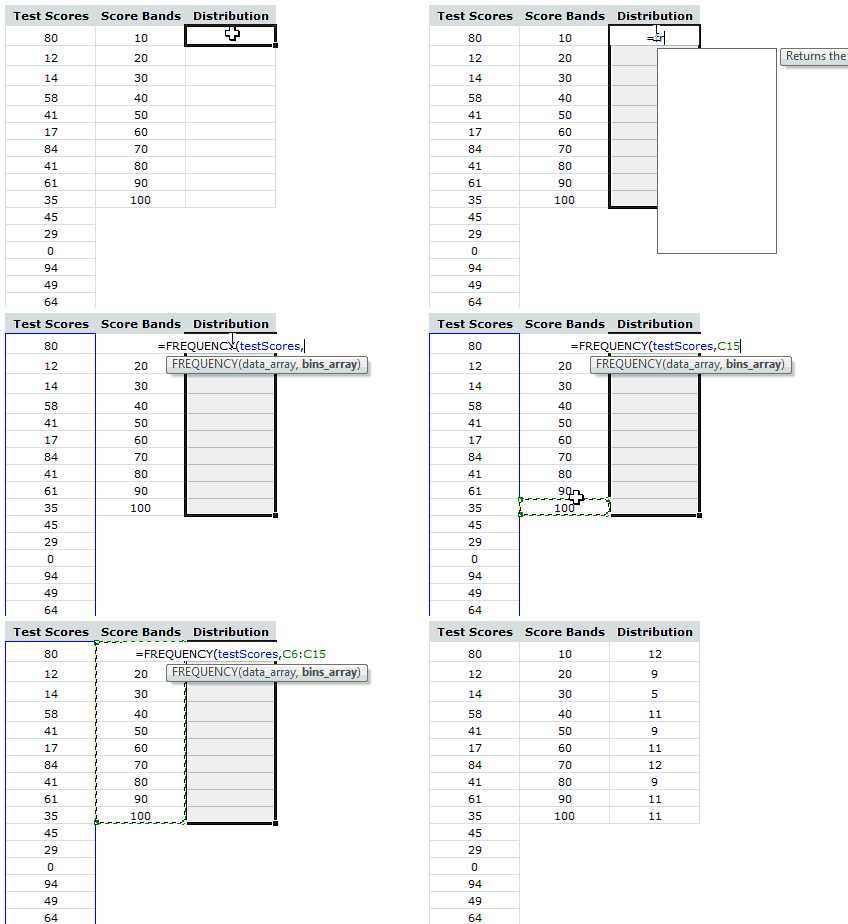
Read Frequency Distributions in Excel
Trend Analysis & Forecasting using Excel
One of the most common applications of statistics is trend analysis & forecasting. Again, Excel shines with a lot of powerful formulas, built-in features and charting tools to help you understand the data & predict future based on that.
Since this is a big topic, we have covered it in 3 parts –
Part 1- Introduction to Trend Analysis & Forecasting: In this, we will learn what is trend analysis & forecasting. We will see manual forecasting technique in Excel. We will use Excel charts to depict our analysis and results.

Part 2 – Trend Analysis & Forecasting using Excel Functions
In this second part, we learn about Excel’s functions like LINEST, TREND, FORECAST, SLOPE, INTERCEPT, LOGEST and GROWTH. These powerful formulas can process lots of data and extract the trend information dynamically.

Part 3 – Trend Analysis & Forecasting using Charts & Macros
In the final part, we talk about how to use Excel chart’s trend analysis & forecasting features to estimate the trend & predict future values based on the data.

We also learn how to use Macros (VBA) to augment Excel chart’s trend-lines with useful information.
Visualizing Distribution of data with Box Plots
Box plots are an excellent way to understand the distribution of data. Unfortunately, there is no direct option to make a box plot from given data in Excel. That is where, this tutorial comes handy.

Learn how to create box plots in Excel.
#2 Downloadable Excel Workbooks
Learn Basic Statistics & Gaussian Distribution using this Excel Workbook
Glen, one of our long time readers shared this file with me. It lets you perform statistical analysis, quality control analysis, visualize Gaussian distribution based on the data you enter.
Click here to download the workbook.

Thanks Glen.
More Downloadable Workbooks
Almost all of the links in this page will take you to detailed articles on Chandoo.org, where you can also find downloadable workbook with examples. So just click thru and learn. 🙂
#3 Full blown models & simulations in Excel
A full blown model lets you learn various statistical concepts, Excel features and how to bring them all together to mimic a real-life situation.
Simulating Deal or No Deal game in Excel
In this simulation of Deal or No Deal, a popular television game, we use basic probability, permutations and Excel formulas features. You will learn how to assign random values to the suit-cases, how to use circular references, how to calculate the banker’s offer.

Simulation of Deal or No Deal game in Excel
Generating Housie / Bingo Tickets in Excel
Housie (Bingo) is a popular recreational game where the tickets contain 15 numbers between 1 to 90, arranged in 10 columns (3×10 grid). First column has numbers between 1 to 9, second column has 10 to 19 so on..
Generating a bingo ticket in Excel is a nice exercise in statistics, permutations and Excel formulas.

Learn from Bingo / Housie Tickets in Excel
Data Tables & Monte Carlo Simulations in Excel
Excel has powerful features to let us do complex simulations of real world situations. One such feature is called as data table.
The Data Table allows a set of what if questions to be posed and answered simply, and is useful in sensitivity analysis, variance analysis and even Monte Carlo (Stochastic) analysis of real life model within Excel.
The case of Blue Sky Mining Company
To help you learn about data tables, Monte Carlo simulations, we have put together a fictional mining company – Blue Sky co. and analyzed its performance under various assumptions & simulations.
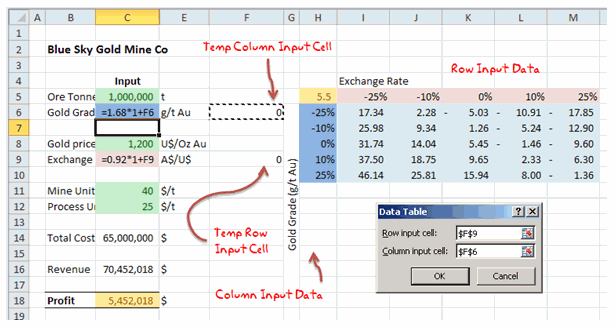
To learn about this, visit Data Tables & Monte-Carlo Simulations page.
Modeling & Scheduling a FIFO (First In First Out) Queue in Excel
FIFO queues are very common in life. You can see them at Airports, coffee shops, Apple stores; Except at Airports it is FIFOUYC (FIFO Unless You are Crew).
In this article, we model & schedule a FIFO queue using Excel.
More Full Blown Models & Simulations in Excel
For more examples, check out these links.
- One more example of Data Table & Linest
- Simulating 3D dancing pendulums in Excel
- Simulating Monopoly Board Game in Excel
Do you use Statistical Concepts for your work?
As a small business owner, a good portion of my work involves statistical analysis, forecasting and simulation. I run estimates for our website traffic, revenues. I run statistical tests (split tests etc.) to optimize our sales pages, website. I estimate when my kids wake up from their nap (based on past experience) and plan my work accordingly. Thankfully, for the last part, I do not use Excel 😀
What about you? Do you use statistical concepts for your work? What are the things you use and how does Excel help you in that? What are your favorite formulas, features and tips? Please share using comments.
Special thanks to Hui & Glen
Many thanks to Hui, our resident Excel ninja for writing many of the articles on statistics, simulation, forecasting & trend analysis.
Special thanks to Glen for sharing the analyze-this file with us.
Say thanks to them if you enjoyed this.


37 Responses to “Quickly Change Formulas Using Find / Replace”
Chandoo,
this is a really cool stuff what I use quite often. In addtion this method also could be a good choice to switch the reference type of the formulas from relative to absolute or vice versa. (just simply replace the $ in the same way).
Andras
@Andras: you are right, we can use find / replace to change references, reference types etc. Now, only if they had regex in find/ replace, we could so much more 🙂
@Tony Rose: Thank you. This is very useful and powerful feature. I even use it for cleaning up data. While formulas are good, they are not the solution for every problem. Often when I need more powerful cleanup / changing, I copy paste the stuff to text editors like notepad++ and then use their find/replace to do the dirty task.
What if i have to change the formula from ='Analysis'!C1 to 'Analysis 1'!C1?
I tried doing it using Find /Replace but could't. Encountered some errors.
And is there a way to change this using VBA???
Hi,
Did you ever get a reply to this?
Thanks
Ollie
to make your life easier, suggest you to avoid (Space) in worksheet names whenever possible. Consider (underscore) instead.
As the first formula wouldn't have the single apostrophes (since there's no space) need to include that in replace. So, search for:
Analysis
and replace with:
'Analysis 1'
This could be the most useful tips I've seen in a while. I use this all the time and can instantly change 400 formulas with a few clicks. Like so many other functions in Excel, I don't know what I would do without this one.
Keep 'em coming!
[...] on formulas: 5 areas where mouse kicks keyboard’s butt | Edit formulas in bulk using Find / Replace | Excel Formulas Online [...]
THANKS BRO
You, sir, are a god among men...
This is really cool. Your just save me hours of work. Thanks.
Thanks so much for this fix! It saved me tons of work. I'm muddling my way through and this really helped!
Oh... My... God!
This tip just saved me about 2 hours every month! I can't believe how easy it is to use. Now, can somebody tell me who I should call to get a refund for the previous 100 hours I spent manually changing formulas cell by cell?
Thanks so much!
THANK YOU!!!
THANK YOU!!!!
You saved me hours, I had a sheet that has more than 500 formulas, and i needed to replace the year in all of them, you saved me hours
Awesome info on replacing cell addresses in formulas. I have never heard about Ctrl+` before. Thank you!
I have something inside a formula like:
=sum(A1, A2*10) all over I now need to get rid of the *10 {=sume(A1, A2)} I thought to use the find replace trick above but with a blank in the replace but it then outputs just zeros. I thought I could trick it by doing *1 but then it just turns into =*1) with none of my references. Does anyone have an idea how to do this?
The Ctrl+ trick is cool.
@T
Instead of replacing with a blank try replacing
*10)
with
)
Thank you! This literally will save me hours and hours of time, and that's without losing my sanity in the process!
I have Sheet(1), Sheet(2), Sheet(3), etc ... Sheet(100).
Then there's a summary tab where I want to recap information on all those different sheets. Is there anyway to create a formula on the Summary tab to get ='Sheet(1)'!B$29 copied down for all 100 sheets without having to change each sheet # within the formula by hand?
@Brigitte
If you have a list of the sheet names in A2:A100
In B2: =INDIRECT("'"&A2&"'!$B$29")
Copy down
or if you don't have a list of the sheets names you can make it up on the fly
=INDIRECT("'sheet("&ROW()-1&")'!$B$29")
Copy down
Thanks for the suggestion. However, I copied your formula right back to my file and it didn't work. So I did it another way. I put the tab/cell reference in one cell and then did an =INDIRECT() to capture that information.
K2="'Sheet("&L2&")'!B$29" which has a value of 'Sheet(1)'!B$29
B2=INDIRECT(K2) which now has a value of 40 (contents on Sheet(1).
Thank you!!!!
Thank you ..
Hi, Out of all the formulae, I wish to replace the formula which has generated 0 value with blank space? I am unable to do it with find and replace function,
Please suggest.
Thanks.
Chandoo, you literally just saved me about 2 hours of work. I had a document with a daily report in two formats. The second formate just linked to all the appropriate cells in the other format (different sheets). This was 180 references that needed to be changed and I had to make this for a 4 week period (aka 28 different sheets at 180 references to change per sheet).
Thanks so much.
I have tried this way and without using the Ctrl-` formula view
Either way, I am trying to do something simple, but it won't let me.
I have a bunch of cells with a simple math formula like
=-(0.5*20)
various values in each cell, multiplied by 20
I simply want to change the multiplier globally from 20 to 25. But when I tell it to find *20 and replace it with *25, it replaces the entire cell contents with *25, rather than just replacing the *20 portion of the cell contents.
Can anyone assist with this? Seems so simple, but Excel isn't letting me do it.
Search/Replace 20 or 20) with a cell Reference eg A1 or A1)
Then put the value 25 in A1
By using a * in the search it replaces all the text
how to find a specific cell's value in a column & replace replace it with another cell value i actually need a method to replace a data in ca column and replace with the value i have in a specific cell can i give a [ location ] of data to what i need to find and then give row or column range to where i need to find and the given value & then give a [ location ] of data to what i want to be replace with the find and replace by row & column range & than by specific criteria and than by specific location.
please help.
how to find a specific cell’s value in a column & replace replace it with another cell's value.
i actually need a method to find a specific cell's data in a column and replace it with the value i have in a specific cell.
can i give a [ location ] of data to what i need to find and then give row or column range from where i need to find the given value & then give a [ location ] of data to what i want to be replace with.
find and replace by row & column range & than by specific criteria and than by specific location.
please help.
how to find a specific cell’s value in a column & replace it with another cell’s value.
i actually need a method to find a specific cell’s data in a column and replace it with the value i have in a specific cell.
can i give a [ location ] of data to what i need to find and then give row or column range from where i need to find the given value & then give a [ location ] of data to what i want to be replace with.
"find and replace by row & column range & than by specific criteria and than by specific location."
in more than 100 sheets in entire workbook
please help.
This is a great tool, does anyone knows an easiest way??
I'm working with a system that has over 59000 references... so every time the replace all is activated. I lose an entire day.
i actually needs to find cell number "D12" in column "D" and replace with Cell Number "B8" for example
find what = Cell Number "D12" John McNamara
find Where = in Column "D"
Replace with = Cell Number "B8" Bieber D'Souza
Replace Range = Column "D"
In which Sheet = All Sheets in Work Book (more than 100 Sheets)
Note: in every Sheet Cells Number "D12" & "B8" containing Different Employ Name but the find rang and replace rang are same in every sheet and find what cell number and replace with cell number are same also.
please help!
thank you. saved lot of time.
Thank you from the bottom of my heart!
Hi, I am trying to figure out how to use RE to find and replace several values in a column. Using find and replace does not work because of the values I am working with. I have a column with hundreds of rows that have a description of several operating systems and other info, which looks like this: Windows Server 2008 R2 Member Server Security Technical Implementation Guide; Windows 2008 Member Server Security Technical Implementation Guide; Solaris 10 10 SPARC SECURITY TECHNICAL IMPLEMENTATION GUIDE; and Windows Windows 2003 Member Server Security Technical Implementation Guide.
I need to be able to find and replace (or basically curtail the descriptions) to be Windows 2008 R2; Windows 2008; Windows 2003; and Solaris 10. BUT when I run find and replace with just *2008*, it finds every instance, including the ones with R2 at the end. I need it to only change the ones with 2008 to Windows 2008 and the ones that have 2008 R2 to Windows 2008 R2. I know it is possible, but I have no clue on how to write a macro to do this.
Thanks for your help,
Gerard
Wickedly efficient workaround. Excel really is a powerhouse program, all you have to do is dig into it. Ctl ~ exposes the formulas, and Ctl H allows for the multi edit. Brilliant, Chandoo!