

This is the last installment of project management using excel series.
Preparing & tracking a project plan using Gantt Charts
Team To Do Lists – Project Tracking Tools
Project Status Reporting – Create a Timeline to display milestones
Time sheets and Resource management
Part 5: Issue Trackers & Risk Management
Project Status Reporting – Dashboard
Bonus Post: Using Burn Down Charts to Understand Project Progress
Communication is a very important aspect of project management. Communicating with stakeholders, sponsors, team members and other interested parties takes up quite a bit of project manager’s time.
In almost all the projects I have been part of, the first and foremost question anyone used to ask us is, “how is the project going?”. There is no one line answer to this. A project status dashboard or project status report can help us express the project status in a crisp yet effective manner.
In today’s installment of project management using excel series, we will learn how to make a project management dashboard using Microsoft excel. [related: Making Dashboards using Excel]
To make the project management dashboard, you must answer the following questions,
- Who is the audience of this dashboard?
- Top management or project sponsors or team members or other departments?
- What are they interested to know?
- Day to day issues or High level stuff or Plans or Budgets?
- What is the frequency for updating the dashboard?
- Weekly, Bi-weekly or Monthly or Once in a blue moon?
The answers to these questions will determine what goes in to the dashboard and how it should be constructed.
For our example, I have assumed the following scenario, but you can easily change the dashboard constituents based on your situation.
- Audience of the report: Project Sponsorship Team
- Interested to know: Project Progress wrt Plan, Blocking issues, Overall timeline and Delivery Progress
- Frequency: irrelevant (could be weekly or bi-weekly)
Step 1: Make an outline sketch of the dashboard
Based on the above answers, we vaguely know what should go in to the dashboard. Based on this, we should make an outline sketch of the dashboard. This will help you structure the dashboard on an excel spreadsheet. For our example, this is the outline I have prepared.

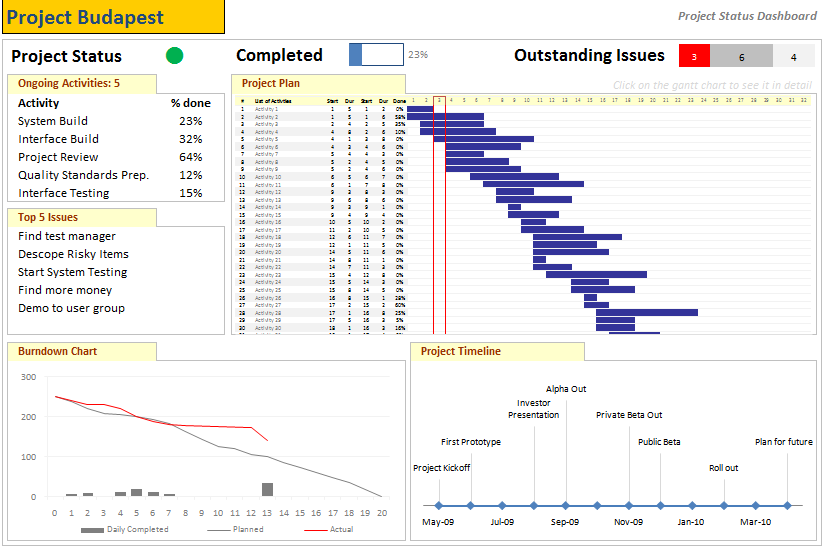
the finalized dashboard will look like this: (click here for a bigger version)
Step 2: Get the data to be placed on dashboard
Making a dashboard in excel is a complex and intricate process. Knowing the outline of the dashboard is only the 10% of work. Getting your data to calculate the dashboard metrics (or KPIs) is the most vital part of any dashboard construction.
In our outline, the sections 1,2 and 3 are purely data and 4,5 and 6 are charts prepared from data.
To facilitate this, first, let us create a worksheet named “data” where we can capture user inputs. These inputs can be further manipulated to make the dashboard.
For our dashboard, we need the following inputs,
- Overall project status and progress
- List of ongoing activities and issues
We will derive other inputs from the following,
- Project Plan Gantt Chart discussed in Part 1 will provide us the project plan
- Project Timeline Chart in Part 2 will give us the timeline chart
- Burn down chart will give us the project deliverable status
- Issue Tracker discussed in Part 5 will give us the metrics related to issues
Step 3: Put everything together and make a dashboard
[PS: I have greatly simplified the process of dashboard construction to keep the article readable. Please note that this step usually takes a few of hours and has lot more detail]
Now that we have all the bits of our data ready, we just need to bring them together to make a dashboard.
We will use the following excel concepts,
- Excel Camera Tool to get a live snapshot of the project gantt chart
- Conditional Formatting to show Red, Green or Amber traffic light to depict the project status
- Thermo-meter chart to show the project progress against 100% total
- We will create a stacked bar chart of outstanding issues by using SUMIFS formula. [counts for issue status=”open” and issue priority=”high”, issue status=”open” and issue priority=”medium”, issue status=”open” and issue priority=”low”]
Let us place the remaining pieces of dashboard from already constructed charts and available data,
- Burn-down chart to show the project deliverable status
- Project Time line to show the project milestones over a period of time
- We will create references to the “issue” and “activity” data and show only the first 5 items.
See the below illustration to understand how each part of the dashboard is constructed.

That is all, our dashboard is ready now.
Download the project management dashboard excel file
Unlike other downloads on Chandoo.org, this file is locked. You can purchase unlocked version along with 23 other project management templates – Click here to buy it.
- To download the locked version of project management dashboard excel file click these links: excel 2003, excel 2007
- To get an unlocked version of the dashboard along with 23 other templates, click here.
Tell us about your Project Management Dashboard / Status Report
Tell me about your project management dashboard, project status report formats and how it is constructed. Do you use excel or some other tool (like powerpoint, word) to prepare the report? How the report / dashboard generated? Is the process automated or manual? What have you learned from using / making such status reports?
Resources for Project Managers
Check out my Project Management using Excel page for more resources and helpful information on project management.
Also check out below posts to make your project management files awesome.
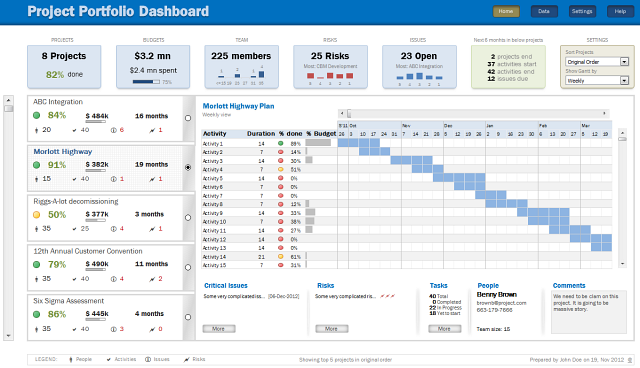
- Project Portfolio Management Dashboard
- Gantt Box chart – depict uncertainty in your projects
- Excel Risk Map template
What next?
This is the last installment of project management using excel series. I am looking for ideas to extend this series in useful manner. Please use comments to tell me what other activities of project management can be made easy using Microsoft Excel. I will try to write follow up posts if the topics are interesting.
Thanks a lot for reading the series and suggesting valuable inputs to make it better. I have learned a lot about project management and excel writing this series. I hope you have picked up few concepts too.
Tell me your feedback using comments.


36 Responses to “Visualizing Financial Metrics – 30 Alternatives”
Although I am one of the contestants, I must wholeheartedly admit that the Dashboard of Chandeep is the best of all. It's design, colors, message-conveying is the greatest. My regards!
I would like to learn how Chandeep highlighted the graph when he made a selection on the slicer.
Any links to previous posts perhaps where this was covered by Chandoo?
Thank You
Ahmad
Dashboard from Abhay simply rocks. To the point and conveys the intended message even for a novice.
Infographic by Pinank - is looking good
I have also contributed to this contest. I am really inspired by various entries in above post. Based on following parameters i would like to rate these:
1. Explanatory - Whether dashboard will be used to explain certain thing or mention a story. This type of dashboard will be static.
2. Exploratory - Here user would like to interact more with the dashboard to extract the relevant story or meaning which is not apparent. Hence, this type dashboard needs to have more interactivity.
3. Scalability - If new or more data can be added to dashboard and still the functionality will work. If user wants to add more companies, years, etc. will it work.
Based on above criteria I would rate following entries as top ones:
1. Explanatory - by Pinank
2. Exploratory - by Chandeep
3. Scalability - In most of the entries additional work would be required to include more data except for mine. new years or companies can be easily added and analysed in chart by me.
These entries are really inspiring i will definitely use it to revise my dashboard.
Abhay's dashboard is good however, if Chandeep can go with the trend analysis Abhay has done (line graphs), then maybe Chandeep's dashboard can excel.
And now I'm angry that I haven't noticed contest announcement earlier and I've sent what I've sent... Building a dashoboard was supposed to be my goal but lack of time forced me to sent sth simplier and now I can see how big mistake it was (when it comes to fighting a competition like this). Nice work guys! It's realy inspiring! Even less advanced works are intresting because of different task approach. So wance again: thanks 🙂
If I had to choose the best ones (IMHO) I would go for William and Edouard as a second place (for both). Despite some weak sides (like label errors or "work place" next to a final chart) they meet my sense of clear data visualisation and contain intresting interactive elements.
The best entry is definitly Chandeep's. Although there was some failing with automatical comenting feature (#arg! in my Excel'10) it's full of advanced dashboarding tricks which makes it easy to read. Furthermore, as one of the few he finished(?) his project - it opens in a "secured mode", with no place to mess anything, no data trash - just choose, point and read/print.
It all deserves to get the Grand Prize!
and BTW: when can we expect another contest? 🙂
Big round of applause to everyone who participated. I'm amazed at the creativity of our community. 🙂
My vote would be for Chandeep, MF Wong, and Miguel.
I have not contributed, but have read this post with a lot of interest. I would like to congratulate all participants for there work & inventiveness.
My #1 spot goes to Gerald for showing all the data in 1 graph & to have still kept it simple & readable.
I would give a prize for innovation to Pinank for the use of icons.
Great to see so much creativity.
I have not contributed also, but have wait his post for a long time (because I have the same kind of issue in my "daily life").
My top 3 is the following :
- Pinank for the effeiciency and for the style
- Arnaud for the calculation behind the chart
- Miguel for the elegant business oriented dashboard
All the entries look very good. However I feel Pinanks entry seems the best as it is very explanatory with good innovative thoughts.
Hi all,
Some brilliant dashboard and interactive entries - really nice stuff and lots of clever tricks.
However, given that the initial question was "Need to quickly visualize 3 variables ( Company, years, Financials) in a single […] chart", unfortunately I don't think any dashboards - as cool as they are - really answer that question. The interactives also assume that this will be opened in Excel rather than seen in a printed hand-out, which essentially means you'd need multiple charts to show all the variables or be limited to a computer screen. Even Chandoo's initial panel chart approach - which is static, and also very simple and clean - is not really a 'single chart'. Furthermore, most of the interactives don't actually show all variables at once but rather slice the data into more manageable chunks, which is not staying true to the original brief.
So, in light of the above, I'd vote for Gerald in first place, Edwin in second and finally my third chart option in third place (yes, I know, voting for yourself is poor form but unfortunately I think the original question disqualifies most of the entries).
Anyway, a fun competition and thanks for following up on this Chandoo.
I am once again in awe of the submittals to a Chandoo contest. The results are so impressive. I have been trying to build nice dashboards for years and take so many courses, but I don't seem to have the eye for design. The color choices, fonts and chart choices are so important and I'm amazed at how some people really have a great talent for making the best selections.
It's nice to have such quality inspiration!
I saw Chandeep's entry on his website and I must say that I was very impressed by it. Simply loved it. Somewhat makes it difficult to keep an open mind towards the other entries.
My ranking:
1. Chandeep for its completeness as dashboard.
2. MF Wong/Miguel for "simple" but smart graphs.
3. Pinank's entry looks like a page from a glossy magazine.
During scrolling I stopped at Chirayu's entry: easy to the eye.
But honestly congrats too all for having the balls to participate and thank you for sharing your creativity!! Hat's off to you.
Miguel, MF Wong, and Pinank.
Thanks to Chandoo and everyone who contributed for the great ideas.
Hi,
I personally liked the dashboard of:
1. Chandeep - His dashboard is clear, crisp and informative, his color combination and design is awesome, also he has shared few details like operating leverage plus he has added few comments. In totality, its a complete packaged dashboard.
2. Miguel - His dashboard is simple and all the information is visible in one shot.
It's very interesting looking through these - you can definitely tell who's done courses in dashboard design and with whom!
I particularly liked Pawels 'sperm chart' 😉 ... squint your eyes - you'll see what I mean). each of the charts or dashboards are put together well - but I agree with Elchin on this one - Chandeeps dashboard set 'tells a story' of the data. Student of Mr Few??
Without a doubt, Chandeep deserves #1. #2 goes to Abhay, and #3 to Pinhank, for the great presentation style if nothing else.
MF Wong
Do not apologize for any delay! Moving from one town to the next only 10 miles away is tough enough - let alone a family moving from one country to another!
THANK YOU for this excellent post!
As one of the participants, I have been looking forward to this post for long. But totally understood the reason of delay, so never mind! Hope all is well in NZ.
Thank you very much to those who like my chart! 🙂
Also thanks Chandoo for suggesting a name for it "Container Chart", which I have never thought about.
Personally I like the infographic by Pinank. Very outstanding design and use of icons. My two-cent worth: Just the lower part of "Yearly Trend" is actually good enough to answer the question, isn't it? 😉
Cheers,
What an outburst of creativity!
Vote for Chandeep and Pinank!
Agreed!
Awesome dashboards
Infographic by Pinank is awesome
Thank you so much for sharing!! i learn so much from these posts
Highly appreciated
Ahmad
South Africa
Fantastic responses from all the contestants. Some really great ideas. I'm inspired and will adapt some of these to my own dashboard work. Thanks for hosting such a great contest!!
Thank you for sharing this valuable resources !!!
I have only a couple of question that wasn't able to solve regarding data-origin.
Nowadays I have the data coming from a "current" situation from a big database containing all kind purchase-orders information of many different projects. I can calculate the current status of each project investments, but I am not able to track automatically the progress of it month to month or week to week by freezing the calculated metrics on each date. This would let me calculate new graphs and the speed of investments execution.
My question would be, if it is possible to calculate something with an excel formula and automatically freeze this values in a new row or new column. I guess that right now, Basic is the only way, but I guess that there could be a function to copy-a-range, insert-range-as-value-only as a new row or a new column or display everything down or left.
This would preserve the excel formulas defined, and add new data, everytime that it is re-calculated.
Any idea?
Great post , loved all chart representation. Congratulations to all participants and winners.
I need updates to this article.
I didn't even realize this got posted. Came across it today. Thanks
Fantastic post but I was wondering if you could write
a litte more on this subject? I'd be very thankful if you could elaborate a
little bit further. Thank you!
Hi Chandoo,
I comeback after a long time on your Blog. So I saw it lately. Its a brilliant idea.
I like all entries and these are amazing efforts from all participants.
Regards
The report presented by Pinanik is excellent and very innovative. Could be an interesting work for portfolio presentation