

Jo (wife) likes to watch Masterchef Australia (link), a cooking reality show every night. Even though I do not find contestant’s culinary combats comforting, occasionally I just sit and watch. You see, I like food.
The basic premise of the program is who cooks best in given time. To tell people how much time is left, they use a clock that looks like this:
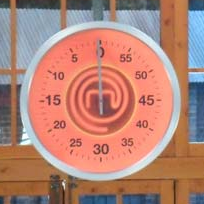
The needle indicates how much time is left (much like a stop clock, with a small twist).
One day, while watching such intense battle, my mind went
- It be cool to make such a clock using hmm… Excel?
- Wouldn’t it be cool to grill a snapper & eat it than watch someone else do it
While I cannot share my snapper (or pretty much any other food item) with you, I can share my Masterchef style Excel clock with you. So behold,
Here comes the Masterchef style Clock in Excel
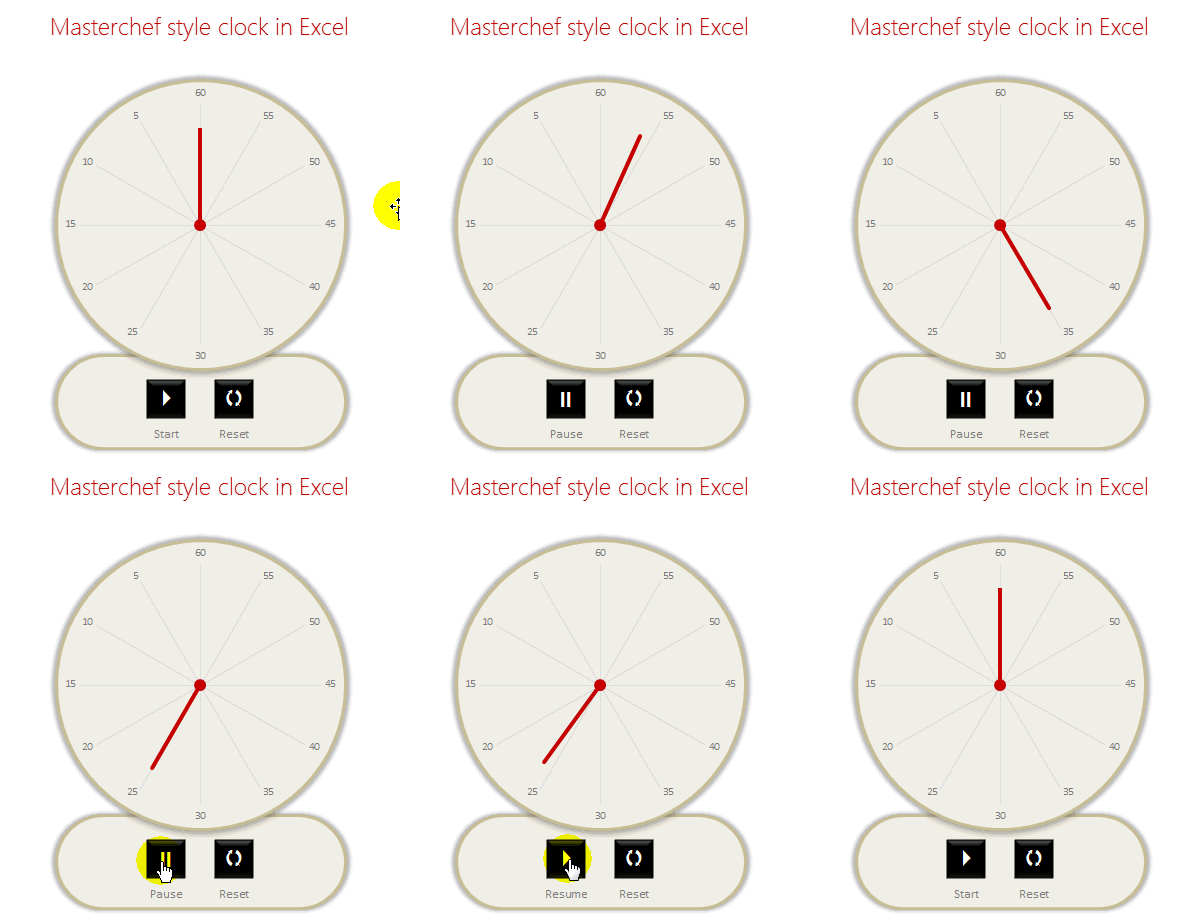
How is it cooked?
Don’t you worry. This recipe is not as complicated as a Masterchef recipe. With enough time & trigonometry, anyone can do it.
The clock (chart) has 2 parts. Dial & rotating hand.
While we can create both of them in one chart, I choose the path of least resistance i.e. Make one chart each for Dial & Hand and overlap them nicely.
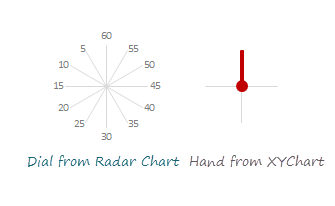
Making the Dial
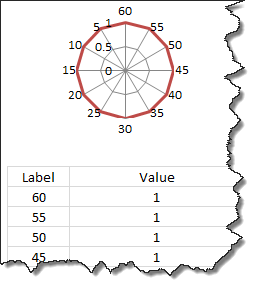
This is simpler than it looks. All we need is numbers 60 thru 5 (60,55,50…10,5) in a range & twelve 1s in another range. Then, we select both and make a radar chart. Once you adjust it, it should look like this:
Making the Rotating Hand
The hand is nothing but a line on a scatter plot with (0,0) as one point & (x,y) as another point. To calculate (x,y) we need to know how many degrees our hand should be rotated.
Hand of our clock starts at 60 and rotates clock-wise (duh!). That means if the time completed is 5, our clock’s hand should be 300 away from initial position.
Thus, x = sin(300), y = cos(300)
Same in Excel would be SIN(RADIANS(30)), COS(RADIANS(30))
For more on this calculation, refer to Spoke Chart Technique.
Running the clock (using VBA)
Our job is not done when the clock is assembled. We must give it batteries thru VBA.
The basic logic for running the clock is simple:
- When clock is running
- Check if it next second yet
- Move the hand (by modifying the value of done seconds)
- If not, just wait
You can see the code (and break it if you must) in the download file.
Download Excel Clock & Play with it
Click here to download this clock. Examine the macros assigned to the buttons. Play & Pause the clock.
Do you watch Masterchef?
Of course I am kidding. What I am really keen to know is do you make any clock / timer related things in Excel? I use timer features often to add animation, count-down features to my workbooks. They work really well.
What about you? Have you used such techniques? What is your experience? Please share using comments.
PS: If you must know, I prefer Amazing Race to Masterchef. I guess I get more pleasure watching people run around globe than run around in a kitchen.
More Charting Recipes
If you like a well cooked chart, we have got one too many in our pantry. Check out,
- Spoke chart in Excel
- Grammy bump chart
- Competitive Analysis Chart
- Polar Clock in Excel
- Data around the clock
Or consider joining my Excel School program to cook fine Excel workbooks & charts. Click here.


25 Responses
Well….. now its a offical….. You, Sir, are one crazy, excel ninja guru key master!!
WOW WOW WOW!!
Is there a way to have this clock run within PowerPoint 2010? I inserted the Excel spreadsheet, but it would not run in PPT.
Great job,
I try to combine in one chart but not yet with success. Anyway, it is a good idea.
For the dial, another presentation with bubble chart is also tried, but to scale X and Y axis with the same proportion, is it only way required VBA (done in your post)? or existing other way without VBA.
Many thanks,
Very cool!!!! Can you have a buzzer sound when time is complete? That would be a nice enhancement.
@Bob
Goto VBA (Alt F11)
Replace the updateClock() module with the following
If your version of Office isn’t 64 Bit remove the word PtrSafe from the Declare line
Declare PtrSafe Function PlaySound Lib "winmm.dll" Alias "sndPlaySoundA" (ByVal wavFile As String, ByVal lNum As Long) As LongSub updateClock()
'update the clock once every minute
Dim start
Dim pause
start = Timer
pause = IIf([valPause] = "Seconds", 1, 60)
If [valRunning] Then
Do While (Timer < start + pause)
DoEvents
Loop
If [valRunning] Then
[valDone] = [valDone] + 1
If [valDone] > 60 Then
[valDone] = 0
Call PlaySound("C:\Windows\Media\Windows Default.wav", 0)
End If
updateClock
End If
End If
End Sub
update_clock is a recursive function. While this undoubtedly seems like a cool technique, recursive functions MUST have a terminating condition.
Infinite recursions will cause you to run out of stack space, and the macro will crash. You need to refactor it into a loop.
But other than that subtle issue, totally badass. You continue to surprise my with your spreadsheet ninja skills.
Very, very cool!!!
Thank you
Thank you very much for this useful post.
I am new to excel macro and have some stupid query related to macro used for this work.
start = Timer
pause = IIf([valPause] = “Seconds”, 1, 60)
How macro gets the value of Timer which is 33876.29. Timer value is not defined in macro anywhere. same thing is with “Seconds” and “[valPause].
What is the difference between “valPause” and “[valPause]”.
Awesome!!!!!
hey, instead of using a recursive function which as mark has rightly pointed above you could use “application.ontime” and save yourself from “doevents” as well :).
Hi Hui: Thanks. However, when I use your code I get a Compile Error: Syntax error. The lines
Do While (Timer < start + pause) and
If [valDone] > 60 Then
are highlighted in red. Do you know how to fix this.
Bob
@Bob
Go back to the original file and add the two lines
Declare PtrSafe Function PlaySound Lib "winmm.dll" Alias "sndPlaySoundA" (ByVal wavFile As String, ByVal lNum As Long) As Longand
Call PlaySound("C:\Windows\Media\Windows Default.wav", 0)in the positions shown above
You also may have to retype the ” characters as they regularly get messed up here
So that other people may understand it, I have distilled the essence of the problem of infinite recursion with these two functions:
Sub blow_the_stack()
On Error GoTo help
Dim i As Long
i = 0
recursive_count i
help:
MsgBox “Stack blown after ” & i & ” function calls”
Exit Sub
End Sub
Function recursive_count(i As Long) As Long
i = i + 1
recursive_count = recursive_count(i)
End Function
recursive_count calls recursive_count, which calls recursive_count, which calls recursive count, which calls recursive count, …etc. Each function adds a little bit onto the program stack, until the limit is reached.
Recursions are beautiful in their own way, and you can use them as substitutes for finite loops, but should NEVER be used for an infinite loop. For a toy example like this, just meant to show “Look what you can do” it won’t cause a problem, but if you actually want to use this code to monitor something, that recursion is a critical flaw.
Awesome, very cool trick!
hi all,
This cool (clock) counts one minute for the full circle, how can we make it count 30 minutes, 45 minutes or even one hour”?
Hi Ahmed,
Just change the seconds to minutes in the drop down (D28) & modify the total time available (D25). It should work.
Clock in Excel in czech version http://office.lasakovi.com/excel/grafy/graf-xy-bodovy-hodiny/
hi chandu,
u r from which state ? i think u r from Andhra Pradesh, near TENALI. may i correct.
Sir, how to add two digit no. (reciprocal) till its comes in single digit e.g 98 must be 9+8=17, 1+7=6,
@Ajendra
Have a read of:
http://www.ozgrid.com/forum/showthread.php?t=58770
Just one point Chadoo. You have a call to a function – updateClock -within the function updateClock, which will, after a while, lead to a stack overflow.
Nice idea but overcomplicated. I have updated to create a real-time clock (hour, minute & second hands) which only uses 6 lines of code (excluding the names of the functions.
Check it out here: https://drive.google.com/file/d/0B7RLZenzeL8BbFVTZllqYVVMRlU/view?usp=sharing
Just realised it’s 4 lines of code as the resetClock function is redundant.
Interesting & better solution Richard. Thanks for sharing it.