

We know that using VLOOKUP, we can find a value corresponding to a given item. For example Sales of x. But what if you have multiple sales for each item and you want the last value?
Today lets understand how to find the last date of an activity, given data like this:
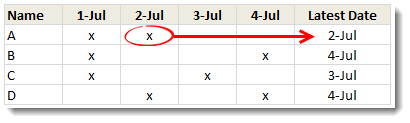
[Note: thanks to SDK who asked this question in a comment]
Like everything else in Excel, there are multiple ways to finding last date. If cats can use computers, they would hate Excel. You see, Excel is overflowing with unlimited ways to skin a cat.
Method 1: Using LOOKUP formula
Assuming the data is in range,
- Dates in $C$3:$F$3
- x marks in C4:F4
We can use =LOOKUP(“y”, C4:F4, $C$3:$F$3) to find the last date.
Why find y? Simple, since our data has “x” against date & name combinations, we just find the next letter (y). So LOOKUP formula stops looking after finding the last x. You see, LOOKUP formula assumes the list is sorted, so if it cannot find a match (in our case – y), it would return the closest match (ie, the last x).
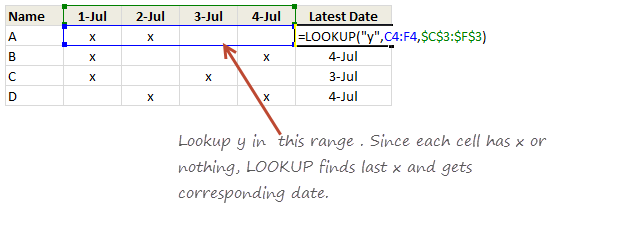
Related: Comprehensive guide to Excel VLOOKUP & other LOOKUP formulas.
Method 2: Using MAX & SUMPRODUCT
I am like Gus Portokalos in My Big Fat Greek Wedding movie. SUMPRODUCT is my Windex. I use it for tough data, complex questions, sores, minor ailments & occasional car dents.
In this case, a formula like =SUMPRODUCT(MAX(($C$3:$F$3)*(C4:F4=”x”))) would do the job.
To be honest, just MAX(($C$3:$F$3)*(C4:F4=”x”)) would do too, but then you have to CTRL+Shift+Enter it.
How does it work? Since dates are just numbers, we take the dates & multiply them wherever there is x. So, it would be,
{41091,41092,41093,41094}*{TRUE,TRUE,FALSE,FALSE}
Which will be,
{41091,41092,0,0}
Then we find the maximum of this, which is 41092 (the number corresponding to 2-jul-2012).
Since this is an array operation, we can either CTRL+Shift+Enter it or wrap it inside SUMPRODUCT, like the G(r)eeks do. And that gives the answer.
More on this: Writing MAXIF formula in Excel, Introduction to SUMPRODUCT
Download Example Workbook
Click here to download example workbook. I have a bonus homework form you in there. Go ahead and solve it.
Your Homework
Time for a quiz. How would you find last date for a given name, if your data is like this?

Go ahead and share your answer.


39 Responses
Hi Chandoo,
Here is my answer to this =SUMPRODUCT(MAX(($C$13:$C$20)*(B13:B20=F12)))
Method 1 is genius. Well played.
{=MAX((A2:A9=D1)*(B2:B9))}
The simplest one
=MAX((B13:B20=F12)*C13:C20)
Array Enter
To avoid the array enter
=MAX(INDEX((B13:B20=F12)*C13:C20,0))
Other option if dates are shorted Oldest to Newest
=-LOOKUP(0,-C13:C20/(B13:B20=F12))
Regards
Gosh. I wrote all that IF……….First thing tomorrow, I’m rewriting the formula.
=LOOKUP(2,1/(B13:B20=”B”),C13:C20)
Change the text to A, B, C, D as and when required
Chandoo,
Nice post. Can we take it one step further? For example if range A1:C30 held data on the number of votes that say three movie stars received each day over a period of a week (Name in A1:A30, Date in B1:B30, No of Votes That Day C1:C10), is it possible to run a formula that returns the number of votes received by each star on the latest date? Note not all stars will receive votes on every day.
@ Linda, try this.
=LOOKUP(0,-B1:B30/(A1:A30=Start to look for),C1:C30)
Regards
Elias,
Thank you for your suggestion. Unfortunately it only works if the data is sorted. I was wondering whether it was possible to use Chandoo’s method to extract this information from data that is not sorted.
Regards,
Linda
@Linda, Chandoo’s method is based on data sorted too.
Try any of these
=INT(MOD(MAX((A1:A30=Start to look for)*(B1:B30+C1:C30/10^10)),1)*10^10)
Confirm with Ctrl+Shift+Enter
or
=LOOKUP(0,-(A1:A30=Start to look for)/(B1:B30=MAX((A1:A30=Start to look for)*B1:B30)),C1:C30)
Confirm with just Enter
Regards
Elias,
Thanks for your help. I appreciate it.
Linda
Hi Chandoo,
Thanks for your post and I am using the 1st method, the SUMPRODUCT method is still very new to me..
This is the formula I created based on what you have shared:
=LOOKUP(“B”,B13:B20,$C13:$C20)
Then I change the format of the cell to date and got the answer of 2-Jul.
=MAX(($B$13:$B$20=F12)*C13:C20) after CTRL + SHIFT + Enter
HI,
=SUMPRODUCT(MAX((C13:C20)*(B13:B20=”A”)))
=lookup(2,1/(Range1=Cell),Range2)
This works for me
Can you explain (2,1/ part
This is an excellant site – I have solved many of my daily excel hiccups veiwing this site.
I came up with this:
=INDIRECT(“C”&MAX(IF(B13:B20=$F$12;ROW(B13:B20)))) array entered of course
this is my
=SUMPRODUCT(MAX((B13:B20=”a”)*(C13:C20)))
=MAX(($C$13:$C$20)*($B13:$B$20=$F$12)) after CTRL + SHIFT + Enter
Or a longer but cooler version
=INDEX($B$13:$C$20,MAX(IF($B$13:$B$20=$F$12,ROW($B$13:$B$20)-ROW($B$12),0)),2) after CTRL + SHIFT + Enter
=LOOKUP(1,($A$1:$A$8=$D$1)*1,$B$1:$B$8)
Very nice! My girlfriend needed exactly that for tonight!! What are the odds?
I am at home using my french version of excel though and I have to note that here if I lookup (recherche in french excel) “w” I have the first “x” and if I lookup “x” I have the last one. A lookup on “y” gives the last possible date, and not the last “x”…
Strange, huh?
I’ll try this again at work tomorrow, with an english excel, just to check if I am not crazy…
Thanks again Chandoo!!
May replace ‘y’ with “?” then any text letter (non numeric) you write, you will get the date of last entry.
=LOOKUP(“?”,C4:F4,$C$3:$F$3)
It is omega symbol, not the question mark, in my previous post.
Hi
array formula MAX(IF(A2:A9=E1,B2:B9))
The last date of an activity finding formula is so simple i would have never known. Thanks 🙂
Can u also help with finding the first date of an activity between given dates i have been trying so long.
Thanks in advance
How could I miss this post.
={MAX((E5:E12=”A”)*F5:F12)}
I have solved my homework like honest student, without copying anyone 🙂
Have a great weekend to all Chandoo.org readers.
Regards,
Saran
http://www.lostinexcel.blogspot.com
=MAX(($B$13:$B$20=F12)*($C$13:$C$20)) CTRl-SHIFT-ENTER
Easier to understand this formula over some others I think, but I have a variation in a file I am using, and when I paste in 10,000 rows, Excel gets pretty angry.
actually to solve this kinda issue, i would prefer to pivot and choose max in pivot table.
but if you want to use formula then use array formula below in column C.. then just copy down.
{=IF(B2=MAX(IF($A$2:$A$10=B2,$B$2:$B$10)),B2,””)}
later you can filter column C and all A, B, C , D that has max value will appear there, and you can vlookup to another data.
=MAX((B13:B20=F12)*(C13:C20))
Thanks Chandoo How we can calculate the duration between the activities and find the longest one
interesting questions. thanks Chandoo.
without taking advantage of Date (number) and working around LOOKUP limit(ascending):
=INDEX(ColTitle,1,LARGE((ISBLANK(C4:F4)-1)*(-1)*COLUMN(C4:F4),1))
This is a newbie question, but …….How would you right a measure in powerpivot to get this result? I have 3 different cash dispensing safe that are filled once per week always at different times. It dispenses 20’s and 100’s. I need to find out the last time the safe was filled and at any given time find out how much is remaining in the safe with the balance showing cash remaining ie:location A 20’s $2000 100’s $1000
location b 20’s—- 100’s——–
location c 20’s—- 100’s——-
that being said:
this info is in the form of activities, activity(10) is the fill there are(2) activity (10’s) for each fill 1 for the amount of 20’s that was filled and 1 for 100’s activity (9) represents the dispenses of the safe. In the transaction table has the column datetimestamp & activityid this is joined with the safetrans table with column datetimestamp that is joined with the safetransitems table with a column datetimeupdated, denom(denom has both 20’s and 100’s in the rows), and billsdispensed(as a qty) I am way over my head and would love help…….. I can provide any info someone needs!!!
What is the correct answer for the homework?
=LOOKUP($E$1,A2:A9,$B$2:$B$9)
I found a spreadsheet that calculates the end date for achieving my goal weight. The formula has no obvious date wording. The last cell I have a result in uses the formula =IF(ISBLANK(C16),””,IF(AVERAGE(D13:D16)>=0,”?”,((C16-$C$1)/(-(AVERAGE(D13:D16))/7))+B16))
What part of this actually calculates a date?
@Craig
((C16-$C$1)/(-(AVERAGE(D13:D16))/7))+B16
Where I assume B16 is the current date
correct
Row Labels Posting Date FIRST DATE
PT0 611 335 1P0 15-02-14
17-02-14
22-02-14
23-02-14
27-02-14
PT1 000 001 002 20-03-13
21-04-13
03-07-13
PT1 600 100 033 16-02-13
20-02-13
06-07-14
04-02-15
10-02-15
30-04-15
03-05-15
06-12-15
30-04-16
06-08-16
14-08-16
15-08-16
HOW TO FIND FIRST DATE AND LAST DATE FOR THE SALE
I saw your answer “Find the last date of an activity”, but i want to add value like,1,2,3,4,5 instead of “x”, so please tell me how i find the last date of numerical data activity please.
awaiting your prompt reply.
regards.