

We can take any Excel workbook and format it until Christmas, and we would still not be done. But not many of us have so much of time or energy. So, today, lets talk Excel formatting Tips.

1. Use tables to format data quickly
Excel Tables are an incredibly powerful way to handle a bunch of related data. Just select any cell with in the data and press CTRL+T and then Enter. And bingo, your data looks slick in no time. This has to be the best and easiest formatting tip.
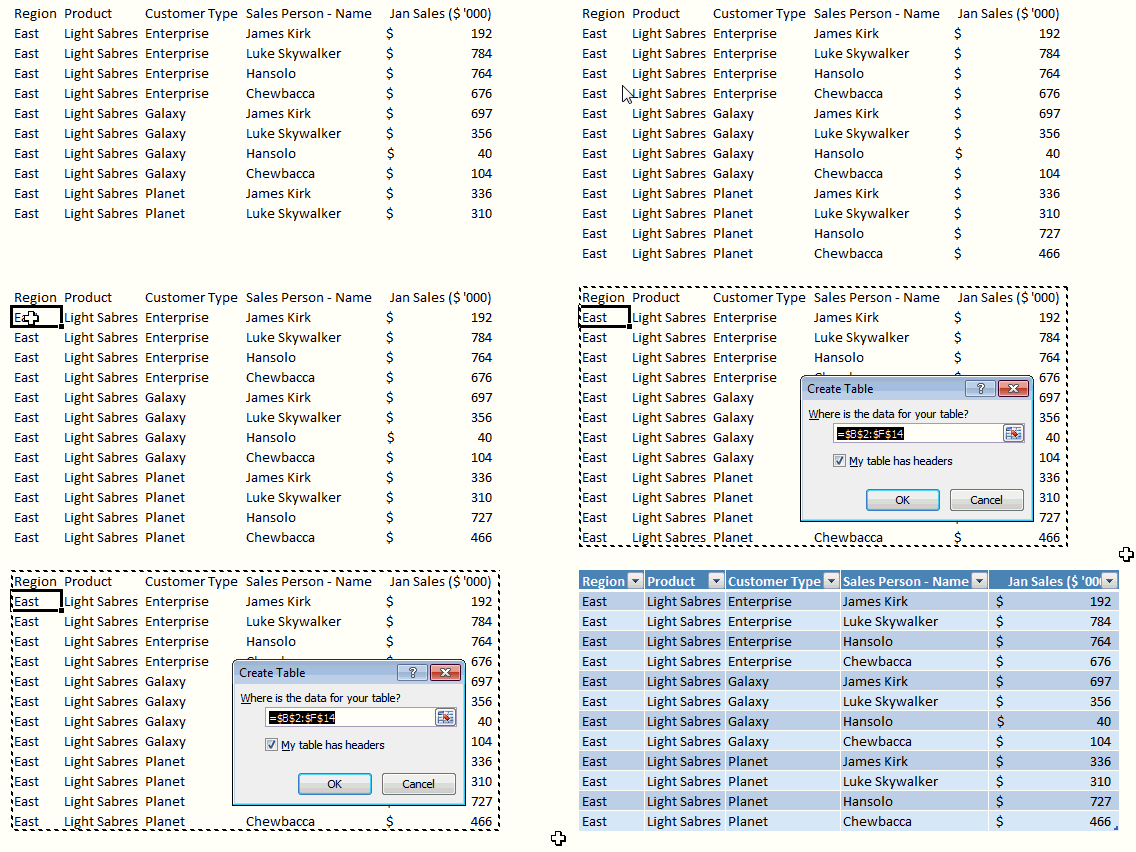
Learn more about Excel Tables.
2. Change colors in a snap
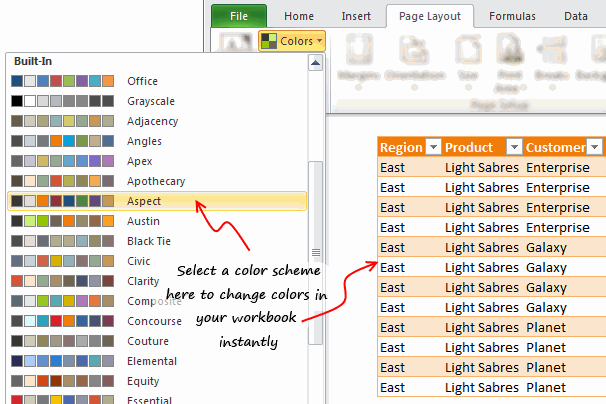
So you have made a spreadsheet model or dashboard. And you want to change colors to something fresh. Just go to Page Layout ribbon and choose a color scheme from Colors box on top left. Microsoft has defined some great color schemes. These are well contrasted and look great on your screen. You can also define your own color schemes (to match corporate style). What more, you can even define schemes for fonts or combine both and create a new theme.
3. Use cell styles
Consistency is an important aspect of formatting. By using cell styles, you can ensure that all similar information in your workbook is formatted in the same way. For example, you can color all input cells in orange color, all notes in light gray etc.
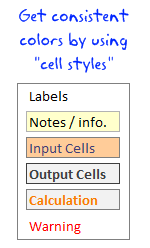
To apply cell styles, just select all the cells you want to have same style and from Home ribbon, select the style you want (from styles area).
Learn how to use cell styles in Excel.
4. Use format painter
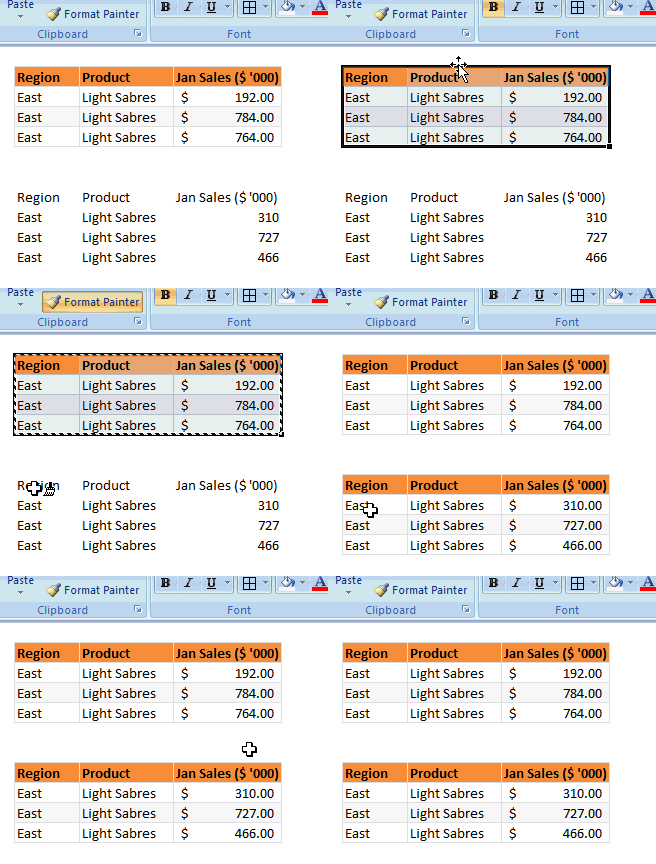
Format painter is a beautiful tool part of all Office programs. You can use this to copy formatting from one area to another. See below demo to understand how this works. You can locate format painter in the Home ribbon, top left.
5. Clear formats in a click
Sometimes, you just want to start with a clean slate. May be it is that colleague down the aisle who made an ugly mess of the quarterly budget spreadsheet. (Hey, its a good idea to tell him about Chandoo.org) So where would you start?
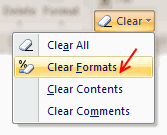
Simple, just select all the cells, and go to Home > Clear > Clear Formats. And you will have only values left, so that you can format everything the way you want.
6. Formatting keyboard shortcuts
Formatting is an everyday activity. We do it while writing an email, making a workbook, preparing a report, putting together a deck of slides or drawing something. Even as I am writing this post, I am formatting it. So knowing a couple of formatting shortcuts can improve your productivity. I use these almost every time I work in Excel.
- CTRL + 1: Opens format dialog for anything you have selected (cells, charts, drawing shapes etc.)
- CTRL + B, I, U: To Bold, Italicize or Underline any given text.
- ALT+Enter: While editing a cell, you can use this to add a new line. If you want a new line as part of formula outcome, use CHAR(10), and make sure you have enabled word-wrap.
- ALT+EST: Used to paste formats. Works like format painter (#4)
- CTRL+T: Applies table formatting to current region of cells
- CTRL+5: To
strike thru. - F4: Repeat last action. For example, you could apply bold formatting to a cell, select another and hit F4 to do the same.
More: Formatting shortcuts for keyboard junkies
7. Formatting options for print
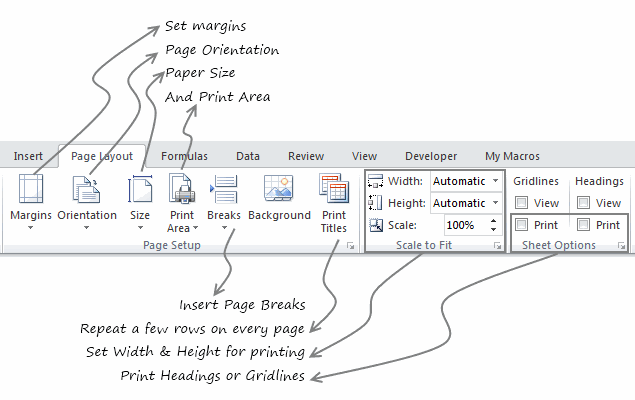
What looks great on your screen might look messed up, if you do not set correct print options. That is why, make sure that you know how to use these print settings. All of these can be accessed from Page Layout ribbon. For more, you can also use print preview and then “page settings” button.
8. Do not go overboard
Formatting your workbook is much like garnishing your food. No amount of plating & garnishing is going to make your food taste good. I personally spend 80% of time making the spreadsheet and 20% of time formatting it. By learning how to use various formatting features in Excel & relying on productive ideas like tables, cell styles, format painter & keyboard shortcuts, you can save a lot of time. Time you can use to make better, more awesome spreadsheets.
10 Formatting Tricks only Excel experts would know
In addition to the above 8 formatting tips, I made a video explaining more tips. Watch it to learn 10 super cool, secret format tricks to take your spreadsheet game to next level.
- Merging without merging – centre across selection
- Merge multiple cells with “Merge across”
- No decimal points for large numbers with Custom cell formatting
- Showing numbers in Thousands or millions with Custom cell formatting
- New line in a cell with ALT+Enter
- Copy widths alone with paste special
- Skip zero in chart labels with custom cell formatting
- Align & distribute charts with alignment tools
- Show total hours with [h]:mm custom code
- Text format for very long numbers
What are your favorite Excel formatting tips?
Formatting (or making something look good) helps you get great first impression. I am always looking for ways to improve my formatting skills. While a great deal of formatting skill is art (and personal taste), there are several ground rules to follow as well. Applying ideas like consistency, alignment, simplicity and vibrancy goes a long way.
What formatting tips & ideas you follow? Please share them with us using comments.
Learn how to make better spreadsheets
- 10 tips to make spreadsheets that your boss will love
- 5 conditional formatting basics to master
- 12 Rules for making better spreadsheets
- More tips on formatting, conditional formatting, custom cell formatting & chart formatting
Join Excel School & Make awesome Excel sheets
In my Excel School program, we focus not just on teaching Excel, but also teaching you how to make awesome Excel workbooks. You can see how I format my data, charts, dashboards & reports and learn hundreds of tips on formatting.
Even the lesson workbooks are beautifully formatted & packed with fresh ideas for you to try.
Consider joining our Excel School program, because you want to be awesome in Excel.


8 Responses to “Top 5 keyboard shortcuts for Excel Charts”
As far as I remember (checked, again, 2 minutes ago) in my "Excel 2013" in order to select various chart elements I need to use the Arrow keys and not the TAB key.
Practically, the TAB key does nothing (within a Chart).
----------------------------
Michael (Micky) Avidan
Thanks for pointing this out. This is how I remember it too, but when I was recording the video yesterday, only TAB key worked. MS must have changed the keys in Excel 2016. I have edited the post to include both keys.
The key navigation on charts is different in 2016.
TAB cycles through a layer of objects (SHIFT+TAB cycles backwards)
ENTER move down a layer
ESC moves up a layer
So on a column chart with title/legend/data labels if you select the plotarea the TAB will go through Title > Legend > Plotarea.
ENTER at plotarea will then select Vertical axis. Tab will take you through
Horizontal axis > gridlines > Series > Horizontal Axis.
ENTER with series selected will then allow you to TAB through individual data points and data labels.
If you ENTER on datalabels you can TAB through each data label.
ALT + F1 : to create default chart
ALT+E S T = CTRL + ALT + V, T : I find that easier to remember
I second what Michael already said about TAB and arrow keys. I can't help but think if this is related to the "," or ";" as separator. I prefer to use the chart tools - layout- drop down box, anyway.
Got to be F11 for instant charting. Highlight your data , hit F11 and voila! ?
Ctrl+1 is the most important chart shortcut. In fact, it works for any Excel object: whatever is selected, Ctrl+1 opens the task pane or dialog to format that object.
Somewhere along the line, maybe when Excel 2016 came out, the arrow keys stopped working to cycle through the elements of a chart. But what works is holding Ctrl while clicking the arrow keys. I haven't gotten used to the Tab and other keys, but as long as Ctrl+Arrow works, I'm good.
And F4 used to be so helpful when formatting a lot of charts. But since Excel 2007 came out, it has been mostly useless. It used to remember a whole set of changes at once, so I get that the newer modeless dialogs make that impractical. But now it only seems to work with formatting of lines and borders, and maybe fills. I find myself writing a lot of VBA one-liners in the Immediate Window to handle these tedious formatting tasks.
after clicking on a chart, is there a shortcut key to copy it?
Thank you for the Alt E S T - tip. This is more than a time saver. Because of dynamic charts or de-activated external references to data when you make the charts, you often have empty charts that are otherwise impossible to format. So this shortcut helps adressing that. I will work with it more and see if there remain some obstacles.