

Can we make a calendar using Pivot Tables?!?
Of course we can. Today let us learn a simple technique to create calendar style reports using Pivot tables.
Thanks to Rob for inspiration
Before making any progress, let me thank Rob from PowerPivotPro for the inspiration. Recently he wrote an article explaining how to use PowerPivot & DAX formulas to create calendar charts in Excel. I applied similar technique to Pivot tables.
Demo of Pivot Calendar
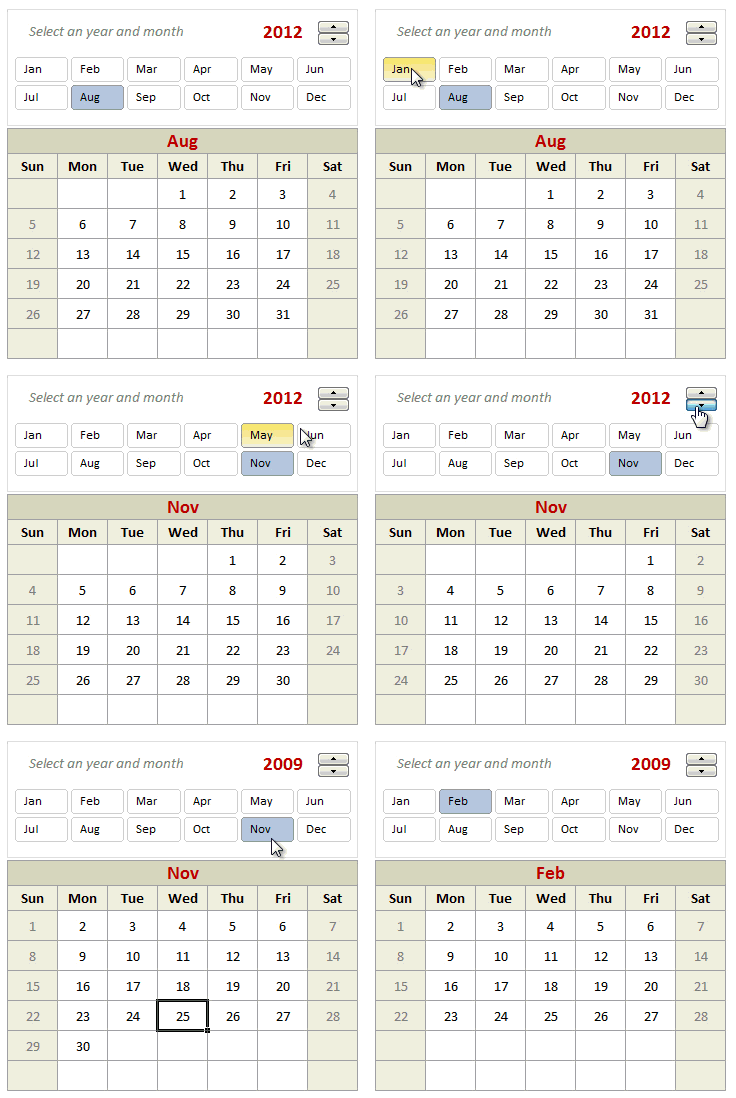
See a quick demo of pivot calendar chart before learning how to do this.
Creating a Pivot Table Calendar
Step 1: Set up an entire year of dates in a list
Lets assume, we want to make the calendar for year 2012. So write that in a cell (G3). Now, in a range of 366 cells, generate all the dates for the year (2012) using simple formulas.
- First date will be =DATE(G3,1,1)
- Next 365 dates will be previous date + 1
Step 2: Calculate Day, Month, Year and Weekday
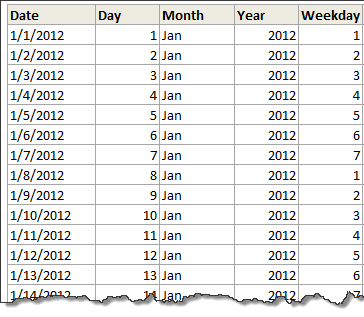
Using DAY(), MONTH(), YEAR(), WEEKDAY() calculate the day, month, year and weekday for each of the 366 days.
Step 3: Determine the week number in a month
Now comes the tricky part. We need to find out which row each date should be displayed. First take a look at this illustration.
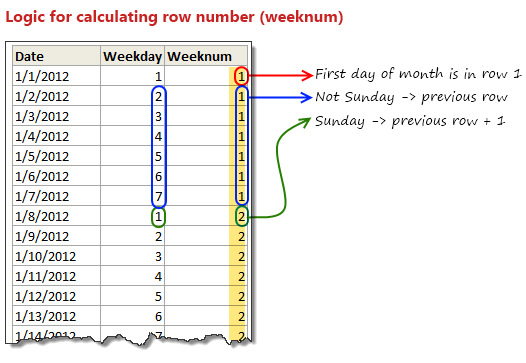
The logic for calculating row numbers is very simple:
- First day of a month is always in row number 1.
- If a day is not Sunday, we just use previous row number
- On Sundays, we just increment the previous row number and use it.
All of this can be expressed in a simple IF formula =IF(D7=D6,IF(F7=1,G6+1,G6),1)
- D7 contains this month, D6 is previous day’s month
- F7 contains weekday, will be 1 for Sunday and 7 for Saturday
- G6 contains previous row number (weeknum)
Step 4: Dealing with Leap years
So far we are good, except for a minor glitch. Certain years have 366 days (for example 2012) while others dont. That means, depending the year, we need to either use 365 rows or 366 rows of our data while generating the pivot report. To do this, we create a named range tblDates that refers to below formula:
=IF(Calcs!$D$3,Calcs!$B$5:$G$371,Calcs!$B$5:$G$370)
Note: D3 is TRUE when an year is leap year.
Step 5: Create pivot table that shows calendar
Now, we need to create a pivot table from the range tblDates.
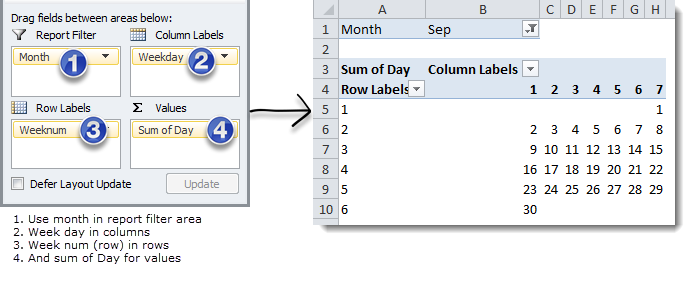
Set up your pivot table like this:
Step 6: Add a slicer
To enable users to select a particular month interactively, just add a slicer on months. For this,
- Select any cell in the pivot table and go to Options Ribbon > Insert Slicer
- Select Month as field to insert a slicer.
- Adjust slicer properties to show items in 6 columns (Slicer Options Ribbon > Columns)
- Done!
At this point, you can interactively select a month & see the corresponding calendar.
Related: More examples on Slicers
Further Enhancements
Now that the basic Pivot Calendar is ready, try these ideas:
- Use a spin button / slider control to interactively adjust the year. Remember, when you do this, you need to refresh the pivot table in background using a simple macro.
- Adjust week start to Monday: Likewise, you can modify your formulas to adjust weekstart to Monday or any other day you fancy.
Using Pivot Calendar as a Chart
Of course, having a mere pivot calendar is not much fun. But you can apply this idea to create a calendar chart. See this:
Calendar Chart Demo:
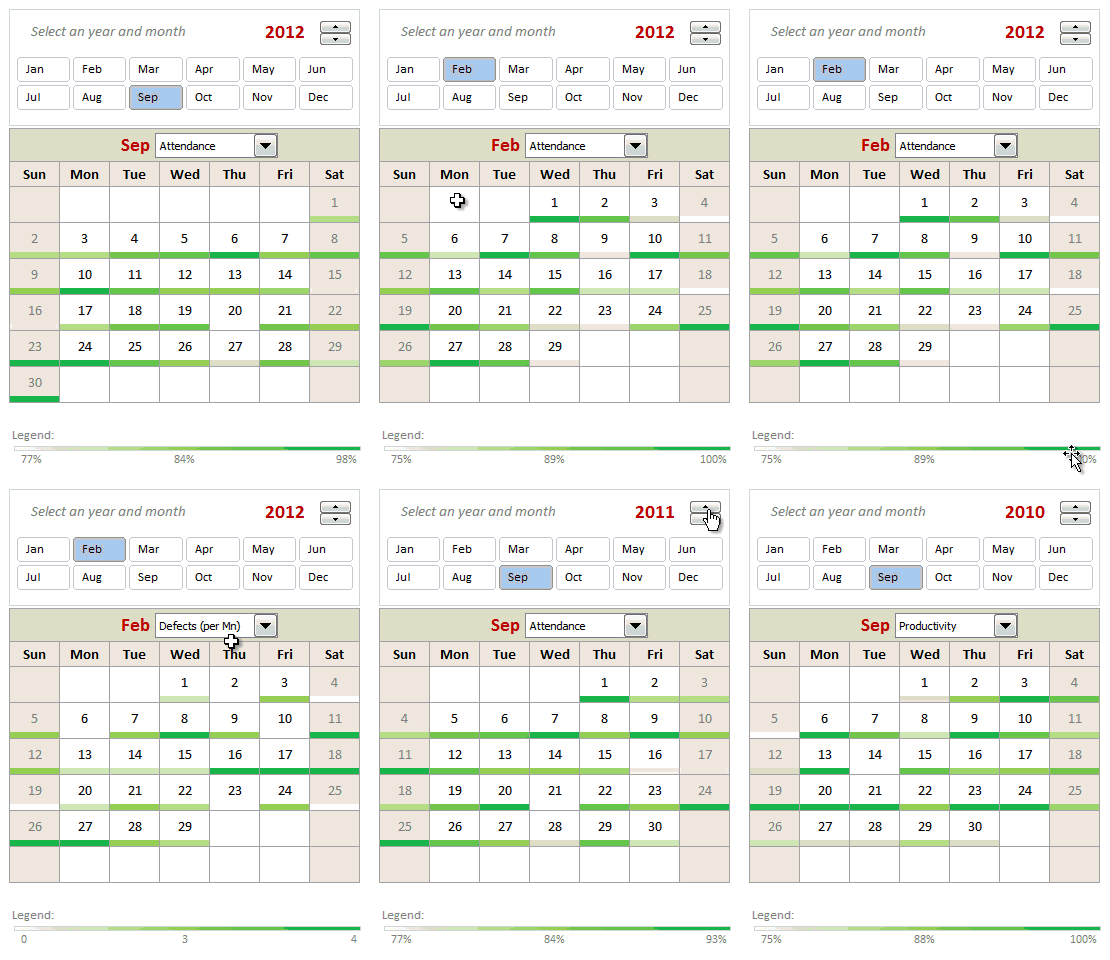
How to create this Calendar chart?
To keep things simple, lets understand how to create this chart with just one metric – Employee productivity.
- Once the pivot calendar is ready, we add extra rows between each line in the calendar.

- Now, lets say, we have our employee productivity details listed by date in a table.
- Then, using lookup formulas, we fetch productivity for each day in the cell below.
- Once all the values are fetched, just select all these cells and add conditional formatting > color scale to them.
- Format the color scale settings so that you get desired colors.
- And you are done!
More on Conditional Formatting
Video Explaining Pivot Calendar & Chart
Like this concept? Watch below video to understand how the whole thing is made.
[watch this video on our youtube channel]
Download Pivot Calendar Template
Click here to download pivot calendar & calendar chart templates. Play with them. Plug your own values and see what happens.
PS: You need Excel 2010 to view this file. Please enable macros to get full effect.
Do you like Pivot Calendar Idea?
I am very excited to try this out in a client project sometime soon. I think a set up like this can be used when analyzing monthly data like employee attendance, vacations, productivity, shipments, meeting schedules, project milestones etc. Since such data is represented in calendar format in real life, your audience would find calendar metaphor easy to understand. That said, any data like KPI trends, sales, visits, calls etc. should always be represented as a line /bar charts rather than calendar charts.This way, we can spot trends quickly and understand data better.
What about you? Do you like this idea? Are you planning to use a pivot calendar / calendar chart sometime in future? Please share your thoughts using comments.
Calendars & Similar ideas:
Please go thru below links to learn more about calendars & visualizing data:


49 Responses
Excellent post again from awesome chandoo.org
This is one of the post to evident, without using macros we can create excellent charts using available excel options.
Slicer is one of the useful option in excel 2010 .. excited to see more options in excel 2013.
Regards,
Saran
http://www.lostinexcel.blogspot.com
Nice one chandoo…………… great work done…..
Cool article. Only downside was that I didn’t see at first that I needed 2010. Guess I still have to wait awhile before getting to try this out myself.
I consider myself an Excel expert, but you constantly amaze me with posts like this. Fantastic calendar!
Good post, like this little trick!!
How to not show the value in the cell
format the cell to custom with the below
;;;
Could you add lists of holidays to be transferred to the calendar days?
Two lists would be needed: 1) for the holidays that stay fixed (eg, CHristmas), and 2) for the holidays that move around (eg, Thanksgiving).
Such lists would be prepared externally, and the program would transfer their information to the appropriate days.
Wow! This is something amazing. I am going to do some practicals with this and show a sales trend on this. As we have our sales plans weekly basis, this should impress by boss when put in dashboard. Cool.
And thanks1
Chandoo you have a knack of getting on to these great looking very creative ideas!
One thing with calendars I have seen before is not catering for able to enter notes or appointments or project milestones. But with this one it’s easy enough to add the extra lines as you have done for the chart concept and link to this other type of info.
For 2003 we could replace slicers with a validation style dropdown couldn’t we?
Chandoo, you are awesome;) i was using calender to show my reports, but i had made all months and then underneith date shows the value, man its really awesome . i am going to use this format for my reports.. only draw back for me is i am using 2007. hence no slicer.. may be have to modify with out slicer.
Why not use =weeknum() for the weeknum column?
Great tricks! I love trying to reproduce the charts myself to get the hang of ’em. This one was great.
My only issue is getting the VBA in the year object to refresh the data. I used the VBA provided at the link, and, I can see it in the Macros tab, but, when I click the spinner the data does not update. Any tips?
Thx!
3G
^^Ignore this! NOT ENOUGH COFFEE YET.
I forgot about the “Assign Macro” option
:-s
Just started at chandoo – this is great!
I opted to use the formula =IF(F6>F5,G5,G5+1) for my weeknum – worked for me (I didn’t get all the way through the example, since I’m running Excel 2007 – so don’t know if that’ll affect anything later in the example). I’m open to comments on this alternative approach.
Thanks for creating this website!
VC (Excel student).
Very cool – but now I’m even more excited for the new time controls for Excel 2013!
Great calendar…
I wonder whether we can make a school calendar (Class, subjects, teachers) using this calendar, assuming the weekly plan is duplicated across the year.
I would love to be a part of creating a class schedule…I’m attempting to help a friend (gratis) to do just that – can you point me in the right direction or provide a sample of sorts?
Hello Chandoo,
Great works! I learn a lot from this website. Here is the problem I met when I follow your tutorial: once I run and save this cool pivot calendar chart , the size of excel file will increase every time. Could you let me know how to figure it out? Thank you for your time in advance.
An excel chart-fan from China.
I already figured it out.
wow, love the calendar, i’m a newbie, found this site and it’s amazing.
Got it mostly figured out, but could do with help with your named range ‘tblchosen’
I can build the pivots, link the calendars together but can’t see how to use index(tblchosen…) to pull through the productivity figures
appreciate any help
thanks
Great. Miss the Today button. Will try and figure a way to add this to the file.
I want to start the week on Monday, not Sunday (MTWTFSS). Re-arranging the calendar tab works however, any month where the 1st is a Sunday starts on the second and totally omits Sun 1. I have been tinkerign for a while, but can’t seem to figure this out.
Changing F2 on the ‘Calcs’ tab to 2 so that the week starts on Monday works.
Cutting & pasting Sunday on the ‘Pivot Calendar’ tab and moving all cells up 1 row works.
However, using April 2013 for example, you lose the 1st off of the pivot calendar so that the month starts on 2 April. What should happen is the first row should only show Sun 1 April and then the next row starts Mon 2 April. Still can’t fugure out where the problem lies.
“Further Enhancements:
Adjust week start to Monday: Likewise, you can modify your formulas to adjust weekstart to Monday or any other day you fancy.”
I have tinkered with this previously with no success, does anyone know which formulas require tinkering, I have only succeeded in breaking this in an effort start a week on a Monday.
Completely off topic, but how do you create those animated pictures in your tutorials? It is not a movie (like the Youtube movie), so what software do you use to create such high quality “animated” pictires? Thanks
Jeroen
the animated pics are called Animated Gifs
they are made using Camtasia
Refer: http://chandoo.org/wp/about/what-we-use/
This is fairly easy to do just using calendar formulas, which would be quicker, and doesn’t need VBA? Am I missing something?
Great tip shared by you… howevr would appreciate if you could mention in your tricks about excel version. The example above would work only in excel 2010 and above I believe. Please help me if there is any way we can use the tip in excel 2007 as well..
Many Thanks,
Regards,
FK
Hi, I’m going to give this a shot, but one small question before I do. Can a linked cell be updated based on the date that is selected from the calendar? The calendar is really cool and this would make is especially good to use (and easy and fast).
Regards,
swissfish.
This post is awesome, and using your instructions, I was able to get this to work with a pivot table that pulls directly from a Project Server database. It was a bit complicated to get the day to sum correctly, but I managed to finagle it. I hope you don’t mind if I link back to you when I post my instructions.
Thanks for giving me a starting point for this!
This is great, and pretty much everything I was looking for.
However, I already have a large spreadsheet, and I want to include your worksheets in it. I copied all the worksheets and the Module 1, but I can’t get it to work. What else do I need to transfer / update please?
Hello there, is it possible to use this pivot to produce a calendar style chart, with returns multiple data per date, which on the calendar then, when clicked links to the data to provide more background information? What do you think? I’d love if I could pivot when i need. thanks, m
Hi, did you ever figure out how to do this? I would love to find a way…
This is amazing and will work well for my calendar project! My question is, how can I expand the calendar to fit a standard sheet of paper?
Wow – this is so creative. I’m taking the basic idea and building a reservation calendar.
Question: How do you get the month and year slicers on a different page than the pivot tables? I’d like to have my final calendar on a separate page from the pivot.
This is perfect…is there a way to add notes/tasks to the individual days?
Excel will not let me insert blank rows between lines in the pivot table. I am use Excel 2013 – is there a pivot table tools command that must be used?
I can create the pivot table calender with a year spinner & month slicer but I do not see how to display the the attendance information that I have in the original data table.
Thank you for the wonderful post and I am sorry for my lack of understanding…
Excellent!
Please show me how to add an alternative calendar to this calendar, Chinese or lunar calendar (and by lunar I don’t mean phases of the moon), like what they still use in Asia
Thanks
Christopher
Hello my name is Maurice, excuse me for my further request, but believe me, without your help priprio not know how to solve this problem.
So: always using a chart positioned on an excel sheet I wanted to match each square (series) to a single cell, to create a perpetual calendar.
Now everything works fine; except that for a fact, and it is this: In the calendar as you well know some numbers may not be apparent until certain conditions, which I solved by writing this “= O code (AA5 = DATE ( $ H $ 1; MONTH ($ AD $ 12) +1; 1)) and the game and done.
Now I would like to achieve the same thing using the Chart; How can I do to make this happen! let me also just a practical example so that I can understand all the rest then I’ll do; Thanks Greetings from A.Maurizio
Link Program : Link: https://app.box.com/s/lhqva3eji0xcf2nmk8lxyki88tt1mi5t
Great info, thanks for sharing
Hi,
I love your calendar however I am modifying it for use in displaying employee performance metrics on a day by day basis.
I see where tblChosen and tblDates are named ranges however I cannot find them anywhere.
Are they assigned to specific cells because I cannot tell.
I see both of them in the Name Manager, which tells me what they refer to but does not give a value or cell location.
@Mike
With the Names in the Name Manager
Simply select the name
Then click in the Refers To: box at the Bottom
Excel will take you to where the Named Range is referring to
Hi, Chandoo
This Pivot Calendar is an excellent idea. I’ve done one for myself using your guidelines. I just need something I’m not being able to do. I need that when I open the file the default date is set to today’s date. I know how to do it with conditional formatting. But I think I’ll need some vba coding for this. Can you please help me with this. Thanks in advance