

Few weeks ago, someone asked me “What are the top 10 formulas?” That got me thinking.
While each of us have our own list of favorite, most frequently used formulas, there is no standard list of top 10 formulas for everyone. So, today let me attempt that.
If you want to become a data or business analyst then you must develop good understanding of Excel formulas & become fluent in them.
A good analyst should be familiar with below 10 formulas to begin with.
1. SUMIFS Formula
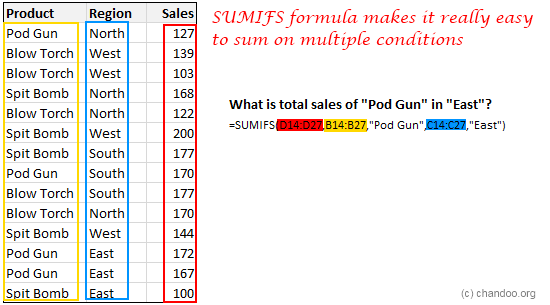
If you listen very carefully, you can hear thousands of managers around the world screaming… “How many x we did in region A, product B, customer type C in month M?” right now.
To answer this question without the song and dance of excessive filtering & selecting, you must learn SUMIFS formula.
This magical formula can sum up a set of values that meet several conditions.
The syntax of SUMIFS is like this:
=SUMIFS( what you want to sumup, condition column 1, condition, condition column 2, condition….)
Example:
=SUMIFS(sales, regions, “A”, products, “B”, customer types, “C”, month, “M”)
Learn more about SUMIFS formula.
10 Advanced SUMIFS examples (video)
2. X/VLOOKUP Formula
Pop quiz time ….
Which of the below things would bring world to a grinding halt?
A. Stop digging earth for more oil
B. Let US jump off the fiscal cliff or hit debt ceiling
C. Suddenly VLOOKUP (or XLOOKUP) formula stops working in all computers, world-wide, forever
If you answered A or B, then its high time you removed your head from sand and saw the world.
The answer is C (Well, if all coffee machines in the world unite & miraculously malfunction that would make a mayhem. But thankfully that option is not there)
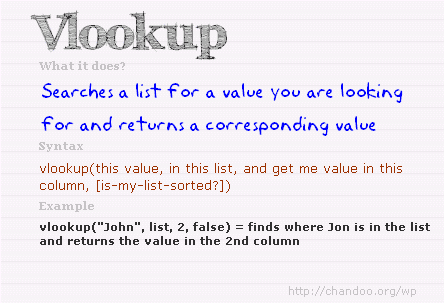
XLOOKUP or VLOOKUP formula lets you search for a value in a table and return a corresponding value. For example you can ask What is the name of the customer with ID=C00023 or How much is the product price for product code =p0089 and VLOOKUP would give you the answers.
The syntax for VLOOKUP is simple.
=VLOOKUP(what you want to lookup, table, column from which you want the output, is your table sorted? )
Example:
=VLOOKUP(“C00023”, customers, 2, false)
Lookup customer ID C00023 in the first column of customers table and return the value from 2nd column. Assume that customers table is not sorted.
Learn more about the new & improved XLOOKUP formula.
Click here to learn more about VLOOKUP Formula.
Bonus: Comprehensive guide to lookup formulas.
3. Dynamic Array Functions
Excel 365 introduced a new class of functions called DYNAMIC ARRAY FUNCTIONS. These will let you filter, sort, extract distinct values from your data with ease. It also added a special formula functionality called spill behavior. It means Excel formulas can now return multiple values as a result & spill them down as needed. See this quick GIF demo.

Learn more about the POWERFUL dynamic array functionality in Excel (video).
4. IF & IFS Formulas
Q: What do you call a business that does not make a single decision?
A: Government!
Jokes aside, every business needs to make decisions, even governments!!! So, how do we model these decisions in Excel.
Using IF formulas of course.
For example, lets say your company decides to give 10% pay hike to all people reading Chandoo.org & 5% hike to rest. Now, how would you express this in Excel?
Simple, we write =IF(employee reads Chandoo.org, “10% hike”, “5% hike”)
The syntax of IF formula is simple:
=IF (condition to test, output for TRUE, output for FALSE)
10 must know Advanced IF formulas.
5. Nesting Formulas
Unfortunately, businesses do not make simple decisions. They always complicate things. I mean, have you ever read income tax rules?!? Your head starts spinning by the time you reach 2nd paragraph.
To model such complex decisions & situations, you need to nest formulas.
Nesting refers to including one formula with in another formula.
An example situation: Give 12% hike to employees who read Chandoo.org at least 3 days a week, Give 10% hike to those who read Chandoo.org at least once a week, for the rest give 5% hike.
Excel Formula: =IF(number of times employee reads chandoo.org in a week >=3, “12% hike”, IF( number of times employee reads chandoo.org in a week >0, “10% hike”, “5% hike”))
You see what we did above? We used IF formula inside another IF formula. This is nothing but nesting.
You can nest any formula inside another formula almost any number of times.
Nesting formulas helps us express complex business logic & rules with ease. As an analyst, you must learn the art of nesting.
Lots of nested formula examples & explanations here.
6. Basic Arithmetic Expressions
=(((123+456)*(789+987)) > ((123-456)/(789-987)))^3 & " time I saw a tiger"
If you read the above expression and not had to scratch your head once, then you are on way to become an awesome analyst.
Most people jump in to Excel formulas without first learning various basic operators & expressions. Fortunately, learning these requires very little time. Most of us have gone thru basic arithmetic & expressions in school. Here is a summary if you were caught napping in Math 101.
| Operator | What it does | Example |
|---|---|---|
| + – * / | Basic arithmetic operators. Perform addition, subtraction, multiplication & division | 2+3, 7-2, 9*12, 108/3, 2+3*4-2 |
| ^ | Power of opetator. Raises something to the power of other value. | 2^3, 9^0.5, PI()^2, EXP(1)^0.5 |
| ( ) | To define precedence in calculations. Anything included in paranthesis is calcuated first. | (2+3)*(4+5) calcuates 2+3 first, then 4+5 and multiplies both results. |
| & | To combine 2 text values | “You are ” & “awesome” returns “You are awesome” |
| % | To divide with 100. | 2/4% will give 50 as result. Note: (2/4)% will give 0.5% as result. |
| : | Used to specify ranges | A1:B20 refers to the range from cell A1 to B20 |
| $ | To lock a reference column or row or both | $A$1 refers to cell A1 all the time. $A1 refers to column A, relative row based on where you use it. For more refer to absolute vs. relative references in Excel. |
| [ ] | Used to structurally refer to columns in table | ourSales[month] refers to the month column in the ourSales table. Works only in Excel 2007 or above. Know more about Excel Tables. |
| @ | Used to structurally refer to current row values in a table | ourSales[@month] refers to current row’s month value in oursales table. |
| # | Spill Operator (Excel 365) | Used to get spill range from a dynamic array formula |
| { } | To specify an inline array of values | {1,2,3,4,5} – refers to a the list of values 1,2,3,4,5 |
| < > <= >= | Comparison operators. Output will always be boolean – ie TRUE or FALSE. | 2>3 will be FALSE. 99<101 will be TRUE. |
| = <> | Equality operators. Check whether 2 values are equal or not equal. Output will TRUE or FALSE | 2=2, “hello”=”hello”, 4<>5 will all return TRUE. |
| * ? | Used as wild cards in certain formulas like COUNTIFS etc. | COUNTIFS(A1:A10, “a*”) counts the values in range A1:A10 starting with a. For more on this refer to COUNTIFS & SUMIFS in Excel |
| SPACE | Intersection operator. Returns the range at intersection of 2 ranges | A1:C4 B2:D5 refers to the intersection or range A1:C4 and B2:D5 and returns B2:C4. Caution: The output will be an array, so you must use it in another formula which takes arrays, like SUM, COUNT etc. |
7. Text formulas
While there are more than two dozen text formulas in Excel including the mysterious BHATTEXT (which is used to convert numbers to Thai Bhats, apparently designed by Excel team so that they could order Thai take out food #), you do not need to learn all of them. By learning few very useful TEXT formulas, you can save a ton of time when cleaning data or extracting portions from mountains of text.
As an aspiring analyst, at-least acquaint your self with below formulas:
- LEFT, RIGHT & MID – to extract portions of text from left, right & middle.
- TRIM – to remove un-necessary spaces from beginning, middle & end of a text.
- SUBSTITUTE – to replace portions of text with something else.
- LEN – to calculate the length of a text
- TEXT – to convert a value to TEXT formatting
- FIND – to find whether something is present in a text, if so at what position
Here are my top 6 TEXT formulas for data analysis.
8. NETWORKDAYS & WORKDAY Formulas
“There aren’t enough days in the weekend” – Somebody
Whether a weekend has enough days or not, as working analyst, you must cope with the working day calculations. For example, if a project takes 180 working days to complete and starts on 16th of January 2013, how would you find the end date?
Thankfully, we do not have to invent a formula for this. Excel has something exactly for this. WORKDAY formula takes a start date & working days and tells you what the end date would be.
Like wise NETWORKDAYS formula tells us how many working days are there between any 2 given dates.

Both these formulas accept a list of additional holidays to consider as well.
- NETWORKDAYS: calculate the number of working days between 2 dates (assuming Saturday, Sunday weekend)
- NETWORKDAYS.INTL: Same as NETWORKDAYS, but lets you use custom weekends [Excel 2010+ only]
- WORKDAY: Calculate the end date from a start date & number of working days
- WORKDAY.INTL: Same as WORKDAY, but lets you use custom weekends. [Excel 2010+ only]
More on working with Date & Time values in Excel.
9. SMALL & LARGE Formulas
Almost nobody asks about “Who was the second person to climb Mt. Everest, or walk on moon or finish 100 mtrs race the fastest?”.
And yet, all businesses ask questions like “Who is our 2nd most valuable customer?, third vendor from bottom on invoice delinquency? 4th famous coffee shop in Jamaica?”
So as analysts our job is to answer these questions with out wasting too much time. That is where SMALL, LARGE formulas come in handy.
- SMALL: Used to find nth smallest value from a list. Use it like =SMALL(range of values, n).
- LARGE: Used to find nth largest value from a list.
- MIN: Gives the minimum value of a list.
- MAX: Gives the maximum value of a list.
- RANK: Finds the rank of a value in a list. Use it like =RANK(value, in this list, order)
10. IFERROR Formula
Errors, lousy canteen food & dysfunctional coffee machines are eternal truths of corporate life. While you can always brown bag your lunch & bring a flask of finely brewed coffee to work, there is no escaping when your VLOOKUP #N/As. Or is there?
Well, you can always use the lovely IFERROR formula to handle errors in your formulas.

Syntax:
IFERROR(formula, what to do in case of error)
Use it like:
IFERROR(VLOOKUP(….), “Value not found!”)
Click here to learn more about IFERROR Formula.
3 Bonus Formulas
If you can master the above 10 formulas, you will be ahead of 80% of all Excel analysts. Here are 3 more important formulas that can come handy when doing some serious data analysis work.
- OFFSET formula: to generate dynamic ranges from a starting point and use them elsewhere (in charts, formulas etc.).
- SUMPRODUCT formula: Unleash the full power of Excel array processing by using SUMPRODUCT.
- SUBTOTAL formula: Calculate totals, counts & averages etc. on a range with filters.
Top 10 Excel Formulas – Video
If you like a video presentation of these formulas with some demos, check this out.
Sample file & more on the concepts shown in the video here.
What formulas do you think are important for analysts?
During my days as business analyst, not a single day went by without using Excel. It was an important tool in my journey to become an awesome analyst. I cannot stress the importance of formulas like SUMIFS, VLOOKUP, XLOOKUP, INDEX, MATCH enough. They play a vital role in analyzing data & presenting outputs.
What about you? What formulas do you think are important for analysts? Please share your ideas & tips using comments.
Want to become an Awesome Analyst? Consider our Excel School program
If you are a budding analyst or manager, adding Excel Skills can be a very valuable investment of your time. My Excel school program is designed to help people like you to learn various basic & advanced features of Excel & use them to create kick ass reports, trackers & analysis. This program has 24 hours of Excel training, 40 example workbooks & 6 month online access.


20 Responses to “Untrimmable Spaces – Excel Formula”
Hi Chandoo,
First of all, HAPPY NEW YEAR!!! Wish you and your family another fruitful year ahead.
To answer your question: Power Query is the best way to trim. 🙂
Btw, if Power Query is not available, then formula would absolutely do... but did you forget to mention also Char 32?
One more question: Is the trailing minus meant to be a negative number? Maybe only the sender knows... 🙂
Cheers,
I just see your PQ way, it is amazing, I think it is the most simple way.
No idea how it did it?
I know these spaces can be a real pain but these days I advise Excel users to learn and use Flash Fill and that will learn what to do pretty quickly.
Highlight range to be cleaned. Then, in Replace, hold down the Alt key and type 0160. Replace with nothing.
I accomplished this by writing a macro to go through all the possible unprintable characters. Looped through the range.
@Steve
Brute force works just as well, its just slower
I use a different method here. First, I will copy the data from Excel and paste it in a notepad. In Notepad, I will do a Find Blanks (Space " ") and Replace (Empty) with nothing.
Then you can copy the data from Notepad and paste it back to Excel which will be a perfect number as you desire.
But Thanks for the formula. Its probably the 2nd out of 8 tricks as Chandoo mentioned. Waiting for the rest among 8 from other users 🙂
Hi....
You don't always need notepad for that. I use the Find/Replace is Excel works just fine.
I don't understand the x's. Why weren't they removed in the formula? Or are they part of some sort of numeric formatting that I'm not familiar with? I saw how you handled the non-breaking spaces and the dashes, but am confused about what role the x's played in all this.
Thanks!
Hi Andrew ,
The xs have been used solely to demarcate the actual data text ; thus , without the x in place at the end of text , as in :
x 4,124,500.00 x
it would be impossible to know that there are unwanted trailing characters , in this case , after the last 0.
These xs are not part of the original data text , nor are they used in the formulae ; they are put in only so that readers can visualize the individual items of data as they are in practice. Think of them as imaginary delimiters.
Oh, that makes sense! Thank you for the explanation. I had a feeling it was something along those lines.
You can type this character using the Keys Alt+0160.
Very useful to replace this Character using Find and Select resource.
For many years, my jobs have included ETL tasks and I built this macro to help long, long ago. I tweak it every now and again. Many co-workers, past and present, have it wired to a button on their toolbar.
Sub Clean_and_Trim()
'CAUTION: Strips leading zeroes -- do not use on zipcodes, etc.
If Application.Calculation = xlCalculationAutomatic Then
Application.Calculation = xlCalculationManual
Revert = 1
ElseIf Application.Calculation = xlCalculationManual Then
Revert = 0
End If
For Each Cell In Selection
For x = Len(Cell.Value) To 1 Step -1
If Asc(Mid(Cell.Value, x, 1)) = 160 Then
Cell.Replace What:=Chr(160), Replacement:=" ", LookAt:=xlPart, MatchCase:=True
End If
If Asc(Mid(Cell.Value, x, 1)) = 32 Then
Cell.Replace What:=Chr(32), Replacement:=" ", LookAt:=xlPart, MatchCase:=True
End If
Next x
If Cell.Value "" Then
Cell.Value = Application.Clean(Application.Trim(Cell.Value))
End If
Next
If Revert = 1 Then
Application.Calculation = xlCalculationAutomatic
ElseIf Revert = 0 Then
Application.Calculation = xlCalculationManual
End If
End Sub
This is awesome! What if you have several characters you need to have removed? What would be the easiest way as I can imagine there are several ways.?
# - 35
$ - 36
- 62
/ - 47
, - 44
. - 46
" - 34
: - 58
This is typical case of a Fitbit data export to Csv file. Each number has CHAR160 as thousand separator.. how smart Fitbit, thank you 😉
By the way, i prefer to copy the character, and use find and replace.
Sometimes it happens if you copy a table from outlook and paste it in excel. When you apply formula on those cells you will get error. What i use to do is
copy one character that looks like space,
select the entire range,
go to Find and replace,
Paste the copied character in Find option
Leave the replace option unfilled..
click on replace all..
All the errors shall be converted in to proper values..
Process looks lengthier.. but it is one of the simplest method
If Clean, Trim, and Substitute, or Find and Replace does not complete the job, I usually enter a value of 1 in an empty cell. Copy the Value of 1, Highlight the range of text numbers, and Paste Special, Values, Multiply. This site is great!
You can use Dose for Excel Add-In that can quickly clean huge data with one click besides more than +100 new functions and features to add to your Excel to save time and effort.
https://www.zbrainsoft.com
Hi,
I have a problem in excel. The sheet attached herewith.
TABLE CONFIG 2/6
A B C D E F G H
1 WEIGHT1 43,599 WEIGH2 62500 WEIGHT3 77000 WEIGHT4 66,500
2 DEDUCTION1 15,000 DEDUCTION1 15,000 TEMP 0 DEDUCTION2 11,005
3 RESULT 58,599 RESULT-1 77,500 RESULT-2 77,000 RESULT-3 77,505
4 RESULT SUBSTRACT 0 0 0
5 REQUIRED VALUE 77,500 77,000 77,505
Note: 1- RESULT (58599) IS TO BE DEDUCTION EITHER FROM D4 OR F4 OR H4 WHICHEVER IS MOST
LEAST CELL AMONG RESULT-1 OR RESULT-2 OR RESULT 3.
2-HENCE, RESULT VALUE $B$3 IS TO BE PRESENTED ON CELL EITHER D4 OR F4 OR H4 WHICHER IS
MOST LEAST VALUE
3-FORMULA =IF(E8<H8,$B$9,IF(E8<J8,$B$9,IF(H8<J8,$B$9,IF(H8<E8,$B$9,IF(J8<H8,$B$9))))))
CREATED ON CELL D4,F4 & H4 DID NOT WORK.
PLS FOR YOUR HELP.
THANK YOU
@R
Why not ask the question in the Chandoo.org Forums
https://chandoo.org/forum/
You can attach a file there