

This is the fifth installment of project management using excel series.
Preparing & tracking a project plan using Gantt Charts
Team To Do Lists – Project Tracking Tools
Project Status Reporting – Create a Timeline to display milestones
Time sheets and Resource management
Part 5: Issue Trackers & Risk Management
Project Status Reporting – Dashboard
Bonus Post: Using Burn Down Charts to Understand Project Progress
Tracking issues and risks is where most of the project management time goes. Once the project planning and organizing activities are in good shape, most of the project management activities are around risk management and issue tracking. In this installment of project management using excel, we will learn how to create a simple issue tracker template using excel and how to analyze issues using excel.
Issue Tracker Template
Excel is perfect for making an issue tracker template. Its grid structure and easy interface makes it totally easy to create and maintain an issue log. Here is a simple issue tracker template you can create in less than a minute.
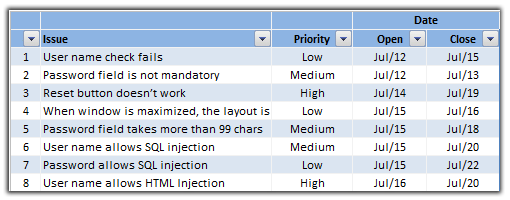
The above template becomes very easy to manage with excel features like data validation, filters and tables (lists in 2003 and earlier).
More Robust Issue Log Template
While the above issue tracker template is good for most project needs, often you might need something little more robust. Of course, doing this is just a matter of adding few columns. For eg. it is common for project managers to keep track of the various types of issues and who is logging them, who is closing the issues. Here is an issue log template that is more robust.

Analyzing and Reporting Issue Status
Issues are part of everyday project management. It is important to keep track of various issues in the project and understand their progress. There are various ways to monitor the progress of issues using excel charts and pivot tables. In this tutorial, we will learn how to make the open vs. closed issues chart (see below).

- To make the chart, we will use the issue tracker data from the template shown above.
- We need to generate issue counts for the last 30 days from a chosen date like this:

- The counts can be easily generated by using the COUNTIF Excel formula [Excel SUMIFS formula tutorial] like this:
=COUNTIF(issueOpenDates,Date) - We can easily make the counts cumulative.
- Finally select the 3 columns above and make a line chart with 2 series. Adjust the chart formatting you have a simple “open vs. closed issues in the last 30 days chart”
- The above chart can be a great way to start discussion about issue run rate.
Risk Management using Excel
We can use similar ideas to prepare a risk management plan using excel. The risk log is similar to issue log. But when it comes to risk analysis, the usual practice is to make a risk matrix to highlight key risks. This can be easily done in excel with the help of Risk maps. This is your home work to figure out (or click on the below risk map image to download the template).

Download the Issue Tracker Templates
You can download the excel issue log template from here. Click the below link based on your excel version and the file type you prefer.
- Download Issue Tracker Template
- Download Issue Tracker Template [Excel 2003 compatible file]
- Download 24 Project Management Templates for Excel
What next?
The ideas presented here can be extended to do more complex analysis of issues and risks in your project. However the issues tracker systems can only go so far if we don’t ask right questions. Often when the project is going through a rough patch, it might be better to keep the issue trackers simple and focus on the work.
In the next installment of project management using excel, we will combine all the five parts and build a project status reporting dashboard.
If you are new to the series, please read the first 4 parts as well.
- Preparing & tracking a project plan using Gantt Charts
- Team To Do Lists – Project Tracking Tools
- Project Status Reporting – Create a Timeline to display milestones
- Time Sheeet Templates and Resource Management using Excel
- While at it, also check out the bonus post about Burn Down Charts.
What is your experience with issue tracker systems
Share your ideas and opinions on using issue trackers. What is the best and worst you have seen? In one project, we have used a very complicated issue log (actually a defect log) that took almost 5 minutes to create an issue. The system would produce nice looking 3d bar and 3d pie charts depicting the issue distribution, ownership and status. Our morning scrums were a disaster when someone choose to present these. What about you?
Resources for Project Managers
Check out my Project Management using Excel page for more resources and helpful information on project management.


31 Responses
Right good posts i come to know how to get solution for Issue Tracker and Risk Management using excel.
Normally i use Filter,Conditional formatting and pivot tables but i have never thought we can use it this way.
Thanks.
It seems to me that with issue tracking, most people think they need more than what they really need, when usually a simple worksheet along the lines of what you describe does the job perfectly well. Joel on Software had a good piece on using Excel to do scheduling a while back:
http://www.joelonsoftware.com/articles/fog0000000245.html
The issue I see with using Excel for issue tracking is if you work in a team. Sharing / editing the document, assigning the tasks to team members and keeping a log of changes doesn’t work great with an Excel document. This is where web-based systems start to be useful. I have been using FogBugz for my issue tracking since a while, and have been pretty happy with it.
@Mathias Great post, now I have to figure how to politely recommend my Firms IT and Software managers read about scheduling. Which they really do not do. Also I will check out FogBugz looks good at least for software development as a Project Management tool. Although doing this in excel on a decent size project I think would not be a good idea. Still better to use excel and have good information than junk information in good software.
Another way to use the data is to track issues-aging. For open issues, this is real simple way to highlight an issue that is staying open too long. You can also try calculating a moving average of days-aging to note problem issues/responsible parties. Both are simple and lend themselves to being utilized in an executive dashboard.
@Peter… welcome 🙂 Yes, filters, conditional formatting, pivot tables are tools, but we can do wonderful things when we put them together with a little bit of glue.
@Mathias: I think lot of times companies waste time and money on making things complex. As you say, for most scenarios a simple excel sheet would suffice. Have you seen the netflix’s presentation on organization culture and processes ? http://www.slideshare.net/reed2001/culture-1798664 It gives great insight in to how amazing companies can be built by keeping things simple.
Thanks for the reference to Joel’s article btw. I am a huge fan of Joel’s philosophy of software development.
I havent tried fogbugz though, but I heard lots of good things about it.
@Brian: “Still better to use excel and have good information than junk information in good software.” totally agree. It is not the system that matters, but what information and insight it is able to provide for better project management that matters.
@Tim: Good ideas. I am going to consider all these for the next installment of this series where we discuss project status dashboard.
If you have to keep track of the history of the topic (opened, passed to X, fixed,closed, reopened etc., how would you manage it in a clear way? A row for each event would look quite messy, IMHO. A bit of VBA, maybe?
Thanks!
PLEASE help me, sir. I love your project tracker and downloaded it to help me with a project at work.
However, I cannot for the life of me figure out how to remove the special comments on the sheet.
For example, they say “Team Member Who Opened the Issue” and “Team Member Who Closed the Issue”.
Note that these are not normal cell comments.
Can you help? Or anyone?
Please! Thank you so much for your time.
@Allie… you can easily remove these by selecting the cells and then going to “Data validation” dialog. There in the 2nd tab, remove the message (or change it to the one you prefer)
Thank you SO much Chandoo… that worked perfectly! I really appreciate the quick response. 🙂
Great!!!! Thank you very much! The only thing I cant figure out is how to redirect the chart to take input from the second Issue Log?
Thank you!
Hi there,
Cool stuff, really liked your work. I downloaded the Issue Tracker template. I have asmall question?
When you scroll down the worksheet, the standard Excel column Names ‘A’, ‘B’, ‘C’, etc are automatically replaced by their respective Header columns ‘Issue’, ‘Type of Issue’, ‘Priority’, etc and when you scroll up to the top of worksheet you see the standard excel column header back again.
This is superb, how do you do this?
Thanks & regards
Hi Chandoo,
I’ve found the challenge with MS Excel worksheets on large distributed projects, was that multiple users couldn’t update concurrently and that you had to be connected to the companies LAN (which is not always possible).
Does your spreadsheet handle either of these limitations?
Neil
@Neil.. no, the templates are built in Excel and hence have the same limitations.
The dashboard is great – just a couple questions.
1 – What drives the “Top 5 issues?” I see the first for instance comes from I14 on the same sheet. However, I14 appears to be hidden. And it does not seem like it’s pulling from the issues tab. Is it supposed to?
2 – On the Dashboard sheet tab, is there a way to make the gantt appear bigger?
Thanks!
Kelly
This is very helpful.
Great templates Chan, simple and not to tedious to use as my users will need simple
Sir,
I am working in a banking IT dep, My team will record some calls and some issues from the branches as i need to submit to the superiors, as i am not good at preparing the excel can you provide any tamplete in this regard,
sharma.veeravajhula@gmail.com
Very helpful content i just want to knw that i am making bug sheets and test cases i just want to know whether they are right or not i am uploading them will u please confirm this as i am the only one in the QA team all alone and no senior will you please…help
The download template links do not work anymore.
I was about to download the Project management template. But then i got a question if these template include the Traceability matrix. As i am a tester i was specifically looking for it.
Please confirm
Thanks for sharing useful information.
Hi. I am very interested in the ticketing template you created however when I attempt to download it, the OneDrive repository is empty.
Regards
Norak
I tried to download this Issue Tracking Template for both Excel 2007 and later and the older version. However, the One drive folder showed Empty. Please assist! I am of need of this kind of template for my work.
Regards,
Mark