

Ever looked at a Pivot table & wondered how you can sort it differently?
“If only I could show this report of monthly sales such that our best months are on top!”
Well, there is a way to do it without sacrificing 2 goats or pleasing the office Excel god. Just use custom sorting options in Pivot tables.
Custom Sorting of Pivot Tables
Assuming you have a pivot table like this:
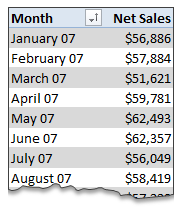
… and you want to sort it such that best months are on top.
Just use below process.
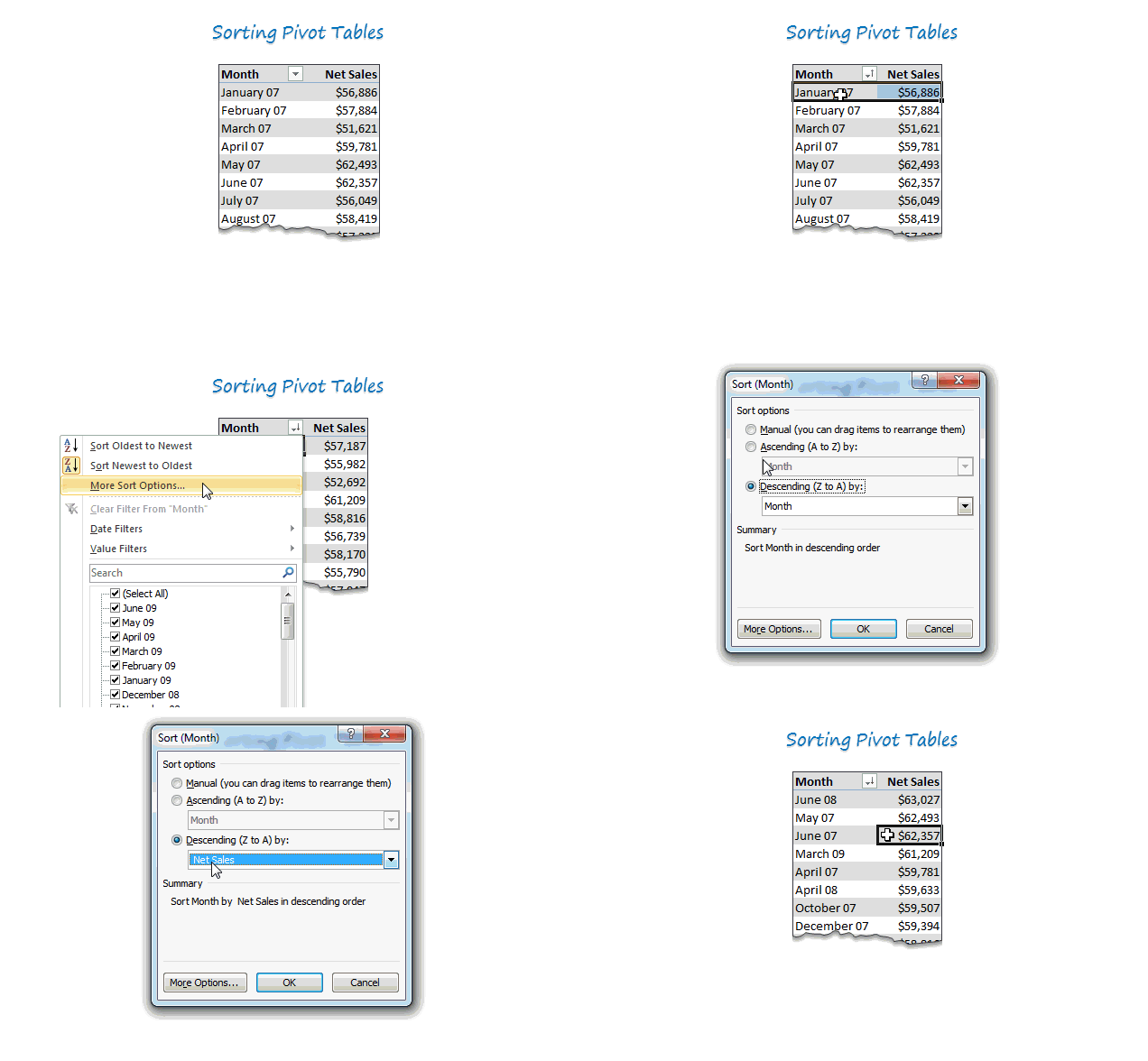
- Click on the month name column
- Go to “More sort options”
- Choose Descending
- From the drop-down, pick “Sum of sales” as the criteria
- Click OK and you are done!
- Save the goats for some other occasion.
See this quick demo to understand how its done.
BONUS TIP
If you want the data in your own order, you can move the values in pivot report around. Just drag & drop to re-arrange the report!
Do you sort your pivots?
I use sorted pivot reports for various reasons. Often, I use sorted data as intermediate step in a dashboard or big model.
What about you? Do you sort your pivot reports. What techniques do you use? Please share using comments.
New to Pivot Reports, check out this:
If you want to learn about pivot tables & pivot reporting, you have hit a mine. We got lots of material on it. Start with these,
- Introduction to Excel Pivot Tables
- Pivot Tables & Reports – 5 Tips you must know
- Grouping Data in Pivot tables
- More on Pivot Tables
- For more on Pivots & everything else in Excel: Join Excel School
PS: No goats or any other animals were hurt while writing this post.


20 Responses to “Sort Pivot Tables the way you want [Quick tip]”
Bummer though that this option is not available in Office 2011 for the Mac. You can sort of do this through the Data->Sort (shift+cmd+r) but it doesn't work well with nested sorts of multiple row labels.
Or alternatively just right-click any entry in the values list you wish to sort by (Net Sales in this example) and select 'Sort' > "Largest to Smallest".
Much easier.
@Benny.. good find. thanks for sharing this. Donut for you.
God bless you, Chandoo. (And you too, benny269.)
Actually, I use multiple column (field) sorting for the ease of making graphs. In brief, I need to make Product wise, Type wise and Category wise graph. Category will be around 50-60 in number and I use Clustered Bar chart. The reality is if you use Pivot table for multiple columns, you may not be getting the Type wise, Category wise in Asc/Dsc order. So, I use to sort the columns (fields) from the "Choose Fields to add to Report:" inside in to either "Asc/Dsc order" for all Product, Category & Types. This way you can control the sort not only for one column, but for multiple columns in your Pivot table. Now, you can copy the Pivot table data as such and go for a chart which is ready made. You will get the result as Product & Category Wise "each Types - sorted in Descending order". It will look nice as well.
I am not sure as to how to share a screenshot. Let me know if this benefit you guys.
Thank you Ramnath, Its work.
Many thanks for this apparently simple tip. I didn't pay it attention until today and immediately realised how, with Pivot Chart, another overlooked function by me, I could use this every day.
This single tip has lead me to the point where I can now prototype anything I'm asked almost immediately, with supporting table and graph. I can then work on more permanent models if required, once I know the level of requirement. Previously, I was creating complex, dynamic and interactive models, usually in the evening at home, even though they had limited use. Still, I did get ample opportunity to put into practice techniques learned from this site.
let me tell you what this tip means to me - I appear awesome at work and I now have time to start the VBA course, eventually - Thank you Chandoo.
And you can also import custom sort orders into Excel, then tell your pivot table to use them. see http://office.microsoft.com/en-us/excel-help/create-or-delete-a-custom-list-for-sorting-and-filling-data-HA010222142.aspx or give Google a spin.
So if the boss ALWAYS wants his division, and the divisions of his minions to appear at the top of the pivot, you can do it.
Here is some additional information following on from Jeff's post.....
If you create the Custom List by manually entering the values you are limited to 255 char. If you wish to add a list with more more than 255 char use the "Import list from cells" option. If you elect to use the "Import list from cells" option make sure that your list only contains text or numbers i.e. no formulas or you will get the somewhat confounding error message "Cell without simple text were ignored".
Sorry this may not be relevant but how did you create a gif of your excel actions?
I create a lot of excel guides for my colleagues and having visual instructions like that would help me and my colleagues a lot.
Any info would be greatly appreciated
Thanks.
@Shan
Chandoo and I both use Camtasia Studio 7 to capture screen images and make animated GIFS
Refer other details about Chandoo.org here: http://chandoo.org/wp/about/what-we-use/
[...] Custom sorting in Pivot tables [...]
Chandoo,
Nice work! Hey, how do you set up the .gif file to show your excel moves?
Thanks!!!
@Manny
Refer: http://chandoo.org/wp/about/what-we-use/
Hi,
My data is sorted as per the month eg: 3 rows for Jan, 5 rows for Feb, 7 rows for Mar and so on. But when I am making a Pivot chart for such table. My Chart bars are not coming sorted by month like Jan-Feb-Mar. Its showing like Mar first than Feb-Apr-May-June.......Jan-Feb.
i've tried all the above techniques. Even my Pivot is not sorted by amount or alphabetic. Please help.
Thank you for all your help, but it appears that I will have to go back to Excel on the PC to create some needed charts.
I have a pivot table that has State and County on the left and total on the right. With Excel for Windows, I can sort on the total and put it into a chart that makes sense.
Along the bottom axis, I have counties grouped by states and the bars are descending left to right showing the counties with the most contribution, again grouped by states.
This just does not seem possible with Excel for Mac.
Using the examples given above, I can get data from a single state to sort, but it doesn't follow across all states. AND, I cannot get the counties listed along the bottom axis.
If anyone can help with this, please shout out.
Thanks,
kbell
Why does MS always keep the simplest of things well hidden? Thanks Chandoo
I am trying to figure out how to sort a pivot table based on the results of another pivot table.
Thank you. Helpful Visual, so used to sorting rows of data that I wouldn't think to sort the leftmost column by the value in the rightmost to achive a whole pivot table sort.
Hi Chandoo,
Thanks for sharing your knowledge.
A question for you, I have created a custom sort list in excel and it's working fine when I create a pivot table in the data workbook. But if I import/connect data in another workbook and create a pivot table, data is sorted alphabetically and not per custom sort list.
I am creating a dashboard from the data and want to keep data workbook and dashboard separately.
I posted this question to a number of excel forum including Microsoft Excel forum but haven't gotten any response yet.
Appreciate your help.
Thanks,
Maqsood