

Do you know you can group dates in pivot tables to show the report by week, month or quarter? I have learned this trick while doing analysis on a pivot table today. In this online lesson on pivot tables, I will teach you how to group dates in pivot tables to analyze the data by month, week, quarter or hour of day.
Let us say you have a sales transaction database like this:
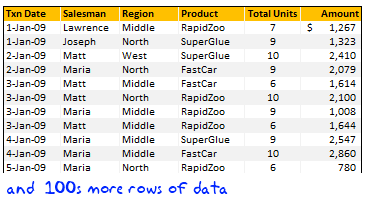
To show “Total units sold by salesperson in each month” in pivot table
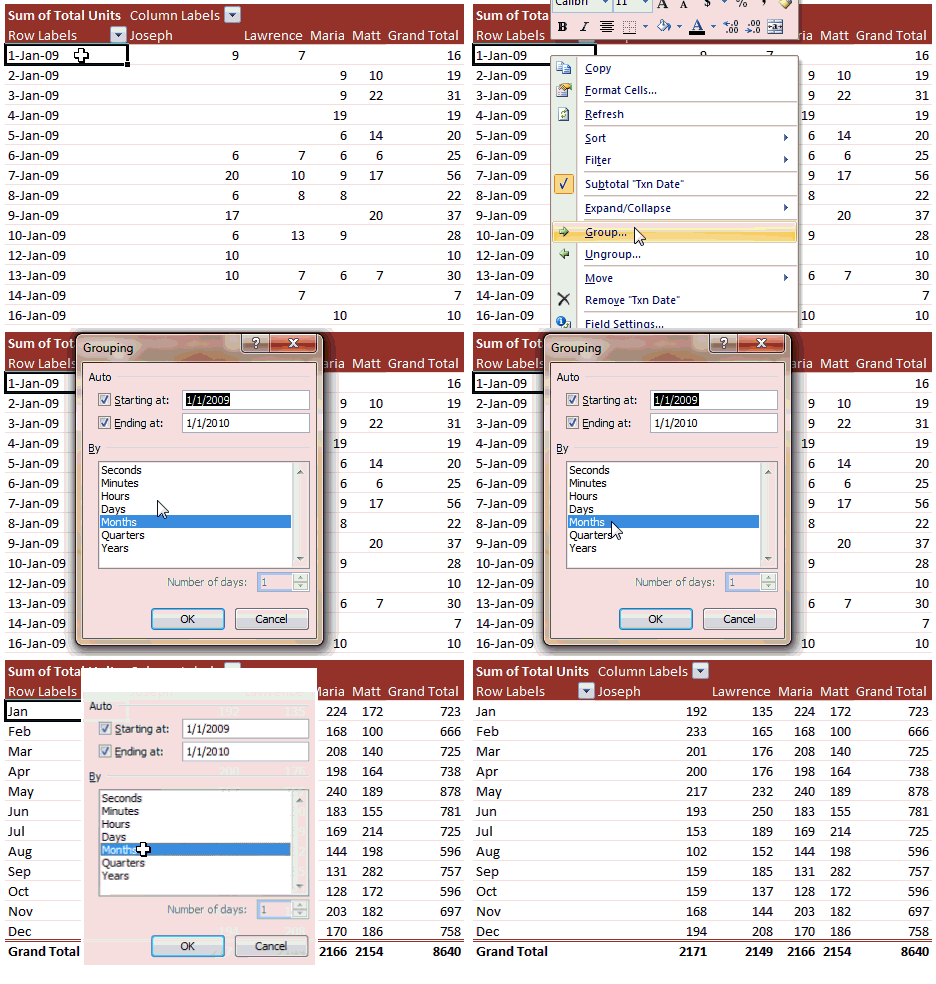
- First make a pivot table [video tutorial] with Sales person as column header, Transaction date as row header and “total units” as pivot values.
- Now select any transaction date, right click and select “Group”
- In the group dialog box, select “Months” for group by option. Press ok.
- Presto! your data is grouped by month. No more than 3 seconds and you are ready analyze the data by month and find trends.
I have made a small screen-cast to show how this can be done. See it here:
Special cases for grouping dates in pivot tables
While the above example is simple, there are various things you can do when you are grouping data in pivot reports. Here are some special cases and how to get the grouping in pivot tables.
Group by Quarter & Month:
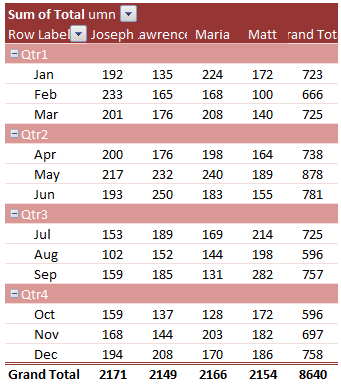
To group the pivot tables by Quarter and Month,
- Select “group” option.
- Select both “month” and “quarter” in the “group by” option, Click ok.
Group by Week:
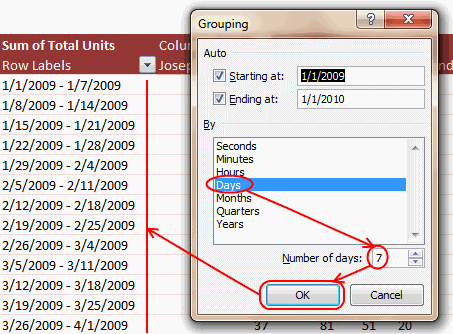
To group the pivot table dates by week,
- Select “group” option
- Select “day” in the “group by” option. When you do this, the “number of days” box will be enabled. Enter the number of days as “7” to group your pivot report by week.
Group by Hour of the day:

Assuming your data has dates along with the actual transaction time, you might want to analyze the sales by hour of day, to find out say “if one product is selling more than other during certain hours”.
To group the pivot table dates by hour of the day:
- Select “group” option
- Select “hour” in the “group by” option.
Collapsing & Expanding Pivot Table Groups:
When you group pivot reports by more than one “group by” you will see a little icon with + or – sign to expand or collapse the groups. Using this feature, you can easily deep dive in to a particular group to do further analysis. For eg. you can collapse all quarters and just expand Q2 to understand why the sales went up.
Another useful feature of these collapse / expand buttons in pivot tables is that, when you make a pivot chart, the collapsed groups are collapsed in the pivot chart too. And it is dynamic, ie, if you expand a group in the pivot table, the chart gets updated and shows more details.

Tell us how you use the group / un-group feature in pivot tables?
I am finding numerous possibilities with the group / un-group feature of pivot tables. I will learn new things and share them with you as we go along. Meanwhile, share your tips, experience and ideas using comments. I would love to learn from you.
Related Articles on Pivot Tables and Dates:
I suggest reading beginners guide to excel pivot tables, working with dates & times in excel.


115 Responses
Great post as usual. This feature works well in Excel 2007. I largely avoid using it in 2003 because it will only let you group in this way if all entries in that field are a date – and in particular that means no blanks. This stops you selecting whole columns for the data source.
I work around this by using the year(), month() and day() functions to give new columns of data that strip out the year month and day from the date and then use these columns as page, row or column fields.
If you are still baffled by all of this pivot table talk, take a look at my free Pivot Table Training Video at (2003 and 2007):
http://www.pivot-tables.biz/FreeVideo.htm
Had the same problem, date format is correct in my case and no blanks. After a lot of try and error I found it was the option ticked in creating a pivot table the reads “Add this data to the data model”
when not tick it work fine
Hello! I didnt know how to start my own question so I’m replying.
I have similar sales data but I do not have the sales persons. I do however have the sales persons per region in another table on a different worksheet. The regions are located in the raw data, but not the sales persons. I have tried vlookup, match and index, nested if’s but I cannot manage to add an extra column to my raw data that simply matches the region to the sales person. Here is the nested if example that returns ‘false’.
=IF([@Region]=Table3[@Manager],”Chris”,” “=IF([@Region]=’Sales Managers’!A3,”Chris”,” “=IF([@Region]=’Sales Managers’!A4,”Sam”,” “=IF([@Region]=’Sales Managers’!A5,”William”,” “=IF([@Region]=”North”,”Pat”,” “))))).
Can somebody help me out? I would really appreciate it.
Chandoo:
this is exactly the reason why I suggested to change the layout on the data table for the Touch challenge.
In the way you upload it, you are not able to work with the dates, so you can group it as you mention on this post.
Also, I’ve found that sometimes, if you have blanks or non-date data in a field (even though it looks like data), you are not able to use this feature. to do so, the autofilter on that field comes handy to rapidly detect those non-date inputs. Another trick is to select the entire field and clear its format, so you can easily find those bugs.
Regards,
Martín.
Now this is a trick I didn’t know about. Well done! Not quite as slick as a tool like Tableau, but pretty darn useful.
I get fouled up sometimes by extending the range to include a blank past the last row of data.
Martin/Dale
As far as I can see the problem of grouping dates with blanks no longer exists in 2007. I have just tried it when I read this post.
This problem stopped me using date groupings in 2003 (I have been using year(), month(), etc. to strip the data out of the date instead).
I’ve used that trick in the past, but the blank row thing is a bummer.
I like to be able to import new data and just refresh the pivot table. Even filtering out blank rows doesn’t allow grouping. I know I could write a macro to create the pivot table every time, but it’s a hassle.
Another option is to add a column and use the MONTH, WEEKDAY or HOUR formulas, if that is how you plan to group the data.
Sorry–just read Glen’s post. I’m still using 2003. If it allows you to group with blank rows in 2007, that might be enough to get me to upgrade.
This is a great post. I recently started using Pivot table for data analysis and is working well. My frustration is with some of the easy stuff – say, i have a list of fruits
apple – 1
pear – 1
apple – 1
How many instances of apple, pear do I have. Maybe it is my limited knowledge of excel (which is getting better thanks to this blog) but I don’t see an easy way out.
Any help will be much appreciated.
@Martin… I understand your frustration, but the dates were already grouped at month level in the challenge.
@Glen.. very good inputs, thank you 🙂
@Dan… I agree tableau has much more powerful features. I am waitng to see how much MS achieves in the upcoming powerpivots
@Sundeep: Make a pivot with the data, use fruit as row header, as well as values. Excel will show summary by count.
Hi Chandoo,
May I say first thanks, this is a great website and a great resource.
I’ve recently had to group by Year/Qtr using 2003 and refered to this at Datapig http://www.datapigtechnologies.com/flashfiles/pivot5.html
But now I’ve got 2007 I’m glad you did this new post here
One frustration with Excel’s date grouping is that Quarters are for calendar years only. In my world Quarter 1 starts in July.
Here’s a bit of code to add to the ThisWorkbook module. This works by changing the captions of quarterly groups from ‘Qtr 1’ to ‘Q3’. It runs after the pivot table update event, because updating the pivot table will change quarter captions back to the defaults.
‘=================================================
Option Explicit
‘ IsUpdated is a global variable that lets us know
‘ if the Pivot Table Update event has been triggered by the user
‘ or by our code in this module
Private IsUpdated As Boolean
Private Sub Workbook_SheetPivotTableUpdate(ByVal Sh As Object, ByVal Target
As PivotTable)
If Not IsUpdated Then
If SetFiscalQtr(Target) Then
Application.StatusBar = “Fiscal Year Quarters Set”
IsUpdated = False
End If
End If
End Sub
Private Function SetFiscalQtr(pt As PivotTable) As Boolean
‘ Function to set Quarters From Excel default to fiscal year
‘ i.e. Q1 = Jul, Aug, Sep etc.
If FieldExists(pt, “Quarters”) Then
IsUpdated = True
With pt.PivotFields(“Quarters”)
‘ could check to see if we have already
‘ renamed the quarters, or just error and keep
‘ going
On Error Resume Next
.PivotItems(“Qtr3”).Caption = “Q1”
.PivotItems(“Qtr4”).Caption = “Q2”
.PivotItems(“Qtr1”).Caption = “Q3”
.PivotItems(“Qtr2”).Caption = “Q4”
.AutoSort xlAscending, “Quarters”
‘ turn error checking back on
On Error GoTo 0
End With
SetFiscalQtr = True
Else
SetFiscalQtr = False
End If
End Function
Private Function FieldExists(pt As PivotTable, strField As String) As
Boolean
‘ checks if strField is a Pivot Field in the Pivot Table pt
‘ true if field exists
Dim fld As PivotField
FieldExists = False
For Each fld In pt.PivotFields
If fld.Name = strField Then
FieldExists = True
Exit Function
End If
Next
End Function
Cheers,
Ed
Is there any other way
Is there a way to group on non-date values? For example, I have expenses from various companies that I need to compare. I have normalized the data, and then I pivot – so that the categories and line items are the rows, and I have a column for each company. However, it’s a terrible waste of real-estate – the categories take up too much room. It would be great if they could be grouped….
Suggestions?
hi chandoo,
this post is just what i need to feedback a bug/problem in PivotTable (Excel 2007).
I’ve created a new sheet for pivottable with date grouped into month/year.
BUT, i needed to create a new pivottable sheet (from the same source table) with NO date grouping. However, this new pivottable will not show the full, ungrouped dates. It stumbled me for some time until i figured out that the 1st pivottable has date grouping!
is there a solution to this?
thanks!
@Ed.. this is exactly why I love to blog. Everyday I meet great hacks and excel users like you. Thanks for sharing the macro with us.
@Marion: You can group non-dates by selecting the values you want to group and selecting “group” option. Excel will create a new group with the selected values. It is a bit painful but better than mentally grouping the values.
@Lohhw3: This seems like a bug (or feature) in pivot tables. Once you make a group in one pivot, the group persists in other pivots. A simpler solution could be to make a duplicate data table and use it in pivot.
thanks chandoo!
am glad it’s not a weird problem that i’m facing 😉
Hi. I am trying to chart expenses per month that range from Sept 08 to October 09. When I group by month in the pivot table it only gives 12 months (Jan- Dec) and groups the Sept 08 and Sept 09 data together. Is there a way to group by month (Sept-08 through Oct-09) that will allow me to use greater than 12 months?
@Pam.. you can select both Month and Year in group criteria to have this corrected.
How do you do this with a fiscal year, say from December to November? It seems to only allow for calendar years.
I need it for 3 years, not just one single year.
Hi chandoo
First of all Thanks for giving such a great support through your web site.
I am leaving a comment for the first time on your site.
Just wanted to know that can we define the quarter as per our requirement as I am in the accounts department and we follow a financial year which start from april and end on March
so april to June is my first quarter and like that.
Thanks & Regards
Vikas Golyan
Great site. Learning many new and useful tricks. I’d like to thank Ed Ferrero for posting the macro to update the labels on quarters to accommodate fiscal years.
Anyone knows how to group the data by 1/2 year instead of quarters? (w/o having to resort to macros or VB)
@Frederick… you can use the group by days option to group by 180 days (which is close enough for half-years). Alternatively, in your data, you can add an extra column and calculate the Half-year status in it with a formula like =if(month(datevalue)<7,"H1 ","H2 ")&year(datevalue) and use this column in pivot to show summaries by half year.
Thank you so much I’ve been trying to figure this out for ever!
Hi Chandoo,
Using the following database, what is the most elegant way to both:
* group by date, and
* calculate a Gross Margin (Sale minus Expense)?
I would love to use Formula.Calculated.Item and then group by Date, but I cannot (with Excel2007).
Thanks, Kurt
Acct Date Amt
Sale 1-Jan-11 14
Sale 1-Feb-11 14
Sale 1-Mar-12 14
Sale 1-Apr-12 14
Sale 1-May-12 14
Expense 1-Jan-11 4
Expense 1-Feb-11 4
Expense 1-Mar-12 4
Expense 1-Apr-12 4
I’m using Excel 2003, so I know I’m starting with a disadvantage…
I have a problem with “missing” months when I group my pivot data.
As an example: I have four sales teams (North, South, East West) and all their sales are captured in a single sheet. I then create a pivot based on this and use a page level filter for the teams to limit the amount of information shown and to share with the regional directors.
I have grouped sale dates by year and month. However the North had the whole of June off this year (all the other teams were working), so when I set the page filter to North then I have a ‘missing’ row for June, which makes the chart based on the pivot look odd (as the x-axis goes “…Apr, May, Jul, Aug…”
Is there anyway I can force the pivot table to have a June row for the North team without creating a dummy row in the source sheet (which comes from the sales system and so is refreshed every month)?
Was just reading and under your “Do you know you can group dates in pivot tables to show the report by week, month or quarter?” you say that it can be done my weeks. However, that isn’t an option in the Group menu. Is there a trick to get it to group by weeks?
Hi Rebekah. Yes you can group by weeks. In the group menu just select days and just below to the right there is an option for how many days. Just select 7.
wanted to put this across for the benefit of everyone. The posts above do mention a bug (or Feature) where excel sticks on to a grouping across pivots. ie if i group date in months the grouping stays even in other Pivots.
I used this feature to have a report filter for the month. After grouping the dates in row labels , when i drag the field into report filter it retains the grouping and allows to filter the data by the month. (I used excel 2010)
I’m in the UK and when I try to group by week, the weeks do not follow on from each other. The pivot table seems to be sorted alphabetically, viz:
15/11/2011 – 21/11/2011
20/12/2011 – 26/12/2011
22/11/2011 – 28/11/2011
27/12/2011 – 02/01/2012
29/11/2011 – 05/12/2011
I’ve missed out some of the other dates – the ones above clearly show the UK date format of dd/mm/yyyy. Any solution to this problem (except conversion to a mm/dd/yyyy format)?
Incidentally, the same problem applies with months when analyzing a period starting mid-year. The sort order always starts with January (unless you set up a special Custom List).
Hi Roger,
Depending on your source of the data, it may be stored as text. TO convert a range of text dates to date values, do the following:
1. Enter 1 in an empty cell
2. Copy the cell
3. Highlight your range (the whole column works)
4. Right click > Paste Special > Multiply
5. Format the range to a date format via CTRL 1 > Date
What the above is doing: multiplying the text dates by 1 forces Excel to recalulate them as values.
I have a multi-year pivot (2010-2012 by year, month, and week). I have the 2010 data collapsed to show just the summary for the year; 2011 is summarized by month except the December data which is shown by week, and I wanted to show the January 2012 weekly data but when I uncollapse the month of January 2012, it uncollapses January 2011 as well (there is no data for January 2010). Is there any way to reveal the most recent period without revealing the same period last year? Thank you!
In case your data has more than one year sales, how can you group date to show mmm-yy, (grouping date and month did not work well).
Regards,
Prasad DN
PS: add this question to forum as well.
Hi,
I am trying to group a bunch of data by weeks but I am using Excel 2007 and when I click on Group it doesn’t open the grouping dialog box.
It automatically creates instead a Date2 field and a Group1 row.
Just to be precise, I need to select all the data rows in order to be able to group and not getting the error message “Cannot group that selection” (I guess this is because I have the grandtotal at the bottom of the pivot table).
Does anyone know why I don’t have the grouping options available in Excel 2007? Do I need to activate something?
Thank you in advance for your help and support.
Regards,
Ale
@Ale
There is nothing special about grouping by weeks in Pivot Tables/Charts
Check that your dates are actually Dates and not text that looks like dates. Easy way is select a date in the original data area and click the “,” Icon, it should change to a large number like 40,000 +/-10,000
If they are dates check that there aren’t any blank cells in that field or non-date entries
Hello 🙂
I was wondering if it was possible to group the dates by hourly intervals much like you can by day. For instance, you mentioned above that to group the dates by week, you group them by day and select to group them by 7 day intervals. Is there a feature to do this for hourly intervals, say if I wanted to group my data into 4 hour intervals?
Thanks,
Jonathan
You saved me 🙂
Good work.
Is there a way to set default view for pivot tables? I’d like to be able to keep the table in the Classic PivotTable layout and have subtotals set to none. Any way to make that the default setting? Thanks.
Thank you Sooo much, you have amazing information and explained in a so simplified way!
Big up man!
THANK YOU so much for the helpful tip!!! This grouping exercise took me 20+ mins before and now I’m able to breeze throug it!! 🙂
Thank you for sharing your knowledge!!
THANK FOR SHARING YOUR KNOWLEDGE……….
I did pivot table with product description with highest revenue but I want to add product part number next to description ? is there any easy way to do it or ?
I did normal way but part number comes under the name of description but not next to it.
output result :-
Product description – part number – revenue
let me know
Thanks heaps
Mike
I have been using the group by features for a long time, one bug that gets me is when selecting group by Month and day (decending) the day grouping comes out as 8-Aug as an example. When the month reaches the double digits the dates are 18-Aug. The sorting order gets out of whack as it lists the single digits first and then for example since its decending it list 9-Aug, 8-aug…1-Aug and then 10-Aug, 12-Aug. Is there a way to get the single digit dates to populate with a zero so that the order correctly? I have tried custom date formatting with no luck.
Thanks very much. You have saved me a ton of time.
To get round the problem of sorting when you have grouped by week (7 days):
Add your date field to the values area and set it to “Average”. Then go to the sorting options for your grouped field and select “More sort options”. Select ascending/descending and in the field drop-down box select the “Average of date” field. Because the average date of the groups of 7 days are in strictly chronological order this will solve the sorting issue. You are stuck though with a value field that you probably don’t want to see, ubt if circumstances allow you can hide that column.
Hi I am struggling to come up with a solution as to how to create dynamic charts for the set of data I have. I am neww to creating pivot tables, dynamic chart and names ranges. Here is the set if data I have.
ABC_Sheet_No
AP1
Date Raised
YEAR
ABC_Raised
Responded
Closed
Engine
ACR
002
AP1
12/01/2012
2012
Y
Y
N
21001
91A
003
AP1
12/01/2012
2012
Y
Y
Y
21001
91A
34
AP1
20/01/2012
2012
Y
Y
Y
21001
43A
63
AP2
15/02/2012
2012
Y
Y
Y
21001
41A
65
AP2
16/02/2012
2012
Y
Y
Y
21001
41B
73
AP2
20/02/2012
2012
Y
Y
Y
21001
41A
86
AP2
22/02/2012
2012
Y
Y
Y
21001
44A
88
AP2
22/02/2012
2012
Y
Y
Y
21001
41A
89
AP2
22/02/2012
2012
Y
Y
Y
21001
41A
90
AP2
23/02/2012
2012
Y
Y
Y
21001
41A
this has got several other columns but I only included few here. I am trying to create a dyamic chart that shows no. of ABC’s raised,responded, closed by ACR and in a monthly, weekly or yearly basis. I want a chart that has the option to show the chart by clicking the ACR no or by weekly,monthly, yearly basis etc. SO by selecting an option button for each(ACR no or by date) the charts has to change accordingly. Please help. I am badly in need of solutions for this. I am struggling
THanks in anticipation
Hi I am struggling to come up with a solution as to how to create dynamic charts for the set of data I have. I am neww to creating pivot tables, dynamic chart and names ranges. Here is the set if data I have.
ABC_Sheet_No AP1 Date Raised YEAR ABC_Raised Responded Closed Engine ACR
002 AP1 12/01/2012 2012 Y Y N 21001 91A
003 AP1 12/01/2012 2012 Y Y Y 21001 91A
34 AP1 20/01/2012 2012 Y Y Y 21001 43A
63 AP2 15/02/2012 2012 Y Y Y 21001 41A
65 AP2 16/02/2012 2012 Y Y Y 21001 41B
73 AP2 20/02/2012 2012 Y Y Y 21001 41A
86 AP2 22/02/2012 2012 Y Y Y 21001 44A
88 AP2 22/02/2012 2012 Y Y Y 21001 41A
89 AP2 22/02/2012 2012 Y Y Y 21001 41A
90 AP2 23/02/2012 2012 Y Y Y 21001 41A
this has got several other columns but I only included few here. I am trying to create a dyamic chart that shows no. of ABC’s raised,responded, closed by ACR and in a monthly, weekly or yearly basis. I want a chart that has the option to show the chart by clicking the ACR no or by weekly,monthly, yearly basis etc. SO by selecting an option button for each(ACR no or by date) the charts has to change accordingly. Please help. I am badly in need of solutions for this. I am struggling
THanks in anticipation
I Want Pivot data table year Wise from April to March (instead of jan to Dec)for any year. is there any possibility of that with excel 2007..
I have a problem with grouping by days on a dynamic range. This had been auto updating correctly on save, but recently I am finding that when the table is updated the pivot is losing its grouping. I haven’t knowingly changed anything in the source table or pivot. I keep resetting the grouping but it keeps vanishing as soon as the data changes.
Any ideas gratefully received
Excel 2007. Pivot chart, Rows are dates. Columns are people. values are percentages. I need to group by month and average the values. Not all people have data for all dates.
When I right click on the date and select group, I get a popup that says “Cannot group that selection” How can I group by month? I want to make a chart that will be based on month, not date.
Thank you.
Thank you so much your write up really help me to understand the Pivot Tables a lot! I would like to know may I have the coorespondent excel file? The one I downloaded from the Skydrive doesn’t have Year/Month/Day/Time data…
Because I would like to try out myself…
Thank you so much
I have a pivot table that get updates from a data cource. The first column of these data is activities defined by a number(between 0-999999). Some of these activities I want to group, for example 350000-359999, but most of them not. If I group all the activities that are in use between 350000-359999 it looks ok. But then I refresh my data from the source and there have arrived more activities between 350000-359999. Then I have to regroup and group them again. Is there a sollution where I don’t have to redo the grouping everytime new data arrives?
HI, how can I group the data by 5 mins?
Hi. Could you help me?
I have a table
16.02.2010 11:58
1,58
06.02.2010 17:14
1,25
04.02.2010 15:39
1,25
03.02.2010 22:41
0
02.02.2010 13:30
1
After grouping by day it gives me
3-Feb 1 but should be 2-Feb
4-Feb 0 but should be 3-Feb
5-Feb 1,25 but should be 4-Feb
7-Feb 1,25 but should be 6-Feb
17-Feb 1,58 but should be 16-Feb
Where is issue? Help me please.
Great tip – thank you for this website.
Great,,,, Thanks a lot
I have a pivot table with graph. I’m trying to show total data from months Jul 2012 – Jun 2013 for the Fiscal Year of my company. My problem is that when I’m trying to filter out the first half of 2010 (Jan-Jun of 2012), it also filters out those months for 2013. I know how to work around this issue when working with bar graphs by collapsing data in the pivot table or showing data my month, but working specifically with a pie chart, I’m out of ideas.
Thanks for any input, folks.
This works OK for me (though I obviously don’t have your data set) in Excel 2010. You don’t mention which version you are using. If you still have a problem, I would need more information.
Of course, another solution would be to base the pivot table just on the data values for Jul 2012 to Jun 2013.
Hey guys Thanks for this hint!!!! works perfect for me!!!! 🙂
Thanks,
Mauro.
Thanks. Great tip which helped me group a lot of historical data. This site is a great resource for anyone learning to use Excel–even the older versions.
Thank you. This article helps me a lot.
My data spans three years. Grouping by months groups all the January data (2010/2011/2012). Wonder if there is a multiple group option (month followed by year)
Thank you! This was so clear and useful.
@Lohhw3, regarding your question, that happens because you’re using the same the same pivot table data. You don’t need to copy to a new sheet the same data to group in a different way. Just do this:
1- Click on the cell you want to put your new pivot table.
2 – Input on your keyboard: ALT+D+P. This will launch PivotTable Wizard.
3 – Choose option 1 (Microsoft Excel list or database) and click Next.
4 – Choose as range your data.
5 – It’s Done.
Doing this you don’t need to create a new data sheet. You can always use the same. I’m not and expert but I think that Excel groups all pivot tables the same way because it’s using the same table on cache. In theory, if you do what I recommend above your file will be bigger.
Way too useful to not show my appreciation. Very clear to understand, thank you!
I love all the help I find on this site! Taught me so many things. Amazing. I am sure it is something stupid, but when I right click “group” I do not get the option box. It simply groups my entire selection into one group called “Group1”. What am I doing wrong? I am using Excel 2010.
I figured it out… the date field was set up in the original data with a custom date field so it did not work. When I changed it to a standard date field it worked like a charm!
Dear Chandoo for this idea of Grouping date through pivot table but i have one issue i have create chart successfully but in report quarter starts from jan as you know in india if we want to set any detail quarter wise it should be comes like this according to accountancy 1Qtr = April,May,June 2Qtr = July,Aug,Sept, 3rd Qtr = Oct, Nov, Dec, 4th Qtr = Jan,Feb,March tell me if any tip to get this resolve.
Hi Chandoo,
Your tutorials are easy and excellent to understand. I have one doubt on Grouping.
I have dates for over a period of time (3 years). Let us assume I group data on Days to get weekly report. Upon grouping, I see that for some week there is no data. So I want it to appear as “Zero” for that week. But what I see is that week does not appear in the list.
Can you please help me? Your help will be greatly appreciated.
By the way I work on Excel 2013.
This is what I am trying to explain – You see that I have selected May 2014 as Month and I have daily data hence have grouped it as Days. But you can see that 5/12/2014 – 5/18/2014 and 5/19/2014 – 5/25/2014 is missing. I know they have no value but I want it to appear as zero so that my graph appears correct.
4/28/2014 – 5/4/2014 4
5/5/2014 – 5/11/2014 9
5/26/2014 – 6/1/2014 1
Please help me!
Thanks in advance
I want to group my data set based off the day of the week. Like:
“Monday” = 7
“Tuesday” = 9
so on and so forth. My data set expands over 2 years and I want to break it down to days of the week consolidated.
Please HELP
I want to group my data set based off the day of the week. Like:
“Monday” = 7
“Tuesday” = 9
so on and so forth. My data set expands over 2 years and I want to break it down to days of the week consolidated.
Please HELP me
in my pivot table i have data from Jan-May month but in Pivot chart Feb month comes after May? How i can get it change in correct series
I’ve found how could I group pivot table data by month. Thank you.
Hi Chandoo,
I need to summarize by region, five if then, and within each region the age bracket of the employees. Such as 20 t0 29, 30 to 39, 40 to 49, etc. I want this to be the sum of the number of employees within each of the brackets and total for all regions combined. The employees have a field designating their ages. Here is what I’d like to show:
Region 20-29 30-39 40-49 Total
Area 1 6 7 10 23
Area 2 10 5 5 20
Area 3 9 1 11 21
Area 4 7 6 3 16
Grand totals 32 19 29 80
Thank you in advance.
@PatJ
You can do that in a Pivot Table
Add Region and Areas to Rows
Add Age to Columns
Total: Count of any field
Hi All,
In excel 2010 you can do the same stuff with “Group Field” in “Options” strip after selecting the PIVOT table.
Adesh
Guys………………….
Really HELP FULLLLLLLLLLLLLLLLLLLLLLLLLLLLLLLLLLL
Excellent.. thanks for the quick tip. Your site is very helpful.
You have NO idea how RELEVANT this is to me.
Thanks a MILLION!!!!!
is there a way to assign a shortcut to collapse a group?
CTRL+minus button hides the selected item
I tried recording a macro but it specifies the pivot table and field to group
” ActiveSheet.PivotTables(“PivotTable1”).PivotFields(“Product Class Description”) _
.ShowDetail = False”
Thanks for the great resources!
Hi Chandoo,
I used the group feature in pivot but I spent lot of time stuggling to figure out how to give a custom name to a group. I realised that it is very simple to rename a group (standard name will be Group1). Just go type in the cell with the group name of your choice where the default group1 is displayed.
Thanks
Renu
This is exactly what I need. Thanks so much!
Nice – I have always struggled with dates in a pivot table – this is exactly what I needed!
Thanks for sharing!
Wow, this is great. thanks so much!!!
Is there a way to Group by Hour of the day and show the results in 24Hour Format? Whenever I group it always shows the Hour AM/PM, regardless of the source data being in 24Hour format.
@Krissy
Right click on the field that has the times
Group
Select Hour
Start at 0
End at 1
Now right click on any of the times, Field Settings
Number Format (at Lower left)
We don’t seem to be able to overwrite the Time Format ?
Bizarre
You could always make a manual pivot table like summary using a Sumproduct or Sumifs Formula on cells containing the times
Hi guys,
I have a problem where I have grouped some pricing data by month, quarter and year.
I want to review the change in prices year-on-year, q-o-q and m-o-m, however when i set this up it seems to exclude the first month of every quarter.
i.e. it isn’t comparing the % difference between the first month of one quarter and the last month of the previous quarter.
Is there any way around this? If anyone can help it would be greatly appreciated.
Thanks
BMIA
i am not a programmer – strictly an excel user. i have a basic worksheet containing two columns – date and amount. i need to subtotal entries by year but the year is a customized year – 07/01 tto 06/30. how do i create this kind of grouping list? is there a simple way to create it without typing code? thanks.
by the way, i am using excel 2010. thank you for any assistance anyone can offer.
WOW just what I was searching for. Came here by searching for pivot tables & charts
I tried using the group function but a pop up just keep on saying “cannot group this selection” got rid of all blank cells which I believe my have affected my output but still the problem remains… help anyone?
This feature doesnt work with Excel 2010. Please help.
Works a treat in Excel 2007. Thanks a lot!
I HAVE A CLARIFICATION ON PIVOT TABLE EXCEL 2010.
CAN U PLEASE ANY ONE HELP ME REGARDING DATE AND YEAR FORMAT IN PIVOT TABLE.
Hi,
I am having a list with a column containing of Date information where the cell containing date value in this format – Eg: 03-07-2015 6:48:00 PM.
In my pivot table grouping, I have converted the date value to group as months. But i need to specify the report as month format with year(mmm-yy). Eg: Jan-15, Jan-16
Give suggestion to mention the date in pivot table group with format like mmm-yy or with alternate solution.
Hi Chandoo,
Thanks a lot for make this helpful site for excel users.
I am trying to convert this kind of date and time format in mm/dd/yyyy
02-01-2016 00:00 currently i am using =TEXT(E3,”DD-MM-YYYY”) but when time comes as 01-31-2016 00:00:22 this format then its formula comes with 01-31-2016 00:00:22, after this format i have do more working to convert this on required format. please suggest.
I have created pivot having date and qty sale field. I have grouped the data by date filed. Currently I am getting the report correctly ie Group by monthly in columns. But Months starts from January and end with December.
But I want first month is April, May, June and end with March
G’day Chandoo,
Is there a way to re-label the Group name? I work with data sets that have multiple columns of dates (payment date, record start date, record approval date etc) and often group them to the year and month but the group field is then automatically labelled “Years”.
This can be a bit confusing. I’d like to utilise the speed of the grouping function but be able to quickly amend the group label more logically (“Payment Years”, “Approval Years” etc).
Any tips?
Thanks. Jim
VERY HELPFULL tHANKS…..
This doesn’t work for me at all. I right clicked on a date in my pivot table and picked group and no option pops up with what type of group I want. Intead it creates a new column to the left called Group1.
Been searching for days to find a way to group by year. It’s disturbing how complicated it is!
I have exactly the same issue….. happy to see that at least 1 has same problem… but have spent hours to find solution…. nothing… ! I hate excel.
Update ! just found the solution !
The issue was due to file in old format (even if i was using 2013) ! Now it works !
I created a PivotTable in Excel 2010 and used a date value as a filter. When I want to filter by a range I have to select the individual days. The option looks like:
1/1/2017
2/1/2017
3/1/2017
When I filter the date in the records table the date selection is much more intuitive:
[x]2017
-[ ]January
-[ ]1
-[ ]2
-[ ]3
Is there anyway to get this format in the pivot table field date filter?
Hi,
after reading some of the comments above, I have come to the conclusion that somebody among the audience here might be able to give me a hint.
I have been using Excel for a long time; actually I am using 2010. And I am quite comfortable with PTs.
Now for the problem:
I created a PT lining up order dates as row headers, grouped by years and months. No problem. Afterwards I copied the respective sheet in order to get a copy of the first PT (same underlying data). This one should show the same order dates as column headers, but this time grouped by years. No way! It looks as if the grouping has become part of the cache, so either I get years/months in one PT or just years in the second one.
Now for my questions:
– Is there a simple work-around to this weird behaviour?
– Would it work by using Calculated Fields, e.g. “Order Date2” with a formula like “=year(‘Order Date’)? But Excel does not let me using it neither as a row nor as a column header …..
– In earlier versions of Excel we were able to copy PTs which shared the same dataset but not the same cache. Does anybody among you know how to do this in 2010 (or higher)?
Thanks for any idea.
@Alfred
I will assume that you have done a Refresh of the Pivot Table?
I Would start afresh and remake the PT from scratch, that way you avoid using the same cache and inheriting any such issues
@Hui
Thanks a lot for answering.
What I have found out in the meantime –> part of the issues are the result of the fact that the very PT is based on an external source …. (Calculated Fields, didn’t know that).
Now for the “copy – same cache or not?” question –> I am going to do some testing. Perhaps the procedure you proposed is the only way of getting separate caches.
And the creation of separated caches might be the remedy against the troubling behaviour of date groups …
Hope to “see” later …. 😉
I use grouping for a couple of different things. Dates works well but sometimes I need to group other non date items. When I select the items I want to group, Excel pulls them together and automatically calls them group 1, 2, 3, etc. The problem is I have to remember what those groups mean, and I’m getting old! To fix this, simply click on the group 1, 2, or 3 cell, then press F2. You can now enter any text you want, replacing the Group text.
Hi,
I need to create a custom group for a pivot table as follows:
1-7 of the week, 8-15, 16-21,22-31 of the week
Data source for this pivot comes from an external connection , a query workbook, from a .csv files.
I use the grouping options but the result it is : 01/01/2020-07/01/2020 …. and 01/02/2020-07/02/2020.
I want to appear : 01-07 ..08-15 without month or year.
Thank you in advance.
Hi
I want to club monthwise billing and payment received against that bill thru pivot table but unable to do the same please help