

Recently, I bought a new laptop, because my old Toshiba died down. After installing the OS and other necessary tools (like browser, skype etc.), I have installed Office 2010. Since Excel is my bread and butter, I like to customize it so that I can get more work done.
So today,let me share how I customized my newly installed Excel and ask you the same question.
Customizing Excel from Excel Options
The first thing I do after opening Excel, is go to File > Excel Options.
Here, we can customize various Excel default behaviors.
Only one worksheet instead of 3
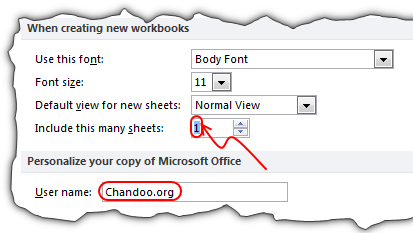
To begin with, I want to have only 1 sheet on my new workbooks as I seldom work with 2 or 3 sheets.
Change the user name
Since many of my workbooks are emailed to clients or uploaded on chandoo.org for you to download, I want to use our website address (chandoo.org) as my username.
Enable Developer Ribbon
After this, I went to customize ribbon and checked the Developer Ribbon box. This ensures that I can see the developer ribbon in Excel so that I can use features like form controls, macros etc.

Note: If you are using Excel 2007, you can find this in Popular tab in Excel Options.
Disable Error Checking Options
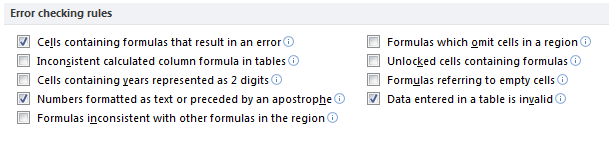
Excel has a friendly feature called as error checking. By default this is enabled and Excel shows warning messages whenever you have made some predefined errors while using Excel. For example, you would get a warning whenever your formulas omit adjacent cells in a region.
While this is useful, I find it annoying as most of the time I know what I am doing. So I disabled almost all of the error checking rules except the ones that I want.
You can do this from Formula options in Excel Options screen.
Tell Excel to take frequent backups of your files
Since the work I do in Excel feeds my family, I want to make sure nothing is lost. Apart from using external back-up applications, I want to use built-in backup features in Excel. You can set these settings from Save tab in Excel options.

Customize Quick Access Toolbar
There are quite a few things in Excel that I use on regular basis. To begin with, I use shapes, alignment tools, text-box, select objects on regular basis. So I add these to my QAT. I will be adding more items to QAT as I use more features on this laptop’s Excel.

Adding Excel to Taskbar
This next is not an Excel tip but Windows tip. Since I use Excel thru-out the day, I just add it to taskbar (by right clicking on Excel in Programs and choosing Pin to task bar.)
What about you?
Those are the bare-minimum customizations I made to my Excel 20101.
What about you? How do you customize your own Excel to make it productive & easy to use. Please share using comments.
More Tips on Customizing Excel
If you want to use Excel productively, then customizing how it behaves is the first step. Here are some handy ideas you can try,
- 10 Tips to make better & boss-proof spreadsheets in Excel
- How to create new ribbons in Excel 2010
- Pin frequently used documents to Excel’s file menu
- 15 Productivity Tips for Excel users (Excel 2003 and above)
- How to add your macros to Quick Access Toolbar
- More Excel Productivity Tips, Keyboard Shortcuts & Mouse Shortcuts
PS: Wish you a happy weekend. We are taking the kids to Safari World today (Friday), for a day of giraffes, monkeys, dolphins, elephants and sun.


24 Responses
I’d suggest simply using the subtotal function and filtering the data using the Win/Loss column. You get the same results and the formula is more comprehensible.
@John
That is one option.
There are times however when you want to see the whole data table or a filtered subset and still want to produce summary reports against an unfiltered field.
Is there a particular reason why you are using a comma and the unary (–) operator for the second array in the SUMPRODUCT formula? It seems to work the same if you were to string the arrays together using the asterisk (*). The advantage is that SUMPRODUCT treats the entire string of arrays as a single array.
@Mathew
Your correct, There is no difference.
I thought it may have been easier to explain this method.
Is there a way to do this on a large set of data? As in ~100,000 rows? When I try I get an error because the formula becomes too long. It says the max length of a formula is 8,192 characters. Excel 2010.
How do I incorporate a specific text within a cell for the second array. For instance, – -(C7:C13=”Apple”)
when I chose a specific text the formula does not work.
@RB
I am not sure what is the issue as if I use the sample data in the post the following work fine
Count:
=SUMPRODUCT(SUBTOTAL(3,OFFSET(C7:C13,ROW(C7:C13)-MIN(ROW(C7:C13)),,1)), –(C7:C13=”L”))
Sum:
=SUMPRODUCT(SUBTOTAL(3,OFFSET(C7:C13,ROW(C7:C13)-MIN(ROW(C7:C13)),,1)),(C7:C13=”L”)*(D7:D13))
You may want to check that there are no leading or trailing spaces in your list of Apples
I should have given a better explanation. Heres my situation. I have a column with cells filled with names like Column 1, Column 2, Pier 1, Pier 2, etc. If the cell just contained Pier and searched for that it works. But because it has other characters in the cell its not recognizing the pier. So how can I extract specific characters of a string of text in this formula?
Hopefully this was a better explanation
Hello-
This formula works pretty well for me except that it slow down excel and prevents some of my macros from working. I was wondering if there was a way to program this in VBA so that excel isn’t always trying to recalculate it. I would like to use a push of a button to get it to run then paste in a cell.
Thanks!
I am trying to sum filtered data in a column, but would want to ignore the negative values in the column. How to go about doing this?
@Akshay
Why not just add a filter to that column to only show the values greater than zero?
The negative values are required for reporting purposes, but their effect on the total is distorting the required output. Please advise.
@Akshay
I’d suggest making a post in the Chandoo.org Forums
http://forum.chandoo.org/
Attach a sample file to simplify the task
I have this working for counting and summing, however, I have a list and for the second array, I need a criteria. That is, I’m looking for b13:b200=”01.??.??” or =left((a1,2) or something like that. These types of criteria matches do not appear to work as I get a blank as a result.
Thanks!
@Bob
As your formula b13:b200=”01.??.??” looks like you are trying to check the first day of the month of the range
What about trying Day(B13:B200)=1
Hai Experts,
i understood this formula well and working fine in MS Excel 2013
but when the same am trying to place in google Spreadsheet it shows error as
“SUMPRODUCT has mismatched range sizes. Expected row count: 1. column count: 1. Actual row count: 2014, column count: 1.” and as a result #VALUE! Appears in cell.
Can anyone please help me how would i get it done in Google Spread sheet
or is there any other formula as a substitute for this.
Thank you very much.
thanks for providing this.. but why does excel keeps on prompting Circular referencing in cell D3?
@Vivek
I don’t know
I just downloaded the file and it is working fine and not showing that error
Goto the Formulas, Calculation Options Tab and check that Calculation is set to Automatic
What version of Excel and Windows are you using ?
I know that this forum is for MS Excel, but I am trying to help someone who is working in Google Sheets. The below formula works in Excel but Google Sheets returns:
“SUMPRODUCT has mismatched range sizes. Expected row count: 1. column count: 1. Actual row count: 39000, column count: 1.” and as a result #VALUE! Appears in cell.
This is the same problem asked by Srichirin above. Does anyone know if there is a formula for Google Sheets that will replicate what MS Excel does?
=SUMPRODUCT(SUBTOTAL(3,OFFSET($C$6:$C$39500,ROW($C$6:$C$39500)-MIN(ROW($C$6:$C$39500)),,1)),- -($C$6:$C$39500=H1),($D$6:$D$39500))
Trying to find a SUMPRODUCT formula that counts the word Closed by date for the last 7 days in a filtered list.
=COUNTIF(M:M,”>”&TODAY()-7) works ok for unfiltered count Column M contains Closure dates (blank if open) and Column L is Status Open or Closed
@ Terry
Please ask the question at the Chandoo.org Forums
https://chandoo.org/forum/
Please attach a sample file to ensure a quicker more accurate answer
I used this formula and worked like a charm! But, now I’ve been requested to use it but adding not one but two criteria in the same formula. For instance the sum I was doing added negative and positive numbers. I’ve been asked to use the exact same formula but adding that only positive numbers were considered… any idea on how to do this?
How exactly do you do sum filtered cells when two criteria are need not just one?
Thank you so much brother literally I have been struggling since morning to get the sum of the filtered category, however, after reading your blog attentively i got my solution, so thanks a lot once again.