

This is a guest post by Hui, our in-house excel ninja.
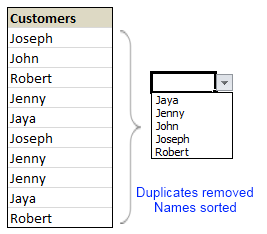
Here is a typical scenario: We want to allow only one of the pre-defined customer names in our spreadsheet. We have listed down all the customers in column B and want excel to check against this list and validate the data. But there are 3 problems. (1) Our list is not sorted alphabetically (2) It contains duplicates and (3) The list comes from external source, so we can not remove duplicates and sort the list every time.
Now how can we set up a simple data validation list that would not repeat customer names and shows them in sorted order like this:
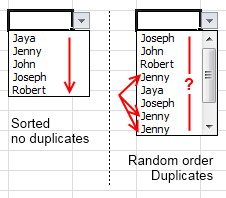
Here is the solution:
We need to remove duplicate entries and sort our data before it is fed to data validation list source. For this, there is a perfect tool right inside excel.
The rapid sorting cat.
Well, I am kidding. We use pivot tables. Pivot tables can sort the data as well as remove any duplicates. We can construct list of unique and sorted customers as column headers.
Just follow these simple steps:
- Select the source customer list and make a new pivot table. Insert the pivot table in the same sheet for convenience.
- Now, just add customer name to the column header area as well as “values” area.
- At this point, the column header in pivot contain all the customers (without duplicates) in sorted order.
- Now, make a dynamic named range that would refer to column headers in the pivot table. I am leaving this to your imagination, but here is a clue.
- Finally, use this dynamic range as input data source for data validation.
- That is all. Now, as and when your source data changes, just refresh the pivot and your validation will be updated too.
Note: You can make a dynamic range out of your input data as well. Or use excel tables if you have 2007 and above.
Download this example and learn by playing:
Here is an example sheet with a different data set (I use animals instead of customers).
Added by PHD:
Hui is an active member on PHD forums and helps people in solving excel problems. He likes to work on excel and has been kind enough to write this post in his free time to share such good idea with us.
Please say thanks to him if you enjoyed this post.
Learn more about data validations & duplicates:


26 Responses to “Get busy this weekend, with OR XOR AND [Excel Homework]”
first solution for AND
The two numbers are in A1 and B1
= SUBSTITUTE (SUBSTITUTE (A1+B1*9*9, 9, 1), 8, 0)
regards
Stef@n
next solution for OR
=1*SUBSTITUTE (A1+A2;2;1)
regards
Stef@n
last solution for XOR
=1*SUBSTITUTE (A1+A2;2;0)
regards
Stef@n
Or you could make use of the VBA logical operators!
Define the following as custom functions
Public Function BITXOR(x As Long, y As Long)
BITXOR = x Xor y
End Function
Public Function BITAND(x As Long, y As Long)
BITAND = x And y
End Function
Public Function BITOR(x As Long, y As Long)
BITOR = x Or y
End Function
and then use them such:
A B =BITOR(A,B) =BITAND(A,B) =BITXOR(A,B)
0101 0100 0101 0100 0001
an another solution for AND
=1*SUBSTITUTE (SUBSTITUTE (A1+A2;1;0);2;1)
note:
the binary numbers are in A1 and A2 !
regards
Stef@n
I was obviously playing hooky at the beach during the bit-wise math lesson – you lost me at “Understanding bit-wise operations” 🙂
After looking at the above solutions, I find my solution silly, but still:
For the following formulae,
Row 1: headers,
Row 2: OR
Row 3: AND
Row 4: XOR
Column 1: Input 1
Column 2: Input 2
Column 3: Result
OR
{=SUM(IF(MID(A2,ROW(OFFSET($A$1,0,0,LEN(A2),1)),1)+MID(B2,ROW(OFFSET($A$1,0,0,LEN(B2),1)),1)>0,1,0)*10^(LEN(A2)-ROW(OFFSET($A$1,0,0,LEN(B2),1))))}
AND
{=SUM(IF(MID(A3,ROW(OFFSET($A$1,0,0,LEN(A3),1)),1)+MID(B3,ROW(OFFSET($A$1,0,0,LEN(B3),1)),1)=2,1,0)*10^(LEN(A3)-ROW(OFFSET($A$1,0,0,LEN(B3),1))))}
XOR
{=SUM(IF(MID(A4,ROW(OFFSET($A$1,0,0,LEN(A4),1)),1)+MID(B4,ROW(OFFSET($A$1,0,0,LEN(B4),1)),1)=1,1,0)*10^(LEN(A4)-ROW(OFFSET($A$1,0,0,LEN(B4),1))))}
@Anup
Please don't consider your solution silly
Firstly, You are the 3rd person to submit an answer
Secondly, The best formula/function is the one that you know and understand.
I think I have a very tedious solution, which people won't have the patience to do except in small numbers.
I used the same problem setup as "Anup Agarwal"
AND =IF(AND(MID(B2,1,1)="1",MID(C2,1,1)="1"),1,0)&IF(AND(MID(B2,2,1)="1",MID(C2,2,1)="1"),1,0)&IF(AND(MID(B2,3,1)="1",MID(C2,3,1)="1"),1,0)&IF(AND(MID(B2,4,1)="1",MID(C2,4,1)="1"),1,0)
OR =IF(OR(MID(B3,1,1)="1",MID(C3,1,1)="1"),1,0)&IF(OR(MID(B3,2,1)="1",MID(C3,2,1)="1"),1,0)&IF(OR(MID(B3,3,1)="1",MID(C3,3,1)="1"),1,0)&IF(OR(MID(B3,4,1)="1",MID(C3,4,1)="1"),1,0)
=IF(OR(AND(MID(B4,1,1)="1",MID(C4,1,1)="0"),AND(MID(B4,1,1)="0",MID(C4,1,1)="1")),1,0)&IF(OR(AND(MID(B4,2,1)="1",MID(C4,2,1)="0"),AND(MID(B4,2,1)="0",MID(C4,2,1)="1")),1,0)&IF(OR(AND(MID(B4,3,1)="1",MID(C4,3,1)="0"),AND(MID(B4,3,1)="0",MID(C4,3,1)="1")),1,0)&IF(OR(AND(MID(B4,4,1)="1",MID(C4,4,1)="0"),AND(MID(B4,4,1)="0",MID(C4,4,1)="1")),1,0)
Sorry my last post was totally messed up
AND
=IF(AND(MID(B2,1,1)="1",MID(C2,1,1)="1"),1,0)&IF(AND(MID(B2,2,1)="1",MID(C2,2,1)="1"),1,0)&IF(AND(MID(B2,3,1)="1",MID(C2,3,1)="1"),1,0)&IF(AND(MID(B2,4,1)="1",MID(C2,4,1)="1"),1,0)
OR
=IF(OR(MID(B3,1,1)="1",MID(C3,1,1)="1"),1,0)&IF(OR(MID(B3,2,1)="1",MID(C3,2,1)="1"),1,0)&IF(OR(MID(B3,3,1)="1",MID(C3,3,1)="1"),1,0)&IF(OR(MID(B3,4,1)="1",MID(C3,4,1)="1"),1,0)
XOR
=IF(OR(AND(MID(B4,1,1)="1",MID(C4,1,1)="0"),AND(MID(B4,1,1)="0",MID(C4,1,1)="1")),1,0)&IF(OR(AND(MID(B4,2,1)="1",MID(C4,2,1)="0"),AND(MID(B4,2,1)="0",MID(C4,2,1)="1")),1,0)&IF(OR(AND(MID(B4,3,1)="1",MID(C4,3,1)="0"),AND(MID(B4,3,1)="0",MID(C4,3,1)="1")),1,0)&IF(OR(AND(MID(B4,4,1)="1",MID(C4,4,1)="0"),AND(MID(B4,4,1)="0",MID(C4,4,1)="1")),1,0)
@stefan,
I just couldn't get your solutions to work.
01010101010 + 01010101110 = 02020210120
what am i doing wrong?
@anup
...I got yours to work!
@Stephen - I get the same, but Stef@an's second solution for AND does work (at least for the test cases I used)
@ Stephen / Rich
yes , you are right ! - only this works:
OR
=1*SUBSTITUTE (A1+A2;2;1)
XOR
=1*SUBSTITUTE (A1+A2;2;0)
AND
=1*SUBSTITUTE (SUBSTITUTE (A1+A2;1;0);2;1)
@Stef@n - You're answer is really smart, I never knew about the substitute function before. Great Work!
Thx Michael 🙂
yes - it is simply easy 😉
if you add 1 and 1 - excel calculate 2
and then you have to substitute the 2 - new = 0 respectively 1
Here is a good resource for people wanting to learn binary and hexadecimal.
http://justwebware.com/bitwise/bitwise.html
Three that weren't asked for:
NOT
=SUBSTITUTE(SUBSTITUTE(SUBSTITUTE(A1+A2,0,3),1,0),3,1)
EQV
=SUBSTITUTE(SUBSTITUTE(SUBSTITUTE(SUBSTITUTE(A1+A2,0,3),2,3),1,0),3,1)
IMP
=SUBSTITUTE(SUBSTITUTE(A1+SUBSTITUTE(SUBSTITUTE(SUBSTITUTE(A2,0,3),1,0),3,1),0,1),2,0)
(was using Daniel Ferry's bitwise file to verify against)
@ Kyle
Not only takes one parameter and inverts 0 -1 and 1-0
Took out the +A2
=SUBSTITUTE(SUBSTITUTE(SUBSTITUTE(A1,0,3),1,0),3,1)
Great solutions!
I'll add two:
NAND =1*SUBSTITUTE (A1+A2,2,0)
NOR=1*SUBSTITUTE(SUBSTITUTE (SUBSTITUTE(A1+A2,0,2),1,0),2,1)
This will work for binary numbers of any size (although the text format mask will have to have as many zeroes as there are digits in the longest addend)
Assume binary #s are in C35 & C36, then add and format as text in C37:
=TEXT(C36+C35,"000000000000")
-sum- = 101112211112
AND - SUBSTITUTE 0s for 1s in -sum-, then sub 1s for 2s
=SUBSTITUTE(SUBSTITUTE(C37,"1","0"),"2","1")
OR - sub 1s for 2s in -sum-
=SUBSTITUTE(C37,"2","1")
XOR - sub 0s for 2s in -sum-
=SUBSTITUTE(C37,"2","0")
Just wandered by:
AND:
=SUBSTITUTE(A1+A2,1,0)/2
Clever, Shane. I like that.
[…] post http://www.excelhero.com/blog/2010/01/5-and-3-is-1.html for examples using Sumproduct, and http://chandoo.org/wp/2011/07/29/bitwise-operations-in-excel/ for examples using Text […]
Hi Chandoo,
I am not (yet) really into bitwise calculation, but I am looking for a way to speed up my vba calculation with very big numbers. Would is ben convenient to use bitwise notation for this?
Best regards,
Ronald (the Netherlands)
p.s. love your country!
@Ronald
I'd suggest asking this in the Chandoo.org Forums
https://chandoo.org/forum/
Attach a sample file with an example of some data and describe what you want to achieve