

In the 54th session of Chandoo.org podcast, let’s make you awesome in Pivot Tables.

What is in this session?
In this podcast,
- Quick updates
- Top 10 pivot table tricks
- Adding same value field twice
- Tabular layouts
- GETPIVOTDATA & 2 bonus tricks
- Relationships & data model
- One slicer to rule them all
- Show only top x values
- Relative performance
- Show unique count
- Spruce up with conditional formats
- Not so ugly pivot charts
- Resources & Show notes for you
Listen to this session
Podcast: Play in new window | Download
Subscribe: Apple Podcasts | Spotify | RSS
Click here to download the MP3 file.
Resources for this podcast
Comprehensive guides on,
- Excel Pivot Tables intro – Podcast
- Excel Pivot Tables an introduction
- Excel Slicers what are they, how to use and advanced tips
- GETPIVOTDATA examples & usage
- Relationships & Data model example & downloadable workbook
- Power Pivot introduction and overview
Pivot Table Tips & Tricks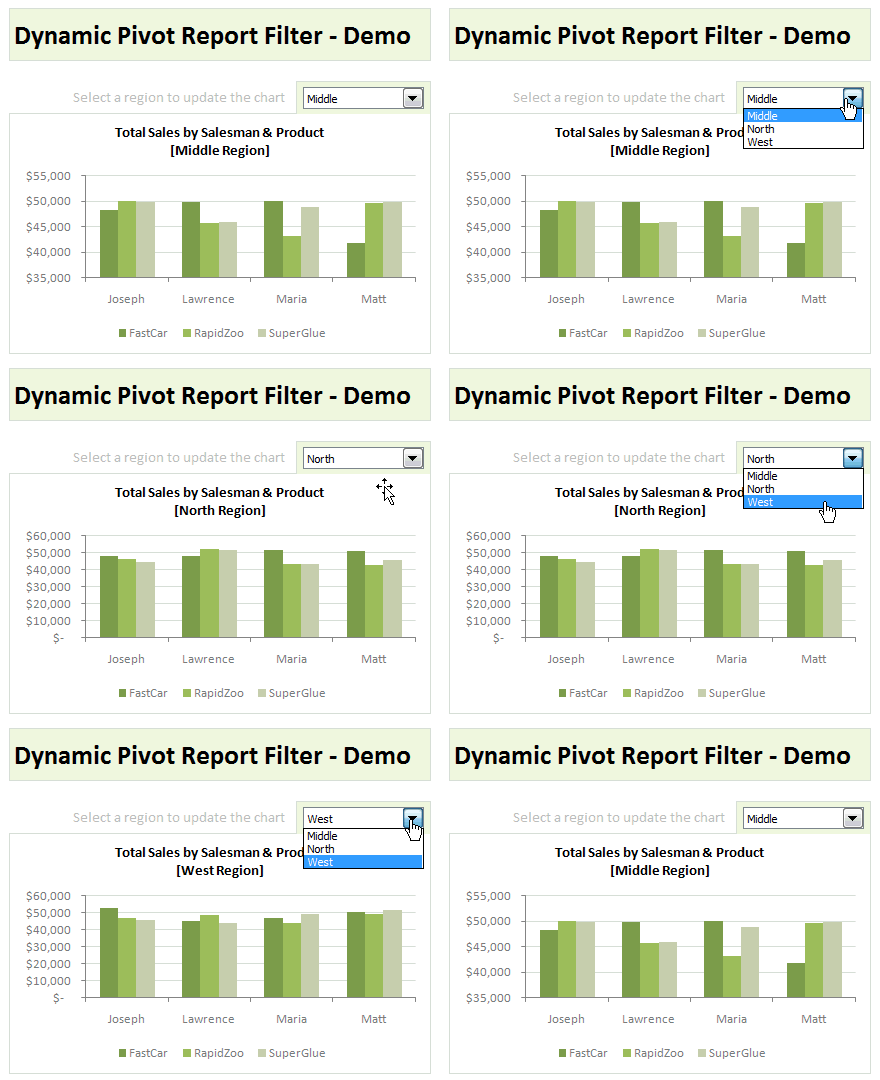
- Use report filters with VBA
- Structured references for Pivot Tables
- Group data in Pivot Tables
- Matching transactions using Pivot Tables
- Highlight quarters / weekends using styles in Pivot Reports
What are your favorite Pivot Table tricks?
Now its your turn. Go ahead and share your favorite pivot table tricks in the comments box.


5 Responses
Hi Chandoo, great podcast as always!
I have a client here in the UK who is on Excel 2010 (without any power bi add-ins enabled and an IT department unwilling to allow rights to download them) and I’m trying to get ‘one slicer to rule them all’.
He has numerous pivot tables with the same report filter fields names but they are from different datasets and it doesn’t seem to allow the slicer to connect to more than one dataset. Does anyone have any ideas for a fix or workaround?
The data is perfectly clean by the way, the report filters are all named the same thing in each query etc, it’s just that they come from 5 or 6 different sources.
Cheers,
Chris
Hi Chris,
Thanks for your love. You can use VBA to automate report filter sync. See here to get started.
http://chandoo.org/wp/2011/04/27/update-report-filter-macro/
You can also create ONE dataset from all of the datasets, with a new column to label the dataset.
I mention this because I have gone down the VBA path for aligning slicers and it’s neat but sometimes problematic. Eventually I gave up and just created VBA to aggregate the datasets into one table and then have all pivots off the same data. Then you only need one slicer for the pivots and no vba to align slicers.
Cheers
Great, thanks for your help Chandoo we managed to get it working using VBA today!
I am a big fan of the tabular view (tip 2) – how can I set this up as my default view of pivot tables ?