

Last week, we have learned what Pivot Table Report Filters are & how to use them.
Today, I am going to show, how you can use simple macro code to change the report filter value dynamically.
We will learn how to create the below chart:
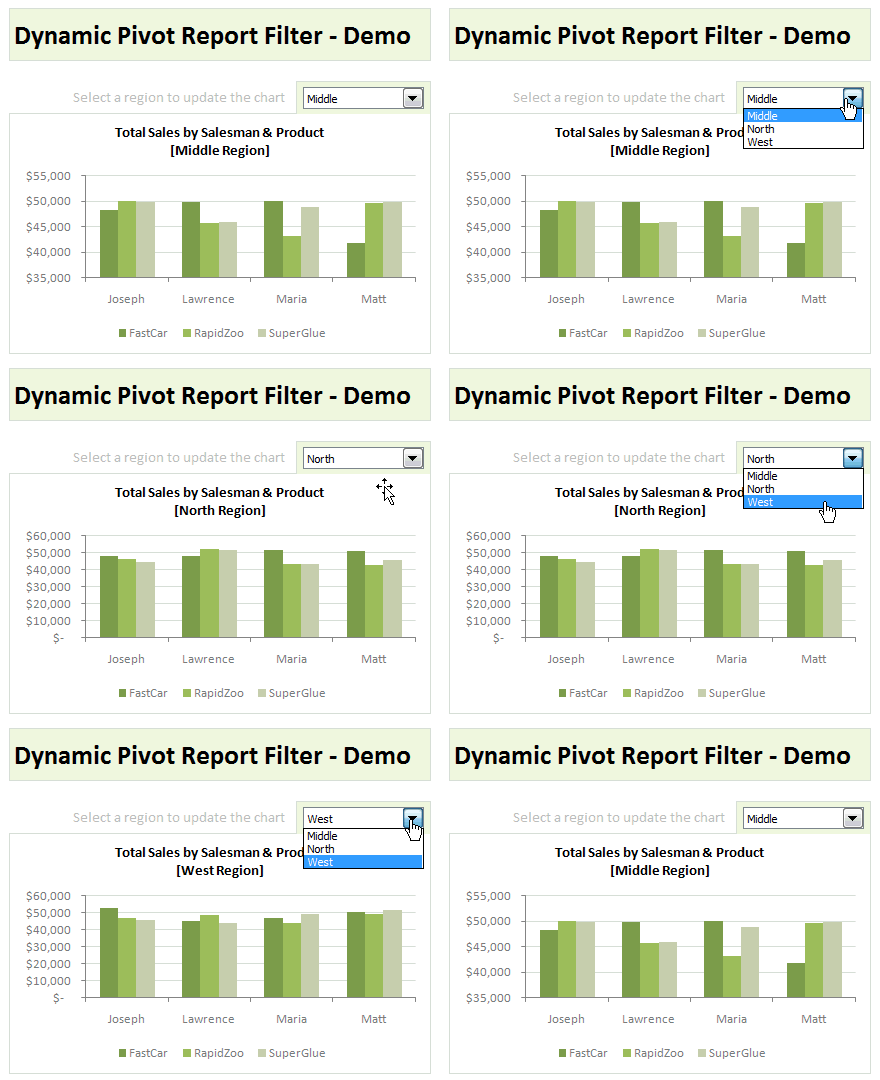
How to update Pivot Table Report Filters & Create such a dynamic chart?
To help you understand this technique, I have created a short video. Please watch it below:
Download Example Workbook & Play with it
Go ahead and download the file. It has a demo of this technique + other ideas on Pivot Table Report Filters.
Learn More About Pivot Tables:
- Guide to Excel Pivot Tables
- Excel Pivot Tables – Introduction & Video
- Dynamic Dashboard using Pivot Tables & Slicers [Excel 2010]
- More articles on Pivot Tables


46 Responses
It is clever, but can you tell me why you would want to use a pivot chart? there are so many great examples of clever and sophisticated charts in your dashboards that I wouldn’t want to use something as limiting as a Pivot chart
Hey Chandoo…Really Cool post but…
I think when u make a Pivot Chart with Report filter, Excel 2007 automatically updates the
data source for pivotchart as u change the report filter
This is a great technique for Excel Dashboards and Excel Reports. Please keep these great examples coming!
Chandoo,
How do I reverse the order of columns?
Eg column A, column B should become column B, column A and so on?
Seems easy but could not figure it out…
This is really great.. it helps a lot for tracking and reporting..
@SR
Select Column A by clicking on the A
Move the mouse to the lower edge of the box surrounding the A and the cursor will change shape to a 4 arrowed cross
Click and Drag Column A to After Column B
Voila
Nice idea. When selecting ‘Middle’ the vertical axis doesn’t start at zero anymore though. You might want to change the setting in the chart so it always starts at zero, unfortunately that’s not the default setting…
This is great. Could you do this with multiple items checked on a pivot filter and a multi-selection combo box?
You can also list (All) in the region list to get your overall activity.
Looks good, but I have always found using INDIRECT to feed data from various sheets allows a far more efficient way of changing data series based on say… months, where each month has a tab and INDIRECT is linked to a cell that has data validation supplied by a “limit to list” drop down list containing the same choices as there are tab names.
It also avoids using “space on drive hungry” pivot tables which, when coupled with .xlsb files, makes for faster emailing when on a slow VSAT connection !
I’ve sent through an e-mail to Chandoo with some screen prints and an excel example of this if he likes it, I’m sure he’ll let you all know.
What’s it about? i hate pivot charts and reports, but there is one thing that pivot charts do that manual charts don’t. Change the number of items on the x scale, e.g. compare 4 or 5 weeks.
So, with help from this forum, and that of XL Hero, the index function, i have found a way to do this – outside of pivot charts.
This is great – I have used something very similar for several dashboards. Is there a good reference for working a textbox into this as your filter selection option instead of a combobox?
Hey Chandoo, I love the chart, but I’m also quite intrigued about the expand/collapse option you used there, is there an article in the blog where you explain how to do that?
@Carlos
It is a Shape Object which when selected does two things
1. Runs a macro, that hides / unhides the rows 18:34
Sub showHideDesc()

    Range("18:34").EntireRow.Hidden = Not Range("18:34").EntireRow.Hidden

End Sub
2. Changes its Text which is via a named formula =imgHideShowDesc
=IF('Change Report Filter - Dynamic'!$B$95,'Change Report Filter - Dynamic'!$B$94,'Change Report Filter - Dynamic'!$B$92).
It works to great effect.
Hui can u please elaborate how text is changed when we click on that cell.. i am unable to understand that named formula..
@Amit
If you goto the sheet Change Report Filter – Dynamic and move down to B17 you will see that B17 is empty
Sitting in Front of B17 is a Rectangular shape
Right Click on B17 and you will select the shape
Note in the Formula Bar that it says =imgHideShowDesc
This is a Named Formula called imgHideShowDesc which refers to
=IF(‘Change Report Filter – Dynamic’!$B$95,’Change Report Filter – Dynamic’!$B$94,’Change Report Filter – Dynamic’!$B$92)
which is a simple =If(B95, B94, B92)
So B95 will contain either a True or False
and so the shape will return the contents of B94 if B95 is True otherwise it will show the contents of B92
Go down and check out the contents of B92:B95
Hope that helps
Hui…
Thanks Hui for super prompt reply ..
2 quick questions:
1. How can we assign named formula to picture.
2. The Cell B95 contains =Subtotal(102, B19) i dont get use of cell b19.
Thank you for the tip Hui! It’s certainly great and I like how it looks a lot better than “group” and “ungroup”.
sir chandoo,
i can’t understand
in D3 cell how value change into middle to “1”,north to”2″and west to”3″
nd drop down list is not showing option from Alt+arrow key,,
pls tell
@Rahul
On sheet Change Report Filter – Dynamic
at cell D3, Chandoo has inserted a Form Control, specifically a Combo Box Form Control.
Read about Form Controls here: http://chandoo.org/wp/2011/03/30/form-controls/
.
Then Form Control gets its values from F4:F6
and returns the index number for the selection to cell D3
Which is behind the Form Control
.
Yes, the Form Control called a Combo Box is in front of D3
Right click it then you can select it and drag it out of the way.
Right click it and select Format Control to see where it is linked to
Hi Chandoo,
Great exmaple, I tried the technique on my report and It works fine in 2007 but came up with Microsoft Visual Basic 400 Error when tried to run the file as 1997-203 Excel file. Any clue?
A Great piece of information just need clarification on how to get (All) .
I found that adding the word “All” to the list will provide the option to select all of the options.
Hi – How do I modify this VBA code to dynamically change multiple pivot filters with different data set?
Thanks
I tried on my data and build everything similiar. Whenever I change region,I have to run the macro and couldn’t resolve the issue. Please give me suggestion where I am going wrong.
Hi All,
A few members have asked for solutions on selecting multiple filter values in one pivot field. This is also one of my queries.
So Chandoo, Hui, it would be really very helpful if anyone of you could help us on that part.
Thanks,
Dheer.
Great job explaining. Would this work with powerpivot. I can’t get it to work
Works nicely, you ROCK!!!!!
I like this video, but I am havaing a hard time understanding how you created the drop down where you can select the regions. I have already filtered my pivot tables into the regions that I want to include, but I cannot figure out how to create the macro either. If you could explain the steps that show how you created this pivot chart, it would help a lot.
Thank you!
Hi Hui… Going back to Carlos question on expand/collapse topic. I am still not able to figure out how to get the content of B92 and/or B94 in the shape. I tried using the formula =imgHideShowDesc but no luck.
Hi ,
Check out this post :
http://chandoo.org/forums/topic/expand-collapse-cell-using-named-range
Narayan
Dear Chandoo/ Hui,
Thank you for such a valuable tutorial and the suggestions in the comments section.
I, however, am unable to get the chart title to change dynamically. The chart does change with the drop-down, but the title does not.
Another issue: When I click inside the chart and use the drop-down, the chart does not change and an error 400 shows up.
Grateful if you could advise a solution.
Thanks.
Dear Chandoo,
I have replicated the macro in my worksheet exactly as in your workbook. However, it is not working. I keep getting Runtime Error 1004
I will like to send the dashboard that I am working so that you can understand what I am saying. How do i do that?
Wg Cdr GS Seda
hi chandoo,
thanks for great article, i’ve manage to do it exactly as you write down.. but i have question now if we have sub names.
example we have 3 domain names : fish, bird and fruit in 1 combo box
and we have different type of fish, bird and fruit as sub domain
can we choose combo box 1 domain name example fruit..then in combo box
2 only showing different type of fruit there to choose?
ps : this thing i can manage using name manager + data validation using Indirect formula..but i dont know how to do it using combo box
Chandoo,
I need to run the macro every time manually to update the charts. Where is the problem?
HI chandoo,
great post… can you please let me know… if i want to select multiple item in a
filter through macro… how do i do it… let me know
thanks
Hi Chandoo,
Thks a lot for such a marvelous tool for creating dynamic dasboard!!!
But i got some trouble with the VBA macro. It doesn’t run automatically even when i select the option ‘enable macros’. It’s a little bit frustrating . I have to press ALt+F8 and ‘Execute’ to see how the dashboard works!!!
I’m using Excel 2010.
Thks for your answer and much more thks for making us awesome with Excel.
Stéphane, from France
Hi Chandoo,
Thanks for this great post,
How can i update three different pivot using one ‘selection’ from same source data !
i am also running into the issue where I have to manually run the macro.
What am I doing wrong?
thanks for your input
cameron
I encountered this too. I found that you must right-click on the form control, select “assign macro”, “new”, and then write the macro.
Hi,
Great tutorial! Just a quick question: Is there a way to change the pivot fields with a combo box (just as you have changed the pivot filter)?
Thank you!
This helped me a lot…i was looking for something like this…thanks
Do you have written instructions as I’m finding the sound difficult to understand?
Hi Chandoo,
Tried to replicate the macro but received run time error 1004. Can not enter a formula for an item or field name in a pivot table report. Its a very simple macro but what maybe causing this issue?
Thanks
Which version of Excel are you using? Does the pivot use data from data model?