

Slicers are one of my favorite feature in Excel. And here is a quick demo to show why they are my favorite.
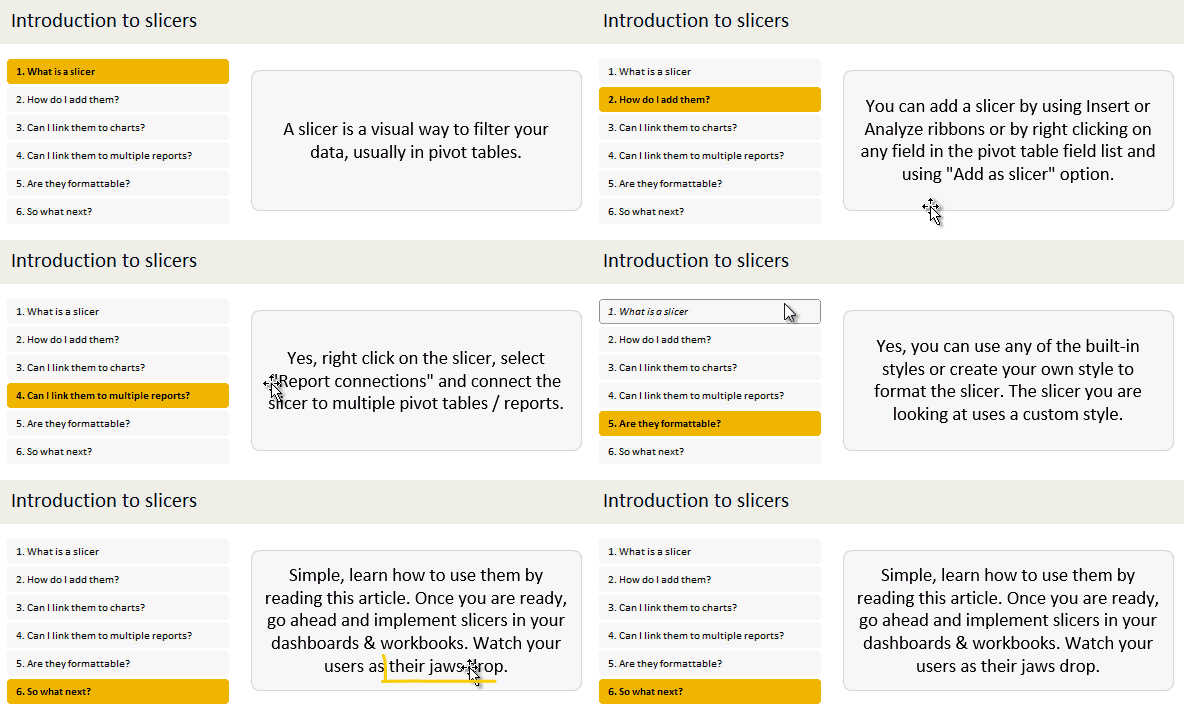
Slicers – what are they?
Slicers are visual filters. Using a slicer, you can filter your data (or pivot table, pivot chart) by clicking on the type of data you want.
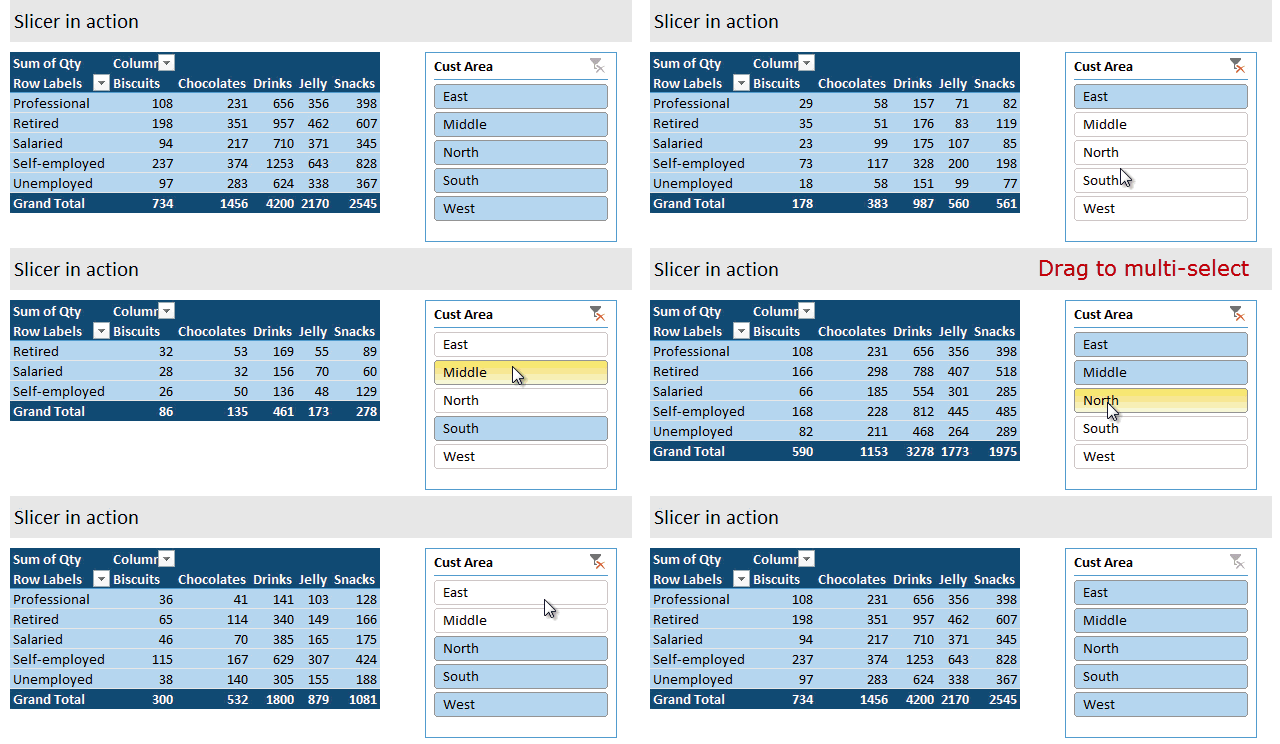
For example, let’s say you are looking at sales by customer profession in a pivot report. And you want to see how the sales are for a particular region. There are 2 options for you do drill down to an individual region level.
- Add region as report filter and filter for the region you want.
- Add a slicer on region and click on the region you want.
With a report filter (or any other filter), you will have to click several times to pick one store. With slicers, it is a matter of simple click.
See this demo:
Getting started with Slicers – Video
Here is a quick 5 minute video tutorial on Slicers. If are just getting started with this AWESOME feature, you must watch the video, NOW. See it below or head to my YouTube channel.
Download Slicer Examples Workbook
This post is very long and has many examples. Please click here to download slicer examples demo workbook. It contains all the examples shown in this post and a fun surprise too.
How to insert a slicer?
Note: Slicers are available only in Excel 2010 and above.
Adding a slicer in Excel 2010:
In Excel 2010, you can add a slicer only to pivot tables. To insert a slicer, go to either,
- Insert ribbon and click on Insert Slicer
- or Options ribbon (PivotTable Tools) and click on Insert Slicer
Adding a slicer in Excel 2013 / 2016 / 2019 / 365:
In Excel 2013 and above, you can add a slicer to either pivot tables or regular tables.
Adding slicers to regular tables:
When you add a slicer to regular Excel tables, they just act like auto-filters and filter your table data. To add a slicer to regular table, use Insert ribbon > Insert Slicer button.
Adding slicers to Pivot tables:
To add a slicer, you can do either of these things:
- Right click on pivot table field you want and choose “add as slicer”

- Use either analyze or insert ribbon to add the slicer.

Single vs. Multi-selection in Slicers
You can select a single item or multiple items in slicers. To multi-select,
- If the items you want are together, just drag from first item to last.
- If the items you want are not together, hold CTRL key and click on one at a time.
- You can also click on the “checkbox” icon in slicer header to multi-select items in slicers.
Creating interactive charts with slicers
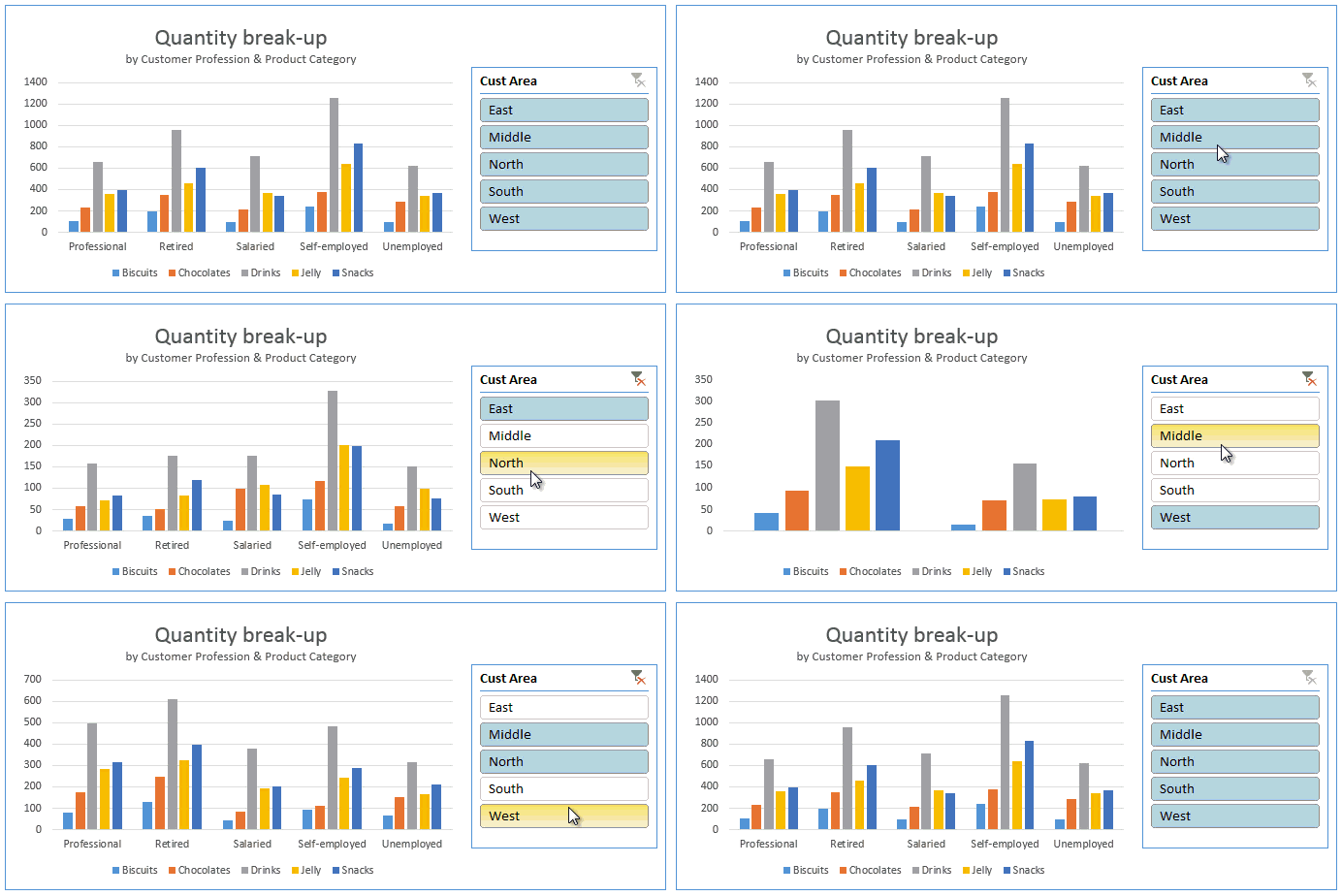
Since slicers talk to Pivot tables, you can use them to create cool interactive charts in Excel. The basic process is like this:
- Set up a pivot table that gives you the data for your chart.
- Add slicer for interaction on any field (say slicer on customer’s region)
- Create a pivot chart (or even regular chart) from the pivot table data.
- Move slicer next to the chart and format everything to your taste.
- And your interactive chart is ready!
Demo of interactive chart using slicer:
Here is a quick demo.
Linking multiple slicers to same Pivot report
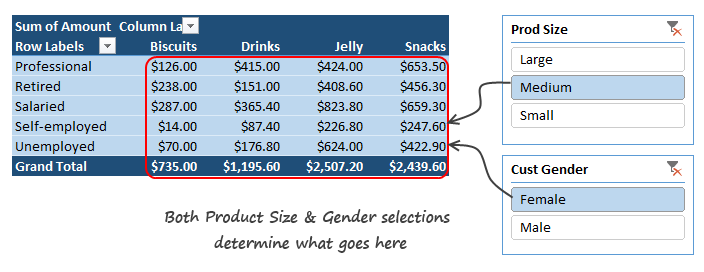
You can add any number of slicers to a pivot report. When you add multiple slicers, each of them plays a role in telling the pivot table what sub-set of data to use for calculating the numbers.
Linking one slicer to multiple pivot tables
You can also link a single slicer to any number of pivot reports. This allows us to build very powerful, cross-filtered & interactive reports using Excel.
To connect multiple pivot tables to single slicer, follow these steps.
- Optional: Give names to each of the pivot tables. To name the pivot tables, click anywhere in the pivot, go to Analyze ribbon and use the pivot table name field on top-left to give it a name.
- If you don’t name your pivot tables, Excel will give them default names like PivotTable73. This can be confusing once you have more than a few pivot tables.
- Right click on the slicer and go to Report Connections (in Excel 2010, this is called as PivotTable connections).

- Check all the pivot tables you want. Click ok.

Now both pivot tables will respond to the slicer. See this demo:
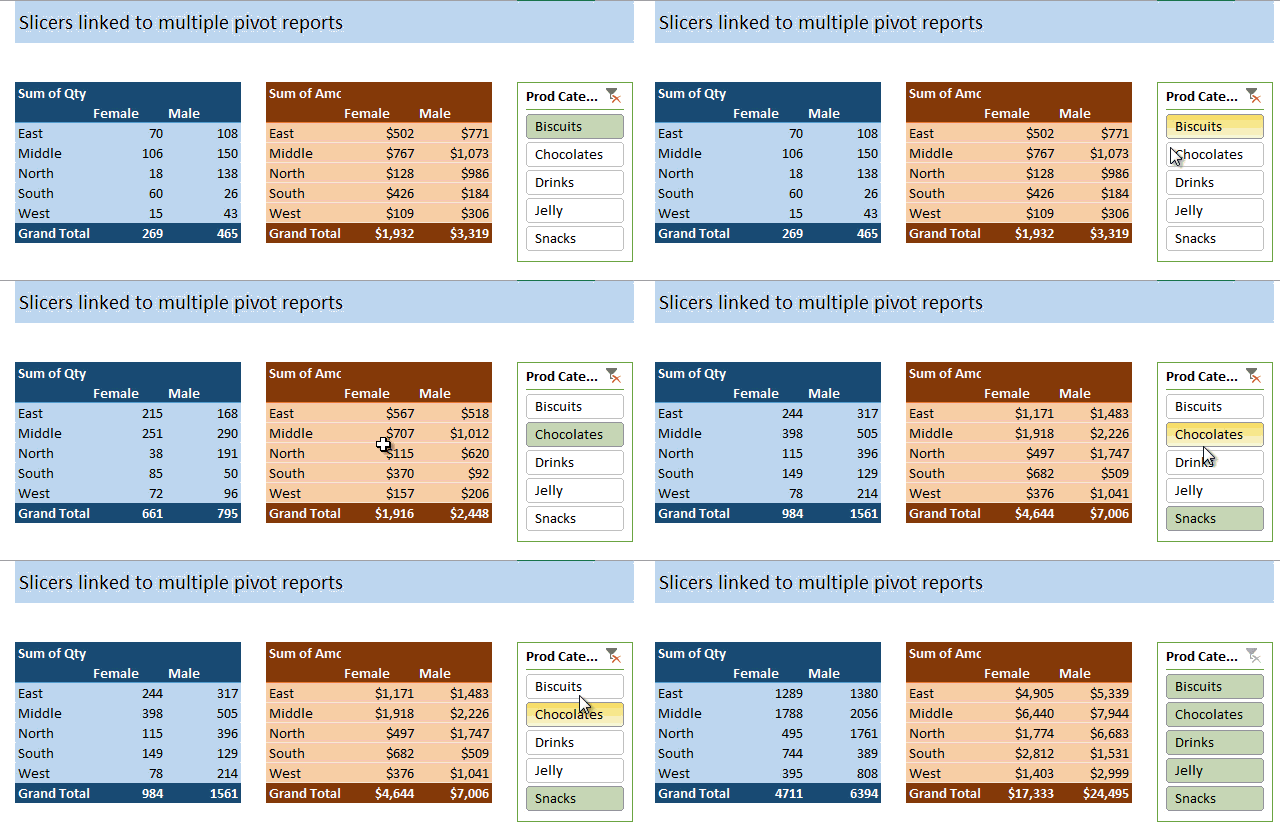
Linking slicers to more than one chart
You can use the same approach to link one slicer to more than one chart (pivot chart or regular one).
See this demo:
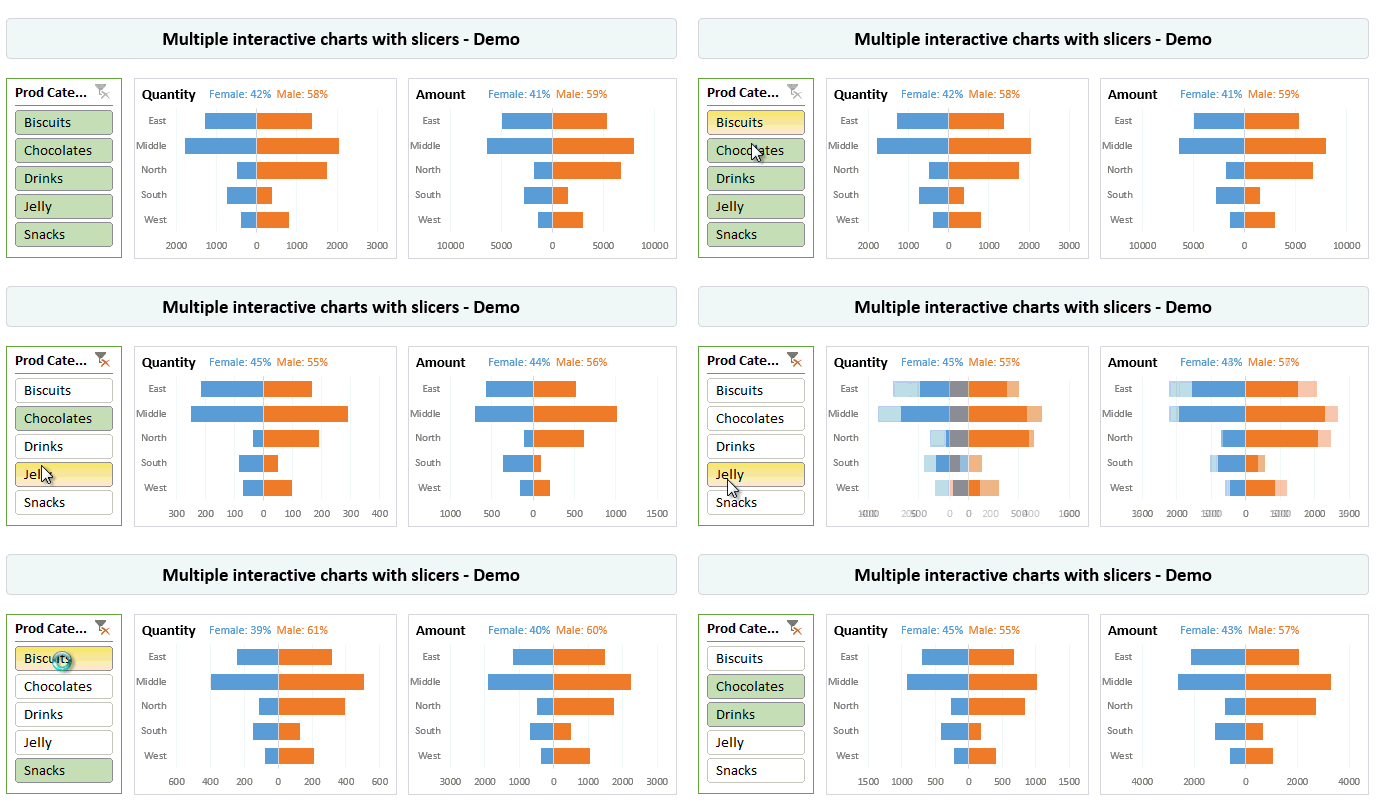
You can examine this chart in detail in the Slicer Examples workbook.
Capturing slicer selection using formulas
While slicers are amazing & fun, often you may want to use them outside pivot table framework. For example, you may want to use slicers to add interactivity to your charts or use them in your dashboard.
When you want to do something like that, you essentially want the slicers to talk to your formulas. To do this, we can use 2 approaches.
- Dummy (or harvester) pivot table route
- CUBE formulas route
Dummy pivot table route
This is the easiest way to capture slicer selection into a cell. Using a dummy pivot table, we can find out which items are selected in slicers and use them for some other purpose, like below:
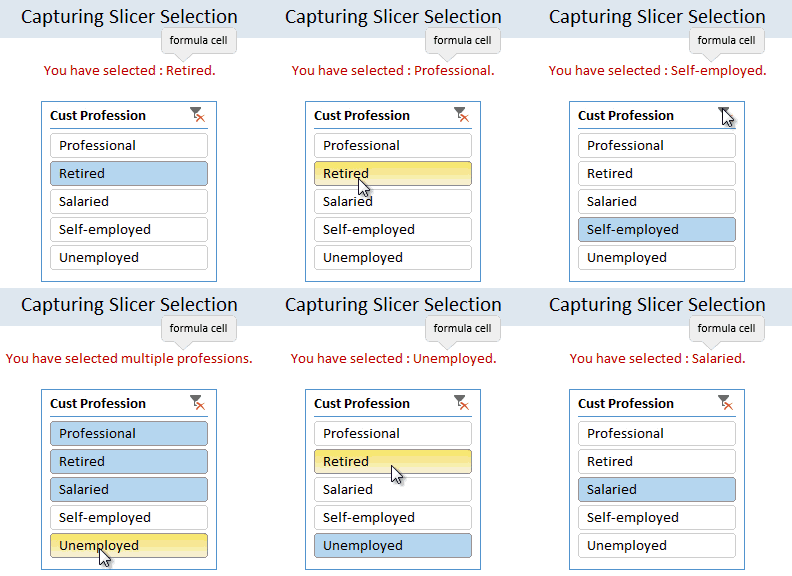
The process is like this:
- Let’s say you want to know which profession is picked up in the slicer (so that you can use it in some formulas or charts).
- Create another pivot table.
- Add the profession field to row labels area.
- Link the slicer to this new pivot table as well (using report connections feature of slicer)
- Now when you click on the slicer, both original pivot and this new dummy pivot change.
- Access row labels like regular cells in your formulas to find out which slicer item is selected.
See this illustration to understand how to set up the formulas:
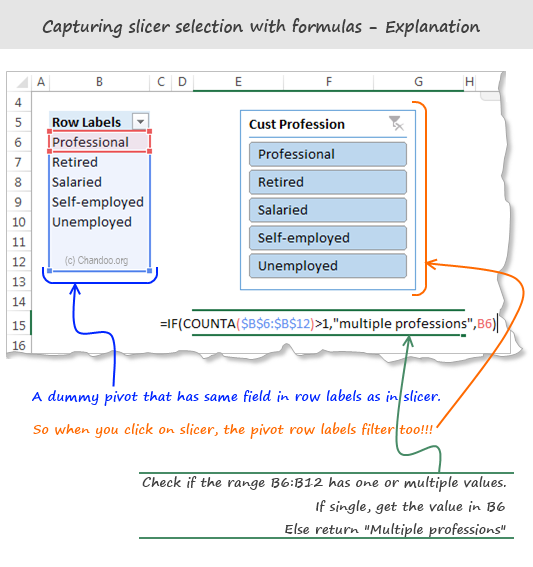
CUBE Formula approach:
This is relevant only if your slicers are hooked up to a data model thru something like Power Pivot, SAS Cubes or ThisWorkbookModel in Excel 2013 or above.
To find out slicer selection, we need to use CUBERANKEDMEMBER() Excel formula like this:
=CUBERANKEDMEMBER(“ThisWorkbookDataModel”, Name_of_the_slicer , item_number)
Let’s say you have a slicer on Area field, and its named Slicer_Area (you can check this name from Slicer properties)
To get the first item selected in the slicer, you can use CUBERANKEDMEMBER formule like this:
=CUBERANKEDMEMBER(“ThisWorkbookDataModel”, Slicer_Area, 1)
This will return the first item selected on slicer. If there is no selection (ie you have cleared the filter on slicer), the Excel will return “All”.
Bonus tip: You can use =CUBESETCOUNT(Slicer_Area) to count the number of items selected in slicer.
Bonus tip#2: By combining CUBESETCOUNT and CUBERANKEDMEMBER formulas, you can extract all the items selected in the slicer easily.
Please download Cube Formula Slicer Selection example workbook to learn more about this approach.
Note: this file works only in Excel 2013 or above.
Formatting slicers
Slicers are fully customizable. You can change their look, settings and colors easily using the slicer tools options ribbon.
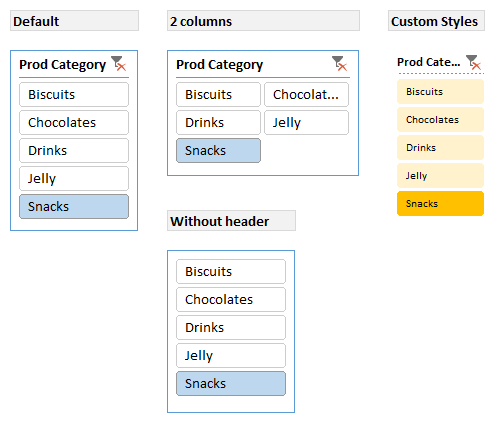
Here is a quick FAQ on slicer formatting:
Q. I have too many items in slicer. How to deal with this problem?
Simple. See if you can set up your slicer in multiple columns. You can also adjust the height and width of slicer buttons to suit your requirements. If your slicer is still too big, you can adjust the font size of slicer by creating a new style.
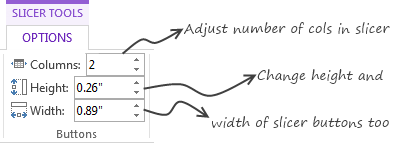
Q. I don’t like the blue color of slicer. What do I do?
You can switch to another color scheme. Just go to Slicer Tools Options ribbon and pick a style you want.
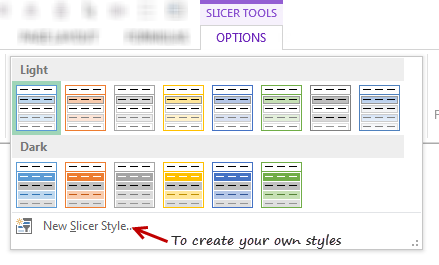
Pro tip: You can create your own style to customize all aspects of a slicer.
Q. I don’t like the title on slicer. Can I get it rid of it?
Yes you can. Right click on the slicer and go to “Slicer Settings”. Uncheck display header option to remove the header & clear filter button.
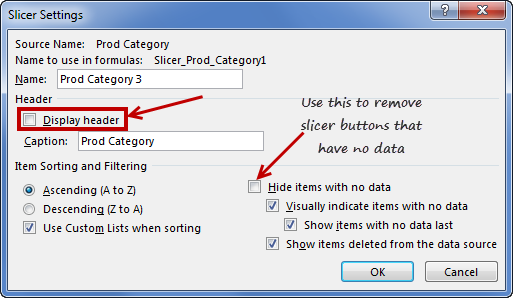
Q. My slicer keeps showing old products (or categories etc.) that are no longer part of data after refresh. What do I do?
Simple. Right click on the slicer and choose “Slicer settings”. Check Hide items with no data option.
Q. I want to make my slicers look good. But I don’t know where to start…
Here is an inspiration for you.
Slicers vs. Report Filters
In a way slicers are like report filters, but way better. (Related: Introduction to Pivot Table Report Filters)
There are few key differences between both.
- Report filters are tied to single pivot tables. Slicers can be linked to any number of pivots.
- Report filters are clumsy to work with. Slicers are very easy to use.
- Report filters may not work very well in a touch screen environment. Slicers are great for touch screen UIs.
- Report filters take up one cell per filter. Slicers take up more space on the worksheet UI.
- Report filters can be automated with simple VBA. Slicers require a bit more code to automate.
- You can access report filter values using simple cell references. Slicer values can be extracted using either dummy pivot tables or CUBE formulas, both of which require extra effort.
Slicers vs. Timelines:
If you have a date field in your data, you can also insert a “timeline”. this is a special type of slicer, that works only with date values.
Here is a quick demo of Timeline slicer.

You can also customize the look & feel of Excel Timelines.
The download workbook has an example of timelines.
Slicers & Compatibility
Slicers are compatible with Excel 2010 & above versions of Excel. You can also use Slicers with Excel Online.
If you create a workbook in Excel 2010 (or above) with slicers and email it to a friend using Excel 2007, they will see an empty box where slicer should be.
Slicers work on desktop & web versions of Excel in the same way.
Download Slicer Examples Workbook
Please click here to download slicer examples demo workbook. It contains all the examples shown in this post and a fun surprise too.
Also download the Cube formulas approach for slicer selection extraction workbook to learn that technique.
Additional Resources to learn about Slicers
If you like slicers and want to learn creative ways to use them in your work, check out below examples:
- Create a fully dynamic dashboard using Pivot Tables & slicers
- Use slicer as scenario selection mechanism
- Slicers + charts for awesome user experience – case study & one more
- Related: Introduction to Excel Relationships & Data Model
- Related: Introduction to Excel Pivot Tables
- Related: Introduction to Excel Report Filters
- Related: Advanced Pivot Table Tips & Tricks
Do you use Slicers? What are your favorite tips about slicers?
As mentioned earlier, slicers are one of my favorite features of Excel. I use them liberally in my dashboards, charts & workbooks.
What about you? Do you use slicers? When do you use them? What are your favorite tips when it comes to using slicers? Please share in the comments area.


49 Responses
Great article!
If you want to learn a bit more about using slicers in VBA, head over here:
http://jkp-ads.com/articles/slicers03.asp
Hi
I downloaded cube-formula-slicer-selection.xlsx.
Why is ‘Report Connections’ grayed out?
Great article!! Thank you very much… This post is one of the most helpful for my job!
Great Introduction. Thanks very much.
Wow! trying to use this on the reports that I have now. I really liked that Quantity and Amount Bar graph used on the pivot-multi tab, but for the life of me, I can’t seem to replicate it from scratch. Help please?
This is awesome! I will favorite this page in my blog, http://www.exceltoxl.com
Since I’ve known slicers about 2-3 yrs ago, I’ve pretty much used them in every damn report I do. Everyone that sees it for the first time is like “This is the best thing ever. Did you do that using excel or something else?” 😀 My bosses are so used it that when they see a report from someone else that doesn’t have slicers they send it to me to redo it :).
Couple of tips:-
Tip 1:
If for lack of space or say you want ability to search within a filter due to numerous values being present but still want it to connect to multiple pivot tables or charts then
1. Setup a pivot table with just the report filter
2. Create a slicer with the same field and tie that to all the pivot tables/charts that you want.
3. Just place it some out of sight.
Now you have a dropdown with all your values with search option plsu it is also connected to all your charts and pivot tables.
TIP 2:
In Excel 2013, slicers can be used with just plain tables as well. Not limited to pivot tables.
Congrats!
Nice content : )
Very comprehensive. Explained in an extremely simple way. I have been using Slicers for a while, but still learnt new things from this post. Thanks for sharing. Best wishes.
Awesome Explanation !!
I have joined this blog recently. Brilliant tools are available that I started using in my day to day work. Brilliant site. Thanks heaps.
Oh wow. I’ve only just started using Excel 2010 and had no idea this even existed. It makes dynamic charts so much easier!
You are my Hero! I am working with PowerPivot due to the huge amount of data I have and could not use my usual tricks to get the scatter chart title to change. For some reason the CUBE function wouldn’t work (who knows why, I don’t have time to dig into it now) but your “dummy” solution did.
thankyouthankyouthankyou!
Clare
On a normal PivotTable filter, you can choose whether to allow multiple items to be selected or not. Is that possible with slicers (in Excel 2010)? I’ve had a look through the options and not found a way to do it yet!
Hi Stevie… this is not possible with slicers.
Just hold down control when you’re choosing them…can then either click another (without control) and it will show only the new one, or click the filter with the red ‘x’ to revert back to all options.
Not a limitation that can be placed on the slicer but still a potential workaround depending on your needs.
Very comprehensive note on slicer. I haven’t yet used ms excel 2010, but learnt Slicer tool very well
How should I apply Slicer in excel 2010 version, not able find options
as directed, could you please tell me that step by step
@Arif
In Excel 2010 slicers could only be applied to Pivot tables/Charts not Regular tables
@Arif
In Excel 2010 slicers could only be applied to Pivot tables/Charts not Regular tables
I have a longitudinal line graph with the count of exams scored at each level(1-4). I need a longitudinal line graph that shows the percentage for each level. I made my pivot with the count in the field settings with a calculation of % of row total. This works great until you add a slicer fo that you can look at one level at a time. When I do this, it shows as 100% because it seems to lose the rest of the row calculations. How can I set it up to show the percent. I do not have the option of adding it to my data table. I am using straight Pivot, not PowerPivot.
@Mary
I’d suggest asking the question in the Chandoo.org Forums http://forum.chandoo.org/
Attach a sample file with an example of what you are after, even hand drawn
Hi, thanks for these tips. Is it possible to link a slicer to *different data sets*? All my data sets have a “year_opened” and “month_opened” fields, and I’d like do a single filter and update everything at once. Is that possible?
Hi,
Can someone tell me how to format a date field in a slicer to tell July 2016 instead of 07/31/2016?
Thanks in advance.
Great post – easily explainable for non excel whiz.
Thanks for the slicers post. I’m knew to this feature so don’t be to harsh on me 🙂
In the example bar chart graph: “Quantity breakup by Customer Profession and & Product category” you get a different picture depending on which area is chosen “East, Middle, North, South, West”. That part I get. But the graph itself doesn’t specify which region you are in.
Is it possible to put the filtered criteria into the Chart title. For example if I chose West, the title would read “Quantity breakup by Customer Profession and & Product category – West”.
Is that possible? Just curious. Thanks
It is possible…I have this on a number of my reports.
1) create a pivot table with just the column your slicer is set on
2) assign the slicer to that pivot table
3) create a string in cell B3 (or wherever):
=”Quantity breakup by Customer Profession & Product Category- “&A3
(assuming that A3 is the cell that the chosen region appears in)
4) click (once) on the graph title, then in the formula bar type =B3
As you change the slicers, B3 will update as will the chart title.
Couple of tips:
1) if you need to have a new line for the title, use CHAR(10) e.g.
=”Quantity breakup by Customer Profession & Product Category”&CHAR(10)&A3
(this will have the region on a new line)
2) if multiple regions will be chosen, I’ve added in an IF statement
=IF(COUNTA(A3:A10)>1,”Multiple Regions”,A3)
(I’m sure there are ways to concatenate the strings but for mine it could get up to 20 and that just gets ridiculous for the graph heading)
Just Wow
I am trying to create a duplicate dashboard using data in one workbook and creating a new workbook to place in a shared file for my coworkers. I have created a separate worksheet in the original workbook for the new pivot charts and slicers I want to use in the new workbook/dashboard. I don’t want all of the source data in the new workbook, as it is very large. I am having trouble making new slicers work. They work in the original workbook, but when I copy them to the new workbook they don’t work. Am I going about this the right way or is there an easier way?
Very good post! Helped a lot. Keep up the good work!
how can you prevent multiple selection in a slicer box? In short, in any slicer box, only one entry is allowed and not multiple entries.
Fairly new to forum’s, hoping I’m not breaking a rule here, but I found this forum which seems to provide a solution:
https://wessexbi.wordpress.com/2014/03/17/just-one-slice-please/
I have 2 files. (1. .xlsx 2. .xlsm)
1 file contains all the pivot tables and charts. its also macro enabled.
2nd file contains the source data which is a .xlsx file.
but I am unable to run slicer on my 1st file.
can anybody help me out?
chandoo.org: one of my favourite Excel sites for years.
Slicers tutorial: excellent as usual.
Animated gifs: sorry, but REALLY distracting!! Especially with two on the same screen. Is there any way they can be activated only when we click on them, or something?
Hi Team,
I have inserted a slicer to a pivot table with 4 fields…I need to add another field for the same slicer…help me with this..
First of all I would like to say terrific blog!
I had a quick questio in whiich I’d like to ask if you don’t
mind. I was intereested to know how you center yourself and clear your head
before writing. I’ve had a hard time clearing my mind in getting my ideas out there.
I do enjoy writing however it just seems like the first 10 to 15 minutes are generally lost simply just tryying to figure out how
to begin. Any recommendations oor tips? Many thanks!
Hi All
Im trying to connect a slicer to 2 pivot tables with different sources
Both data tables have been sorted and have duplicates
ie
Table 1
Name Week FTe
A 1 7.2
A 2 7.3
B 1 7.3
B 2 7.3
Table 2
Name Month Fte
A Jan 2.6
A Feb 3.2
A Mar 4.4
B Jan 2.2
B Feb 6.4
B Mar 2.2
etc
I have created 2 pivot tables and have sorted it out the way i want with charts etc
Now all i want is to connect the Name Slicer to be connected to both of those pivot tables but problem is they have duplicates and are from different tables/sources
how can i connect/add this to a data model and connect to my name slicer?
Im sure it maybe something simple but minds not with it
So in short 1 to connect 1 slicer to 2 different pivots from different sources but not all pivots (There are dups in both) – as shown in the example
Thank You
Hi H
This is how you can do it. Create a third table with all slicer options (in this case it would be Name column) with one row per unique value. Now add this table to your source list. Then link all two tables via this third table thru Data ribbon > Manage relationships feature. Finally add a slicer on this third table column and link the slicer to both pivot charts.
Please note that you need to construct the tables and charts after data model is created.
See this page for more explanation on how to use relationships – https://chandoo.org/wp/introduction-to-excel-2013-data-model-relationships/
Hi,
Using Cube Value with Slicers is great. I am new to cube value, but it is so powerful. I am stuck on an issue where I want to filter on a slicer for all values except 1 and the slicer has thousands of values. I get #N/A in the results, when trying to do this. Any ideas on how to do an exception calc or how to get around this with the multi select slicer functionality?
Thanks in advance.
Cyleste
@Cyleste… thanks for your comments and welcome to Chandoo.org. You can use DAX to calculate such things as Excel pivot tables alone cannot function like the way you want. You can use DAX formula EXCEPT() to achieve this. For example,
=CALCULATE(SUM(data[sales]), EXCEPT(ALL(data[filter_column]), VALUES(data[filter_column]))) can tell you the sum of [sales] column in the data table by ignoring slicer selected values.
Hope that helps.
Hi Chandoo,
Thank you for your quick reply. I am not familiar with DAX but it sounds like I won’t be able to apply the calculation you provided after converting the power pivot to excel formulas via OLAP.
Cyleste
Thanks Chandoo, I like yours tricks & always I use slicers. Regards from México.
Hi Chandoo,
I have a lot of text in the slices (Pivot table). The text is not completely visible. What should I do?
Please Help
Thanks
Hi Girish,
Slicers are useful only for items with short text, for ex: categories, product names etc. For longer values, you are better off using form controls for interaction – Here is an overview of form controls Form Controls – Adding Interactivity to Your Worksheets
Thanks so much for this, it’s brilliant! I think it’s almost there – I’ve actually followed the steps on the example linked in my post. I just can’t get it to filter properly; it just returns 0 when I add a date into Cell O2. Should I be doing it differently?
slicers dont work with non-admin roles in OLAP Pivot Tables