

Congratulations to you if your job does not involve dead lines. For the rest of us, deadlines are the sole motivation for working (barring free internet & the coffee machine in 2nd floor, of course). So today, lets talk about a very familiar problem.
How to highlight overdue items in Excel?
The item can be an invoice, a to do activity, a project or anything. Here is an example of overdue, upcoming activities highlighted.

The problem – Highlight due dates in Excel
Lets say you work at Awesome inc. and you have list of to-do items as shown below.

And your problem is,
- Highlight items & due dates, subject to these conditions

- And of course start working on the items that are due
The Solution – Conditional Formatting
As you can guess, highlighting the due items is easier than actually doing them. First lets look at the solution and then learn why it works.
Lets assume that,
- The data is in the range – B6:D15, with Items (column B), Due date (C) and Completed?(D)
How to apply conditional formatting rules
We need to apply 3 rules. Follow below steps:
Highlight overdue items:

- Select the entire range (B6:D15) and from home ribbon select conditional formatting
- Click on New rule
- Select the rule type as “use a formula…”
- Write =AND($C6<=TODAY(),$D6<>”Yes”)
- And set fill color to red & font color to white.
Highlight upcoming items:

- Add one more “use a formula…” rule
- Write =AND(MEDIAN(TODAY()+1,$C6,TODAY()+7)=$C6,$D6<>”Yes”)
- And set fill color to green.
Completed items rule:
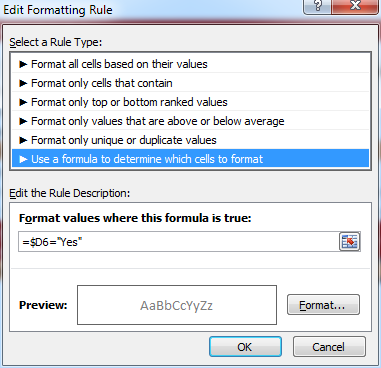
- Add another “use a formula…” rule
- Now write =$D6=”Yes”
- And set font color to dull gray from formatting button.
Now, the items will be highlighted based on the current date (TODAY) and change colors as you make progress.
Why does it work? – Explanation
At this point you may have 2 burning questions.
- Why does this work?
- How the heck am I supposed to ship 100 units of smile.
Lets talk about the solution & understand why it works.
Understanding the highlighting conditions
We have 3 conditions in our highlight table (shown above).
- If done show in dull gray color
- Not done & due in next 7 days show in orange color fill.
- If not done & already due show in red fill, white color
Rule for completed items:
The first condition is easy to check. We just see if a todo item is completed and then highlight the whole row dull gray color. So we write =$D6=”Yes” as the condition. We use $D6 (not D6) because we want Excel to look at column D (completed?) even when we are highlighting other columns (B – Item, C – Due date).
If not done & due in next week:
This is tricky. We need to check,
If completed is not yes
AND
If due date is with in next week
So we start with an AND formula. We write =AND($D6<>”Yes”
Then to check if due date is in next week, we use MEDIAN formula, like this MEDIAN(TODAY()+1,$C6,TODAY()+7)
So the condition becomes =AND(MEDIAN(TODAY()+1,$C6,TODAY()+7)=$C6,$D6<>”Yes”)
If already due:
This is another simple AND formula =AND($C6<=TODAY(),$D6<>”Yes”)
Remember:
We need to use $D6 & $C6 (instead of D6, C6) because we want Excel to check Completed & Due date columns. By removing the $ Excel will check relative columns and the conditions would not work!
More: Using relative vs. absolute references in Excel formulas
Now that we understand how this works, give me a big smile. And repeat that 99 more times & you know how to ship 100 smiles 🙂
Highlight overdue items – Video
If you are still confused about the conditional formatting rules for highlighting overdue items, check out this video. Watch it below or see it on my YouTube channel.
Download Example File
Click here to download example file. Break it apart, play with it to understand the whole highlight if due thing.
Note: I use random formulas to generate due dates & completed values. Press F9 to get fresh set of dates. Start typing your own values to remove formulas.
How do you handle dead-lines?
Do you use conditional formatting to see which items are due? I use conditional formatting for this all the time. What techniques you use? Is your dead-line criteria very different than shown above? Please share your tips & ideas with us using comments. I would love to learn from you.
Using Conditional Formatting & Dates – More Examples
Here are a few useful articles if you use Excel to track to do items & reminders.
- Conditional formatting & Dates – an introduction – Must read
- Working with date & time values in Excel – a complete overview
- Another ovredue items example – activities by employee
- Christmas shopping list in Excel: conditional formatting to track budgets, bought items etc.
- Employee shift calendar in Excel: Using dates, shift data to show busy & dull times.
- Annual goals tracker: Track goals by % completed


54 Responses
Nice!
Been using something like this for quite a while. Most companies use deadlines so this would be usefulle for everyone.
This is exactly what I need! However, I simply cannot get it to work! I’m using Excel 2010 and am completely replicating what you are doing, but it simply will not do it. Any advice from anyone would be greatly appreciated. PS EnableFormatConditions is set to True
I had the same issue, but I think it was a formatting issue.
Copy the formula from this website but delete the “” quotation marks. Type them back in from your own keyboard within the Conditional Formatting dialog boxes.
Hope this helps.
Love it – although I often turn my books late anyway 🙁
I am still not sure how the MEDIAN function works. When I print the value, it prints a random 5 digit number, But, when used in the formula, it does equate to the date which is weird. Why does it behave such ?
=MEDIAN(TODAY()+1, $C6,TODAY()+7) in a cell returns a 5 digit # while
=AND(MEDIAN(TODAY()+1,$C6,TODAY()+7)=$C6,$D6<>”Yes”) this seems to work just fine in Conditional formatting.
The 5 digit number that you see is the number of days elapsed since 1st Jan 1900 to the date in question. Excel uses this as a basis for all numeric operations on dates.
Following what Excel Challenged mentioned above,
Change the Number format of the cell to DD MMM YY or whatever format you want.
Very clever use of Median – wouldn’t have thought of using it!
@Excel Challenged:
“The MEDIAN function, one of Excel’s statistical functions, shows you the middle number in a data list.
Middle, in this case, refers to arithmetic value rather than the location of the numbers in a list.
If there is an even set of numbers, the median is the average of the middle two values. ”
So, if we give three dates (start date, target date, end date), median will return the middle date of the three. If target date is between the start and end dates, then the median function will return this. If the target date is before the start date, then the median function will return the start date. If the target date is after the end date, then the median function will return the end date.
Can you change the dates to only fall on week days? How?
@Jocelyn
Can you please explain more about what you want to do?
We have an accounts payable spread sheet that has due dates of bills on it. I would like the dates to only fall on weekdays since we do not work weekends. Thank you for your help.
Ok, lets say if due date is 30 days plus date of invoice; then;
=IF(AND(WEEKDAY(C13+30,2)>=1,WEEKDAY(C13+30,2)<=5),C13+30,IF(WEEKDAY(C13+30,2)=6,C13+32,C13+31))
In the above; IF condition will check if weekday of due date is between 1 and 5 ie. 1 being monday and 5 being Friday.
Then if this is true then it adds 30 days to the date of invoice, else it will add 31 days if due date is falling on sunday or add 32 days from date of invoice if its Saturday…
Hope i got it right… Chandoo what do u think?
How do I have the cell highlight just every 14 days after the date I manually enter in?
I contact someone on the 1st and I want the cell to highlight on the 14th and that’s it.
To highlight 14 days and after the date you enter.
=TODAY()<=a1+14
Or
To only highlight the 14th day after the date you enter.
=TODAY()=a1+14
brilliant – this is just what I need,
I wil be adding tasks to the spreadsheet so how can I copy the conditional formatting to other cells in the relevant columns please?
Thank you
Hi Chandoo! Very nice! Can this be done also in Google Spreadsheet? If not can you please show us a workaround or similar. Thank you.
i have a formula i need to work out. im more of a novice and enjoy working with excel, however some of the more intense formulas escape me. i have followed this thread quite a bit and believe that i can use this to solve my problem, however i cant seem to grasp the specific verbage of the formula i need. i have 2 colums, one for PT test complet, one for PT test due, i have used a simple format of (=column1+180) to get my due date, what i need is to get the due date to highlight color 1-150 days after green, 151to 180 yellow and 181 days after red. help???
Hi Larry… Thanks for your comments.
The simplest way to do this is, add an extra column (lets call it completed).
Write the formula =today()-column1
Now, use this column value to color the cells accordingly.
im not quite grasping this, can you give me an example?
when i do this, it returns the date as 1900
Good stuff! It worked well for me, however, I now wish to apply the same CF to 2 columns, instead of a cell selction. When I do this, all the blank cells in the columns turn red. Is there a formula for “if blank do not format” or similar?
No problem, I’ve worked it out…modified the last formula to read….
=AND($D1>0,$D1<=TODAY()+28,$E1<>”YES”)
The $D1>0 statement means that any blank cells are not formatted.
I’m wanting to figure out how i would do this for my job…i need to have orders signed by doctors and i’m wanting it to let me know when two weeks has passed and the order has not been received.
Hello,
I need help…..
I am trying to make an employee spread sheet that will tell me when training is expired or about to expired or completed. I have an idea but I am still having trouble with the formula, I can do it in one cell but not for an entire column. It is not that big, one column for the employee names, next columns for the dates of the trainings. if training are completed I want them to turn green, if training are 30 days before expiration i want them to turn yellow and if they are expire i want them to turn red. any help please…
thank you
Please help if you can!
I need to make a daily list of jobs with their due dates and then have three different things happening.
1. When a job is completed/ticked off, it must removed from the list automaticaly
2. From one day, before the due date, to 12:00am on the due date the cell colour of the whole row must be orange.
3. After 12:00am on the due date the cell colour of the whole row must be red and stay red untill its ticked off as completed.
I’ll really appreciate help in this, I’ve tried several formulas but I just don’t get it quite right.
Regards
Hi sir
it is very use full ,I have a doubt after making the due date ex:- in one sheet i have many customer each one have diffrent due due date and I make 12 sheet with month name is it possible to send the due date next sheet by month name , ex ; in JANUARY D1 due date is 12/9/13 I want send this to SEPTEMBER D1,and JAN D2 14/3/13 it need to go to march like this for every month
I hope you can help me in matter I am really sorry my English is not good
thanks Mehaboob
I have input all the formulas as the tutorial says but if there is no date put into the field it turns everything red. In other words I am trying to make a template at work with due dates and the orange part works great but everything is red unless I put a date into the cell. Any help would be awesome.
If I want to use condtional formatting to indicate a red if the date entered is after June 20, 2014 and a green if it was completed prior to this date, how would I do this with condtional formatting?
Thank you
Jeff
Select the cell(s) where you would enter the dates. then,
1. Go to conditional formatting > new rule
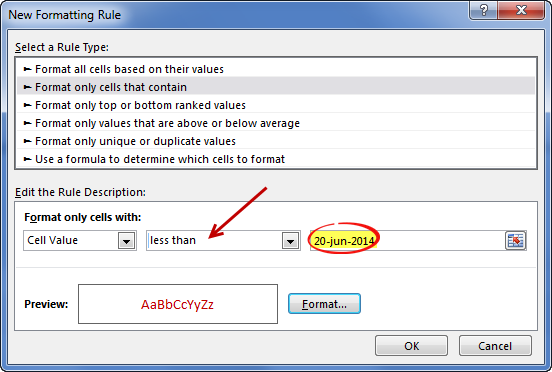
2. Select the rule type as “Format cells that contain”
3. Type the condition as below
4. Set up formatting as needed.
5. Repeat the rules for other date conditions.
6. You are done
DEAR SIR,
PL:Date DUE DATE DAYS OVER Payment Received date
I WANT THIS IF I ENTERED DATE IN PAYMENT RECEIVED DATE COL THEN DAYS OVER BECOME RECEIVED INSTEAD OF DAYS AND COLOR CHANGED AFTER ENTERED. CAN U GUIDE ME HOW ITS POSSIBLE
Thank you
So if I wanted it to show red if after the due date I would just set up that condition?
I have a column of when a person last took a class and a formula that created the date for when they must take it again, which is in three years. Works great. Now I want to color code the current year. For example: I took a class on 9/25/2012 and am due to retake it on 9/25/2015. I want that cell to turn red indicating that sometime during that year, I have to retake that class. I would even prefer to have the date change to JUST the year (so just “2015” instead of “9/25/2015”). Can you help me do this, please?
I really appreciate this post, but I’m confused about the MEDIAN. I assume that’s what selected the whole line of records rather than just what was in the 2 referenced columns. Why is that so?
This might appear to be a silly question, but with the date highlighted when it becomes due/past can you get the cell to flash/blink on and off.
I have just been asked this question i am using the latest excel
Thank you in advance
I want that Once Due date is highlited with Red color , then it should remain highlighted with Red color on next day or untill i change the colour.
Due date is highlited with color but next day it becomes without highlighting. I want it should remain highlited untill i change.
Hi there,
I really need help with this formula. Instead of a YES in the next column indicating that the task is complete, I need to enter a date to track our performance. Once a date is in the Completed Column, the date I am tracking would then turn Grey. I understand the due in 7 days and Past Due Formulas.
I hope you can help! Thank you!
@Juile
I’d recommend asking the question in the Chandoo.org Forums
http://forum.chandoo.org/
attach a sample file to speed up the response
please i need help, i want to do a conditional formatting: if 15 days left for the due date to color the cell red, if there is 2 months left for the due date to color the cell yellow, if more than 2 months left for the due date i want the color of the cell to be green.
please i need the formula for that, ive been struggling all day.
My issue is similar to this. I have one due date for number of tasks and would like to add conditional formatted depending on whether a task is completed or how many days there are until the due date.
-if no date is entered withing 2 days of the due date – highlight yellow
-if no date is entered by the due date – highlight red
-if a date is entered by the the due date – highlight green
I have tried a number of formulas and conditional formatting scenarios but have had no luck. Thanks in advance.
i want to generate dates if design actual date is delay for 2 days then for costing department date is increase by delay date.
design target actual complete costing target marketing target
05-04-2016 07-04-2016 09-04-2016 10-04-2016
in above design target date is 05/04/2016 but design task completed on 07-04-2016 so costing target date will be automatically calculated as per delay days.
=AND(MEDIAN(TODAY()+1,$C6,TODAY()+7)=$C6,$D6”Yes”)
This is only for 7 days.
What if I want it to be exactly 2 months away? Or even 1 year away? Any guidance on this? Sorry im very new to excel.
I tried to do a variation on this, we are setting up reminders to follow up on emails.
Column N has date last followed up
Column O is labeled ‘Application Recieved’ (If I has been received we type YES, if not it is blank)
First line of data is row 9.
I am in the process of creating 3 rules to change the cell/words according on where we are up to:
1. The application form has been received (YES is in ‘O9’), therefore ‘N9’ and ‘O9’ cells turn white and text grey.
=$O9=”Yes”
This is working.
2. If the date in ‘N9’ is less than 7 days old = Yellow cell.
=AND(TODAY()-$N9>=7,$O9”Yes”)
Not working. 🙁
3. If the date in ‘N9’ is more than 7 days old = Orange cell.
=AND($N9<=TODAY()+7,$O9”Yes”)
Not working. 🙁
Love any help you can offer…
We are setting up reminders to follow up on emails.
Column N has date last followed up
Column O is labled ‘Application Form’ (If I has been received we type YES, if not it is blank)
First line of data is row 9.
I am in the process of creating 3 rules to change the cell/words according on where we are up to:
1. The application form has been received (YES is in ‘O9’), therefore ‘N9’ and ‘O9’ cells turn white and text grey.
=$O9=”Yes”
This is working.
2. If the date in ‘N9’ is less than 7 days old = Yellow cell.
=AND(TODAY()-$N9>=7,$O9”Yes”)
Not working. 🙁
3. If the date in ‘N9’ is more than 7 days old = Orange cell.
=AND($N9<=TODAY()+7,$O9”Yes”)
Not working. 🙁
Love any help you can offer…
Reply
Hi, I’ve solved this without median and AND functions.
You’ve used median and AND function in everywhere to avoid “yes”. We can avoid “yes” issue by lifting “yes” rule to the top of conditional format rules from manage rules, right? in this case “yes” will be on top of other rules and we don’t need to write “yes” in each next rule.
‘m just wondering why you didn’t used like this and preferred median+AND function? is there some moments that I’m missing?
Please clarify for me 🙂
what is the formula for using a red flag. I would like to apply this concept to a task/project list and would like a red flag to appear in one cell when a task/project is overdue.
thank you!
Hi,
I am tracking the dates of wage assessments for various positions throughout my organization. We like to preform a market wage assessment every 3 years for every position in our organization. I used the formulas you suggested (minus the column D part with a Yes or No question because not applicable for us. I set up the formulas to show red with positions that are past the 3 year mark and set the other two up to show me ones that are due within 3 months or 6 months. However even ones that are due 3 years from now (newly completed wage assessment), excel is still highlighting these positions red like they are past due. Please advise how I can get the cells of positions that are not past due to stay white/ no fill.
Thanks,
James
Can you share the condition that you used? It is possible that your condition is returning false positives.
Sure. I am trying to highlight dates for future and past due wage analysis. These are the conditions I have entered:
Red: =AND($E$2=TODAY())
For Red I want to show Assessments that are past due (for us that means no wage assessment has been completed in the past 3 calendar years)
For Yellow I want to show Assessments that are due within the next 3 months
For Green I want to show Assessments that are due this year.
For White/ No Fill I want to show Assessments that are no due at this time ( meaning they have a completed assessment sometime in the past two years.
I put the date of the last assessment in Column D and then add 1096 days to the date for each position to show when he next assessment is due in column E ( so all of Column E are formula values )
Please let me know if you have any questions or if I need to provide more detail.
Thank you,
James
Sorry, the rest of my conditions did not show in my reply. I have listed them below:
Red: =AND($E$2=TODAY())
Yellow: =AND(MEDIAN(TODAY()+1,$E2,TODAY()+91.3333)=$E2)
Green: =AND(MEDIAN(TODAY()+91.34,$E2,TODAY()+364.5)=$E2)
White/ No Fill: =AND($E$2>=TODAY())
Yellow: =AND(MEDIAN(TODAY()+1,$E2,TODAY()+91.3333)=$E2)
Great article.
How would I go about having cells highlighted by time lapsed for things that are repeated every few months? Say I have a cell that contains a date of March 13th, and I want it to be green for 3 months, then orange for 3 months, then red after 6 months?