

Sometimes when you are working with data, you may need to just copy and paste numbers from one range to another. Here is a handy little trick to achieve that.
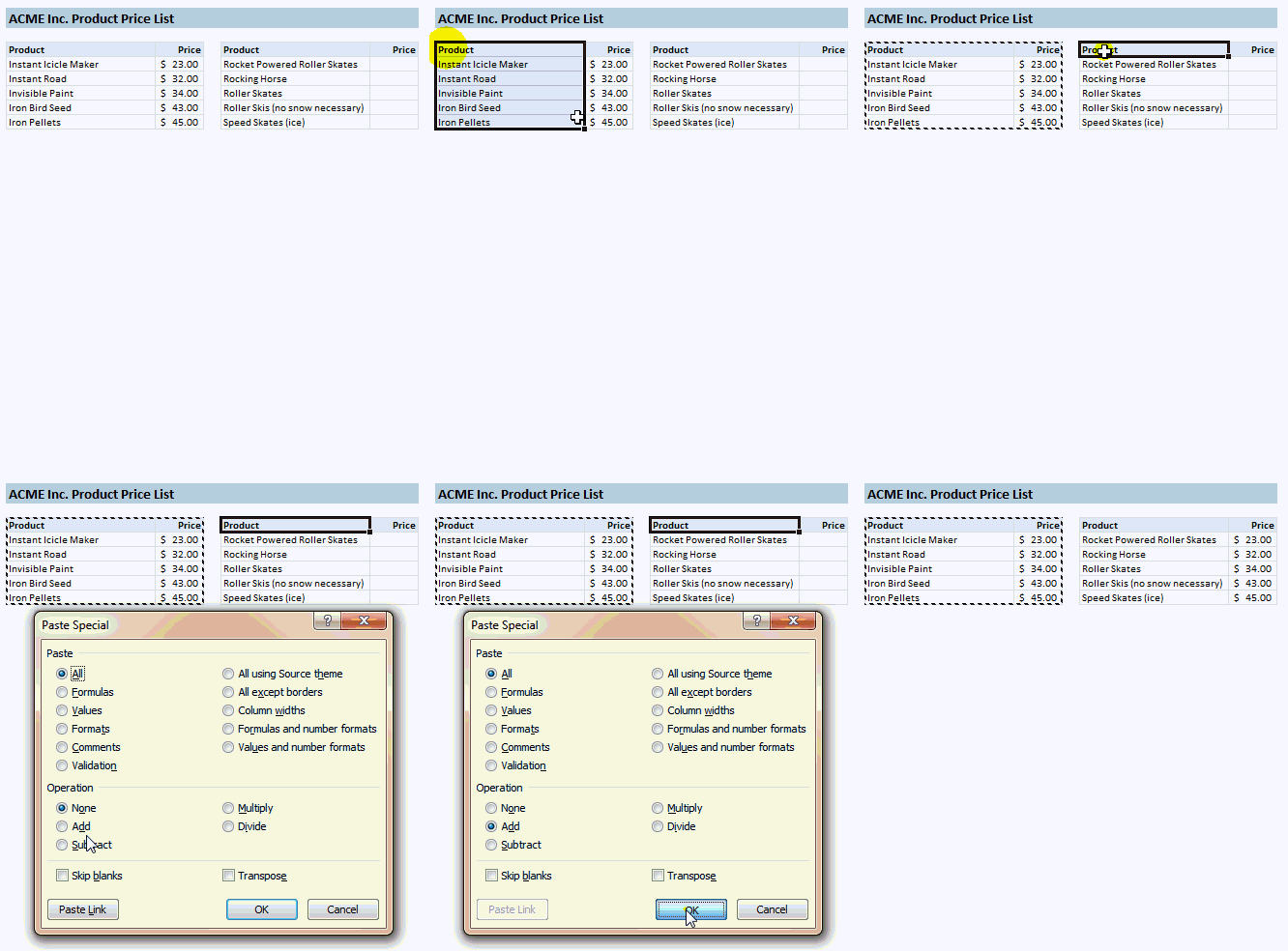
Use Paste Special > Add operator to paste numbers only.
- Select the source range, press CTRL+C
- Now, go to target range, press ALT+E and then S to activate paste special dialog
- Select “Add” operator (you can press d)
- Click ok.
See this short screen-cast to understand how to do this:
 Bonus tips:
Convert numbers from positive to negative:
- Select and copy a bunch of numbers
- Go to an empty cell, press ALT+E and then S and then S (or choose subtract operator)
- That is all. Your numbers are negated now.
Convert from one currency to another instantly:
- Enter the exchange rate in a cell. Copy it.
- Now select all the cells which needs to be converted.
- Press ALT+E and then S and then select Multiply operator (press m)
- That is all. Your currencies are converted. That will be $2.00 plus 1$ per 100.
16 more tricks on how to use paste special
Do you use Paste Special? Share your tips:
I love paste special as much as my wife loves pastries. And that is a high praise. What about you? Do you use paste special? Tell me and our readers how you use it. We are all ears.
Here is a chance to be awesome:
Learn a quick tip today or share a link to win a gift card [expires on 12th Sept, 2010].


27 Responses
Maybe I’m stupid – but where on regular keybord is ES key?
Dear Chandoo,
did you predefined ALT – ES for “Paste special”? This does not exist
in a german version (03)
Kind regards, Mike
@ MrCichy
Alt ES means Press the Alt and E together (release) and then press the S key
@ Mike
Have a read of the 2nd Comment on this page (about half way down the page)
http://chandoo.org/wp/2010/02/22/complete-list-of-excel-shortcuts/
There Should be a Paste Special option there
By ALT+ES I meant press ALT+E and then S.
And now I edited the post to make it clear. Sorry for the confusion.
@ Hui … yes, no its clearer with the space between E S
@ Chandoo … thank you for solving the confusion and it is perfectly discribed in the way of “press ALT+E and then S to activate paste special dialog” .. well done!
Hi All,
I personally don’t use the ‘keyboard combinations’ but rather stick to the buttons excel can add to the ‘ribbon’ > right click on the excel bar > Customize > Command > Edit and just drag the icons ‘paste special’, etc, to the ribbon.
i use pastespecial to convert numbers stored as text to numbers. enter a 1 in a blank cell. copy it. select the cells to be converted. do a pastespecial and choose multiply.
@Tom, you are missing out on about a big increase in productivity by staying with a mouse only approach…
When you have a moment have a read of the following:
http://blogs.msdn.com/b/excel/archive/2010/05/18/excel-team-favorite-keyboard-shortcuts-part-1-of-3.aspx
http://blogs.msdn.com/b/excel/archive/2010/05/21/excel-team-favorite-keyboard-shortcuts-part-2-of-3.aspx
http://blogs.msdn.com/b/excel/archive/2010/06/02/excel-team-favorite-keyboard-shortcuts-part-3.aspx
I must be missing something, but why not just copy the price column on the left side and then paste it on the right side? Why copy the product names also?
And why would one want to paste prices for the 5 products on the left next to different items on the right side.
Perhaps someone can explain what I am missing.
Text stored as a number will be converter to a number using this shortcut.
I understand that text stored as a number will be converted to a number, but I did not understand why the product names were copied. It seems unnecessary to do so. Why not only copy the prices, and paste special them to convert them to a number?
Is this the same in Excel 2007? A message “This is the shortcut for 2003” comes up and does not work. What can I do to use this shortcut?
@Tommy
Copy a Range
Goto where you want to paste it, which maybe the same location
Press ALT+E together (release the keys) and then press S
You may get a message poping up when you press Alt + E that says “Office 2003 Access Keys Alt E, continue typing the key sequence or ERsc to Exit.”
If that pops up press the S key
@Hui
Thank you so much! I could use it.
I use shortcut Ctrl+Alt+V to bring up Paste Special dialog box. Just because it’s easier to remember that Ctrl+V is shortcut for paste and add Alt to it to paste special… works perfectly in Excel2007
@Anand… Thanks for that shortcut. I have been using ALT+ES for the last few years. But I like the “easy-to-remember” nature of CTRL+ALT combo.
@David: I guess my demo data set is not accurately reflecting the power of this. Sometimes, your data may not be so well structured. Even then you can use the Add operator to copy just numbers and skip everything else.
@Garyk:
Very good tip. Donut to you 🙂
I’m surprised none of the previous comments have brought this up but it would be better to use the “V” accelerator key in the past special dialog to paste as values!
Using the Add method if you already have numbers in the price column then they will get added to when really you would want them overwritten by the values just copied…
@Scotty…. The “v” key will not work as it will also replace the text. If you see above demo again, you will notice that the product names havent changed after pasting. Only the prices.
…. but if you are pasting values surely you would WANT to replace the text as well? It is pretty clear that rocket powered roller skates and an icicle maker are NOT the same thing. If you don’t replace the text then clearly the table is wrong.
I accept that the paste special Add method is very useful when you only want to replace values over a mixed area of text and blank cells where you want values (but this is a pretty limited and unique case!). Normally to paste only values without formulas, formats, etc. you would use paste special values. Maybe the post should just be renamed slightly to satisfy sticklers like me and not confuse novices who might be surprised by the results if they try to use this method to paste over a range that already contains numbers??
@Scotty
I am sure Chandoo is showing us a technique for pasting tables of numbers where they are intermixed with text and I can think of several cases where this technique is applicable.
The example presented may not have been the best as the different items has confused people, but the technique is still valid.
“Transpose” is one of mine frequently used paste special options, really handy in lot of situations :o)
To activate paste special dialog use CTRL + ALT + V
Thank you! This, in itself, is worth a million dollars to me! It will save me TONS of time! I loathe the drop down menus/ribbons. Key commands typically stick with programs from version to version. Whereas the appearance and locations of commands in drop down menus/ribbons change regularly.
Past special : Try Ctr + Alt + V
May i ask, i need to paste number only in a formula range target, but it will result Value Error. Is there another way to paste it?