

Today, lets learn OFFSET formula.
What is OFFSET and why bother using it?
OFFSET formula gives us reference to a range, from a given starting point with given height and width in cells.
OFFSET formula syntax
OFFSET formula looks like this:
=OFFSET(starting point, rows to move, columns to move, height, width)
- Starting point: This is a cell or range from which you want to offset
- Rows & columns to move: How many rows & columns you want to move the starting point. Both of these can be positive, negative or zero. More on this below.
- Height & width: This is the size of range you want to return. For ex. 4,3 would give you a range with 4 cells tall & 3 cells wide.
And yes, All the arguments to OFFSET can be references to other cells. That means, you can write =OFFSET(A1,D1,D2,D3,D4) which will refer to a range
- Starting from A1
- Offset by D1 rows & D2 columns
- having the size of D3 rows & D4 columns
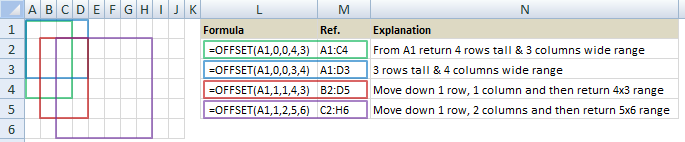
See below examples to understand the formula better.
OFFSET formula examples
Why use OFFSET?
Why not write a reference like A1:C4 directly?
Here are a few reasons why,
- Dynamic ranges: Reference like A1:C4 always refers to the range A1:C4. ie it is static. But sometimes, we want our ranges to be dynamic. This is required because our data is changing (every month new row is added, every time we launch a product new column is added etc.)
- We don’t know the exact address: Sometimes, we don’t know what our ranges actual address is. Rather, we just know it is starting from a certain cell etc. In such situations OFFSET is useful.
Understand OFFSET formula – Interactive Workbook
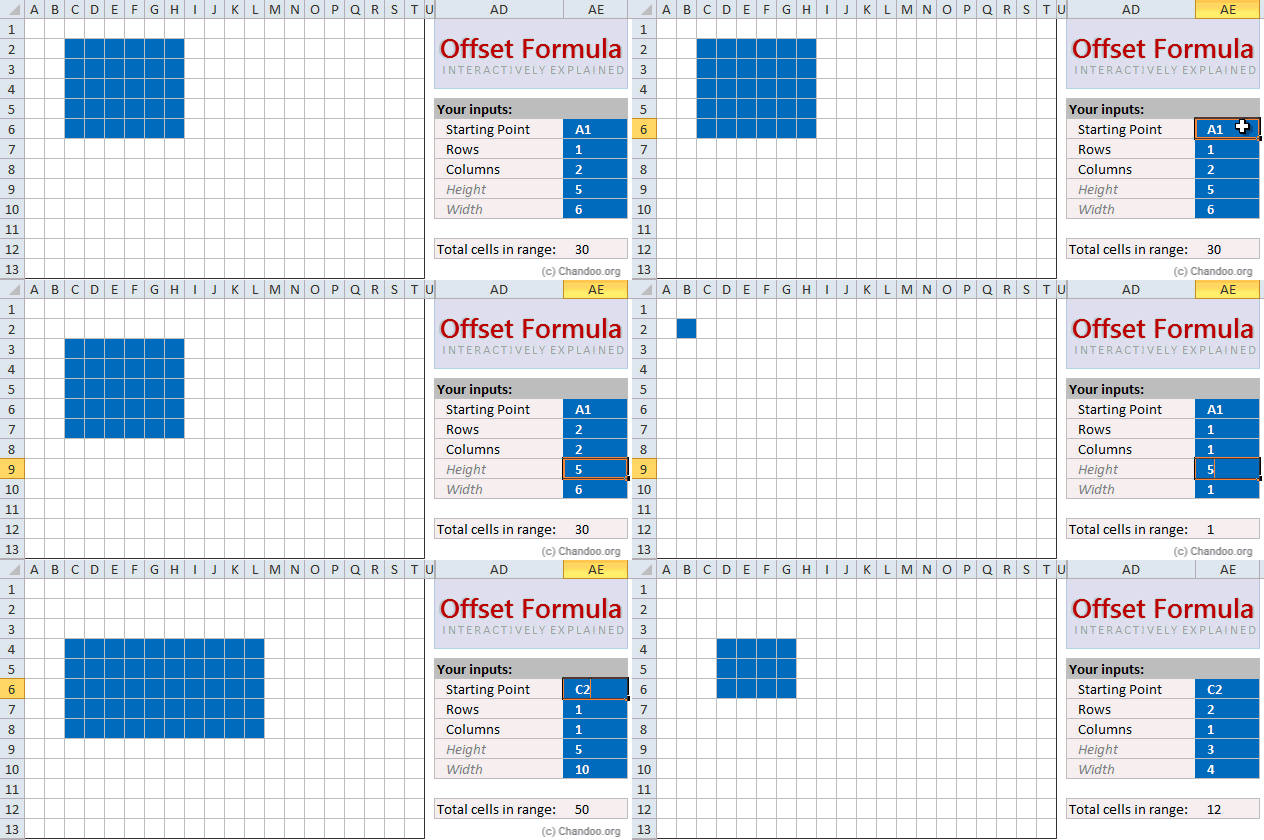
Since OFFSET formula is somewhat tricky to get, I created an interactive workbook so that you can understand how it works. When you input all the 5 parameters, the workbook highlights the range that your OFFSET will give. After playing with it for a few minutes, you will understand the formula better.

Practical use for OFFSET – Average of latest week
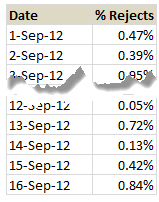
Lets say we monitor quality of a plant producing purple puppets. One of the KPIs we monitor is % of rejected puppets. We have been tracking the % of rejects by day in a spreadsheet that looks like this:
So how do we calculate average of latest week?
Assuming the values are in range C3:C18, we can write =AVERAGE(C12:C18)
BUT, WE NEED TO CHANGE THIS FORMULA EVERYDAY!!!
Even puppets would find that boring.
By using the OFFSET awesome sauce, we can write the AVERAGE formula once and forget about it.
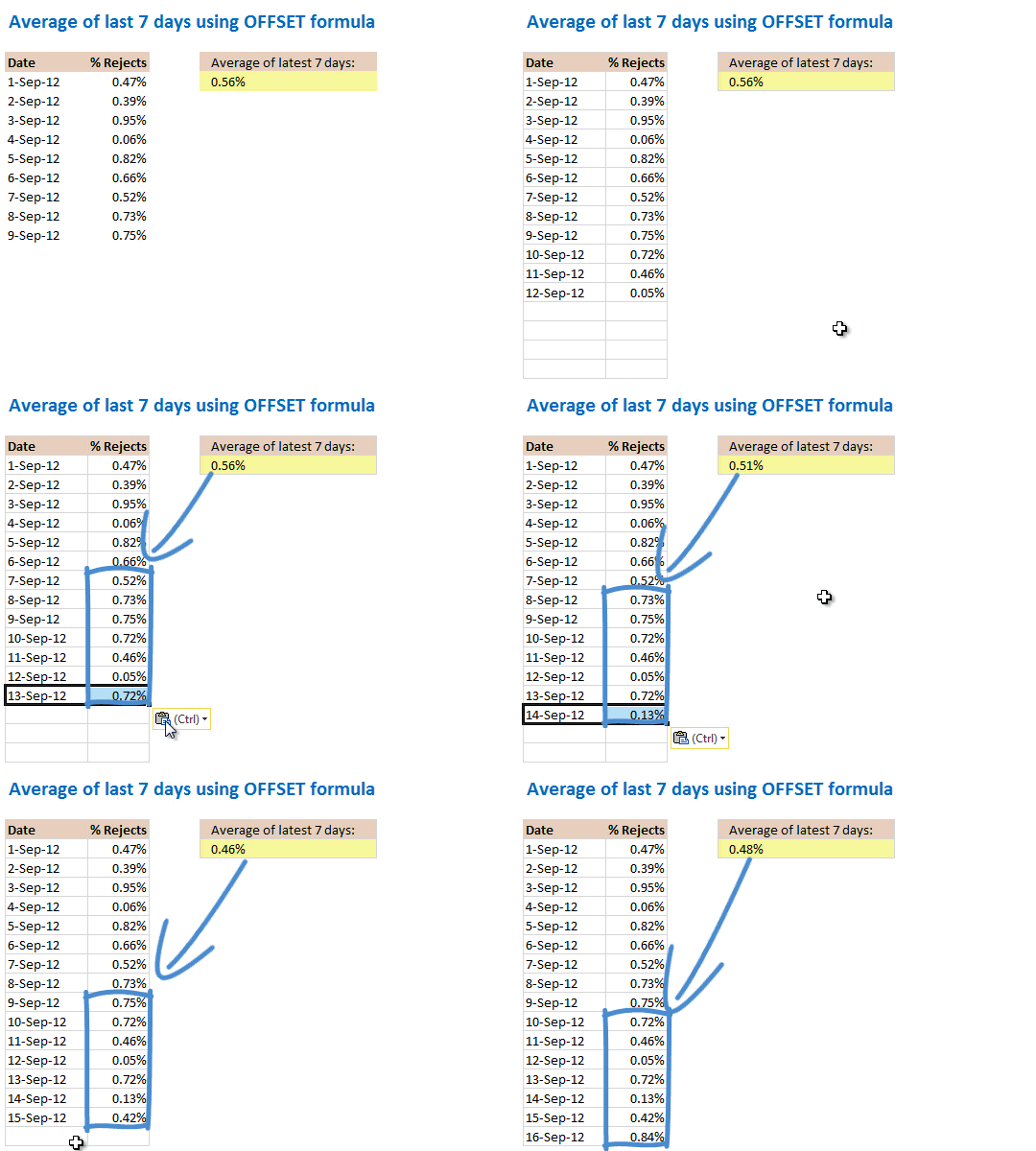
=AVERAGE(OFFSET(C3,COUNTA(C3:C300)-7,0,7,1))
Lets break-apart this formula and understand
- To calculate latest week’s average, we need to go all the to the last data point and then get 7 rows from it and average those values.
- This is where COUNTA(C3:C300) – 7 comes in to picture. It counts how many values are there in column C and then subtracts 7 from it.
- The OFFSET would then starting point from C3 to latest week’s starting point.
- To know how this formula works, watch below demo.
OFFSET limitations
While offset formula can return with a dynamic range when you beckon, it does have few limitations:
- OFFSET formula is volatile: In plain English it means, whenever there is any change in your workbook, OFFSET formula is recalculated, thus keeping Excel busy a tiny bit longer. This is not an issue if you use OFFSET formula in a small workbook. But when you use lots of OFFSET formulas in large workbooks, you will end up cursing Excel as it takes too much time to recalculate.
- OFFSET formulas are tricky to debug: Because the references are dynamic, debugging a workbook with lots of OFFSETs can get tricky quickly.
Alternatives to OFFSET formula
There 2 fine alternatives to OFFSET formula.
- Use Excel Tables: Since Excel 2007, we can create tables from structured data and write formulas, create charts that refer to dynamic ranges with ease. Click here to know more about tables.
- Use INDEX formula: Although not exactly same as OFFSET, INDEX formula can also be used to generate dynamic range references. Plus, INDEX is a non-volatile formula, so it wont keep Excel busy unnecessarily. Know more about INDEX formula.
Do you use OFFSET formula?
For most of my dynamic range needs, I rely on tables or INDEX formula. I use OFFSET formula when I have to calculate values like average of latest week. In such cases OFFSET is an elegant solution.
What about you? Do you use OFFSET formula? In which situations do you use it? Please share your tips & examples with us using comments.
Know More about OFFSET
Check out below examples to understand OFFSET formula better:
- Calculations: Sum of values between 2 dates | Moving averages | Average of closest numbers| More…
- Modeling: Calculate IRR of dynamic ranges | Manage scenario analysis
- Charting & Dashboards: Dynamic range charts | Top x chart | Analyzing large datasets | KPI dashboards
- Validations & Pivots: Dynamic Data Validation | Dependent Drop downs | De-duplicate & Sort data
- And many more uses of OFFSET


88 Responses
Just a small comment not relating to the OFFSET formula, but rather your example of calculating an average from percentages. Calculating an average from percentages can be very misleading or plainly wrong, since it is not weighted at all. If on day 1 you produced 100 puppets with 1% rejected (=1 rejected) and on day 2 produced only two puppets with 100% rejected, your average would show a rejected average of 50,5%. In reality, the correct percentage would be 3% rejected.
Good point Jonas. I initially typed reject % per million, but modified it for sake of simplicity. Nevertheless, we should weigh our averages in cases like this.
how do you weigh your averages? And can you do this formula somehow without it? That’s exactly the problem i have right now in excel…
If you are given a column that includes the actual number of rejects, you can sum the total rejects, sum the total produced, and then create your percentage based on that.
If you are not given a column that includes the actual number of rejects, but only the percentage, work backwards to resolve the number of rejects, and continue.
In either case, if you were to look only at the above data given, you could not weight an average with the data given. At the least, you would need the total number produced each day, and either the number of rejects or percentage of rejects.
I love LN for this – when you take a LN of a percent the numbers can be added / subtracted without issue and then use EXP to convert back to percents
If you do use LN thank Euler
for example LN(50%) = -.69 and LN(200%) = .69
Add the LNs and you get 0% change – which is the correct value
Much easier than percents
Hi!
Can you tell me how do you make the conditional formatting in the interactive workbook? 🙂
I can’t seem to figure out a way to, in a formula without VBA, check if a cell is within a range…
Thank you!
In this example, I made one range rngOffset that refers to the offset range. Then to check any cell overlaps with this, I used
=ISERROR(ROWS(rngOffset A1))
this will be TRUE for non-overlap and FALSE for overlap.
The key is to use SPACE as intersection operator 🙂
WOOOW…
I didn’t knew that using the SPACE between ranges worked as an intersection operator…
You have just literally changed my life, Chandoo… 🙂
I’ve just checked that with other formulas SUM, AVERAGE, etc… with intersections between ranges. It works!! IT WORKS!!!! LOL 😀
You cannot imagine how usefull that will be in my work (and I’m a heavy Excel user).
Thank you very very much, you are trully a gift from the Excel Gods…
Wow, I had no idea you could do that. Is there any chance you can do an instructional thing on the weird and wonderful features like this that are pretty obscure but insanely useful?
I spent a few minutes experimenting with this. You can also do it with more than 2 ranges… something like =SUM(rng1 rng2 rng3) will return the sum of the intersection between the 3 ranges given…
Yes, why not. Let me write a short tutorial about this later this week.
Having played a bit more (and bringing it back to the topic), you can use this with offset, so I’m betting there’s a way to do a multiple condition lookup using this rather than sumproduct and boolean operators.
I am not sure I understand this, but SPACE operator only gives intersection of two ranges. Can you tell how it can be applied for multi-condition lookups?
In other words, we can use it to get 2 way lookups though. See here:
http://chandoo.org/wp/2010/11/09/2way-lookup-formulas/
I think I was just confusing myself. Sorry.
@Chandoo
The space function doesn’t return a value it returns a range
So the formula =SUM(B2:D20 A5:H11 C:C) is quite valid
It is the same as saying where does the Intersection of B2:D20 + A5:H11 intersect with Column C
The first part B2:D20 + A5:H11 intersects at B5:D11
and the intersection B5:D11 intersects with Column C in C5:C11
@Hui.. Thanks for the clarification. Yes, I meant range.
The conditional formatting is very cool!
I think there is a mistake in the colored box diagram. The Blue and green box should be switched. Height and width are switched
Oops. Corrected it now. Thanks for pointing it out.
I’ve found using OFFSET with INDIRECT and ADDRESS is extremely useful. In a nutshell, it allows you to have a drop down where the user can select a worksheet name so that the initial OFFSET reference is directed to a specific worksheet essentially making it dynamic. I’m more space/time is needed to further explain how it works. It’s definitely worth looking into.
Your comment has given me a hilariously amazing !dea 🙂
Thanks for your comment
guys, please share your ideas with others if possible.
HI,
I wanted to share my experience using the OFFSET command which i found very helpful. I had made a repayment schedule using PMT function for 20 years on monthly basis. Then i had to check for the total cash outflow, principle and interest separate, semi annually (6 monthly). First i thought i’d manually add the 6 month for 20 years but that was illogical and too time consuming. So i played around with SUM and OFFSET function and after a while it worked.
I used the following function;
=SUM(OFFSET(OFFSET($D$41,0,AA7),0,0,1,6))
Where D41 was the first month payment and AA7 was the reference of a cell where i had punched number in multiples of 6 ( 6,12,18,24) so it worked perfectly
I would like to thank Chandoo and everyone for this website, i have learned alot and it has made my life easier. My office colleagues respect me for my skills in excel and i couldnt have ever done it without Chandoo and this website. Thankyou
OMG!!! SPACE instead of Operator?? never thot about it.. Thanks a ton Chandoo and hui…
@Chandoo / Hui : = Can you give me some links to know something more about Array Formulas…
I use OFFSET fx with a scroll bar set with a small range that shows all records on a small static range kept in a large list somewhere else
P.S. I guess the worksheet protection password in the fifth attempt 🙂
Mystery here… do I need to reinstall?
If I use OFFSET with >1 in the height or width arguments, I get a VALUE error.
Nevertheless, in Chandoo’s demo workbook (I wasn’t clever enough to guess the password…) I can input any value and it works fine.
Thoughts?
– Juanito
Cancel that comment! Of course excel was returning a range so needs array-entry to see content properly
– Juanito
Hi,
I am trying out offset amd having same issue you had with >1 numbers. Can you explain what I am doing wrong.
thx!
I have been using a combination of OFFSET and MATCH for a few years now when I want to look up a value from a list based on a specific entry. This seems to be a common use of them both, but have found it very useful. IN a very similar manner, I’ve also started using INDEX and MATCH rather than OFFSET due to the volatility of OFFSET. While the syntax is slightly different between the two, I’ve not yet found any noticeable differences in how the combination works. The advantage with INDEX (as already noted) is that it will not unnecessarily task your workbook. Also, I find this solution far superior to any of the LOOKUP formulas since INDEX/MATCH and/or OFFSET/MATCH doesn’t have the limitations of LOOKUPs.
Hey Chandoo,
I cracked your password protection on 2nd attempt. that’s not good! 🙂
Fred
It was meant to be cracked 😀
Hi,
I used offset in VBA to insert a sum formula. The macro had to figure out a range to sum and put in a formula. I used =sum(offset(…)) and inserted variables determined by VBA for the arguments in the offset function.
I would be happy to know another way to do this, but it worked and did the job intended. Now the worksheet has formulas all over it.
Hope this may be of use.
I have wrote article about OFFSET (POSUN) in Czech language http://office.lasakovi.com/excel/funkce/posun-offset-funkce-excel/, Your interactive Table ist beter. Good job.
I use OFFSET to create a dynamic dropdown list. It works as dropdown in cells in any sheet within the workbook and in combobox, listbox.
1) Enter any value in Sheet1 under column A then create the dynamic range
Insert > Name > Define: Date > Refers to:
= OFFSET(Sheet1!$A$2,0,0,COUNTA(Sheet1!$A:$A)-1,1)
2) Use as dropdown in any cell in any sheet. For example: Select cell A2:A10 in sheet2. Select menu Data > Validation > Allow: List, Source: =Date
3) Use as dropdown in a combobox in any sheet: View > Toolbars > Forms > Combobox > Right Click > Format Control > Input Range: Date
Try adding some more value in Sheet1 column A. See the dropdown changing also.
I want the reference of the offset formula to be formula, in other words
offset (x,0,1). i want the x to be a formula so that it starts offseting from a result. Possible?
@Carlos
Yes that’s possible
A few functions return an Address as a result including Address(), Index() and Offset()
Not sure how it works, it there a way i can send you an example?
@Carlos
Click on Hui…
Email address at bottom of page
Can you also use VLOOKUP or HLOOKUP to return a value from where to start OFFSET? I want to COUNTIF various values in a column based on the date entered on a different sheet. Excel doesn’t seem to appreciate my VLOOKUP statement!
@Werner
You sure can use the Lookup functions with Offset
Can you post a sample of your data and what your trying to achieve?
Refer: http://chandoo.org/forums/topic/posting-a-sample-workbook
Thanks Hui, unfortunately I cant post the data, will try to explain in more detail. We have several sheets in same workbook for staff, labour and contractors. Each sheet contains a list of all personal and their details, as well as a roster for when they are onsite and offsite and how many hours worked. Top of colums have date and names, details and hours worked per row.
On a separate sheet I want to calculate how many labour per trade was onsite at any given day. Therefore I want to enter a date in a cell, the date should be looked up on the labour sheet, then COUNTIF the column of the valid date to display how many Riggers for instance, was onsite on that given date.
I am trying the following:
=COUNTIF(OFFSET(HLOOKUP(F3,’LABOUR’!L13:RQ14,2,FALSE),1,0,580,1),”Rigger”)
Where HLOOKUP should return the cell value of the matching date as the reference for the OFFET and then COUNTIF Riggers in the specified OFFSET range. I was trying it this way as I want to be able to enter different dates to get the figures for whatever day I need.
Hope I was clear enough. If not, I will create a dummy sheet and upload it.
Werner
Hello Chandoo,
I took your Excel dashboard class a couple of years ago. I appreciate you posting so much helpful information on a variety of Excel topics. Great job!
Awesome way to breakdown the utility of OFFSET I had read so many other blogs and help sites before this one. Not one of them had been as clear as you have posted on this site. Looking forward to learning as much as possible from you.
What role would the PMT function and the VLOOKUP function play in what-if analysis?
I set up dynamic ranges in Excel 2000 and they work for some things but not most. For example, if “Numbers” is a dynamic range, “=MAX(Numbers)” returns 0 regardless of what is in Numbers.
@Robert
There are two cases when Max(Numbers) will return 0
Firstly when all the numbers are negative, I assume this isn’t your case
Secondly if the numbers are text
That is check that the numbers don’t have leading or trailing spaces
ie a number should be like 1.23 not “1.23 ” or ” 1.23″ check a few cells and see if that helps
You may also have other non-printable characters in the numbers
have a read of my comment at: http://chandoo.org/forum/threads/excel-does-not-calculate.14285/#post-84942
Hi Everybody,
Just a quick question…
Can I use the offset function or index function to cretae a dynamic averge for a particular month of the year. I.e excel looking up
numbers in colum B against March 2014 dates in coulm A to create a March 2014 average? Thanks!
27/01/2014 108.7
28/01/2014 108.9
29/01/2014 109.3
30/01/2014 109.8
31/01/2014 108.4
3/02/2014 106.8
4/02/2014 107.1
5/02/2014 106.9
6/02/2014 108.1
7/02/2014 109.3
10/02/2014 110.3
11/02/2014 109.3
12/02/2014 108.7
13/02/2014 109.0
14/02/2014 108.7
17/02/2014 109.2
18/02/2014 109.8
19/02/2014 110.3
20/02/2014 109.6
@Jonathan… A better option is to use AVERAGEIFS() function. It is built for situations like this.
Use =AVERAGEIFS(columnB, column A, “>=01-MAR-2014”,column A, “<01-APR-2014")
Thanks Chandoo. I really appreciate your website. Keep up the great work. Jonathan
The zipped file doesn’t contain the spreadsheet.
@Reggie
Download the zipped file and rename it to *.xlsx
where * is the filename
Also, please note that we are investigating an issue with our webserver settings that may be causing this behavior. Sorry for the inconvenience. I am hoping to get this fixed in next 48 hours.
Hi Chandoo,
I have a beast of an offset equation comprising of a heap of countifs scenarios. This beast compares roster patterns and absenteeism days for the afore mentioned scenarios and totals them over the previous 12 month period. The equation itself is not an issue and works fine. The issue I am having trouble with is slaving the calculation to the current month effectively sliding the calculations along so at the beginning of each new month this year, the offset equations recalculate from 01 this month last year and stop calculating at the last day of the current month – this year.
I have on the same spreadsheet another equation that works splendidly for counting the number of absentee types for the previous 12 months. I tried wrapping the beast inside if that, but to no avail.
=SUMPRODUCT((E$10:E$1296={“PSL”,”FAM”,”MCL”})*(E$10:E$1296E$9:E$1295)*($D$10:$D$1296>EOMONTH(TODAY()-DAY(TODAY()),-12)))
At the moment I have to manually adjust the calculation on the 01st of each month. Am I doomed to have to do this manually every month?
Below is the beast. I can post a dummy worksheet if you desire.
Thank you for your consideration if this issue.
=SUM(((COUNTIFS(G221:G617,”PSL”,G222:G618,”EX”,G223:G619,”BLP”)+COUNTIFS(G221:G617,”PSL”,G222:G618,”EX”,G223:G619,”AL”)+COUNTIFS(G221:G617,”FAM”,G222:G618,”EX”,G223:G619,”AL”)+COUNTIFS(G221:G617,”FAM”,G222:G618,”EX”,G223:G619,”BLP”)+COUNTIFS(G221:G617,”PSL”,G222:G618,”BLP”)+COUNTIFS(G221:G617,”BLP”,G222:G618,”PSL”))+(COUNTIFS(G221:G617,”FAM”,G222:G618,”BLP”)+COUNTIFS(G221:G617,”BLP”,G222:G618,”FAM”))+(COUNTIFS(G221:G617,”PSL”,G222:G618,”AL”)+COUNTIFS(G221:G617,”AL”,G222:G618,”PSL”))+(COUNTIFS(G221:G617,”FAM”,G222:G618,”AL”)+COUNTIFS(G221:G617,”AL”,G222:G618,”FAM”))+(COUNTIFS(G221:G617,”FAM”,G222:G618,”LSL”)+COUNTIFS(G221:G617,”LSL”,G222:G618,”FAM”))+(COUNTIFS(G221:G617,”PSL”,G222:G618,”LSL”)+COUNTIFS(G221:G617,”LSL”,G222:G618,”PSL”)))-SUM(COUNTIFS(G221:G617,”BLP”,G222:G618,”PSL”,G223:G619,”AL”)+(COUNTIFS(G221:G617,”BLP”,G222:G618,”FAM”,G223:G619,”AL”)+(COUNTIFS(G221:G617,”BLP”,G222:G618,”PSL”,G223:G619,”LSL”)+(COUNTIFS(G221:G617,”BLP”,G222:G618,”FAM”,G223:G619,”LSL”)+(COUNTIFS(G221:G617,”LSL”,G222:G618,”PSL”,G223:G619,”BLP”)+(COUNTIFS(G221:G617,”LSL”,G222:G618,”FAM”,G223:G619,”BLP”)+(COUNTIFS(G221:G617,”AL”,G222:G618,”FAM”,G223:G619,”BLP”)+(COUNTIFS(G221:G617,”AL”,G222:G618,”PSL”,G223:G619,”BLP”))/2))))))))
@Delta
I’d suggest posting this problem on the Chandoo.org forums
http://chandoo.org/forum/
Include a sample file to make it easier to assist
Thanks Hui,
Will do this tomorrow.
Regards
Delta
Hi Chandoo
I’m experiencing some real OFFSET weirdness in my spreadsheet. I’m trying to setup a dynamic range for the X axis of a chart by setting the (X) series to be a defined named range which contains the OFFSET formula.
So let’s say the X axis runs from 100 – 1000 in 100 increments as a maximum. Via a separate drop down data validation list the user can select let’s say ‘500’ so we only want the X axis to be between 100 – 500
I’m using the following OFFSET formula to define the named range:
=OFFSET(A4,0,1,1,MATCH(B2,B4:K4,0))
Broken down:
=OFFSET(A4, = cell to the left of the ‘100’ cell
0, = stay on row 4
1, = offset 1 column to the right (B4)
1, = Return ‘height’ as same row (4)
MATCH(B2,B4:K4,0)) = Return ‘Width’ as numbe rof cols between ‘100’ – ‘user defined choice in cell B2’
so for a user choice of ‘500’ we should actually get a range returned for the chart of B4:F4
The issue is this seems to work for some and not all which doesn’t make any sense…for each user defined choice I see the following:
100 = works correctly
200 = works correctly
300+ = stays at 100-200 (B4:C4) range
I’ve uploaded an example of the issue here in a test sheet: http://bit.ly/1vaJ2ws
Appreciate any assistance folks!
@Chris
This is strange indeed
Typically you only use the Width modifier in Offset to extract a range of data for say charting
In your case I am even confused as to why offset is returning 200 when you use 200 as it should return 100
(we will see why below)
If you want the value of the cell at the 600 position the format of a offset should be
=Offset(A4, 0, MATCH(B2,B4:K4,0))
There is no need for the width or height modifier as they default to 1 anyway
If you want the array of cells starting from B4 and extending accross to the 600 position
the format of a offset should be
=Offset(A4, 0, 1, 1, MATCH(B2,B4:K4,0)) ‘Your formula
But this will return an array of numbers
Enter 600 in B2
then in C2 press F2 then F9
Excel displays ={100,200,300,400,500,600}
as it should
So I am confused as to why it shows 200, where it should display 100, the top left corner of the array
If you now copy the formula in C2 and paste it in B6, C6 and D6 you will see that Excel displays the values
100, 200 and 300 respectively
So the Value returned from the offset is its relation to the column of the array B4:K4
I would setup the Formula as a Named Formula in the Name Manager
Then add the Name to the chart instead of doing it on the worksheet
Hey Hui, thanks for the input!
Thought I had an epiphany with this last night – how about I simplify the OFFSET formula by giving it the required range in the first place rather than working that out within….
So I put this together to return the required range as text (in cell F2):
=CONCATENATE(“B4:”,CELL(“address”,INDEX(B4:K4,1,MATCH($B$2,B4:K4,0))))
(horrible I know 🙂 )
Then simplified the OFFSET thus:
=OFFSET(INDIRECT(F2),0,0)
Guess what?….. At ‘300’ I still see ‘200’ and pressinf F2 and F9 gives me the ={100,200,300} range correctly.
It’s very odd! I’ll see how the named formula goes although I think that’s what I’ve been doing. I’ve only been trying to get it working on the sheet then copying and pasting the formula into a named range. The problem I’ve had there is that when referencing it in the X or Y series entry it complains there’s a problem with the formula.
Oh well…..will have another bash before the laptop goes out the window 🙂
@Chris
Don’t be afraid to send me the file and I can assist more specifically
Click on Hui above, email at bottom of page
Hi Hui
WE HAVE SUCCESS!
There were two issues:
The OFFSET function still looks weird but the F2 and F9 tip is a gem, I’m only interested in what the function is returning as raw data, not necessarily what it is showing me on the screen, so yes, it’s working correctly.
The second problem has been with then copying that OFFSET function into a named range. I’ve found out that if you don’t set the cell references to be explicit using the $ sign, the named range will change by itself depending on where your active cell is in the worksheet (sounds like a bug to me!). So the minute you click off the cell with the OFFSET function in and for example select a new value from the drop down…your chart range has just been nuked!
Setting the references to be explicit does the job and I now have a chart dynamically updating both X and Y axis depending on a user controlled list.
Many thanks for your help, hopefully this may help others!
@Chris
The behavior of Named Formula is relative to the position that the cursor is on at the time you enter the formula
It is a feature not a bug, but traps a lot of people
Yes, Using Absolute references locks it in position
The use of named Formula to setup input data for charts is extremely powerful and much more efficient that doing the same on a worksheet
If you have a look at my post at:
http://chandoo.org/wp/2011/07/06/3d-dancing-pendulums/
It is a simple scatter chart with about 23 series and is based on Named Formula
Wow! Awesome Information about offset!
Hi Chandoo!
I’d like you to know that some Russian websites post your materials (translated, of course) as if they created these materials themselves. Without any reference to your blog.
This guy copied this OFFSET tutorial word-by-word: http://exceltip.ru/%D0%B8%D0%B7%D1%83%D1%87%D0%B0%D0%B5%D0%BC-%D1%84%D1%83%D0%BD%D0%BA%D1%86%D0%B8%D1%8E-%D1%81%D0%BC%D0%B5%D1%89/
So did this guy: http://www.excelstyle.ru/tips/workbooks/cells/98-funktsiya-smeshch
You may not understand Russian, but you can see that pictures and structure are the same. And you may trust me, text – is just a translation. Whan you say “I did” they say “I did”.
Thank you all for your comments. I’ve learnt a lot!
Can anybody explain me this formula:
=OFFSET(‘list’!$AI$3,COLUMNS($AI$3:AI3)-1,ROWS($AI$3:AI3)-1)
It’s helping me but I would like to understand it well.
Thanks
@Philippe
The formula: =OFFSET(‘list’!$AI$3,COLUMNS($AI$3:AI3)-1,ROWS($AI$3:AI3)-1)
Sets up a Range which is on Worksheet List
It starts with a reference cell: AI3 (Top Left corner of the range)
It is then offset by COLUMNS($AI$3:AI3)-1 Number of rows Below AI3 and
it is offset ROWS($AI$3:AI3)-1 Columns to the Right of AI3
Initially this will be AI3 as the Columns and Rows will both return 1 and subtracting 1 leaves 0
But as you copy the Formula Dow It will move the new reference to the right and as you copy the formula to the right it will; shift the reference cell down
What that means in plane English is that it is mirroring the Rows and Columns from the original data so that the rows are now the columns and the columns are now the rows.
eg:
Source Data:
1 2 3
11 12 13
21 22 23
Destination Data:
1 11 21
2 12 22
3 13 23
Hi,
For some reason I keep getting a #VALUE error, even when I use your exact example of “=OFFSET(A1,0,0,4,3)” (the green block). What am I doing wrong?
Very confused :/
-kimkirk
good work team…..god bless u all
Hi there i want to automate my excel chart ,i have a problem in offset function .Can you please provide me your email so that i can explain whole problem with data.
Thank you much with illustration, it’s very helpful to make a dynamic range and get exact data, what is required .
Regarding my plea for help in the non-functioning SUMIF(OFFSET()) construction I have now realised the error of my ways. It is nothing to do with the OFFSET() function. The problem is I am trying to use the SUMIF() function to sum an array. It will only pick up the first column! Hey Ho. Back to the drawing board! (Apologies to anybody who wasted their brain cells trying to solve my foolishness 🙂 )
Hi,
Please help me in below case..
I’ve below data..i want avg revenue increase formula..if trading starts Jan i would like to see avg of Feb to Jun. if trading strats in feb i want to see avg of MAR to Jun ..
Jan Feb Mar Apr May Jun AVG inc
10000 11000 20000 20500 21000 24900 19480
0 20000 20000 30500 41000 54900 36600
0 0 10000 30500 41000 54900 42133
Interesting question. you can use below formula.
Assuming your data begins in B3 and goes across the screen, with H3 having the last value,
=AVERAGE(INDEX(B3:H3,MATCH(TRUE,B3:H3 > 0,0)+1):H3)
This is an array formula, so get CTRL+Shift+Enter to get the answer. Drag down to see for other rows.
Thanks u so much Chandoo…I got the solution…
Pls advise …if cells contains negative value after the greater than…its showing error …pls help
Jan Feb Mar Apr May Jun AVG inc
10000 11000 -20000 20500 21000 24900 19480
0 20000 20000 30500 41000 54900 36600
Just change the > 0 to LT GT 0