

Today, lets talk about indexing, a technique used to compare changes in values over time.

What is indexing?
Lets say you want to compare prices of Gold & Coffee over last few years. Gold price in 2011 (oct) is $1,655 per ounce. And now (sept 2012) it is $1,744. Like wise, Silver price in 2011 is $32.06 and in 2012 it is $33.61. How do we compare such diverse numbers?
Enter indexing.
First we need to calculate price of Gold and Silver in 2012 assuming their starting price is 100. This can be done with simple arithmetic.
We will get this:
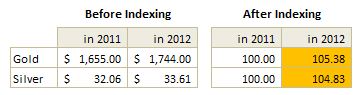
Now, we can easily compare the prices. Looking at the indexed prices, we can conclude that both Gold & Silver prices have gone up by similar percentage (~5%).
When to use Indexing?
There are many good reasons to use indexed values. Some of the common reasons are,
- To compare values which are vastly apart – ex: price movements of gold, silver & coffee
- To understand growth (or non growth). Subtract 100 from any indexed value to know how much it has grown (or shrunk) compared to base value.
- To understand change with respect to a bench mark – ex: performance of a company with respect to stock market index.
For more detailed discussion on indexation & its applications, refer to this article by Paresh.
Indexed Chart Example – Commodity prices in last 5 years
Lets say you are a savvy commodity investor and want to understand how the prices of gold, silver, bananas and coffee have changed since 2007. Now, each of them have a different range of values and comparing all of them in same chart can be very confusing.
Let us index the values to 100 and then compare.
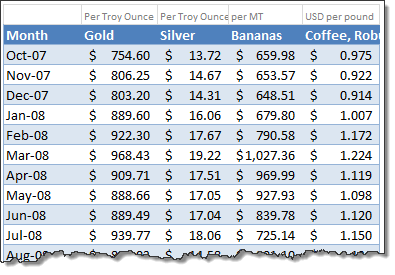
Step 1: Arrange your data.
Lets assume we have our data like this:
Step 2: First indexed value is 100 for all items
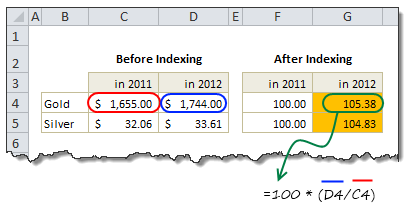
Step 3: Calculate next indexed value using simple formula.
See this illustration to understand how to calculate the indexed values.
Step 4: Make a line chart
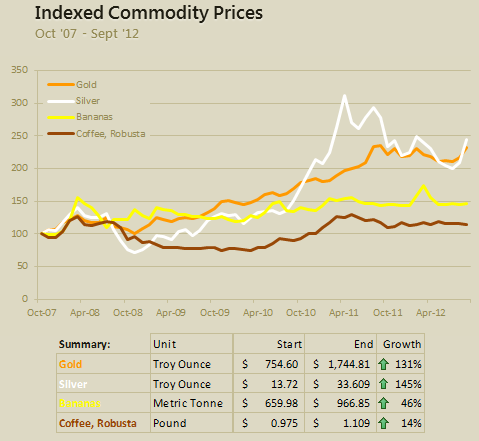
Select the indexed values and create a line chart. And you are done!
Step 5: Format the chart
This is where you can unleash your creativity. Add labels, legend, format axis etc. Here is a version I came up with.
Download Indexed Chart Example
Click here to download example workbook & play with it. Poke the formulas & chart options to understand this better.
Do you use Indexed charts?
I use indexing technique often to compare various metrics in my own business. I also use these type of charts in various dashboards & client reports.
What about you? Do you use indexation as a technique to compare values? What other techniques you rely on? Please share using comments.
More charting techniques:
- Show both average & distribution of data in your charts
- Use multiple charts to give users a choice of analysis
- Analyze competition with scatter plots
- How to chart when you have lots of small & few very large values?
- Use small multiples (panel charts) to to compare lots of things
- More charting examples & charting principles


41 Responses to “Use Indexed charts when understanding change [Charting Techniques]”
Ok, a remarkably simple but just awesome idea! Thanks.
This is a wonderful post!!! There have been so many times where I had to do separate graphs to show changes for the same product over time because I was measure two vastly different pieces (e.g. # of transactions and $ sales). I've needed this and didn't even know it! Thank you!
I love your charting techniques posts!
How would you cope with values that are extremely variable before indexing? If the price of the commodity is sometimes very high and sometimes very low, the index won't very accurately reflect later changes. Can you somehow homogenize the values to artificially deflate the variability?
Hi Bctyner...
Thanks for your love.
In such high volatility, you can use moving averages to plot the line. Assuming a value has cycle time of 7 days (for example: sport event ticket prices go up on weekends and go down on weekdays), you can calculate moving average of 7 days and then plot that to understand the true trend of your data.
For more on moving averages see - http://chandoo.org/wp/2009/04/28/calculate-moving-average/
Also, you can calculate standard deviation and show that as a data point on chart
Its not just an excel technique but a great analysis technique too. Thanks a lot for sharing ! Love your post ( as always 😉 )
Hi Chandoo,
thanks for nice article. But I'm wondering, how to visualize or analyze data as follows: Let's imagine we have forecast of 3 materials for week10 till week 20, actualised during 7 weeks (w1 ~ w7). Could you point me to some guideline, how to visualize biggest drops or increases and such a things? Like a forecast history?
I'm attaching example.
https://dl.dropbox.com/u/96356710/forecast.xlsx
Thanks for help.
Hi Exoskelet.. You are welcome.
If you have such data, a quick and easy method would be to calculate weekly fluctuation (change% with respect to previous week) and then apply conditional formatting to highlight very high or very low percentage changes. Like below:
Download example file
Great post - thanks for the great advice.
Awesome
Hi Chandoo
Downloaded the workbook , can you please explain how to relate the box to the data , Tried doing it was not successful
Regards
Srini
Ditto on Srini's comment. The whole dang thing is cool, but I couldn't figure out the link in the data box. Please comment on that technique.
Thanks
Hi Srini & Dean,
The linked data is called as picture link. Please see here to know how to use them:
http://chandoo.org/wp/2010/10/19/how-to-use-picture-links/
Another great post (but who's surprised by that!).
I run eBusiness activities for a major, global manufacturing company. I need to record and display progress but to do so without revealing any company secrets. I use indices to show %age of total revenue processsed through eBusiness as well as absolute revenue numbers.
The starting point (=100) is the month I joined the company, so there's no doubt about the value my team and I have added 🙂
Hi,
Great article. I was wondering how you created the "View" page chart to show only columns A-J?
You can hide all unnecessary columns & rows by just selecting and hiding them. Please see here for instructions: http://chandoo.org/wp/2012/07/24/show-only-few-rows-columns-in-excel/
[...] Using indexed charts to represent change Chandoo [...]
Thanks a lot appreciate your good work
Hi Chandoo,
i have a query please. Could you please tell me how i can create a secondary x axis. When i referred articles on the net, it mentioned that secondary x axis option is available in the ribbon under Axis. But i couldnt find it. Could you please help,
Regards
Deepa
right click on the series, you want to have on secondary plot, select format data series, right side of the window you will see secondary axis option..select that and you are done...!!
Hi Chandoo,
Another great post..thank you sharing.
I am not able to get the upward and downward arrows with the percentage in same cell, how do you do that??
Do reply.
Nishant
[...] some euphoric highs and gut-wrenching declines. Here’s a chart of the index and Nexflix, indexed to [...]
[...] some euphoric highs and gut-wrenching declines. Here’s a chart of the index and Nexflix, indexed to [...]
Hi, How would you handle a situation where the index date for one of the item which you index against has a value of 0 at time=0?
Hello, votre billet m'a été très agréable à lire. Je repasserais sur votre site internet pour lire souvent vos billets.
Thanks. great!how you put the summary below the chart pls?
I want to monitor data changes in open interest of stocks on daily basis.Will this indexed chart work in such situations too.Please reply ASAP.Regards.
[…] Using Indexed Charts When Understanding Change: Indexed charts are useful to (a) understand change with respect to a bench mark, (b) compare values which are vastly apart and (c) understand growth (or non growth). […]
Great post thanks.
Hi Chandoo, really like your website...
What if there is a decrease in the following year. How can I calculate the result if the value in the new year (2012 above) is zero?.
i.e.
2011: 2
2012: 0
-200%
[…] Read Sources Us stock chart analysis,stock quote - stock anal, Stock chart software offering back testing, […]
Hi Chandoo,
thanks for this.
I need to have a sliding 0 index date so that I can amend the 0 index date on the fly.
How would I be best to approach this?
Best regards,
Mark
Dear Chandoo,
What if my categories are not in full value but in percentages, like Industrial Production, GDP growth rate, Inflation Rate? How to to the indexed chart of such categories?
I want to highlight the row cell with to dates in same row
This indexing and rebasing to 100 has been most useful; I have been able to take the aggregate performance of a small portfolio of investments and compare, or benchmark, this to a recognised global index. However, this portfolio is not static, additional sums are invested periodically (not necessarily regularly) so the original investment of say £100 is now £100 + additional amounts: my question is, how can I now compare my dynamic portfolio to the global index?
Best Excel tutorials I have ever come across. Your content is informative and easy to understand at the same time
im trying to create a chart where the buy price (x) is straight horizontal line across numerous dates on the bottom.
Than the current close of business price per day (Y) is in the same graph
So i can than see if the cost of item is higher than buy price per day.
I just cant seem to get the correct setup to work to show (x) in the graph as a separate continuous line.
Hi Richard...
See this:
Superb post - thanks so much Chandoo!
Mr. Chandoo, you are just great and a great teacher as far as excel is concerned.
I have been studying your post for a long and have derived immense benefits.
Thanks.
Thanks Uche... 🙂
Great post as usual! Could not find anything to create the same in Power BI. I'm trying to replicate it via Dax measure but I'm not getting the output I want. I'm using this formula below
Rebased Stock Indices =
VAR
Original_Value =
CALCULATE ( AVERAGE ( F_stockindices[Close]), FIRSTDATE ( ALLSELECTED (F_stockindices[Date] ) ) )
VAR
Current_Value = AVERAGE( F_stockindices[Close] )
RETURN
DIVIDE ( Current_Value, Original_Value )*100
It would be great if you could help with a video or a post! Many thanks anyway for your amazing work!