

Sometimes when you are working with data, you may need to just copy and paste numbers from one range to another. Here is a handy little trick to achieve that.
Use Paste Special > Add operator to paste numbers only.
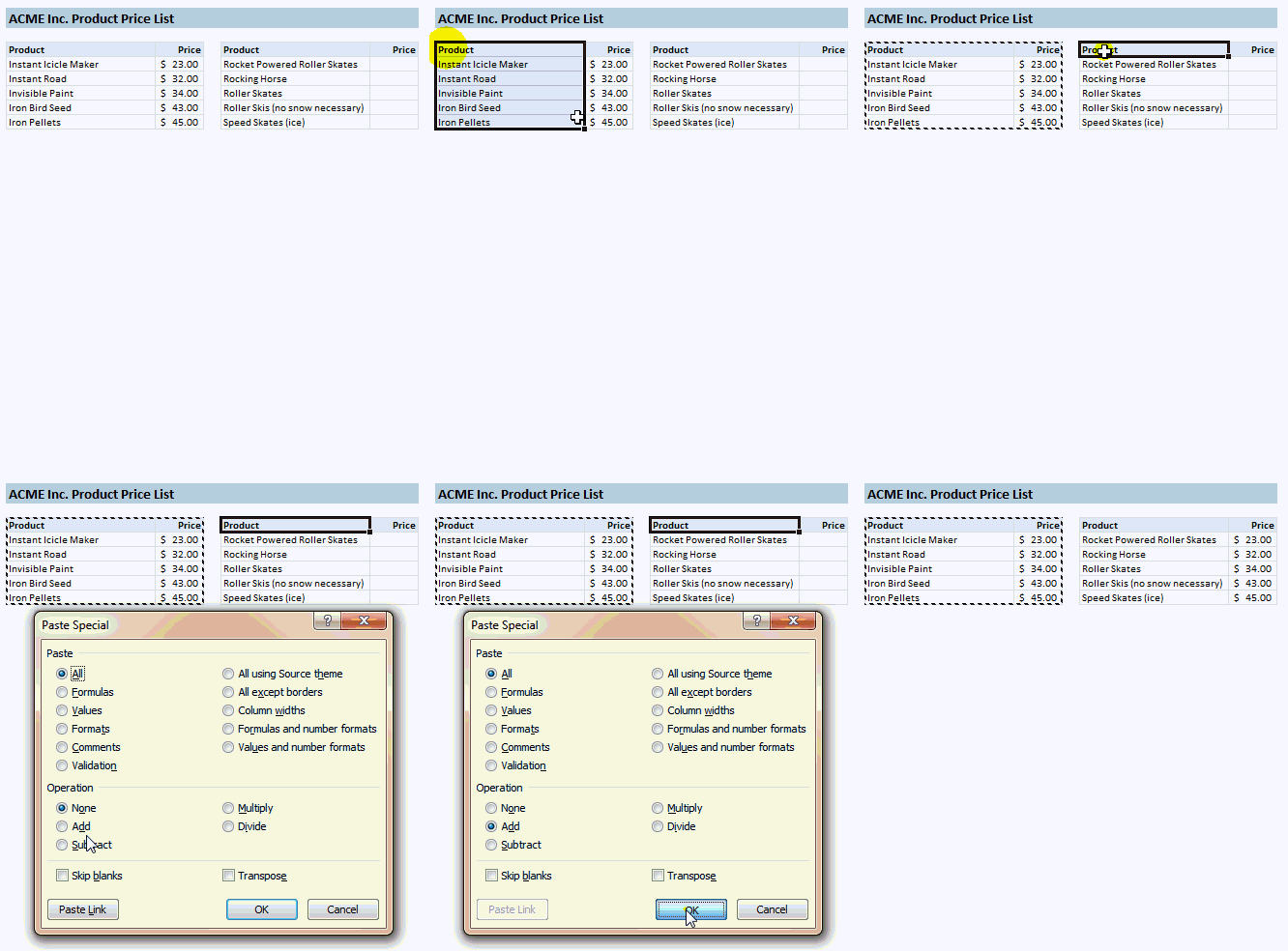
- Select the source range, press CTRL+C
- Now, go to target range, press ALT+E and then S to activate paste special dialog
- Select “Add” operator (you can press d)
- Click ok.
See this short screen-cast to understand how to do this:
 Bonus tips:
Convert numbers from positive to negative:
- Select and copy a bunch of numbers
- Go to an empty cell, press ALT+E and then S and then S (or choose subtract operator)
- That is all. Your numbers are negated now.
Convert from one currency to another instantly:
- Enter the exchange rate in a cell. Copy it.
- Now select all the cells which needs to be converted.
- Press ALT+E and then S and then select Multiply operator (press m)
- That is all. Your currencies are converted. That will be $2.00 plus 1$ per 100.
16 more tricks on how to use paste special
Do you use Paste Special? Share your tips:
I love paste special as much as my wife loves pastries. And that is a high praise. What about you? Do you use paste special? Tell me and our readers how you use it. We are all ears.
Here is a chance to be awesome:
Learn a quick tip today or share a link to win a gift card [expires on 12th Sept, 2010].


7 Responses to “Build models & dashboards faster with Watch Window”
yes, I use watches in excel vb
Dear Chandoo,
This is a quite useful for myself. I highly appreciate your efforts for acquainting us with this value adding and time saving tip.
I'll admit it, I never saw this feature before. I was familiar with using Watch Window in VB, but not in workbook. I'll definitely use this in future when building dashboards!
it was always great reading your blog, one thing that i want to know, which tool you are using to create such gif image?
it was also a nice post,,,,,, sir
Hello Sir,
Really very nice post. I didn't use this features in past. But now going to use it..
Thanks a lot for every time come up with something new..
Thanks
Very Nice post sir.
Every Time posting something new.. Thanks a lot