

Today lets tackle a very familiar problem. You have a bunch of very long, complicated file names & paths. Your boss wants a list of files extracted from these paths, like below:
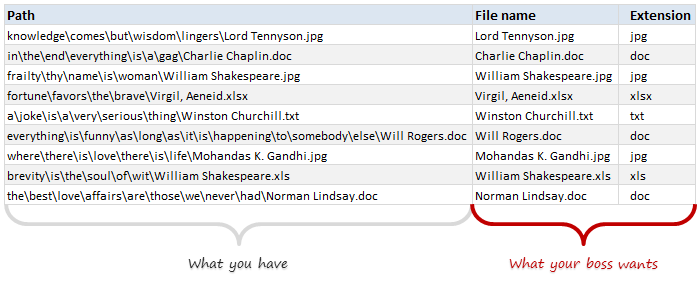
Of course nothing is impossible. You just need correct ingredients.

I cannot help you with a strong cup of coffee, so go and get it. I will wait…
Back already? well, lets start the formula magic then.
Extracting file name from a path
If you observe the file paths carefully, to extract the file name, we need to know,
- Position of last \ in the full path text
Of course there are many methods find where the last \ is. You can find a very excellent summary of these techniques in our formula forensics #21 – finding the 4th slash.
Today, let us see a new technique (well, sort of).
Finding the position of last \ using formulas
Before writing any formula, first let me clarify the only assumption:
- File path is in cell B4
Now, last \ is nothing but first \ when read from right.
Read that line again.
Got it? Good, lets move on.
How do we find the first \ from right?
If we can list down all individual characters from path right to left, then we just have to find the first \ in that.
Listing down individual characters from a given text
To get 5th character from text in B4, we can use MID formula like this:
=MID(B4,5,1)
Suppose you want both 5th and 6th characters from B4, you can use:
=MID(B4,{5,6},1)
This formula returns an array of 5th and 6th characters from the text in B4.
Cool, extending the logic, =MID(B4, {6,5},1) would give 6th & 5th characters in B4.
Idea!
If we can replace {6,5} with decreasing numbers starting from length of text B4 all the way to 1, then we can list all characters in B4, right to left.
But this leads us to next problem – listing numbers from a specific value (length of B4) to 1 in descending order.
Listing numbers from n to 1 in that order
We can use ROW() formula to generate sequence of numbers like this:
=ROW(1:10) will give {1,2,3…,10}
note: this returns an array, so you need to use it with Ctrl+Shift+Enter
So if we can use =ROW(1:LEN(B4)) we could get numbers from 1 to length of text in B4 {1,2….LEN(B4)}
Unfortunately this will not work as 1:LEN(B4) is not a valid reference.
But we can fix that with INDIRECT, like this:
=ROW(INDIRECT(“1:” & LEN(B4)))
Tip: INDIRECT formula lets you construct a reference by using values in other cells as shown above.
Alternative: You can also use OFFSET to get the same result like this: =ROW(OFFSET($A$1,,,LEN(B4))). More on OFFSET here.
But wait…
So far, we have only generated numbers from 1 to n. But we need numbers from n to 1.
No sweat, we just subtract the numbers {1,2…n} from n+1 to get the list {n,n-1,n-2….2,1}
Like this:
=LEN(B4)+1 – ROW(INDIRECT(“1:” & LEN(B4)))
Using these numbers to list characters in file path in reverse order
Take a sip of that coffee, its getting cold!
Now, lets integrate our numbers in to MID like this:
=MID(B4, LEN(B4)+1 – ROW(INDIRECT(“1:” & LEN(B4))), 1)
The blue portion gives you numbers {n…2,1}
The orange portion gives you letters from right to left.
But we wanted the last \
Oh right. We do not need these letters from right to left. We instead want to find the last \ in our file path. So now we just ask Excel where the first \ is in this reversed text.
=MATCH(“\”, MID(B4, LEN(B4)+1 – ROW(INDIRECT(“1:” & LEN(B4))), 1), 0)
Blue portion gives you letters in reverse order
Orange portion finds the first \ in that.
Tip: Learn more about MATCH formula.
Extract the file name
Once you know where the last \ is, finding the file name is easy.
use =MID(B4, position_of_last_slash + 1, LEN(B4))
We need to +1 because we do not want the slash in our file name.
Demo of the entire formula in action
Okay, lets see all these steps in action in one go.

How to find the extension?
Extension is few letters added at the end of file to indicate its type. For example, excel files usually have xls, xlsx, xlsm as extension.
So how to find this extension?
Extension & file name are separated by a dot .
But often file name itself can have a dot.
In other words, Extension is text in the file name followed by last dot.
Sounds like same problem as finding the last \ and extracting file name. So I will skip the details.
But assuming the file name is in D4, extension can be found with =RIGHT(D4,MATCH(“.”,MID(D4,LEN(D4)-ROW(INDIRECT(“1:”&LEN(D4))),1),0))
NOTE on both formulas
Both file name & extension formulas are array formulas. This means after typing them, you need to press Ctrl+Shift+Enter to see correct result.
Bonus tip: Getting the file names & path from a folder
If you ever want to list down all files in a folder use this.
- Open command prompt (Start > Run > Cmd or Start > Cmd)
- Go to the folder using CD
- Type DIR /s/b >files.csv
- Close command prompt
Now you can see all the files in that folder in files.csv. Double click on it to open in Excel and run your magic 🙂
Download Example workbook
Click here to download the example workbook. The file uses slightly different formulas. But works just the same. Examine it and learn more.
How do you extract file names & as such?
Do you use formulas or do you rely on some other technique to extract portions of text like file names, mail addresses etc. Please share your tips & ideas using comments.
Extract often? You will dig this.
Analysts life is filled with 3 Es – extraction, exploration & explanation. And like a good assistant, Excel helps you in all 3.
If you find yourself with a shovel, bucket and boat load of data often, you are going to enjoy these articles:


53 Responses
How about using Text to column function present in Data tab of ribbon.
Its quick and simple. 😉
I suggest doing a find and replace. Enter *\ in the find box, and nothing in the replace box. Do replace all and you’ll be left with the filename and extension
Dats a Smart trick.. Thanx.. 🙂
Awesome trick Iain… Thanks for sharing it 🙂
Hi Chandoo,
As Iain suggested in the above post, that use Find and replace option, which is obviously a smart trick, but if i have the below transaction data with me:
”RTGS/SCINH13045648230/ABC INDUSTRIES INDIA LIMITED”
and i want to extract ”SCINH13045648230″ from the above transaction and i use the above trick (Find and replace), it gives me ”ABC INDUSTRIES INDIA LIMITED” instead of ”SCINH13045648230″. Thus, this time the trick does not work since there are 2 forward slash.
I have checked the MID/FIND formulas in various post, but i am unable to understand it since its going over my head :d
Can you give me a solution for the above, if i want to extract only ‘SCINH13045648230″ from the above transaction.???
Wish you a happy new year, i know its too late to wish you a happy new year, but i logged in late on this site thus wishing you late.
Thanks in advance!
Regards,
Gaurang.
Hi Gaurang,
I entered RTGS/SCINH13045648230/ABC INDUSTRIES INDIA LIMITED in Cell A1.
In B1 I entered this formula:
=SUBSTITUTE(A1,”/”,”#”,2)
which gave me
RTGS/SCINH13045648230#ABC INDUSTRIES INDIA LIMITED
in C1, I entere this formula:
=MID(B1,FIND(“/”,B1)+1,FIND(“#”,B1)-6)
which gave me final output.
You can enter a comined formula to get the same result.
Here is combined one:
=MID(SUBSTITUTE(A1,”/”,”#”,2),FIND(“/”,SUBSTITUTE(A1,”/”,”#”,2))+1,FIND(“#”,SUBSTITUTE(A1,”/”,”#”,2))-6)
Hi Gaurang,
I entered RTGS/SCINH13045648230/ABC INDUSTRIES INDIA LIMITED in Cell A1.
In B1 I entered this formula:
=SUBSTITUTE(A1,”/”,”#”,2)
which gave me
RTGS/SCINH13045648230#ABC INDUSTRIES INDIA LIMITED
in C1, I entered this formula:
=MID(B1,FIND(“/”,B1)+1,FIND(“#”,B1)-6)
which gave me final output.
You can enter a combined formula to get the same result.
Here is combined one:
=MID(SUBSTITUTE(A1,”/”,”#”,2),FIND(“/”,SUBSTITUTE(A1,”/”,”#”,2))+1,FIND(“#”,SUBSTITUTE(A1,”/”,”#”,2))-6)
Hi Rudra,
Thanks alot for your help 🙂
Regards,
Gaurang
Hi Rudra,
The substitute formula which you have typed above contains an error coz whenever i try to put that substitute formula in B1 cell, it reflects error thus i am getting stuck and not able to get solution
after that.
Also, can you explain me why you have put the below formula
MID(B1,FIND(“/”,B1)+1,FIND(“#”,B1)-6)and why +1 and -6 is used.
Thanks in advance 🙂
Regards,
Gaurang
Awesome post Chandoo!
I’ll need to get more coffee after that!
@Iain:
Really smart trick!
@ Iyan : Can you pls explain little, the logic behind your suggestion.
@ Chandoo Its nice and bit complex …. still i’m trying to figure it out
@All.. here is the solution described by Iain.
Here’s a non-array formula:
=TRIM(RIGHT(SUBSTITUTE(B4,”\”,REPT(” “,999)),999))
Puts giant spaces in where all the slashes were, then trims the output.
@Chandoo
How did you post a picture in the comments? Is that a Keymaster-only feature, or is there someway we can do that?
Dear Luke, to add picture on commnet do follow..
Insert comment
right click on the edg of comment box
Format comment
Go to colors and lines in titles
Click fill effects in below of color
select picture in pictur header
Press OK
I can’t beat the simplicity of Luke’s solution, but I do have a non-array solution to contribute. Building off of one of your solutions for finding the 4 slash, I added in a calculation to determine the number of slashes in the path, and substituted that for the 4.
=MID(B4,FIND(CHAR(135),SUBSTITUTE(B4,”\”,CHAR(135),LEN(B4)-LEN(SUBSTITUTE(B4,”\”,””))))+1,999)
The section in bold is calculating the total length of the path and subtracting out the length of the path with no slashes.
Now that we know the total number of slashes, we can substitute that instance of the slash with char(135) and find char(135).
Adding one to the position and returning from that position forward gives the path.
How about this. It counts the number of slashes, replaces the last occurrence with null “” (since it’s not allowed in file paths in either Windows or *nix) then takes the characters to the right.
=RIGHT(B2,LEN(B2)-FIND("", SUBSTITUTE(B2,"\","",LEN(B2)- LEN(SUBSTITUTE(B2,"\","")))))Seems no matter what I post here, I run up against the formatting on this comment system! Is there an escape character I can use to escape before “backslash zero” representing null?
Sorry if this is remedial, but when I try to perform the first part:
Suppose you want both 5th and 6th characters from B4, you can use:=MID(B4,{5,6},1)
This formula returns an array of 5th and 6th characters from the text in B4.
Cool, extending the logic, =MID(B4, {6,5},1) would give 6th & 5th characters in B4.
It neither returns the 5th and 6th characters or the 6th and 5th…only the 5th or 6th character, respectively. What am I doing wrong?
The formula =MID(B4, {6,5}, 1} is an array formula. So when you enter it in a cell, you will only see one of the 2 values. To see both, just select the cell (F2) and select the formula and press F9.
Another way to test whether this works is to wrap it in INDEX like this:
=INDEX(MID(b4, {6,5}, 1), 1) will give you 6th char
=INDEX(MID(b4, {6,5}, 1), 2) will give you 5th char
Thanks Chandoo…that clears it up significantly!
I have been trying to follow the example technique described in your post (I’m using my own blank spreadsheet with nothing more than a file path and file name in Cell B4). But I’m having problems with the MID command and using an array inside of a formula. I’d download the example file, but for two factors. One: I’m at work and not allowed to do such things, and two: I want to key the formulas from scratch so that I know I can repeat the process later on.
First off, I’m not sure how to even enter an array inside of the MID formula. I have used array formulas in the past, but not often. And the entire formula has always been entered as an array; never just a segment inside of the formula.
Furthermore, I’m not sure how or why one would get an array of 2 characters when the last portion of the MID formula specifies to return only 1 character.
Please, someone help explain this to me so that I may delve further into this powerful technique and add it to my arsenal of Excel tips and tricks!
Thank you.
Hi Wookie,
Thanks for your comment and interest in learning more.
The array in =MID(B4, {6,5}, 1) helps you get a list of 2 values 6th character, 5th character.
This is useful when you want to split a text in to individual letters and do some processing on it.
Please read my reply to Johnny above to understand how to use it.
Thanks, Chandoo! In my defense, Johnny’s question didn’t appear here when I responded to this thread. But I’m glad you responded to his question and, in doing so, clarified the issue for me.
My confusion lied in the nested array. I thought the entire formula would have to be entered using CTL+SHIFT+ENTER; I hadn’t realized you could actually type the curly brackets to use an array within in a “regular” formula.
One step down! Now to get cracking on the rest of that formula.
PS. On a semi-related note, the posts I’ve made on this thread don’t seem to count towards my user post count. I’m not one to try and rack up “post points”, but I do like having the ability to go into my post history sometimes to review questions I’ve had or advice I’ve been able to offer others. I’ve been logged in under my User ID each time I replied here, so I wasn’t sure if this forum is classified differently? Please advise.
I do love formula challenges!
But in this case I think a UDF is a wise choice, especially since the object is to parse both the file name and the extension.
The UDF can return both in one shot as an array formula that can be array-entered over both cells, D4:E4 for example:
=ParseFile(B4) f
Here is the UDF:
<code>
Public Function ParseFile(sPath As String) As Variant
ParseFile = Array(Mid$(sPath, 1 + InStrRev(sPath, “\”)), Mid$(sPath, 1 + InStrRev(sPath, “.”)))
End Function
</code>
.
Learning something every day. Thanks guys.
<code>
Function ExtractFileName(filespath) As String
Dim x As Variant
x = Split(filepath, Application.PathSeparator)
ExtractFileName = x(UBound(x))
End Function
</code>
This works like a charm, and to give an example of how I use this, the following code will use the function to extract a value from a closed workbook (you never need to open it). What I do in my workbook is allow the user to select an excel file that has a predetermined named range in it, this sub pulls out the value assigned to that range and allows the user to compare it to a value in the open workbook:
<code>
Sub Compare_Reports()
Dim FileSelect As String
FileSelect = Application.GetOpenFilename(“Excel files (*.xlsb), *.xls”)
ExtractFileName (FileSelect)
File = ExtractFileName(FileSelect)
Path = Left(FileSelect, Len(FileSelect) – Len(F))
Sheet = “SheetName Here”
Range = “Named Range Here”
ActiveSheet.Range(“A1”).Value = “='” & P & “[” & F & “]” & S & “‘!” & r
End Sub
Sorry,
P should be Path or vice versa, also F = File, S = Sheet, r = Range
I have enjoyed your Excel tips, but I cannot let this one go without a comment: it is completely unrealistic. Like a similar problem from a few weeks ago: “If I was going there, I wouldn’t start from here!”
1 How does this file data get into Excel? It must have been typed there. If so, then get the person to type it correctly and put each sub-folder into a different column
2 If it was imported into Excel, then why not use search and replace to replace the backslashes with semi-colons and then import it?
3 But the biggest one is: why not get your data sorted into meaningful folders in the fiorst place. I cannot beliebve that (in 2012) anyone ion the world would have suchj a bizarere array of folders.
4 And finally: how did anyone get hold of the list to start with? To get hold of the list of filenames, you had to know the filenames, so why not just write down the filenames?
Alan, it may be 2012, but it’s not particularly unrealistic to assume that someone could receive data in such an unfriendly format. I think that any of us who make a living using Excel can cite several examples of files with data in exceptionally unfriendly formats. And no amount of whining, pleading, or cajoling will enable me to force others to send me files in (what I consider to be) a logical format. It’s the ability to break down the data and extract the portions which we specifically need that enables us to excel with Excel.
For instance, I have no specific need to perform the task described in this tip, but I find the formulæ and methods used to do so enlightening, and I’ll be happy to incorporate them into my repertoire so that next time I need to extract data of a similar nature, I’ll be better prepared to do so.
I have to concur with Wookie and have a real world example to illustrate. We often receive music cue sheets in Excel format (or image PDF that has to be converted to Excel using OCR) in which rather than listing the song titles, the client will list the file (including its path) as it occurs on their music database. The method proposed by Chandoo and others posted here would definitely be applicable to extracting the song titles from the file path strings.
Thanks everyone.
COULD ANYBODY HELP ME TO PASTE THE DOMO IN WORD FILE?
COULD ANYBODY HELP ME TO PASTE THE DEMO IN WORD FILE?
I got this from the Mrexcel website. A slight variation on Darin’s solution
Assuming that the full filename is in A2, and that you want the filename in column b and extension in column c,
in B2: =RIGHT(A2,LEN(A2)-SEARCH(“@”,SUBSTITUTE(A2,”\”,”@”,LEN(A2)-LEN(SUBSTITUTE(A2,”\”,””)))))
in C2: =RIGHT(B2,LEN(B2)-SEARCH(“@”,SUBSTITUTE(B2,”.”,”@”,LEN(B2)-LEN(SUBSTITUTE(B2,”.”,””)))))
Oh, i really love the bonus tips. it is amazing and let me recall my memory of good old days of DOS.
Hi,
What happens if you change the positon of Asterisk(*) in find what: slot?
It will find the first occurrence of / (ie first folder alone)
Comparatively a short formula to find the file name
=TRIM(RIGHT(SUBSTITUTE(A1,”\”,REPT(” “,255)),255))
Shortest and really nice. Just be sure of replacing curly quotes 😉
whoah this blog is great i really like studying your articles.
Stay up the great work! You already know, lots of
people are looking round for this info, you can aid them greatly.
Here is a User Defined Function based solution
‘parses long filename held in Adjacent cell to the left & returns only the file name
Function Get_FName()
Application.Volatile
Dim Temp, Temp2, Ans As String
Dim pos As Long
‘Reverse string such that last “\” becomes the first!
Temp = StrReverse(Application.ThisCell.Offset(, -1))
‘find the first position of the “\”
pos = InStr(Temp, “\”)
‘extract the [reversed] filename
Temp2 = Mid(Temp, 1, pos – 1)
‘put it back to correct order
Get_FName = StrReverse(Temp2)
End Function
Sorry,
Ans as String is redundant variable
Hi Chandoo,
First of all i would like to thank you for the wonderful teachings you are offering on your website.i have learned many formulas through your site as well as dashboard and also blessed.
Now coming to the point, In “Listing down individual charecters from the text” section. i have one query you have mentioned that if you want both 5th and 6th characters from B4, you can use:
=MID(B4,{5,6},1)
but, when i applied the above formula it showed only 1st charecter.
For eg: when i typed RAMESH in Column A1, the formula which i wrote is =MID(A1,{5,6},1) So, after putting this formula i should get S (5th) and H (6th) charecter. But, it gave me only S which is 5th charecter.
So just wanted to know whether i have entered the correct formula or not.
Thanks in advance for your help. 🙂
Regards,
Gaurang.
Hi Gaurang
before you enter your forumla, select two cells. Enter your formula as Array formula i.e hit Ctrl+Shift + Enter together. The Cells should show 5th and 6th characters.
With Regards
Rudra
Hi Chandoo,
First of all i would like to thank you for the wonderful teachings you are offering on your website.i have learned many formulas through your site as well as dashboard and i am really blessed for having such a site, because i dint get any help from my friends for excel even after pleeding but your site is like a gift by god to me thus now i dont go towards my friends for help who think they are experts.
Now coming to the point, In “Listing down individual charecters from the text” section. i have one query you have mentioned that if you want both 5th and 6th characters from B4, you can use:
=MID(B4,{5,6},1)
but, when i applied the above formula it showed only 1st charecter.
For eg: when i typed RAMESH in Column A1, the formula which i wrote is =MID(A1,{5,6},1) So, after putting this formula i should get S (5th) and H (6th) charecter. But, it gave me only S which is 5th charecter.
So just wanted to know whether i have entered the correct formula or not.
Thanks in advance for your help. 🙂
Regards,
Gaurang.
I love with array forumale hence pasting my solution 🙂 almost very similar to what is suggested above
MID(path,2+LEN(path)-MATCH(“\”,MID(path,LARGE(ROW(INDIRECT(“1:”&LEN(path))),ROW(INDIRECT(“1:”&LEN(path)))),1),0),MATCH(“\”,MID(path,LARGE(ROW(INDIRECT(“1:”&LEN(path))),ROW(INDIRECT(“1:”&LEN(path)))),1),0)+1)
path is the cell containing the path
Well, you can use Long Path Tool for such problems.
I write this function: 🙂
=RIGHT(SUBSTITUTE(B4,”\”,”\\”,LEN(B4)-LEN(SUBSTITUTE(B4,”\”,””))),LEN(B4)-FIND(“\\”,SUBSTITUTE(B4,”\”,”\\”,LEN(B4)-LEN(SUBSTITUTE(B4,”\”,””)))))
I would recommend in this case to try program Long Path Tool
my problem is that
=’R:\Conso\A-Budget\2017\Regions\ROE\Austria\[Austria Budget 2017 v1.xlsm]Numbers’!$U$4
what i want to see is not the value is the file name
=TRIM(RIGHT(SUBSTITUTE(G3,”\”,REPT(” “,999)),999)) shows you the value that the formula gives. thanks
@Antonio
Does cell G3 display a number or the whole string?
If it is the whole string you can use:
=MID(G3,FIND(“[“,G3)+1,FIND(“]”,G3)-FIND(“[“,G3)-1)
Hi Chandoo,
This post is awesome, it inspired me to share my best practice in similar situation:
https://undergrinder.com/tutorial/2018/11/26/excel-string-tricks.html
Kind regards,
Undergrinder