

The best thing about Excel is that you can do the same thing in several ways. Our yesterdays problem – Extracting file name from full path is no different. There are many different ways to do it, apart from writing a formula. Learn these techniques to be a data extraction ninja.
1. Using Find Replace
Suggested by Iain in the comments yesterday, I love this technique for its simplicity and awesomeness.
- Select all the file paths
- Press CTRL+H
- Type *\ in find field
- Leave the replace field empty.
- Click on Replace all.
- Done!
It is that simple. Do not believe me? See this demo.
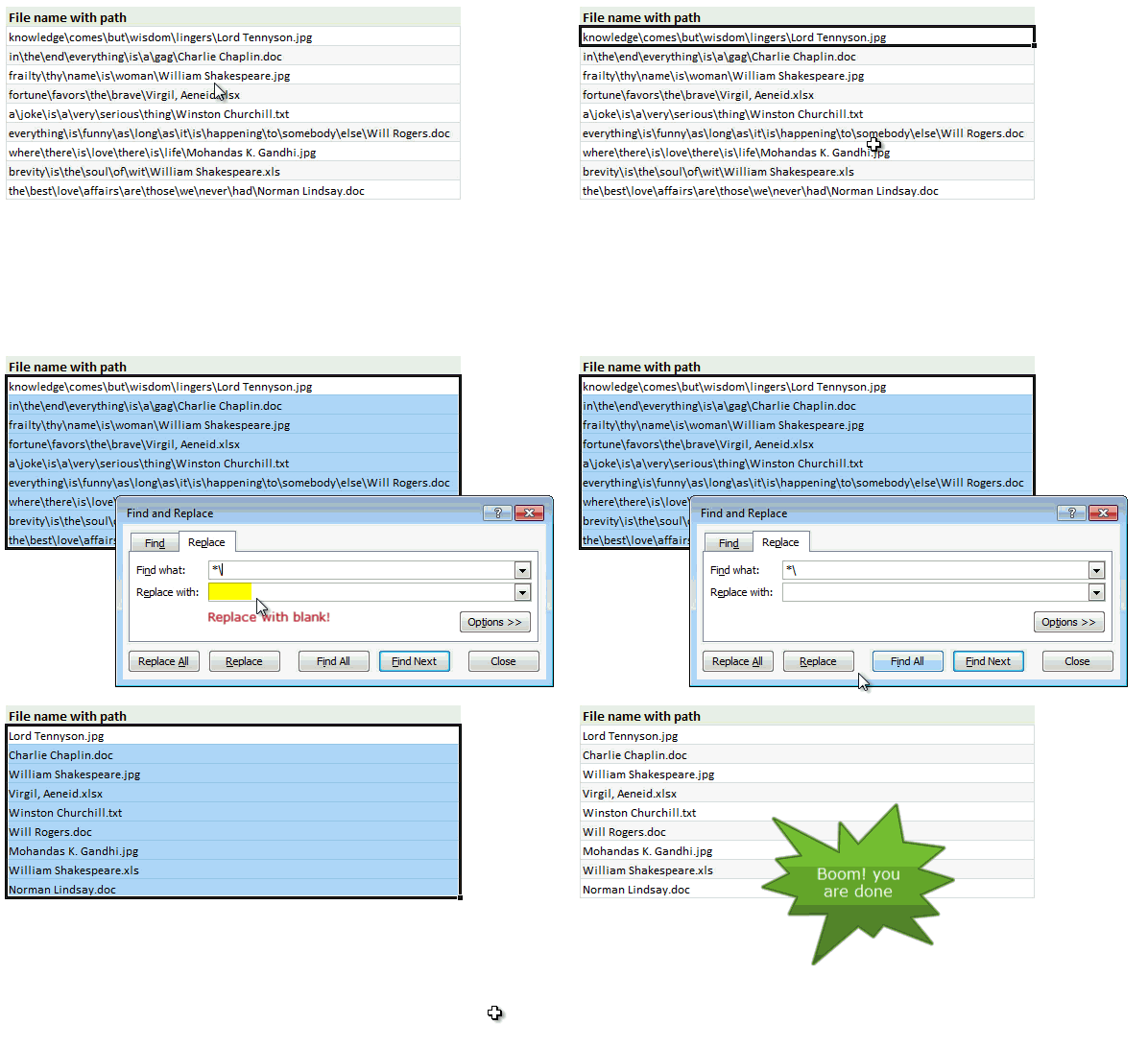
Thanks Iain for teaching us this trick.
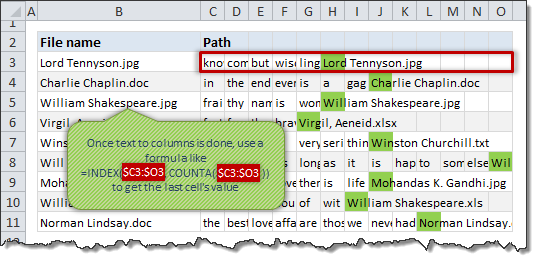
2. Using Text to columns utility
Buried inside heap of features in Excel is this beautiful Text to columns utility, that can take any text and convert it in to many columns based on the delimiter you specify. [more uses of text to columns]
This is how we can use it:
- Select all the file path cells
- Go to Data > Text to columns
- Chose “Delimited” in step 1 and click next.
- Specify delimiter as \

- Click Finish
- You will get all folders in to separate cells and file name in last cell.
- Now use a formula like =INDEX($C3:$O3,COUNTA($C3:$O3)) to extract the last cell’s value ie file name
- Done!
3. Using UDFs
While our formula method tends to be very long or very complicated, we can use 1-2 line VBA to get the file name from a full path. There are many ways to skin this cat in VBA, but 2 easiest methods are,
For both methods below, you first need to insert a new module and add the code in that.
Using InStrRev
As suggested by Daniel Ferry in the comments.
Public Function ParseFile(sPath As String) As Variant

ParseFile = Array(Mid$(sPath, 1 + InStrRev(sPath, “\”)), Mid$(sPath, 1 + InStrRev(sPath, “.”)))

End Function
Note: this UDF returns an array for file name & extension. So you need to enter it in 2 cells together.
The InStrRev() built in function searches for \ in the sPath from end and returns the first occurrence’s position.
Using split
As suggested by PPH in comments,
Function ExtractFileName(filepath) As String
Dim x As Variant
x = Split(filepath, Application.PathSeparator)
ExtractFileName = x(UBound(x))
End Function
What is your favorite method?
For most of my data cleaning needs, I use a mix of text to columns, find-replace or VBA. In rare cases, I rely on a formula. This is because data cleaning or extraction is usually one time step and figuring out a complex formula is not good idea in such cases.
What about you? How do you go about extracting filenames, dates, numbers etc. buried in text? What method do you use often? Please share with us in comments.


10 Responses to “Even faster ways to Extract file name from path [quick tip]”
To import a file list to excel:
1) Create a batch file in a directory other than the one you are looking in (the root directory would work): name it something like filelist.bat
In the file, type:
@ECHO OFF
DIR "C:\Whateverfolder\*.jpg" > "C:\Temp\filelist.txt"
If you double click on that file, you will create a file in C:\temp called filelist.txt that will have all of the files in that directory.
2) Use windows' task scheduler program to run that batch file at some time interval (once a day, every 5 minutes, whatever you think is reasonable for the folder)
3) In the excel workbook, import data from text, to make a data table from the filelist.txt file in the C:\temp directory. Select the properties, deselect where it says to prompt for the file name, and have it update on the file opening and whatever time interval you specified.
That works especially well on network drives where multiple users might be adding files.
sorry, change that *.jpg to *.* to list all files, or change the extension as desired. You can also add a -s between the second double quote and the greater than symbol to look in all of the subdirectories (be careful there - if you look in C:\ or C:\windows and search all subdirectories, you will get a huge file).
I just wanted to note that there was a typo in the UDF for ExtractFileName. In one place, the variable is defined as filespath, but in the calculation formula, the variable appears as filepath.
Yes, that's true. Sorry for that.
Hi All.
In a slight modification of the Text To Columns option, in step 3 of 3 of the Text To Columns procedure, the last radio button under Column Data Format allows you to specify those columns you do NOT wish to import.
Thus in the display at the bottom of the dialogue box, you can Shift-Select all the columns before the file name, click Do Not Import Column (Skip) then Finish.
Only the file name is imported!
In my haste I did not appreciate the fact that there are several records that will result in different numbers of columns.
In which case the option I mentioned above would workbench appropriate.
Apologies
Vba as suggested by PPH is not correct.
Corrected version is below
Function ExtractFileName(filepath) As String
Dim x As Variant
x = Split(filepath, Application.PathSeparator)
ExtractFileName = x(UBound(x))
End Function
Modified Text To Columns option
If you want to avoid using formulas, then after Step 6:
1. Highlight all
2. Press Ctrl+G, Special, Blanks
3. Type "=", press left arrow, then Ctrl+Enter.
The last column will have file names.
I'd like to know how you created that animation of selection, find/replace. Looks cool in emails.
Well I truly liked studying it. This tip procured by you is very constructive
for correct planning.