

Today lets tackle a very familiar problem. You have a bunch of very long, complicated file names & paths. Your boss wants a list of files extracted from these paths, like below:
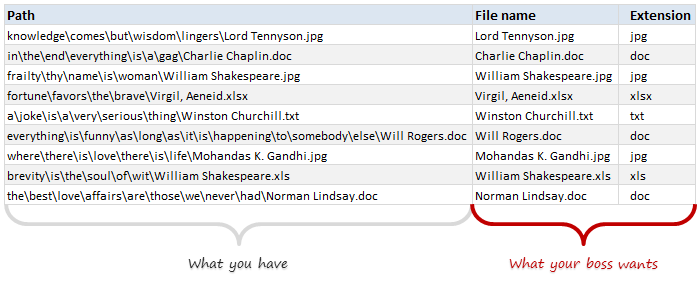
Of course nothing is impossible. You just need correct ingredients.

I cannot help you with a strong cup of coffee, so go and get it. I will wait…
Back already? well, lets start the formula magic then.
Extracting file name from a path
If you observe the file paths carefully, to extract the file name, we need to know,
- Position of last \ in the full path text
Of course there are many methods find where the last \ is. You can find a very excellent summary of these techniques in our formula forensics #21 – finding the 4th slash.
Today, let us see a new technique (well, sort of).
Finding the position of last \ using formulas
Before writing any formula, first let me clarify the only assumption:
- File path is in cell B4
Now, last \ is nothing but first \ when read from right.
Read that line again.
Got it? Good, lets move on.
How do we find the first \ from right?
If we can list down all individual characters from path right to left, then we just have to find the first \ in that.
Listing down individual characters from a given text
To get 5th character from text in B4, we can use MID formula like this:
=MID(B4,5,1)
Suppose you want both 5th and 6th characters from B4, you can use:
=MID(B4,{5,6},1)
This formula returns an array of 5th and 6th characters from the text in B4.
Cool, extending the logic, =MID(B4, {6,5},1) would give 6th & 5th characters in B4.
Idea!
If we can replace {6,5} with decreasing numbers starting from length of text B4 all the way to 1, then we can list all characters in B4, right to left.
But this leads us to next problem – listing numbers from a specific value (length of B4) to 1 in descending order.
Listing numbers from n to 1 in that order
We can use ROW() formula to generate sequence of numbers like this:
=ROW(1:10) will give {1,2,3…,10}
note: this returns an array, so you need to use it with Ctrl+Shift+Enter
So if we can use =ROW(1:LEN(B4)) we could get numbers from 1 to length of text in B4 {1,2….LEN(B4)}
Unfortunately this will not work as 1:LEN(B4) is not a valid reference.
But we can fix that with INDIRECT, like this:
=ROW(INDIRECT(“1:” & LEN(B4)))
Tip: INDIRECT formula lets you construct a reference by using values in other cells as shown above.
Alternative: You can also use OFFSET to get the same result like this: =ROW(OFFSET($A$1,,,LEN(B4))). More on OFFSET here.
But wait…
So far, we have only generated numbers from 1 to n. But we need numbers from n to 1.
No sweat, we just subtract the numbers {1,2…n} from n+1 to get the list {n,n-1,n-2….2,1}
Like this:
=LEN(B4)+1 – ROW(INDIRECT(“1:” & LEN(B4)))
Using these numbers to list characters in file path in reverse order
Take a sip of that coffee, its getting cold!
Now, lets integrate our numbers in to MID like this:
=MID(B4, LEN(B4)+1 – ROW(INDIRECT(“1:” & LEN(B4))), 1)
The blue portion gives you numbers {n…2,1}
The orange portion gives you letters from right to left.
But we wanted the last \
Oh right. We do not need these letters from right to left. We instead want to find the last \ in our file path. So now we just ask Excel where the first \ is in this reversed text.
=MATCH(“\”, MID(B4, LEN(B4)+1 – ROW(INDIRECT(“1:” & LEN(B4))), 1), 0)
Blue portion gives you letters in reverse order
Orange portion finds the first \ in that.
Tip: Learn more about MATCH formula.
Extract the file name
Once you know where the last \ is, finding the file name is easy.
use =MID(B4, position_of_last_slash + 1, LEN(B4))
We need to +1 because we do not want the slash in our file name.
Demo of the entire formula in action
Okay, lets see all these steps in action in one go.

How to find the extension?
Extension is few letters added at the end of file to indicate its type. For example, excel files usually have xls, xlsx, xlsm as extension.
So how to find this extension?
Extension & file name are separated by a dot .
But often file name itself can have a dot.
In other words, Extension is text in the file name followed by last dot.
Sounds like same problem as finding the last \ and extracting file name. So I will skip the details.
But assuming the file name is in D4, extension can be found with =RIGHT(D4,MATCH(“.”,MID(D4,LEN(D4)-ROW(INDIRECT(“1:”&LEN(D4))),1),0))
NOTE on both formulas
Both file name & extension formulas are array formulas. This means after typing them, you need to press Ctrl+Shift+Enter to see correct result.
Bonus tip: Getting the file names & path from a folder
If you ever want to list down all files in a folder use this.
- Open command prompt (Start > Run > Cmd or Start > Cmd)
- Go to the folder using CD
- Type DIR /s/b >files.csv
- Close command prompt
Now you can see all the files in that folder in files.csv. Double click on it to open in Excel and run your magic 🙂
Download Example workbook
Click here to download the example workbook. The file uses slightly different formulas. But works just the same. Examine it and learn more.
How do you extract file names & as such?
Do you use formulas or do you rely on some other technique to extract portions of text like file names, mail addresses etc. Please share your tips & ideas using comments.
Extract often? You will dig this.
Analysts life is filled with 3 Es – extraction, exploration & explanation. And like a good assistant, Excel helps you in all 3.
If you find yourself with a shovel, bucket and boat load of data often, you are going to enjoy these articles:


