

Marko, who is a long time PHD reader and an excel ninja sent this via email,
I work at an insurance company in Slovenia. At the beginning of each year we have a conversation with our superiors to review our work in the past year and to set new goals (main activities) that we’re gonna work on throughout the year. To keep track of these activities I took the liberty of modifying Jennie’s A New Year Resolutions Template that Kicks Ass and created a more “dynamic” template.
He sent me this:
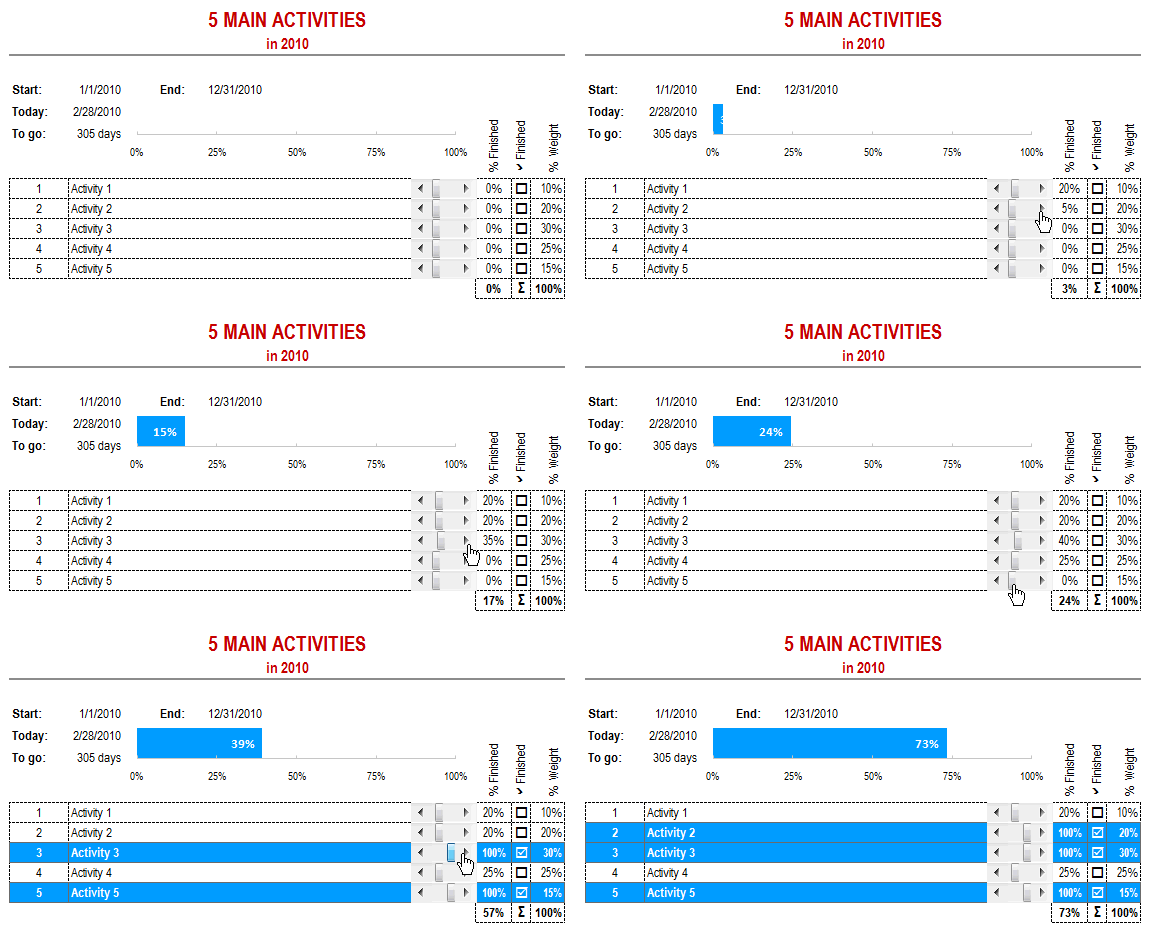
I immediately liked this implementation, for various reasons. This example shows how we can combine various powerful features in MS Excel to create something truly unique and outstanding. It uses,
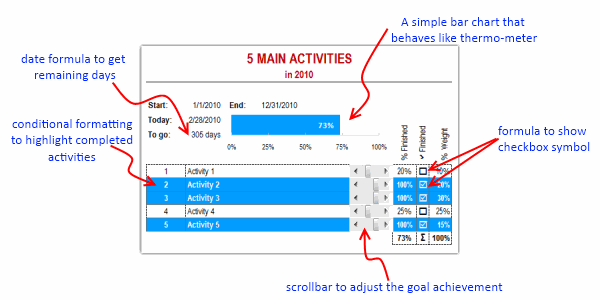
- Conditional formatting to highlight rows when the activity is 100% complete. [learn how to]
- Formulas to show check boxes when the activity is done. [learn how to]
- A thermometer chart to show the progress against the target. [learn how to]
- An elegant date formula to show how many days are remaining to finish the goals. [learn how to]
- And scrollbar form controls to adjust the % completion values. [learn how to]
Download this tracker Excel File
Click here to download the example file and play with it.
Thank you Marko
Very elegant, very slick. Good work Marko. Thanks for sharing this with us.
Share your Excel Success with PHD
I like to learn how you use excel creatively to solve problems at work. Send me examples, workbooks or ideas. I am always looking for new ways to use excel and your contributions will help us all. Email your stuff to me at chandoo.d @ gmail.com.


30 Responses to “Annual Goals Tracker Sheet [awesome ways to use excel]”
Very nice project tracker. I'm thinking of a myriad of ways to use this. Thanks.
This is really cool. I think you can avoid formulas in range M8:M13 and substitute formula in M6 for this. =SUMPRODUCT(K8:K12,N8:N12/100)
Regards
Is there a way to create a log of each time the slider is adjusted? (like on a mouse up , or an on change action)
Would be interesting to have a log to perform an analysis on.
Maybe every time a value is changed, a row is added to another sheet with the specifics, and then a chart on the dynamic range to visualize the progress over time. With the option to aggregate the data to the day/week/month level.
@Elias: good tip 🙂
@Joe: Very good idea on logging part. You can do that very easily with Active-x scrollbar control instead of form control. You can assign a small macro to change event of the scrollbar and log the changes in a separate sheet.
Even with form control you can monitor the linked cell using worksheet_change event thru macros.
A simpler, but painful way could be to write some circular formulas that would put timestamp in a cell whenever linked cell content changes. (refer to timestamping in excel article for more on this approach: http://chandoo.org/wp/2009/01/08/timestamps-excel-formula-help/ )
the worksheet reminded me of a "feature".
how do show a specific portion of cells, but HIDE the rest?
in this worksheet, only range A1:L15 is visible. All other cells are GREYED out/hidden.
[...] link Leave a Reply [...]
awesome Marko - keep it up and great motivation!
Very impressive work Marko.
If you could add a bionic leg that will kick me in the butt and get me to do stuff, it'll be perfect. 🙂
@David.. you can hide un-necessary columns and rows by selecting all of them and clicking "hide" option. More on this here: http://chandoo.org/wp/2009/11/03/make-better-excel-sheets/
i see! thx!
btw, previously i encountered an invoice template done in excel.
it was done similar to this worksheet, but i cant seem to unhide those hidden columns/rows (cuz i wnated to see the formula which are hidden from view).
no hidden formula/calculation sheet. just a single sheet, with selective range of viewable range.
Even I would second Chandoo
Nice work Marco
Question which is driving me crazy...How is the data in columns N and O being hidden? It's not text color, formatting or being hidden...
@Hank: It's because of the custom formatting of ;;;
It's also used in Jennie’s "A New Year Resolutions Template that Kicks Ass"
Found that after you pointed out 😀
Thanks Hank
I have been looking for a goal spreadsheet made from Excel. This looks pretty interesting and this sort of thing might work for me.
Hi Chandoo,
What - in your opinion - will be the easiest way to add a 6th row (activity) in this case?
Thanks and Regards
Ankur Jain
I have successfully downloaded this wonderful spreadsheet. It works like a dream. However, I need to monitor TWO sets of data so I made a COPY and PASTED to the next page.
However, the data from the first page causes the slider on the second page to change. Obviously it carried the links across. How do I copy so that the second page will not look for data on the first page? I am fairly ignorant about software.
AMAZING!!! Simply Rocking. Love it. Brilliant.
Merci Beaucoup
Hi,
I like the template (great work) I have always wanted to do new things in excel. unfortunately I'm working on excel (2003) version :(, this tracking is very useful in my work. I tried some portion of template but did not succeed in doing scroll bar and therometer. is there alternate way to me, so that i can try to creae one for my work. for this I spend lot of time on this.
Thank you!
kris..
Hi Chandoo, thanks for another impressive spreadsheet. I have two questions to ask about this one.
1) The custom cell format for cells K8:K12 is 0%;-0%;"" can you please what this is trying to achieve?
2) For the same range, I dont understand the reason behind the Weight range? I assume that in this example it is just a guestimate / ranking on what the user determines for which activity is more important over other activities? Surely it would be better if the percentages actually change based on how much each of the actual activities change, i.e. as one activity is 100% the weight is changed and distributed between the remaining weights? If this is not done, I dont see the point of even having K8:K13? Or am I missing something?
Regards
Colin
Hi,
How could i add more than 5 activities.
Thks.
Simply copy a line and past below it. Later edit M6 cell like this :
(....+K12*M12*N12/100+K13*M13*N13.....K14*M14*N14/100;0)
[…] I stumbled around, trying to find a way to make my chart match my imagination, I came across this chart from Chandoo.org. I don’t know how to manipulate it very well, but I came up with five writing […]
Really impressive & easy to put in use !
I am looking for something like this however, more for a daily/weekly tracker. So If I have 125 QA to do in a week, how can I automatically keep track of what percentage im at. Is there a formula I can enter that will automatically calculate my percentage?
Hi Chandoo,
I found this article very interesting and i think this might solve my problem if you help me with below information:
I need this goal tracker for multiple (let say 5 people) with their individual progress but in one chart.
so, lets understand this - if i give a dropdown with displaying 5 people name and based on the name one can change his /her progress for 5 activity. and i can check that there only.
is this possible and how can i do that??
Thanks for sharing the template, It's very useful.
I tried adding a new activity so I copied a line and pasted but now when I moved the cursor I'm getting the number of the cell I copied. help pls
How we can inrease the quantity of the activities? How we can add the new activity.
Need your urgently answer!
Is this template still available? I think this could be a great asset for me!