

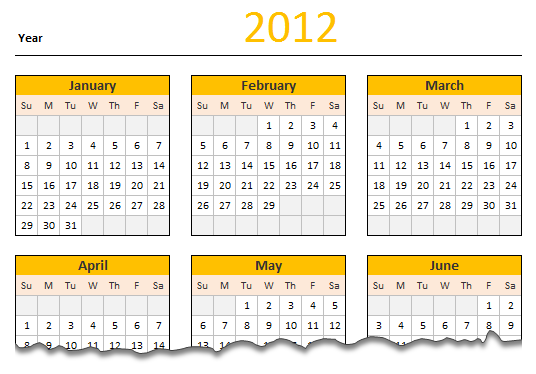
Here is a new year gift to all our readers – free 2012 Excel Calendar Template.
This calender has,
- One page full calendar with notes, in 4 different color schemes
- 1 Mini calendar
- Monthly calendar (prints to 12 pages)
- Works for any year, just change year in Full tab.
Download 2012 Calendar – Excel File
Click here to download the file. For Excel 2003 compatible version, click here.
We wish you an awesome New Year 2012.
How does this Calendar work?
This is the same file as 2011 calendar with the year changed. So,
- The cell D3 in worksheet Full has the year of calendar. I named this cell as year.
- All the formulas for the calendar are written in the worksheet mini.

- For this calendar, I took inspiration from Daniel’s Live Calendar example (Recommended reading for formula enthusiasts).
- The first step to create a calendar is to generate a sequence of numbers 1 thru 42 (because calendar grid has 42 cells – 7 days per week x 6 weeks max, per month). I used a combination of INDIRECT, OFFSET and COLUMN to get this. The formula is
=COLUMN(OFFSET(INDIRECT("$A$1"),0,0,1,42))-1. I mapped this formula todaysAndWksnamed range. - Next step is to find the first date of each month using a simple date formula like
=date(year,month,1). This formula is mapped to named range –DateOfFirst - For given month, the calendar is nothing but
=daysAndWks + DateOfFirst - WEEKDAY(DateOfFirst,2). This formula is mapped to named range –calendar.

- Once the mini calendar is ready, I just created 12 named ranges m1_, m2_,…, m12_ corresponding to each of the 12 months.
- Then, I used the same in individual calendar worksheets along with INDEX formulas to fetch the dates.
- Finally, I formatted the calendars nicely. Design of this calendar is similar to that of 2010 calendar & 2009 calendar templates.
Go ahead and enjoy the download. The file is unlocked. So poke around the formulas and named ranges. Learn some Excel.
More Downloads: Download Free Excel Templates
Techniques used: INDEX | OFFSET| INDIRECT | Array Formulas | Using Date & Time in Excel


37 Responses
Dear chandoo….how can i find duplicate entries in two different spreadsheets in excel 2007.. plz give me a appropriate formula ….
Nice one ….!?
Thanks Chandoo!
@Meenakshi, please post your question on “Ask an Excel Question”.
I am in absolute awe of your abilities and I have learned a few things from you. Thanks for sharing.
Thank you for your excellent calendar… I am in awe of the things you can make Excel do!
Can you suggest how I might add the Julian date to this calendar template? I’d like to be able to display both the date (Feb 1) and the Julian date for that date (032) in the compact calendar layout at the same time. I’ve been playing with it all weekend and I can make it do one or the other, but I’m not clever enough to make it do both. 🙁
I love your calendar! I’ve been using it for a couple of years now for all kinds of meetings groups and other things. I want to use it to create a “Working Day” calendar where I can plug in holidays and count around them for specific numbers of days to get a due date. I tried to put two mini’s on a worksheet with the top one 2011 and the bottom one 2012 but I can’t get the dates to line up properly beause even after I adjust the months the days still are referencing the 2011 date for {=calendar} and I don’t know how to change that. (I’m more than a novice but nowhere near being an expert in Excel). Please help.
Great!
Dear Chandoo – I have subscribed your website couple of months. My knowledge about excel has almost doubled since then.
Just wanted to say a sincere thanks, this site is the most wonderfull of all I have visited. Best part is your knowledge oriented focus. Great Great work.
Hi Chandoo, thanks a lot!
i have some questions,
Could you please add (or how can I) add the numbers of the week?
How can I re-arrange the calendar so a week starts on a preset day of the week, i.e. from Friday to Thursday.
Thanks in advance.
This is great. I always learn a lot by your examples. Unfortunately, not enough though. Is there a way to make the week run from Wed – Tue instead of Sun -Sat ?
Thanks,
// Kevin //
Thanks so much. It has been so encouraging to be reading and really learning from you. My best regards. How are you enjoying your new house. Compliment of the season to you and your beloved family.
Lekan
Thanks Chandoo!
How do you show the limited number of cells (with the shadow on right and on down) in the worksheet?
Hide all the Column/Rows beyond your data area
hi i want to how u created this calender
Thanks for this excellent calendar.
Could you make at least one of the options more B&W printer friendly with your color choices? The background Blue for the month in the Full and Montly is too dark when I print it. The month text is barely visible.
The “mini” format is interesting. I haven’t seen it before. I’ll have to play with it to see if it’ll work for anything I do.
A more complex enhancement would be to allow us to enter formatting and / or text (comments) in one place and have them applied to all of the variations so we could enter data once and then be able to print any or all of the color variations to find the best one.
Thanks.
Happy New Year, Chandoo!
Since it is calendar season, I just published an Excel Universal Calendar on my blog:
http://www.excelhero.com/blog/2012/01/excel-universal-calendar-template.html
It is totally dynamic. It will work for any year, can start on any month, and the weeks can start on any day of the week.
It allows the user to simultaneously display the normal calendar date, Julian dates, ordinal dates, days to end of the year, holidays both standard and custom for a company. It automatically (by formula) calculates the standard business holidays for the US for any year.
It is designed to support Excel Themes and so can be printed effectively.
No VBA. All Named Formulas. I thought your readers would enjoy it!
Kind regards,
Daniel Ferry
MS Excel MVP
Thanks for the calendar
Fine work!
I’m wanting to make a calendar in which the months are side-by-side in a single row. January on the far left; December on the far right.
I want to tape this to the bottom of my monitor, so I always have a calendar in front of me.
Any ideas how I could do this?
Thanks much!
Nice Excel sheet for calendar. Just copy paste as image in another Excel sheet. Very much useful for my work. Good Job. Thank you.
Simply awesome!!
=COLUMN(OFFSET(INDIRECT("$A$1"),0,0,1,42))-1 confused me for a bit. Finally figured out that this was setting up a dummy array that we could use to count columns.Found that by using =Column($a$1:$ap$1)-1 you get the same affect without using volitile offset function and it is clearer. At least to me. :)
Love the calendar. Thanks
I have just been re-reading the article on the calendar and again am amazed how you can make Excel do things far beyond what would I imagine. Great work!
A variation I would like to do is create a calendar that starts with the current month and plots out the next n (12?) months. Not sure how to make it dynamic.
For my purposes, the “full” sheet is all I need.
Hey! Would you mind if I share your blog with my myspace group?
There’s a lot of people that I think would really appreciate your content. Please let me know. Thank you
Nice blog, I would like to tell you that you have given me much knowledge about it. Thanks for everything.
Nice calendar!!!
Hi,
Is there a way to link the excel planner with outlook calendar?
Hi, can this picture calander be added to my sharepoint 2013 on the front page.
Plesae help me with the steps.
This calendar is fantastic!
Some organisations work on 13 x 4 week months for rosters/production with each month having a number 1 to 13.
Is there a way this can be adapted to produce a calendar for that purpose? or will it have to done from scratch?
Do you have template calendar for 2019 yet?
There is usually a single cell that controls the Year for the entire calendar
please help me how your calender functionality work.Its urgently needed ,I have downloaded ur calender templates but unable to understand how to make its use.share some youtube link