

Today is February 29th, and that means, this year we have one more day to be awesome. So lets celebrate it in Excel style!
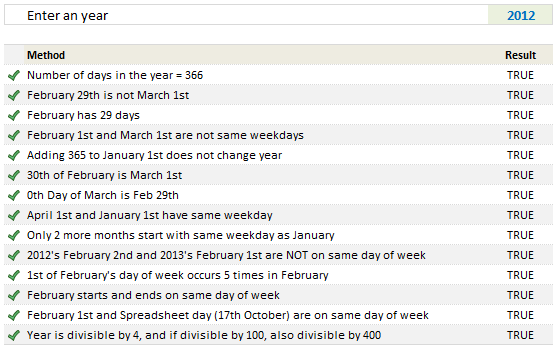
Lets learn 14 different ways to tell if an year is leap year, using Excel Formulas.
Why 14? because, we are awesome like that.
Why 14 methods to just find the year in cell D4 is leap year or not? Because, we all know that by learning different ways to solve a problem, we become smarter, more awesome and have more fun. So lets roll.
Before we start..,
Since all the 14 methods rely on certain calculations, I have created some names. See below:
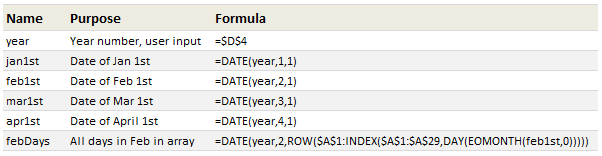
All the names are self-explanatory, except the febDays. So lets take a look at it.
febDays formula
For one of the methods, we need to have all the dates in February in a list. If we want the first of Feb as a date, we can use =DATE(year,2,1). But we want all dates in February. That means, we need to use a list (array) in third parameter of DATE like this:
=DATE(year,2,{1,2,3,4,….,28,29})
Instead of typing all the 28/29 numbers, we can use ROW formula to generate these, like:
=ROW($A$1:$A$29) would give me a numbers from 1 thru 29.
But the problem is in many years Feb has only 28 days, and for rest, it has 29 days. So we modify the second part of row formula and use the last DAY of the Feb, like this:
=ROW($A$1: INDEX($A$1:$A$29,DAY(EOMONTH(feb1st,0))))
To get the last day of a month, we use = DAY(EOMONTH(1st date, 0))
I think you can put the rest of pieces together to solve this puzzle.
Moving on,
#1 – The year has 366 days
This is the obvious one. We use =DATE(year+1,1,1)-jan1st=366 to check if there are 366 days between January 1st of next year and this year.
#2 – February 29th is not March 1st
Because in Excel all dates are numbers, when we use a formula like =DATE(2011,2,29), Excel gives us the date of March 1st, even though we wanted 29th Day of February in 2011. So a simple leap year check is to see if February 29 is March 1st or not!
=DATE(year,2,29)<>mar1st
#3 – February has 29 days
This is another obvious test. In a leap year, February has 29 days. So=DAY(EOMONTH(feb1st,0))=29 will be true for leap years.
#4 – February 1st and March 1st are not on same day of week
In non leap years, Feb has 28 days (a multiple of 7), so both Feb and March start on same day of week. So, =WEEKDAY(feb1st)<>WEEKDAY(mar1st) will be TRUE for leap years.
#5 – Adding 365 to January 1st does not change year
Well, that is obvious too. =YEAR(jan1st)=YEAR(jan1st+365) is TRUE for leap years.
#6 – 30th Day of February is March 1st
If an year is leap year, 30th day of February [DATE(year,2,30)] is same as March 1st. So, =DATE(year,2,30)=mar1st is TRUE for leap years.
#7 – 0th Day of March is Feb 29th
In real world there is no zeroth day for any month. But in Excel, since all dates are numbers, 0th day refers to last day of previous month. So, =DAY(DATE(year,3,0))=29 will be TRUE in leap years.
#8 – April 1st and January 1st are on same day of week
In leap years, there are 91 days between January 1st and April 1st. And since 91 is a multiple of 7, both April 1st and January 1st start on same day of week. Hence, =WEEKDAY(jan1st)=WEEKDAY(apr1st) will be true for leap years.
#9 – Only 2 more months start on same day of week as January
In leap years, both April and July start on same day of week as January. (Where as in non-leap years, Only October starts on same day of week as Jan).
To test this, we will of course use the SUMPRODUCT. like this:
=SUMPRODUCT(–(WEEKDAY(DATE(year,ROW($A$2:$A$12),1))=WEEKDAY(jan1st)))=2
The portion WEEKDAY(DATE(year,ROW($A$2:$A$12),1)) gives all the first day of weeks from February to December. And then we just check how many of these are same as January 1st’s week day.
#10 – Next year’s February 1st and this year’s February 2nd are NOT on same day of week
In non-leap years, there are 364 days between February 2nd and next year’s February 1st. Since 364 is a multiple of 7, both of these days are on same day of week. Which is not the case in leap years (as the difference becomes 365). So, =WEEKDAY(feb1st+1)<>WEEKDAY(EDATE(feb1st,12)) will be TRUE for leap years.
#11 – February 1st’s day of week occurs 5 times in that month
This a bit tricky to test, but then again we have SUMPRODUCT. So, =SUMPRODUCT(–(WEEKDAY(febDays)=WEEKDAY(feb1st)))=5 will be TRUE for leap years. The name febDays has all dates in February. I think the rest is easy to understand.
#12 – February starts and ends on same day of week
29 days means both 1st and 29 are on same weekday. So, =WEEKDAY(feb1st)=WEEKDAY(EOMONTH(feb1st,0)) will be true for leap years.
#13 – Spreadsheet day (October 17) and February 1st are on same day of week
Debra, who is a well known Excel blogger & author started the whole spreadsheet day thing. She says, we should celebrate October 17 as spreadsheet day. I love that idea, mainly because, it is just 3 days before my birthday and I like celebrations. And I also like Excel 🙂 So blame her if you do not like this way of testing for leap years.
In leap years, there are 259 days between February 1st and October 17. And since 259 is a multiple of 7 (and 37), we know that they are both on same day of week. So, =WEEKDAY(feb1st)=WEEKDAY(DATE(year,10,17)) is true for leap years.
#14 – Finally, the year is divisible by 4 and if it is divisible by 100, then also by 400
Finally, we are going to test the whole “an year is leap year if it is divisible by 4 and if it is divisible by 100, then it is also divisible by 400” thing. This is a slightly tricky one to test. The formula, =((MOD(year,4)=0)*((MOD(year,100)<>0)+(MOD(year,400)=0))=1) will be TRUE for leap years and false for non-leap years.
Download Leap Year Test Workbook
Click here to download the workbook with all these 14 examples. Play with the formulas, named ranges to understand these techniques.
How do you check it is a leap year?
If you are working and you get paid on first day of a month, then one clear way of knowing leap year is that you get your salary one day later. Other than this, what method would you use to find if an year is leap year. Go ahead and be creative. Share your ideas and formulas using comments. Next leap day is 4 years away. Go
Want to learn how to Dates & Times in Excel – Read these:
If you deal with data that has a lot of date / time stuff, then understanding various Excel features in this area is a must. Read below pages to learn more.
- 10 tips on working with dates & times in Excel
- Calculate difference between 2 dates
- Find thanksgiving day for any year
- Check if 2 ranges of dates overlap
- Rolling months in Excel
- How to convert text to dates
- Even more on Excel dates & times
Want to master Date & Other Excel Formulas?
If you want to learn how various formulas in this post work and know more about everyday Excel formulas, please consider joining my Excel Formula crash course. It has detailed video tutorials on more than 40 everyday Excel formulas and teaches you all the powerful techniques to become a formula ninja.


30 Responses
Is there a limit on the years? 1900 does not work. Pls let me know if I have missed anything.
Thanks!
@Sriram… Excel date system starts with Jan 1st 1900. So any dates prior to that are unknown to Excel. In my example workbook, the #14 test uses year number to determine if the year is leap and this works. All other methods give wrong answers.
Sriram Una forma sencilla de saber si un año es bisiesto es dividir el año entre 4 y si el resultado es un número entero, entonces el año es bisiesto ej.: 1900/4=475; en cambio si la divisón tubiera residuo o diera un número con decimales no sería bisiesto Ej.: 1925/4=481.25.
[Google Translate] Sriram An easy way to know if a year is a leap year is to divide the year between 4 and if the result is an integer, then the year is a leap year eg .: 1900/4 = 475; however if the divison tubiera residue or a number with decimals would not be leap Ex .: 1925/4 = 481.25.
#15 “29/2/YYYY” is a number: =ISNUMBER(DATEVALUE(“29/2/”&year))
Interesting use of the DATEVALUE… 🙂
I have been checking on Month, something like this:
A1 = year (like 2011)
=IF(MONTH(DATE(A1,1,1)+59)=2,”FEB”,”MARCH”)
Hi chandoo !!
if the 60th day of the year is on February
then it’s leap year…
=MONTH(DATE(year,1,60)=2
cheers
Two days between February 28th and March 1st:
=DATE(year,2,28)+2=mar1st
Days between March 1st and February 1st are not divisible by 7:
=MOD(mar1st-feb1st,7)=1
The GDP is higher in 366 days (one extra day to make money):
=ROUND((DOLLAR(("4/"&year)/7)-DOLLAR(("4/"&year-1)/7))*7,0)=366Annual inflation helps to calculate leap years:
=ROUND(DOLLAR(“4/”&year)-DOLLAR(“4/”&year-1),0)=366
Last formula with code tag:
=ROUND(DOLLAR("4/"&year)-DOLLAR("4/"&year-1),0)=366@Pedro, Rene & modeste: good ones…
I use a variation on #14: =OR(MOD(YEAR($A$1),4)=0,MOD(YEAR($A$1),400)=0) – it seems to work. Excel thinks 1900 is a leap year; it is not, because it doesn’t divide exactly by 400.
BTW, 17 October is an excellent choice for Spreadsheet Day – it’s my birthday 🙂
Is February 29th a day:
=NOT(ISERROR(DATEVALUE("2/29/"&year)))Similar to Pedro’s formula but with one less function call…
=NOT(ISERR(1*(“29-Feb-“&year)))
Actually, in looking back at Gregor’s formula, here it is with one less function call…
=ISNUMBER(1*(“29-Feb-“&year))
Rick, your Gregor’s formula version is excellent.
Now an ISO 8601 representation of February 29th knowing that 1900 were not a leap year:
=AND(ISNUMBER(1*(year&"-02-29"));(year>1900))Just change ; by , in English Excel version:
=AND(ISNUMBER(1*(year&"-02-29")),(year>1900))Anyone have a formula to determine how many leap days within a range?
ie: A1= 14 Jan 1901 start
A2= 31 Dec 2012 cease
Z1= 29 Feb 2012
Z2= 29 Feb 2008
etc to 29 Feb 1904 requires 28 cells and 1 sum
So far I am using =IF(AND(A1=Z1),1,)
=IF(AND(A1=Z2),1,)
etc to 29 Feb 1904
and then sum of results.
There must be a more elegant solution.
@Michelle… Welcome to chandoo.org. Interesting question.
Assuming starting date is A1 & End date is in A2:
you can use =date(year(A2),12,32)-date(year(A1),1,1)-((year(A2)-year(A1))*365) to get the number of leap years in between the 2 years in A1 & A2.
This formula counts the number of days between first of Jan of start year & 31st of December of end year and subtracts 365*number of years in between.
Hi all, this is my first time posting,
Thanks for this formula is has taken me closer to get what I want but I’m still having a problem, I need to calculate, to give an example, the years of service of a person in a company, but according to policy standards we use all years must be calculated with 365 days.
I’m using a simple formula subtracting a start date and an end date to get the amount of days, and with the formula above calculating the amount of leap days in the interval and subtracting them to the amount of days of the 2 original dates.
Now this works well for a person who started working during a leap year before feb 29 and ended working on a leap year after feb 29. Or that started of ended working on a normal year.
Any ideas on how to modify the formula for such a case, as an example some who started working on april 1st, 2004 and finished working on jan 31st, 2012
I did the same calc for pensionable service / severance pay for a govt dept.
Try this:
A1 start date
A2 cease date (dates are inclusive)
A3 years=DATEDIF(A1,A5,”Y”)
A4 days=DATEDIF(A5,A2+1,”D”)
A5 first day of final year=IF(A2-A1<365,A1, IF(DATE(YEAR(A2),MONTH(A1),DAY(A1))>A2+1,DATE(YEAR(A2)-1,MONTH(A1),DAY(A1)), DATE(YEAR(A2),MONTH(A1),DAY(A1))))
A6 YEARS=IF(A4=366,A3+1,A3)
A7 DAYS=IF(A4=366,0,A4)
Basically count full years regardless of if they are leap or not and then count the actual days from the anniversary date to the realease date. Had 100% success with this so far.
One more.
VBA function IsDate(“2/29/” & TestYear)
Misplaced comma in # 14.
#14 – Finally, the year is divisible by 4 and if it is divisible by 100, then also by 400.
I would suggest rewording it to….
if it is divisible by 400, or if it is divisible by 4 not not by 100.
I need to calculate leap years between the year 444B.C. and 32N.C., can I do it on Excel?
Thanks for the great lesson!