Excel Formula Crash Course – Learn Excel Formulas one by one & Become Awesome

Share

Facebook
Twitter
LinkedIn

Excel Formula Crash Course from Chandoo.org

Friends & readers of Chandoo.org, I am very happy to announce that my new crash course on Excel formulas is ready for your consideration. Please read this short page to understand the benefits of this program & sign-up.

Excel Formula Crash Course

Who is this course for?

If you use MS Excel to do data analysis, reporting, day to day tracking or project management then this is the right course for you. If you struggle with formulas or not sure which formula to use for any given occasion, then this is the perfect course for you. We will be introducing more than 40 different formulas with 100s of examples in this course. As we will be using realistic data & examples, you can very quickly apply the same to your day to day work and do so much more with ease & confidence.

What are the topics of this course?

This course has 6 topics or modules. See below:
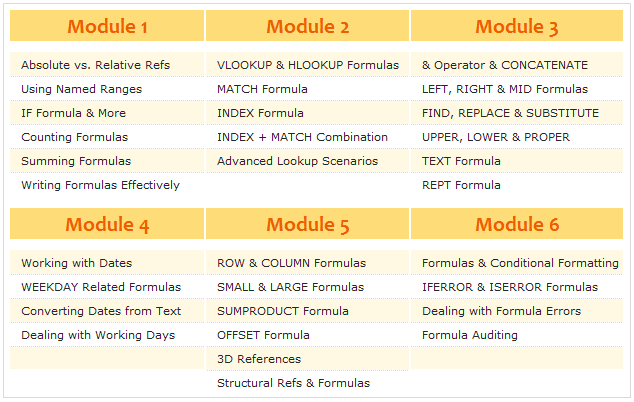
Course Contents - Excel Formula Crash Course
Click here to download Course Brochure

What do you get when you join this course?

You get the following benefits,

  • Weekly 1 module of lessons for next 6 weeks: From the date you join, you will start getting these emails
  • Example Workbooks & Homework: Each lesson comes with an Example workbook & every week we have some homework to test your skills. You can view the solutions in a different file.
  • Ability to download HD version of the lesson videos: Every week, you can download all the lessons in HD format for later viewing & reference.
  • 1 Year Online Access to the lessons: You can access all the lessons for one year from the date you join.
  • 30 Days Money-back Guarantee: You have no-questions-asked money-back guarantee. If you do not like this course for any reason, just let me know and I will issue your money back.

Join Excel Formula Crash Course
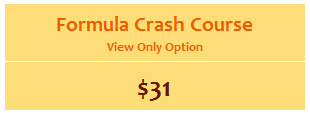
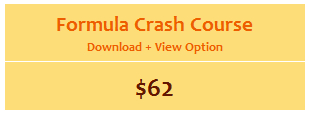
Excel Formula Crash Course - View Only Option Excel Formula Crash Course - Download + View Option
What you get?

  • View Each lesson online
  • Download Example files
  • Access lessons for 1 year
  • 30 Days Money-back Guarantee
What you get?

  • View & Download Lessons
  • Download Example files
  • Access downloaded material forever
  • BONUS: Formula Toolbox – Learn Excel Formulas interactively
  • 30 Days Money-back Guarantee

Accepted Payment Methods - Excel Formula Crash Course

How does the purchase work?

Simple. Once you make the payment, you will receive an email asking you to confirm your email ID. Once you confirm that, we will enroll you in to the course and Module 1 is emailed immediately. Then, every week, we will be sending you a new module for 6 weeks from the date you join.

Have questions?

Call me at +1 206 792 9480 or +91 814 262 1090 or E-mail me at chandoo.d@gmail.com. I will be able to help you right away.

Facebook
Twitter
LinkedIn

Share this tip with your colleagues

Excel and Power BI tips - Chandoo.org Newsletter

Get FREE Excel + Power BI Tips

Simple, fun and useful emails, once per week.

Learn & be awesome.

Welcome to Chandoo.org

Thank you so much for visiting. My aim is to make you awesome in Excel & Power BI. I do this by sharing videos, tips, examples and downloads on this website. There are more than 1,000 pages with all things Excel, Power BI, Dashboards & VBA here. Go ahead and spend few minutes to be AWESOME.

Read my storyFREE Excel tips book

Overall I learned a lot and I thought you did a great job of explaining how to do things. This will definitely elevate my reporting in the future.
Rebekah S
Reporting Analyst
Excel formula list - 100+ examples and howto guide for you

From simple to complex, there is a formula for every occasion. Check out the list now.

Calendars, invoices, trackers and much more. All free, fun and fantastic.

Advanced Pivot Table tricks

Power Query, Data model, DAX, Filters, Slicers, Conditional formats and beautiful charts. It's all here.

Still on fence about Power BI? In this getting started guide, learn what is Power BI, how to get it and how to create your first report from scratch.

11 Responses

  1. Ciao Hui,
    Collecting Excel tricks under the title “Notable Excel Websites (Non-MVP) Edition” is a brilliant idea…
    Thank you in the name of all The FrankensTeam.
    On our site there is a box with a picture and text highlighting:

    This is a no-MVP site
    we think ourselves “bad boys” a bit 🙂
    For those who would like to know why our site is a no-MVP site, enough to click on the link:
    http://goo.gl/lxDszY
    Thank you again!

  2. I really enjoyed this (newsletter). I must admit that I rarely read an Excel newsletter (and I subscribe to quite a few) all the way though, but this grabbed my attention and before I realized it, I was engrossed in it. I must also admit that most of this I don’t understand, yet. But, it excites me when I do learn something new in Excel. I can’t wait to see how much of this I can implement into my (constantly-evolving) ‘House Budget’ & ‘Family Medical’ worksheets that I have developed over the past few years! I sure hope to see more of these type of newsletters in the future! Thanks!

  3. Hui, This post is Superb! More over I have always been a fan of Roberto’s work and have learnt a lot from him.

    Here are some of my recent contributions

    1. Customising markers in a chart – http://www.goodly.co.in/customize-markers-in-a-chart/
    2. Charting Hacks to work faster – http://www.goodly.co.in/5-charting-hacks-to-help-you-work-faster/
    3. 7 Date formulas to make life easy – http://www.goodly.co.in/date-formulas-in-excel/
    4. Customised scrollbar using VBA – http://www.goodly.co.in/customized-scroll-bar-in-excel/
    5. Adding Direct Legends – http://www.goodly.co.in/customized-scroll-bar-in-excel/

    Hope everyone enjoys!

  4. I like the Excel Ninja Menus.
    1. Select a cell or range then move till the 4-way cross appears. Right-Click and drag the selection to another place in the worksheet then, like a ninja, a menu full of skills and throwing stars pops up allowing me to do all kinds of awesomeness.
    2. When you click the fill box on a Date and right click and drag it down, a lot of amazing Date options pop up.
    I also brand my Excel to remind myself that I’m awesome. In my personal macro workbook I place the following code.
    Private Sub Workbook_Open()
    Application.Caption = “SuperKrishna’s Awesomeness”
    End Sub

  5. My favorite tip goes along with #17. If you try to copy subtotaled data (and in earlier Excel versions filtered data),when you paste it all the data displays instead of just the summarized data.
    To get around this, select your summarized data, click on Find and Select tab and then select Go to Special. Click Visible cells Only and click OK. Now paste and you will see that only the summarized data has been copied.
    You can also go CTRL+G and then click the Special icon at the bottom of the dialog box.

Leave a Reply

Your email address will not be published. Required fields are marked *

This site uses Akismet to reduce spam. Learn how your comment data is processed.