

Sawadee Krup folks. Today, we begin a new series on Chandoo.org – Making a Customer Service Dashboard using Excel. This 4 part tutorial teaches you,
Designing Customer Service Dashboard
Data and Calculations for the Dashboard
Creating the dashboard in Excel
Adding Macros & Final touches
Customer service is one area where a lot of data is collected regularly. Understanding all this and making business decisions is quite complex task. This is where dashboards shine.
Sneak-peek at the Final Dashboard
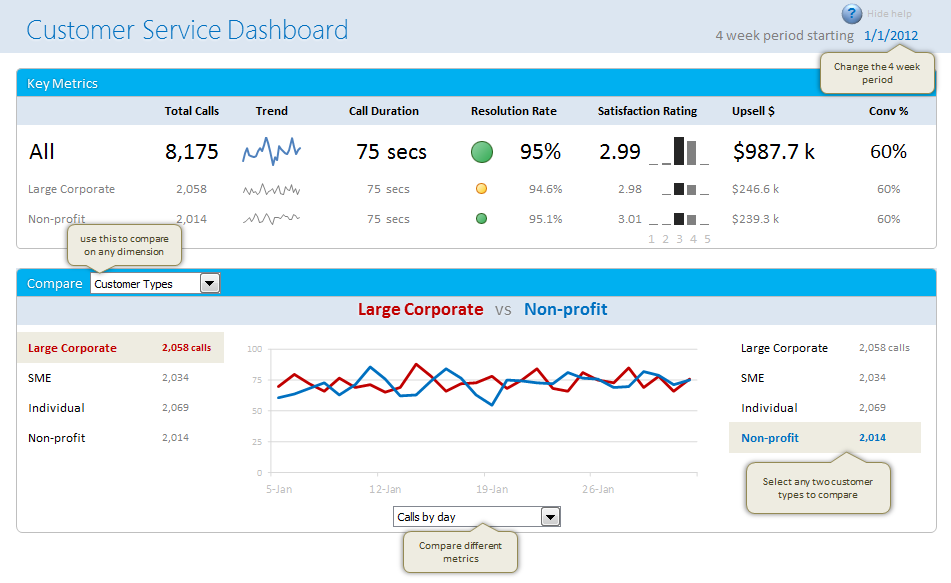
Before we jump in to the tutorial, let me show you the final dashboard. Click on it to enlarge.
What do we want in our customer service dashboard?
The very first step in making our customer service dashboard is to ask “what do we want in this dashboard?”
The answer to this question changes from company to company & individual to individual. In our case, lets assume, we are designing a customer service dashboard for a large computer manufacturer – LCM inc.
The context of our dashboard
A bit of context on LCM’s call center,
- The call center services 6 different product categories – Monitors, Desktops, Laptops, Accessories, Software and Misc.
- The call center receives calls from 5 regions – North, South, East, West and Mid-west
- The call center services 4 types of customers – Large corporates, SMEs, Individual customers, and non-profits.
- And LCM has 6 agents to take care of the calls – Agent Bond, Harry, Smith, Mary, Vinod and Neo
- During each call, the LCM agents try to up-sell a product in the same category of the call (for ex. if we get a call related to monitors, we try to sell another monitor to the customer, just like in real world!)
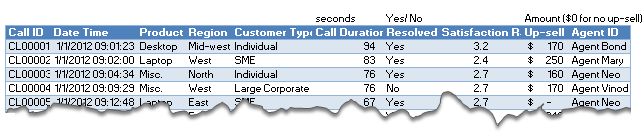
Below you can see the data collected for each call:
What are the goals of our dashboard?
Now that we know the context & how our data looks like, lets understand what should our dashboard do.
We need to answer this question from the perspective of the end users of this dashboard – in this case, the customer service head of LCM.
I have never been customer service head of a large call center. All my experiences with call centers involve waiting on the call listening to horrible music over and over and over… So I will just use my imagination and say that our dashboard should,
- Provide a view of key metrics (KPIs) for the 4 week period starting from a given date.
- Like call volume, durations, resolution rate, satisfaction ratings, upsell $s
- Allow for comparison between any two values of a dimension
- Like Monitors vs. Desktops, Agent Bond vs. Agent Smith, North vs. South
- Allow for comparison based on any metric
- Like Call volume by day, resolution rate by day, upsell by day etc.
- Show everything in single view
Designing a rough sketch of the dashboard
Based on all these needs of our customer service head, lets design a dashboard. This is where we get creative. For this part, I rely on a technique that is so natural that even my 2 year old son uses it. I doodle.
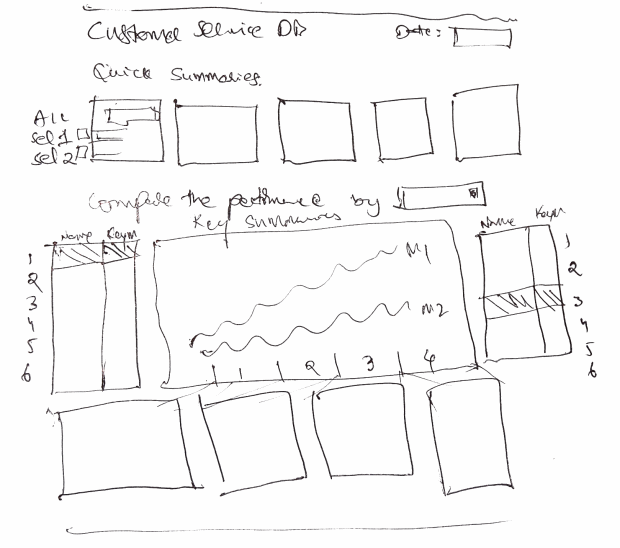
So lets doodle our dashboard on a blank paper. This is what I came up with. Feel free to draw your own based on what our boss wanted.
Customer Service Dashboard – Design #1
This is my first attempt.
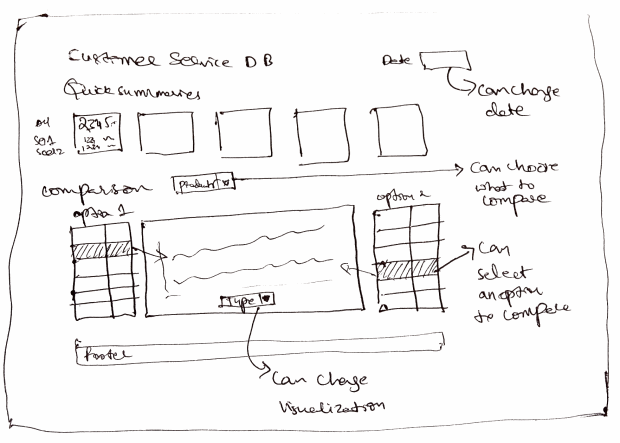
Customer Service Dashboard – Design #2
This is what I got after I have refined the design a bit and made it compact so that we can fit everything in single view.
Validating your Design
This is where we take the rough sketch and discuss it with colleagues & boss. We make sure that all our dashboard goals are met by this design. We also validate whether our data can support this design (for example, we may want to show certain metrics, but our data may not allow this.)
In our case, I validated my sketch with what we mentioned in the goals section and made sure everything is met.
A demo of Final Dashboard
Since I have already made the final dashboard, here is a quick demo of how it works:
[Watch the demo on our YouTube channel]
What next? – Getting Data & Calculations in place
Now that we are done with the design, next step is to get our data and all the calculations (formulas, named ranges, validations, pivot tables) in place.
How would you design a customer service dashboard?
Customer service is one area where dashboards are used quite often. Have you ever designed dashboards or one page reports in this area? If so what is your experience like? How have you designed the dashboard? What Excel techniques and ideas have you used? Please share using comments.
Also, if you were to design the dashboard for LCM inc., how would you approach it? Please share your ideas using comments.
References & Related Learning
If you are looking for examples, information & tutorials on Excel dashboards, you are at the best. At Chandoo.org we have elaborate examples, tutorials, training programs & templates on Excel dashboards, to make you awesome. Please go thru below to learn more:
- Customer Service Dashboard Example
- KPI Dashboards in Excel – 6 part tutorial
- Excel Dashboards – Information, Examples, Templates & Tutorials
- Excel School Dashboards Program – Learn how to create this and other dashboards in Excel in detail
Special thanks to NY Times:
I must thank New York Times’ 2012 Money Race visualization. I have used the comparison idea for this dashboard.


40 Responses
There is no sound in the video
for me the video is missing – just a message saying missing plugin – I am using Chrome but have no idea what plugin I am missing?
Chandoo
Thanks for doing this series of articles.
Like most people I have been doing Dashboards for years (yes that’s right – its just most of us used to call them Summary sheets!) and I have to say I am a little concerned over how many charts and graphical representation for data are now included – I have on several occasion given up reading the Dashboards as they are usually poorly designed with little of no annotation – which means it renders the data useless.
In short there is a tendency to make a dashboard look so pretty that you forget the reason for making it in the first place – to make a summary that is quickly and easily understood.
I hope you cover the need to annotate and effectively label charts so they are of use and not go for the flashy options.
Keep up the great work
I think you’ll find that’s not often (if ever) the case here. I’m pretty sure all of the dashboards Chandoo does here on the blog have a high signal to noise ratio.
Thanks for sharing this, Chandoo. Your tutorials on dashboards (or summary sheets!) have helped me to think through what my goals are FIRST, and THEN start designing the actual page. My tendency was always to do it the other way around.
“DaveG says:
for me the video is missing – just a message saying missing plugin – I am using Chrome but have no idea what plugin I am missing?”
The same for me 🙁
@all.. I have updated the video. Now it is on youtube. Refresh the page to see it or go to http://youtu.be/Qx9F-09-fGg
And yes, the video has no sound. Just screen demo.
Chadooo, information so useful
Thanks for posting
Hello everyone,
Chandoo
Thanks for all the useful content here at chandoo.org, I do a lot of reports, charts and dashboards for work (a call center) and your site has been very helpful in providing new or alternative ways of doing things.
I quite appreciate you making a Customer Service tutorial, I will definitely apply what I learn here.
This tutorial, I think, will focus mostly on the outward facing part of a customer service, such as the sale, duration of the call, cust. satisfaction and such.
But it is important to note that a call center makes its profits or proves its existence by handling its own resources and tracking its performance with a bunch of different key points such as, Incoming calls, Attended calls, Dropped calls, number of agents available at certain times, Average Handle Time (how quick an agent can take care of the customer), Calls per hour (how many calls one agent should handle in one hour, related to AHT), Average hold time, phone queues for certain departments, Attrition (how number of agents is maintained or reduced by new hires or terminations), phone off time (system maintenance or technical difficulties), staff attendance, breaks, training, feedback times and many more…
I hope that you can take some time if not now, maybe in the future, to analyze the inner workings of such a company. From my point of view it is a great puzzle to work with everyday and we, Excel enthusiasts, are just the right kind of people to make sense of it all.
It’s my first post and I rambled on and on, sorry. 🙂
Looking forward to the dashboard tutorial.
– OGRO –
Chandoo
You ask about our experiences of designing dashboards, and I have to say I have never actually designed one – most often I am asked to provide some very specific information from a mass of data, then after presenting this in an acceptable way, I get what I call mission creep and my boss requests additional information that he has just realised can also be extracted from the data or can be retrieved by combining this set with another…. etc
This is generally how my dashboards grow (organically) over time.
Designing would be great if the project given was better conceived and not a ‘I need it now’ project.
I think the lessons to be learnt from this is to ask more questions about the project at the start and identify other possible requirements – before your boss does.
Also – and I think you will show some of this in the upcoming tutorials of how to make elements modular and re-usable so you can move them around the dashboard as things change.
Looking forward to the next instalment.
All the best
Dave
Agree with DaveG’s last message in general.
That said, there are always a few things we can do better to make our lives easier. I took the initiative and sit down with my boss to pick his brain; and the brain of his boss to see what “customers” would likely want to see. Instead of applying the 80/20 rule I make it 95/5. My analytical tool would cover 95% of what an audience might want to read, not just my boss or his boss.
And I’d also make sure the incoming data structure would remain stable enough. Things like “Region” and “Time” would be stable. But customer list and product list would change more often. So I have to find a balance and leave flexibility in the report when they arrive.
I spent many unpaid weekends and night working on an elaborate report/analytical tool. Fine tune it with the help of an audience of the report so that I know the end product won’t shock other audience of the report negatively.
Depending on the type of report, weekly ones vs. monthly one. Once the data is refreshed I just send them out and let the readers/users/audience to play with it themselves. And I am left with a lot more time to deal with the remaining 5% fire drill. My life was so much better I couldn’t even imagine. Sometimes when my boss wanted a quick no frill analysis on the remaining 5%, his boss would jump in and said don’t worry about it cos we have the bulk of the data we need and the remaining 5% doesn’t constitute a fire drill.
😉
Hello chandoo.
Thank you for everything, mostly for making me realize nearly anything is possible with excel.
This dashboard it just what I need right now. I have already prepared the design and am preparing the data. I am so anxious to see the rest of the tutorial.
I wonder how you will implement comparisons between different values of dimensions. Probably hyperlinks like in the dynamic dashbord? If it’s possible, I think I will try to make the comparisons to work like check boxes (where I will be able to select more than one) and the result will be sum of selected values.
Uh, I can’t wait for the next part 🙂
BR, Jova
Chandoo,
just note to say “Thank you” for doing what EVERY successful business.. “Give ’em more than they expect…” You ROCK! LOVE hearing about your success…!
Hi Chandra, is their a .xls example of this for us to take a look at?
I like this dashboard, simple and conveys the key bits of data well. Hate to say it, but we live in a superficial world where alot of the times things are judged on looks – so if you’re reports dont look good (formatted nicely, aligned, balanced etc) they arent going to get read. Thanks for the tip on showing help, via shapes, that is very handy….I’ve used it already! How about taking it one step further and building a help menu via a userform…?
It’s awesome, thank’s chandoo to share your dashboard in excel, it’s what i need to present to sales management team to show they performance better.
I just read the article & also all the comments, have to say just a amzing place to learn Excel and grasp work experience. Will come here very offen. Appreciated for your great work.
Hi Chandoo –
when are we getting the next pieces of this dashboard? Thanks. Love your stuff !
Regards,
Koen.
Really important information. Thank you all fot the support.
Nice article. awaiting for next week’s article. Sound is missing in the video.
Hi Chandoo, Can I have financial srvices/ banking firms dash boards charts details
this is what i’m looking for learning exel for my work.. thanks for your nice tutorial…
Hi, I recently purchased the project management package which I think is amazing but have a few functionality questions. Where can I find contact for product support? Thanks, Sam
Hyy, chandoo..
I must to say thank you that this article has been inspiring me a lot. I recently do my job with database, linkage workbook and a “dashboard” that i’ve found the term here.. 😀
thaaaaaaaaaaaaaaaaaaaaaaaaaaaaaaaaaaaaaaanks…!
how can I download it ?
Thanks for the good job you are doing. I know someone who uses Microsoft excel as is web server. how can I do this since He is not willing to share it.
Thanks
@Thomas
Do a google search for
“using excel as a web server”
The first few Youtube video will probably help you
Sir, You are really doing great job. Its highly appriciated.
Thanks For sharing such a great masterpiece
Can I get tailored excel file prepared for planning, tracking multiple projects from initial to closure of the projects.