These Pivot Table tricks massively save your time

Share

Facebook
Twitter
LinkedIn

Pivot tables are powerful. Use these 6 tricks to save time when working with them.

Excel Pivot Table Tricks to save your time and make you awesome

1 - Double click to see details

Ever wondered what numbers add up to the total in a pivot table value area? Simply double click to investigate. Excel will show all underlying values. 

Extra tip: Don’t forget to delete such detail worksheets as they can create duplicate data.

pivot tricks - 1 - drill to details

2 - Format value fields quickly

The default value field formatting is useless. Often, we need to change the values to currency or accounting formats. You can do this quickly by right clicking on the values instead of going to Value Field Settings > Number Formats route.

See this image to understand the process.

pivot trick 2 - format quickly

🙏 Thanks to Srinivas who taught me this trick on my YouTube channel (link)

3 - Include filtered items in subtotals

Let’s say you have a pivot table with Sales by product & region. You filter out some products. The grand totals change. This can be inaccurate.

If you want to to include filtered items in the totals you can use the option in “Subtotals” menu in ribbon. Oh wait a sec, that is grayed out 🤔🤔🤔

pivot tricks 3 - include filtered values in totals - disabled

Turns out you can ungray it. All you need is to use data model. Click on “Add to data model” in the insert pivot screen you are able to use this feature. 

🙏 Thanks to Ryan who taught me this tip on my YouTube channel (link)

4 - Consistent pivot charts with a simple trick

Let’s say you have a pivot chart linked to a slicer showing sales by product in selected region. As you don’t sell all products in all regions, the chart looks jumpy with inconsistent axis.

Something like this:

pivot tricks 4 - inconsistent axis

You can make the axis consistent by formatting the row label to show “items with no data”. To do this, select the row labels area of the pivot, right click and go to “Field settings”. Now from display area, enable “Items with no data” option.

pivot tricks 4 - items with no data option

Your chart looks much better.

pivot tricks 4 - consistent axis

5 - Repeat row labels

Tabular form is my favorite layout for pivot. It looks clear and easy on eyes. 

Do you know that you can enable “Repeat item labels” option to make the tabular layout even better.

pivot tricks 5 - repeat item labels

Bonus tip: When you repeat item labels, you can use Pivot Tables in other formulas (like SUMIFS) easily. 

6 - Multiple pages with Report Filters

You got a handy little pivot report that details the performance of a region. Now you want to make similar reports for rest of the 16 regions too.

You can use Report Filters to quickly create all versions of this report in one click. Here is a demo of how report filters work.
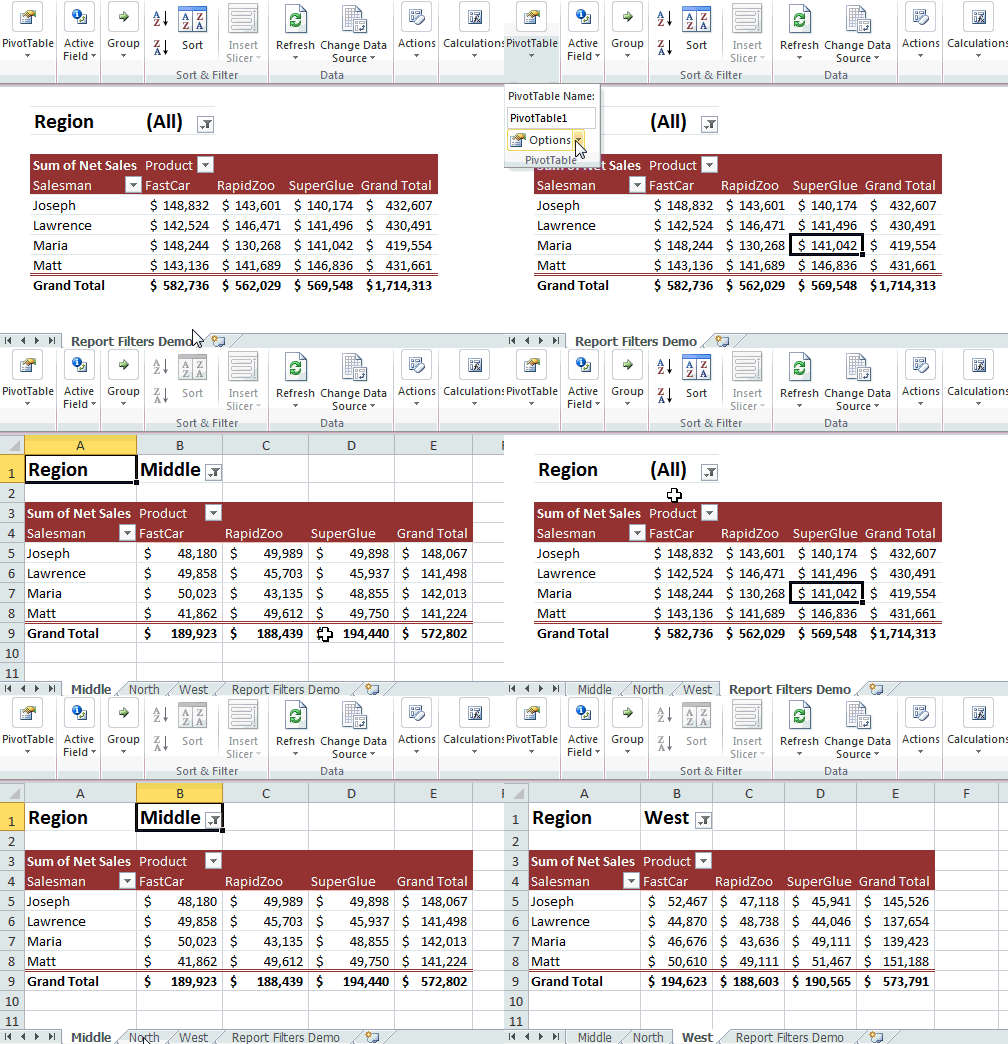
 

Report Fitters in Excel - used to create multiple versions of a report - Demo


Click here for more tips & info on Report Filters.

Pivot Table Tricks - Video

If you want to view all these tricks + my new haircut, check out below video. You can also watch this on my YouTube channel here.

More Pivot Table goodness

Work with data often? Then learn Pivot tables you must.

Check out below pages to pick up valuable pivoting skills.

Got some tricks? Teach me...

You can teach an old dog new tricks. If you know a cool & useful Pivot Table trick, post it in comments. I am eager to learn from you.

Facebook
Twitter
LinkedIn

Share this tip with your colleagues

Excel and Power BI tips - Chandoo.org Newsletter

Get FREE Excel + Power BI Tips

Simple, fun and useful emails, once per week.

Learn & be awesome.

Welcome to Chandoo.org

Thank you so much for visiting. My aim is to make you awesome in Excel & Power BI. I do this by sharing videos, tips, examples and downloads on this website. There are more than 1,000 pages with all things Excel, Power BI, Dashboards & VBA here. Go ahead and spend few minutes to be AWESOME.

Read my storyFREE Excel tips book

Overall I learned a lot and I thought you did a great job of explaining how to do things. This will definitely elevate my reporting in the future.
Rebekah S
Reporting Analyst
Excel formula list - 100+ examples and howto guide for you

From simple to complex, there is a formula for every occasion. Check out the list now.

Calendars, invoices, trackers and much more. All free, fun and fantastic.

Advanced Pivot Table tricks

Power Query, Data model, DAX, Filters, Slicers, Conditional formats and beautiful charts. It's all here.

Still on fence about Power BI? In this getting started guide, learn what is Power BI, how to get it and how to create your first report from scratch.

15 Responses to “Compare 2 Lists Visually and Highlight Matches”

  1. Nunes says:

    Hi,
    I solved this in a little different way.

    We have 2 lists, one starts at A1 and other at B1, both are vertical arrays.

    First thing is define 2 named ranges, list1 and list2:
    list1 refers to "=OFFSET(Sheet1!$A$1;0;0;SUMPRODUCT(--(Sheet1!$A$1:$A$1000""));1)"
    list2 refers to "=OFFSET(Sheet1!$A$1;0;0;SUMPRODUCT(--(Sheet1!$B$1:$B$1000""));1)"

    this way lists will be dynamically sized when you had or remove elements (you can't have blanks and you can't have more than 1000 elements).

    Then I use conditional formatting in column A when this formula is true:
    "=NOT(ISERROR(MATCH(A1;list2;0)))"
    and "=NOT(ISERROR(MATCH(B1;list1;0)))" to list2.

    This way we eliminate the need for auxiliary columns or lists.

    Hope you like my way! 😀

    Nunes

  2. glw says:

    Simple conditional formatting formula.
    Assuming lists vertical lists starting in A1 & B1
    To highlight just one column (assume B for example)
    Conditional formatting>New Rule>by formula
    =MATCH(B1,$A$1:$A$99,0)
    Set the cell fill to what ever color you prefer & press OK

    To highlight both columns repeat with this formula for cell in column A
    =MATCH(A1,$B$1:$B$99,0)

    This approach doesn't require named fields or addtl columns
    glw

  3. Alan says:

    Say I had 1 list in A2:A20 and another in B2:B20.

    To format all the items in column A that are repeated in column B I would use the following Conditional Formatting rule.

    =IF(ISNA(VLOOKUP(A2,$B$2:$B$20,1,false)),true,false)

    All the duplicates are highlighted. It us a very simple example of comparison.

  4. Lee says:

    I may be missing something here, but I usually highlight both my lists by holding ctrl eg A1:A20 E10:E40 then choose conditional formatting from the ribbon and then highlight duplicates, and this does it?

  5. Greg says:

    Lee, I was perplexed as well. I do the same thing you do with the conditional formating. A drag and click to highlight range and choose highlight duplicates does the trick for me.

  6. Alan says:

    I believe these methods are to check if an item from one list also appears in the other list. So if an item mentioned many times in one list if also mentioned in the other list or not.

    The Conditional Formatting highlight duplicates feature will do this, but it will also highlight an item if it appears multiple times in the one column or list.

  7. i48998 says:

    Hi, I would just like to know (if you are willing to share) which image editing program you use to make your image like above, like they are torn apart from bottom? I've been looking for long.

  8. Hui... says:

    @i48998
    Chandoo is on Holidays, but Chandoo uses Paint.Net
    Paint.net is a free download available at http://www.paint.net/
    .
    I use CorelDraw/PhotoPaint
    .
    We both use the Snipping Tool (a freebe with Win Vista/10)
    .
    We both use Camtasia for doing screen captures to make animated GIFs where you see animation.

  9. Rick says:

    Here is how I would accomplish
    (1) Define Names: List_1, List_2
    (2) =ISNA(MATCH(D4,List_2,0))-1 (Conditional Format formula List_1)
    (3) =ISNA(MATCH(D4,List_1,0))-1 (Conditional Format formula List_2)

    ISNA will return 1 if NO Match and O if Match by adding a -1 will make: NO Match 0 and Match a -1 which is True

  10. Hi all
    this my first Post here
    i think we can take Unique List for tow list to know what is not Duplicate By this Array formula
    =IFERROR(INDEX($D$6:$D$33,SMALL(IF(ISERROR(MATCH($D$6:$D$33,$B$6:$B$33,0)),ROW($D$6:$D$33)-ROW($D$6)+1),ROWS($J$5:J5))),"")
    and this one for Duplicate Value
    =IFERROR(INDEX($D$6:$D$33,SMALL(IF(ISNUMBER(MATCH($D$6:$D$33,$B$6:$B$33,0)),ROW($D$6:$D$33)-ROW($D$6)+1),ROWS($J$5:J5))),"")

    Don't forget to Enter This Formula by Pressing Ctrl+Shift+Enter

  11. Excel Addin says:

    without wanting to ruthlessly self promote here, I do have an addin that does neatly compare two ranges, not just in columns, so you might want to check that out.

    Having said that this is a pretty neat solution if you dont want to be going down the VBA or purchase route. I like it

    however, could you not do something with the remove duplicates feature in Excel 2010 and then compare the resulting data set?

  12. SirJB7 says:

    Hi, Chandoo! I've found yesterday your Excel website... What can I say? It's just awesome, Excellent. Being a developer for 30 years, more than 15 with Office products, and wow!, how many things I discovered in a couple of hours, and what pretty resolved.
    I decided to take the long path of the newbies and read all your examples and write down by myself all of them, and when I arrived to this (the comparison of two lists) I think I've found a problem:
    a) in "Step 4: Apply conditional formatting to Second List - Use the same logic, but this time the rule becomes =COUNTIF(count1s,$H6)" it should say "Step 4: Apply conditional formatting to Second List - Use the same logic, but this time the rule becomes =COUNTIF(count1s,$H6)>0", but this is a typing error that I believe all of us here might have discovered and corrected
    b) the very problem: I wrote down two different lists, in different ranges, and with different number of elements, I specified the equivalent conditional formats, et non voilá!, I didn't get what expected. So I downloaded your example book, I checked range names, formulaes, conditional formats and all OK. So I copied -just values- from my book to yours, and I still couldn't achieve the goal.
    I'm using Excel 2010 in spanish, I'm from Buenos Aires (Argentina), and my book is at your disposition whenever you considerate it appropiate.
    Thanks in advance for your time, and again my congratulations for your work here.
    Best regards.
    SirJB7

  13. SirJB7 says:

    Comparison of 2 lists visually with highlights
    Author: SirJB7 / Date: 11-Dic-2011
    Pros: no duplicated tables, no matrix formulaes, no named ranges, no VBA code, just conditional formatting
    Cons: not found yet, comments and observations welcome
    Features:
    a) standard problem: highlights in orange/yellow elements existing in the other list
    b) optimized problem: idem a) plus highlights in red/violet first occurrence of elements existing in the other list
    Sheet contents:
    a) conditional format, 1 rule per list (2 methods used)
    A1:A20, first list
    B1:B20, second list
    a1) range A1:A20, condition =NO(ESERROR(BUSCARV(A1;B$1:B$20;1;FALSO))), format Orange ---> in english: =NOT(ISERROR(VLOOKUP(A1,B$1:B$20,1,FALSE)))
    a2) range B1:B20, condition =CONTAR.SI(A$1:A$20;B1)>0, format Yellow ---> in english: =COUNTIF(A$1:A$20,B1)>0
    b) conditional format, 2 rules per list (2 methods used)
    D1:D20, first list
    E1:E20, second list
    b1) range E1:E20, condition 1 =Y(NO(ESERROR(BUSCARV(D1;E$1:E$20;1;FALSO)));COINCIDIR(D1;D$1:D$20;0)=FILA(D1)), format Red ---> in english: =AND(NOT(ISERROR(VLOOKUP(D1,E$1:E$20,1,FALSE))),MATCH(D1,D$1:D$20,0)=ROW(D1))
    same range, condition 2 and format 2, same as a1)
    b2) range E1:E20, condition =Y(CONTAR.SI(D$1:D$20;E1)>0;COINCIDIR(E1;E$1:E$20;0)=FILA(E1)), format Violet ---> in english: =AND(COUNTIF(D$1:D$20,E1)>0,MATCH(E1,E$1:E$20,0)=ROW(E1))
    same range, condition 2 and format 2, same as a2)
    Personally I like the a2) and b2) solutions, I think the formulaes are prettier.
    I still don't know the rules of this website and forum, but it any precept is infringed I'm willing to share the workbook with the solution. If it breaks a rule, I apologize and promise that won't happen again.
    Best regards for all!

  14. sunil says:

    Dear All i have a complicated situation...

    1. I have two sheets of data Sheet1 and Sheet2 (from various sources) - Both of these contain data matching and Not matching as well..

    2. Now for me i need to build an excel where in i need to get sheet 3 with values that are present in a column of Sheet 1.

    What ever Sheet 1 doesn't have i dont want those rows from sheet 2 to be populated into Sheet3.

    Can any one help me out.

  15. Jagdev says:

    Hi Team

    The above example is to compare partial name from 2 different columns.

    If I want to cross check it in a single column. I have both correct and partial correct/match entries in a column. Is there any way I can find both the entries in the column.

    Regards

Leave a Reply