

Last week, we learned how to create win-loss charts in Excel. In the comments, Dan said,
Incidentally, the fastest way to do this would be using SFE, just reflect your data with 1 for a win, – 1 for a loss. There’s even an option to automatically invert negative numbers. #
Of course, we can use the beautiful Sparklines for Excel addin to do this and several other charts. But if you just have a series of Wins and Losses, like below, you can use a column chart to create win loss charts too.
Your Data:
Lets say you have data like this,
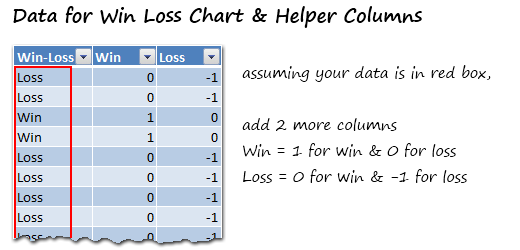
Win Loss Chart in Excel – 5 Steps
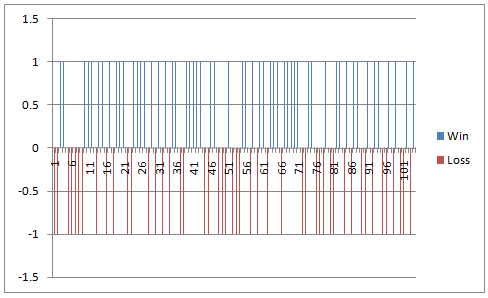
Step1: Select Win & Loss columns and Insert a Column Chart
This is the first and easiest step. At the end, your chart looks like this:
 Step 2: Adjust the Series Gap & Overlap
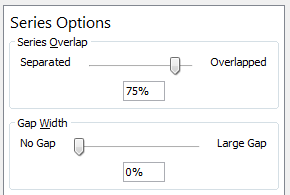
- Select either Win or Loss series and press CTRL+1 (or goto format series).
- From here, adjust the gap to 0
- and overlap to 75%, like shown aside.
Step 3: Remove un-necessary chart elements
- Remove grid lines and labels
- Remove horizontal axis
- Select vertical axis and press CTRL+1 (format axis).
- Now, adjust axis min to -1 and max to 1
- Close it and remove vertical axis too
Step 4: Adjust colors
Change the colors if you fancy.
Step 5: That is all
There is no step 5. Your win loss chart is ready. Go ahead and show it off.

Download Win Loss Chart (Improved) Template:
Click here to download the winloss chart template and play with it.

Click here to download the winloss chart template complete with Sinusoid chart template. (Supplied by Hui)
Learn more – Excel Charting
If you want to learn Excel Charts, start with our charting tutorials page. We have more than 250 articles on charting, visualization, data analysis and excel tips.


5 Responses
Dear Dear Again can not open the excel version.
I use similar to the loss/win to graphically represent sales for departments – which is a win if above budgets a loss if less. It is very effective – draws attention to the weekly sales dashbaord on the Intranet.
I have never used this graphing concept before, but can see its application, especially to our hit rate of converted sales enquiries. One question that I have, is that I would like to combine this with some other form of graph to show the cumulative scores of both win and loss to make identification of overall win or loss and comparison with previous timeframes possible. I was thinking that area or bar graphs would be an option, but perhaps a more ambitious option would be to fit a sin area graph to the win loss graph to identify not only the cumulative scores but highlight winning or loss streaks.
Shaun its quiet easy to add a small Sin Chart to the file
Refer: https://rapidshare.com/files/346360712/Win-loss-new_with_Sin_Chart.xlsx
The above includes the ability to change the frequency of days of the curve as well as the offset of a starting cycle.
Enjoy
Hui…
Thankyou so much for your response. I have emailed you a very basic drawing of what i was envisioning (please excuse the crude and inacurate method). I was wanting to use the crest of the sin wave to grow with the cumulative score of the wins/losses so as to represent the cumulative score in height of the sin graph and the win/loss streak would be represented by the width of the curve. Perhaps a sin graph is not the most appropriate tool, but having an idea of cumulative wins/losses and win loss streaks would enable comparison with historic timelines and perhaps help to identify seasonal trends through the win loss streaks.