

JSON (JaveScript Object Notation) is a popular and easy format to store, share and distribute data. It is often used by websites, APIs and streaming (real-time) systems. But it is also cumbersome and hard to use for performing typical data tasks like summarizing, pivoting, filtering or visualizing. That is why you may want to convert JSON to Excel format. In this article let me explain the process.
1. Why Convert JSON to Excel?
Excel is a more familiar and easy to work with format for your data. Also, when setup properly Excel files (such as CSV or XLSX or XLSB) take up less space than their JSON counter parts. More importantly, performing data tasks like calculating formulas, creating pivots or making charts would be easier with Excel format as against JSON.
Overview of This Guide
In this guide, we’ll walk through multiple methods to convert JSON to Excel, including manual methods using Excel’s built-in tools, automated methods using Python, and third-party online tools. Whether you’re working with small or large datasets, there’s a solution for you. Let’s dive in and explore how you can make this transformation efficiently.
2. Understanding JSON Format
Before jumping into the process of converting JSON to Excel, it’s important to understand JSON format. JSON is a lightweight data format that’s easy for both us and computers to read and write. It’s primarily used to transmit data between a server and a web application, often in APIs or data feeds.
What Does JSON Look Like?
At its core, JSON is a collection of key-value pairs that are organized in objects and arrays. JSON data can be quite flexible, allowing it to represent both simple and complex data structures. It supports various types of data, including strings, numbers, booleans, arrays, and objects.
Let’s consider the following example of JSON data representing information about a few employees in a company:
{
  "employees": [
    {
      "id": 1,
      "first_name": "John",
      "last_name": "Doe",
      "email": "johndoe@awesomechoc.com",
      "position": "Chocolatier",
      "hire_date": "2023-06-15",
      "skills": ["Baking", "Cocoa Sculpting", "Confectionary"]
    },
    {
      "id": 2,
      "first_name": "Jane",
      "last_name": "Smith",
      "email": "janesmith@awesomechoc.com",
      "position": "Marketer",
      "hire_date": "2024-02-20",
      "skills": ["Packaging", "Product Design", "Field Sales"]
    },
    {
      "id": 3,
      "first_name": "Emily",
      "last_name": "Johnson",
      "email": "emilyj@awesomechoc.com",
      "position": "Accountant",
      "hire_date": "2024-08-30",
      "skills": ["XERO", "Excel", "AR / AP consolidation"]
    }
  ]
}
Breaking Down the JSON Example
- Objects and Arrays:
- The main JSON data structure in the example above is an object, denoted by curly braces
{}. - Inside this object, there is a key called
"employees", which maps to an array (denoted by square brackets[]). - The array (list) contains multiple objects, each representing a single employee.
- The main JSON data structure in the example above is an object, denoted by curly braces
- Key-Value Pairs:
- Inside each employee object, you’ll find several key-value pairs. For example,
"id": 1tells you the employee’s ID, and"first_name": "John"specifies the first name of the employee. - Some of the values in the JSON are simple data types (like strings or numbers), while others, such as the
skillskey, are arrays that hold multiple values.
- Inside each employee object, you’ll find several key-value pairs. For example,
- Nested Data:
- The
skillsfield is an example of nested data. It’s an array within the employee object, which further contains multiple string values representing different skills. This kind of nested data can be difficult to work with directly in Excel, which is why conversion and flattening are necessary.
- The
Challenges of Working with JSON in Excel
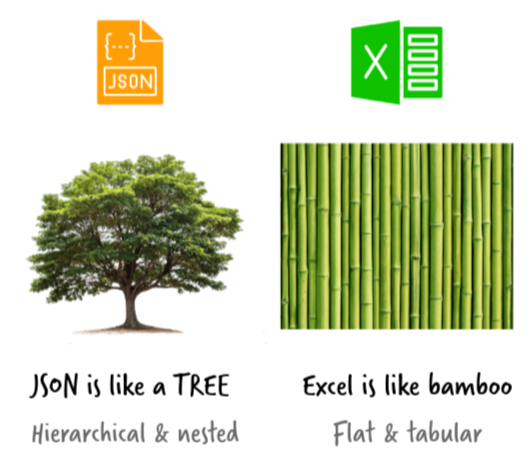
As you can see, JSON is hierarchical while Excel prefers data in a flattened, tabular format.
If you try to import JSON directly into Excel without transforming it, you might end up with a jumbled mess of data.
For example, in the above JSON, the "skills" field would result in a list being placed into a single cell if not properly flattened. Additionally, nested objects, like the employee object, would need to be expanded into separate columns (e.g., "id", "first_name", "last_name") for the data to be usable.
This is why it’s essential to convert JSON to Excel in a way that ensures all data is properly structured in rows and columns for analysis. Let’s explore some methods to accomplish that.
3. Methods for converting JSON to Excel format
There are many ways to convert JSON to Excel. My preferred technique is to use Power Query in Excel to convert the data quickly and elegantly. But you can also use other techniques. Let’s go thru each of these in detail.
JSON to Excel conversion (step by step):
What you need: You need a JSON file with your data. Download this sample data if you don’t have any.
- Go to Data > Get Data > From File > From JSON
- Select the JSON file on your computer (or on the network location)
- This will open Power Query editor with your JSON file. Here is a snapshot of how that would look like:
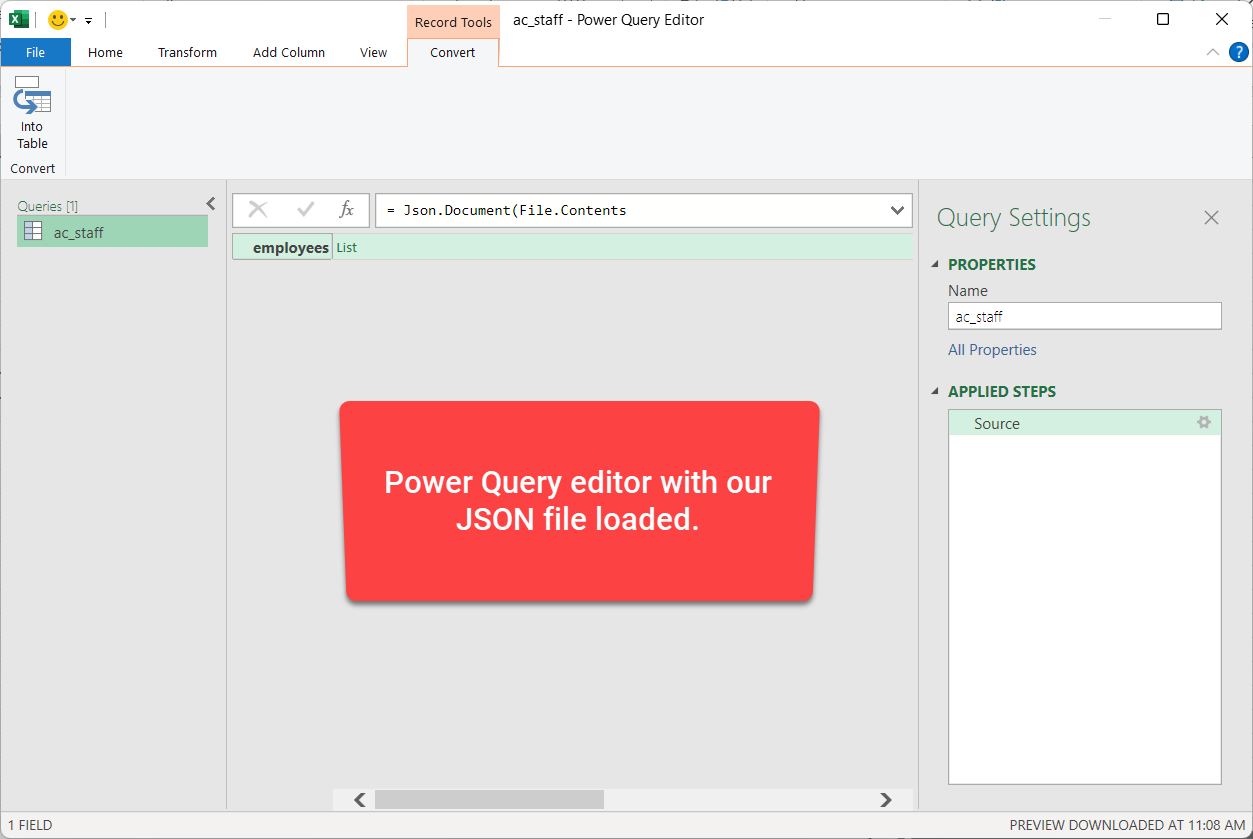
- Using the “convert” ribbon, convert the JSON listing to a “table”.
- Now you will have a “list” of all the JSON records (or objects). Click on the Expand button on the list column and select “expand to new rows”.
- This should show all the records of the JSON (see below)
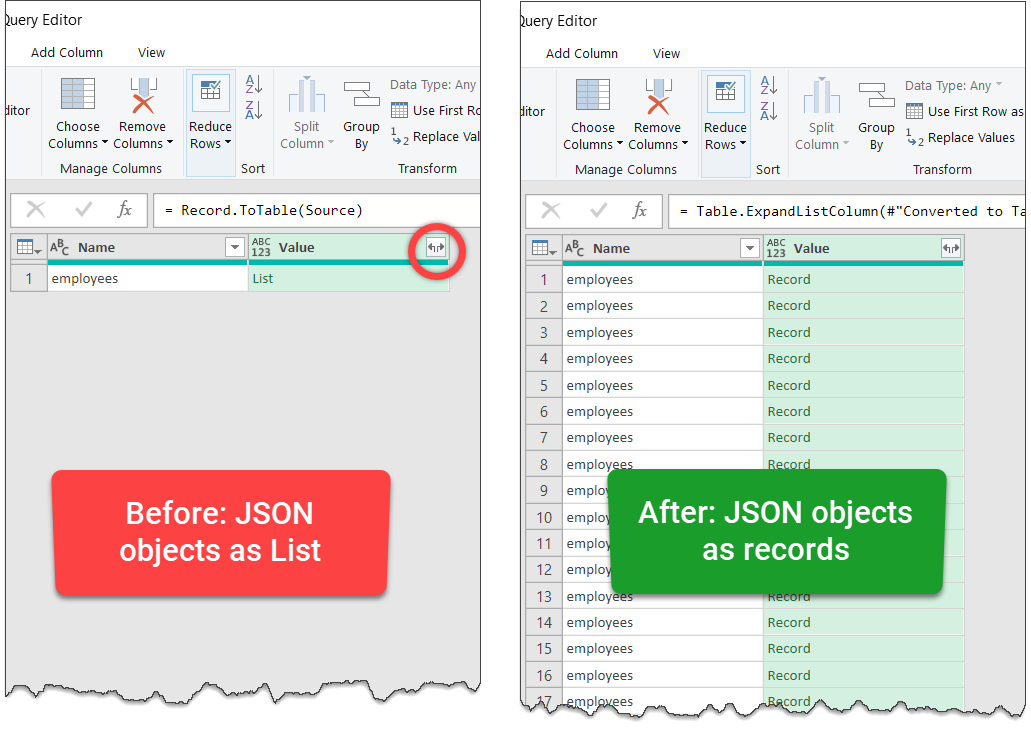
- Expand the Value column again to see the contents of the records.
- If you have any “nested” or “hierarchical” data in your JSON, you must expand these columns again. But this time, use the “extract values…” option so you can see them all comma separated in the same column.
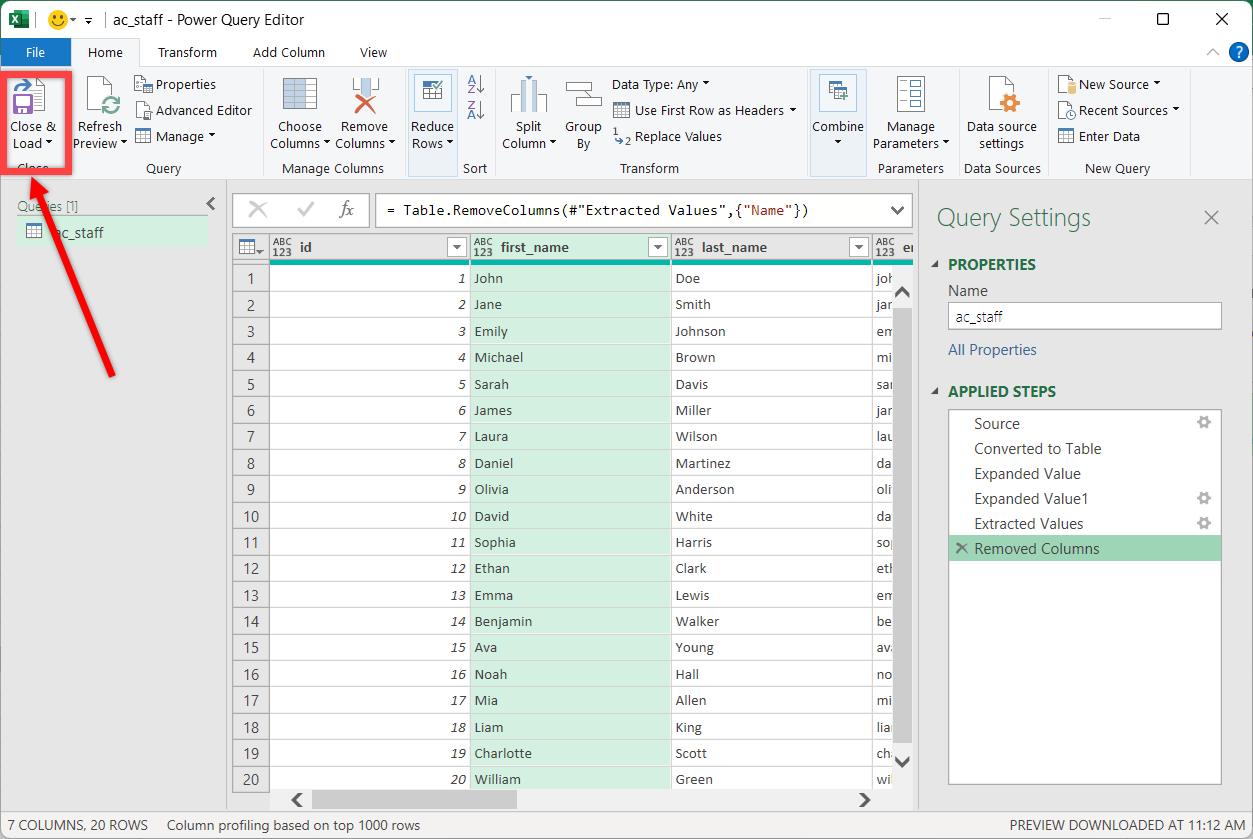
- Once you have all the necessary data in Power Query, remove any columns you no longer need by right clicking on them and selecting “remove” option.
- When ready, use the Home ribbon > Close & Load to bring the data to Excel.
Quick Demo of JSON to Excel conversion:
Here is a quick video demo of the process in Power Query.
Things to keep in mind when converting JSON to Excel with Power Query ??:
- Nested Data: If your JSON has nested data elements (for ex: skills attribute in our example above), you need to recursively expand all these items. But don’t expand them to “new rows” as this will create duplicate data. Instead just use “extract” option and get them all in one column with a delimiter like comma or semi-colon.
- Data type conversion: By default Power Query may convert your data to relevant data types. But always double check this and apply any conversion necessary.
- Preview vs. Load: Power Query Editor shows a preview of the JSON file for first 1000 rows, but actual conversion will only happen when you click on “close and load” button in Excel. So don’t freak out if you don’t see all the data in PQE (PQ Editor). It should appear when you load data to Excel.
- 1 Million Row Limitation: Excel spreadsheets can only hold 1,048,576 rows (just over 1 million). So if your JSON is really big, you need to think of another method. Here is an example of how to use Excel if you have more than 1 million rows of data.
Pros & Cons of using Excel to convert JSON:
Pros:
- Quick and easy: Power Query in Excel offers a quick, easy and straightforward way to convert JSON to Excel.
- FREE: Excel based conversion is free unlike paid methods.
- Refreshable: Should your JSON files change or update, you can quickly refresh the Power Query connection to see updated data in Excel. This means any reports or calculations you build on top of the JSON will automatically update, thus providing up to date information.
Cons:
- Hard to work with deeply nested data: If your JSON has multiple levels of nesting or hierarchies, then the Power Query based approach requires “drilling” to all these levels. As data can change often, if a new level of nesting appears in future, your Power Query refresh can fail.
- Requires understanding of Power Query: While PQ is not deeply technical, it is not easy either. So if you are not familiar with PQ, you will find this method hard to use. Here is an excellent beginner tutorial on Power Query with 4 powerful examples.
JSON to Excel conversion with Python (step by step):
Why Use Python for JSON to Excel Conversion?
While Excel’s Power Query can handle basic JSON imports, Python is often the better choice when dealing with large datasets, deeply nested JSON structures, or automating repetitive tasks. Using Python, we can efficiently read, manipulate, and export JSON data to an Excel file in just a few lines of code.
Installing Necessary Python Libraries
To begin, install the required libraries:
pip install pandas openpyxlThese libraries will help us process the JSON data and save it in an Excel-friendly format.
Loading JSON Data in Python
Consider the following employee data stored in JSON format (sample file).
{
  "employees": [
    {
      "id": 1,
      "first_name": "John",
      "last_name": "Doe",
      "email": "johndoe@awesomechoc.com",
      "position": "Chocolatier",
      "hire_date": "2023-06-15",
      "skills": ["Baking", "Cocoa Sculpting", "Confectionary"]
    },
    {
      "id": 2,
      "first_name": "Jane",
      "last_name": "Smith",
      "email": "janesmith@awesomechoc.com",
      "position": "Marketer",
      "hire_date": "2024-02-20",
      "skills": ["Packaging", "Product Design", "Field Sales"]
    }
  ]
}
We can load this JSON file into Python using:
import json
import pandas as pd

# Load JSON data from a file
with open("employees.json", "r") as file:
    data = json.load(file)
Converting JSON to a Pandas DataFrame
Since the JSON structure contains a list under the "employees" key, we extract and convert it to a DataFrame:
df = pd.DataFrame(data["employees"])This will transform the data into a tabular format, making it easier to analyze and manipulate.
Exporting Data to an Excel File
To save the structured data as an Excel file:
df.to_excel("employees.xlsx", index=False, engine='openpyxl')This creates an Excel file employees.xlsx, which can be opened in Excel for further processing.
Handling Nested JSON Data
If the skills field is stored as a list, Excel might not display it properly. We can flatten this field:
df["skills"] = df["skills"].apply(lambda x: ", ".join(x) if isinstance(x, list) else x)Now, each employee’s skills will be stored as a comma-separated string, making it easier to read.
Automating JSON to Excel Conversion
For repeated tasks, we can automate the conversion by scheduling this Python script to run daily or whenever a new JSON file is added.
Python provides a scalable and efficient way to process JSON data and export it to Excel, making it ideal for large datasets and automation needs.
Converting JSON to Excel with External Tools
If you don’t want to get your hands dirty with Power Query or Python based approaches, you can also use online tools to quickly convert JSON to Excel format.
1. Online JSON to Excel Converters
These web-based tools allow users to upload a JSON file and instantly download an Excel file:
- JSON to Excel by TableConvert
- Converts JSON to structured Excel tables.
- Allows previewing and editing before download.
- Supports additional formats like CSV and Markdown.
- JSONFormatter.org JSON to Excel
- Free tool with a simple drag-and-drop interface.
- Supports large JSON files.
- JSON to CSV
- Upload your JSON file and download the CSV
These tools are great for quick, one-time conversions, but they may have file size limitations and require manual steps each time.
2. Using Power BI to convert JSON to Excel
If you prefer to use a desktop software to convert JSON to Excel formats (like CSV or tables), you can use Power BI Desktop too. This doesn’t have 1 million row limitation so you ca use it to parse very large JSON files. The approach is same Excel Power Query technique, but the final data ends up in Power BI. You can either copy the table at the end of load process or use it directly inside Power BI to analyze the data.
Final Thoughts
If your JSON files are simple enough, just use Power Query in Excel to get the output the way you want. You can refresh this anytime your data changes.
On the other hand if your files are large or you need more control, use Python code samples above and tweak them to your needs.
If you have any questions, leave a comment so I can help you.


One Response
Great guide! You mentioned that “Power Query in Excel offers a quick, easy and straightforward way to convert JSON to Excel.” This is very true for simple structures. For those dealing with deeply nested JSON that Power Query struggles with, I’ve found a few tips helpful: 1) Flatten the JSON structure before importing if possible, 2) Use Python for more complex transformations as you suggested.