

Back when I was working as a project lead, everyday my project manager would ask me the same question.
“Chandoo, whats the progress?”
He was so punctual about it, even on days when our coffee machine wasn’t working.
As you can see, tracking progress is an obsession we all have. At this very moment, if you pay close attention, you can hear mouse clicks of thousands of analysts and managers all over the world making project progress charts.

So today, lets talk about best charts to show % progress against a goal.
Please download example file and keep it handy while reading the rest of this tutorial.
Data for these charts
For all these charts, we will use below data:
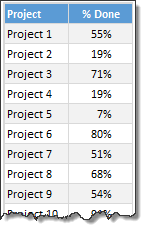
Chart #1: Conditional Formatting Icons + % values
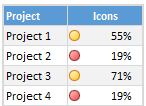
This is my all time favorite. It is very easy to implement and works really well.
All you have to do is,
- Select the % completion data
- Go to Home > Conditional Formatting > Icon sets
- Select 3 traffic lights
- Edit the rule as shown below:
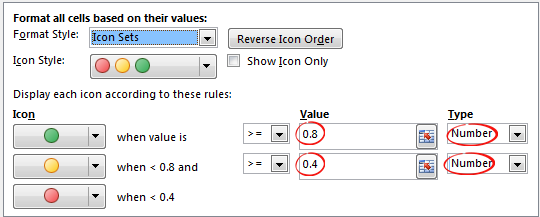
- Done!
Why you should use this?
- Very easy to set up.
- Scalable. Works the same when you have 20 or 200 or 2000 items to track.
- Looks great
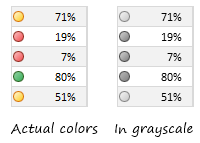
Keep in mind:
- The traffic lights in Excel are not great for color-blind people.
- The traffic lights do not look good when printed in black-and-white (or gray scale)
Related: Never show simple numbers in your dashboards
Chart #2: Conditional Formatting Data Bars
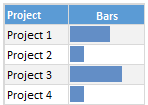
Another easy and quick answer.
- Select % completion data
- Go to Home > Conditional Formatting > Data bars
- Select Solid Fill if available.
- Done!
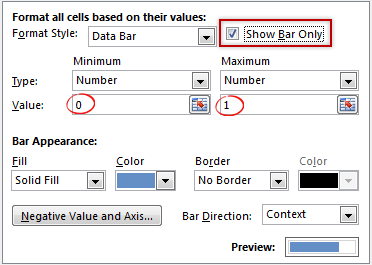
- Extra step: Adjust maximum bar size to 100% so that you can see relative progress better.
Why you should use this?
- Very easy to set up.
- Scalable. Works the same when you have 20 or 200 or 2000 items to track.
Keep in mind:
- By default the maximum value in your data takes 100% of the cell width. So make sure you set this to 100% for better depiction of progress.
Chart #3: In-cell bar charts
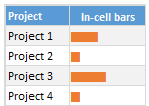
If for some reason you cannot use databars, then rely on in-cell bar charts. These are simple to setup and works great in many situations where conditional formatting may not be an option.
- Assuming your % data is in A1,
- In adjacent cell (B1), write = REPT(“|”, A1*100)
- You will get a lot of pipe symbols | in this cell.
- Select the cell and change font to Playbill
- Adjust font size and color if needed.
- Done!
Why you should use this?
- Very easy to set up.
- Scalable. Works the same when you have 20 or 200 or 2000 items to track.
- Can be handy when making dashboards or reports (where conditional formatting may have limitations)
Keep in mind:
- The font & size has impact on how in-cell chart is displayed. Use either Playbill or Script fonts.
Chart #4: Pies
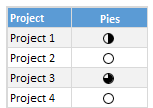
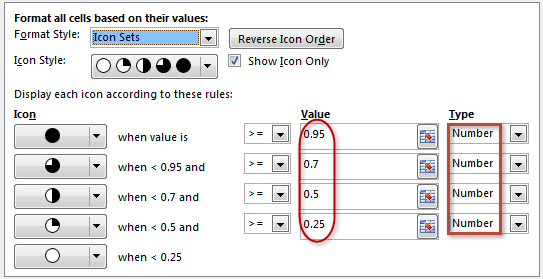
Conditional formatting pie charts are a simple alternative to show % progress data.
The process is same as traffic light icons. Make sure you adjust pie icon settings as per your taste.
Why you should use this?
- Very easy to set up.
- Scalable. Works the same when you have 20 or 200 or 2000 items to track.
Keep in mind:
- Pie chart icons have only 5 stops. So they are not really pies.
- Not everyone likes pie charts. Make sure your boss / customers dig them.
Chart #5: Color scales or heat maps
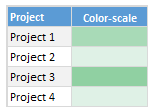
When you have a lot of items to track, your focus is really on which items are lagging (or leading). In such cases, a color scale (also known as heatmap) can work very well. It colors cells based on their value. For example, the darker a cell color is, the more that particular project is done and vice-versa.
Why you should use this?
- Very easy to set up.
- Scalable. Works the same when you have 20 or 200 or 2000 items to track.
Keep in mind:
- Make sure the color starting & end points are well contrasted. Else the color scale looks bland.
- By default color scales show the values too. To hide them use ;;; custom cell formatting code (how to).
Chart #6: Thermometer charts
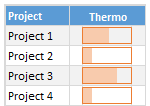
This is my favorite technique. It works very well for data like this.
Tutorial on how to create thermometer charts.
Why you should use this?
- Easy to understand
- Scalable. Works the same when you have 20 or 200 or 2000 items to track.
Keep in mind:
- If any value is more than 100% the chart may not explain it properly.
- Make sure the axis min & max are set to 0 and 1 respectively.
- You need a dummy column with 100% in it to show outline of thermometer.
Download Examples
Click here to download example workbook. It contains all these charts.
Special bonus for you:
As a bonus, the download workbook also has 5 step tracker to make you awesome in Excel. Go ahead and download now.
What is your favorite chart to show % progress?
My most favorite chart is thermometer. The next is traffic light icon-set.
What about you? Which of these 6 is your favorite? Please share your chart in the chart. If you use something else altogether, please tell me. I am eager to learn from you.
More on comparison charts

Just like my project manager, I am sure your manager too loves tracking & comparison. If so, please go thru below articles to learn few more tricks to impress her.
- Us vs. Them – compare one value with many using interactive chart
- Best charts to compare budget with actual values
- Indicating lower & upper bounds on a chart
- Customer service dashboard – a case study in comparison
- Exploring Flu trends in excel chart – a case study in heat maps for comparison
Now if you excuse me, I have to report to my new project manager: my wife. She is asking me about the progress of taking down Christmas lights. And I am still at 9%.


46 Responses
Chandoo, thanks for another interesting post.
One thing I’m missing is the question: What is progress, what does one want to know exactly?
I’m asking the question because I think of progress as not the same as “state of completion.” Percentages/bars, etc., as shown above, are great to communicate state of completion, but less so for progress.
That’s because project progress is how state of completion *relates to* the resources spent so far. Resources can be things like dollars spent, hours spent or project time passed. For example, 5% would be “good progress” in the first week of a one-year project, but terrible progress in the last week of the project.
The way I prefer to report progress is as a simple line chart with time on the x axis, and maybe a marking for the end point (and maybe an “ideal”/”as planned” line).
If it really must be a single number, you could go a EVA-ish route and divide the current % of completion by the current % of project time passed, which gives you a schedule performance index (1 or bigger than 1 = good; smaller than 1 = bad). For this, your suggested charts should work great!
I avoid ‘progress’ except where I can objectively assess progress, such as counting bricks laid or concrete poured. For intellectual work, I don’t think that its possible to measure progress to completion with any reliability or credibility. I prefer to update forcasts of completion date, because that’s where the effect of completion on dependent activities, deliverables and outturn value of the project is felt. This is also referred to as the 0-100 method. An activity is set at 0 complete until its actually finished, when it is set at 100% complete.
Hi Chandoo,
Great post! I have a preference towards thermometer charts too mainly because of the target/actual comparison.
Just an FYI…seems like the the screen shot for the pies #4 are under the #5 heading. Also the pies conditional formatting is something that doesn’t accurately portray completion since the pies are segmented into quarters.
AND also a little trivia…those “pies” are called Harvey Balls, named after Harvey Poppel…
Chandoo,
I wonder. Is there a trick to unzipping your files?
I always seem to end up with a series of XML files rather than an XLSX.
Thanks a lot. 🙂
Eric~
Hi Chandoo,
Thank you again for this amazing help you are so resourcefull to make us little bit more amazing everyday.
When I click on the link on the page “http://img.chandoo.org/c/best-charts-for-goal-progress-comparison.xlsx” it is always bringing me to a zip file with all XML files without the XLSX file. I tried with mozilla and IE.
Thank you
@All having trouble with download file.
1. Download the file.
2. Rename the extension as .xlsx
3. Double click or open it in Excel
Doesn’t make any difference Chandoo, still end up with a zip file full of xml related files/folders
@Ian H
Download the zipped file and rename it to *.xlsx
where * is the filename
ps: Great name!
Many thanks for your help Hui but not sure why you are repeating what Chadoo said and which I first posted to because it didn’t work for me. I did as he said and it didn’t work, hence my post.
Chandoo says:
March 11, 2014 at 1:52 am
@All having trouble with download file.
1. Download the file.
2. Rename the extension as .xlsx
3. Double click or open it in Excel
Also, please note that we are investigating an issue with our webserver settings that may be causing this behavior. Sorry for the inconvenience. I am hoping to get this fixed in next 48 hours.
I used thermometer chart & conditional formatting using traffic lights. I just recently completed a dashboard I hope you can take a look but don’t know where to send it. Thanks.
The in-cell bar charts is very interesting. This is not to be used as one can easly do manipulations by changing fonts/ font size etc
Hi..this is really helpful..
but I hve one quick ques..is it possible to hve conditional formating for chart graph based on text value and not the numbers..if I take your example project one bar should be red…if data is project 2 then it should be blue..basically we mke chart based on countries n each countries are assigned specific color…so I want a way where I can use conditionsl formating and not do it manaually each month.
You can set up conditional formatting rules to do this.
See this… it may help
http://chandoo.org/wp/2010/04/01/incell-panel-chart/
Hi Chandoo,
Great article and will be very useful.
One question – is it possible to have in-cell bar chart and the percentage complete (similar to icons)?
Try something like :
=CONCATENER(REPT(“|”;A1*100);REPT(” “;25-A1*25);”|”)
it’s quite nice
Hi Chandoo,
I am a great fan of you since i stumbled upon your blog. Your blog is very informative and insightful. I liked the way you presented the 5 steps using thermometer chart. I was very much inspired by that and tried to make my own version with 20 tasks to complete. On and after 17th step it was going downward. So I wanted to ask you that is there any limitation to thermometer chart
Is there any xhart is available which can show achivement percentage it may 80% or 120% means more an set target.?
Hi Chandoo,
Love your site. I have a small question regarding plotting data that contains ranking. I have 2 fields – Country, Rank. Note that i don’t have the absolute values from which the rank has been calculated. So what is the best way of showing this on a graph given only the above 2 fields. Appreciate it
Regds,
Ross
@Ross
I would assign a set of simple numeric values to your ranks
Even a simple 1 to 10 makes plotting relativities easy
Dear Chandoo Sir,
Really awesome post.
Thanks.
Vignesh.V
We can always rely on Chandoo to explain to us clearly things that perhaps we already knew but weren’t putting into practice the best way.
A limit I never liked about data bars was that they are monochrome – one colour for positive values, one colour for negative. So a couple of weeks ago I sat down to figure out a workaround. If anyone’s interested…
http://digimac.wordpress.com/2014/06/29/multicoloured-data-bars-in-excel/
Epic fail on my part! After three months I just found out that what worked on my machine, didn’t work on others.
Problem solved, more functions added.
The link above at
To hide them use ;;; custom cell formatting code (how to).
appears to be incorrect. However, using the downloaded file and selecting a cell(s) from that example provides the easy answer.
I wondered if the pies could have a color other than black and white (which, of course, would raise the color-blindness issue that you referred to with the traffic lights example).
Hi Chandoo!
Thanks for the informative post!
I have managed to understand and replicate all of the progress graphs except one, the thermo bar. I read up on the tutorial of how to create them, and I understand almost everything about the look and use of the bar, but one problem I am having is that I cannot seem to “center” the bar into the cell like you did. The reason being that even though the highest input (progress) percent is 100%, the program automatically puts in another 20%, so instead of 100% stopping at the end of the graph, it stops 20% short and I have a huge space at the end because of it.
How did you counter that problem? I have been trying for hours to fix it
@Aden
Set the Axis limits to Minimum 0 and maximum 1
Thanks. I started running a project recently, and I found your charts to be really helpful in tracking it’s progress. I’m glad I found your page.
Hi Chandoo!
Great stuff for my customized project moving forward. However, when I use the blue block bars, the %ages spark up to smt like 5000% and cannot lower them nor scale them. If I input manually such as 50% without formatting a column, the bar for 50% e.g., will fill the cell completely, so that’s kind of odd… what to do?
Thanks!
I guess I have the same problem. When I put 50 and click on the percentage, it is giving me 500%. Can someone help us on this. Thanks in advance
Hey,
Thank you for making this page. I do have one problem with the thermo graphs. Whenever I try to drag the graphs from one cell to the cell beneath it, the data remains selected on the former.
For example, if I had a thermo with a target number in A1 and an actual number in B1 with my thermo in C1, when I drag my thermo into C2, C3, etc., all of the graphs show the results from A1 and B1.
Is there a way to have these graphs update automatically as I will be regularly working in an excel file with hundred of entries?
P.S. I removed the $ symbols from ‘Select Data’, but that did not fix the problem.
Thanks again!
@Lisa
Not sure but it sounds like the new cells have Conditional formats applied
Select just the new cells
Select Conditional formatting, Clear Rules, Clear Rules from selected Cells
Hi Chandoo.
I am charting on some defaulter data where greater than zero is not desirable. Problem is that I have to highlight zero as target and anything above as undesirable. Seek your help
Hi Chandoo
Great post!
But I am wondering why bullet chart is not on this list. Is there a reason for its absence?
Thank you for these instructions. The bonus 5 Step Progress Meter you included would be perfect for my project. Where can I find the instructions?
Hi,
Do you know of any simple way to reduce the Data Bars padding so that they fit within the cells?
Thanks and great posy!
Regards
Appreciating the dedication you put into your website and in depth information you
provide. It’s good to come across a blog every once in a while that isn’t the same out of date rehashed information. Wonderful
read! I’ve bookmarked your site and I’m including your
RSS feeds to my Google account.
With #1 and #2, how would you also apply a red amber green to the bars (is it possible within chart formatting or would you need to utilise CF)?
I’m thinking of an in cell bar of some kind which will show against a known goal end date how far along with the goal you are (this is to be used for ‘how many of the X number of people that I need to train in X timeframe, have been trained and therefore which of each training group is on track to complete on time or falling behind’.
So there would be knowns of number of people, target end date but I’d want it to reflect accurately as some groups of trainees might only have 50 in so their 50% done would be different to a group of trainees where their group had 200 people in it – but 50% would still be the same. Somewhere there’d probably need to be something which noted that there was a different volume of trainees so it could but the remaining effort to train people into context?
Hope that makes some kind of sense, I could be waffling!
Thanks a lot my dear.
very Useful it for me.
Another great post, thanks for sharing.
Chandoo, I am just starting an Excel class, and everything in the class is new to me. I am learning how to use all of these great charts but don’t know what they are all used for. Thank you for your post and I think I will be able to use this down the road throughout my business career
in the above charts , Chart #2: Conditional Formatting Data Bars
->Assume if we have completed 35% of work it is showing in Blue color ,in the same cell remaining 65% of work should shows in some color , how to show?
Hi Sir,
This is Rachit and I am a big fan of you and your work. This is to request you please make a video for Beverages Sales performance data analysis in Excel.
Regards,