Grouping Dates in Pivot Tables

Share

Facebook
Twitter
LinkedIn

Do you know you can group dates in pivot tables to show the report by week,  month or quarter? I have learned this trick while doing analysis on a pivot table today. In this online lesson on pivot tables, I will teach you how to group dates in pivot tables to analyze the data by month, week, quarter or hour of day.

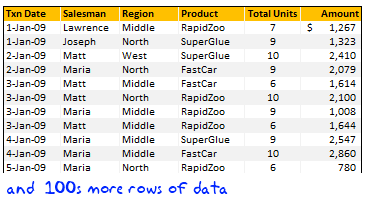
Let us say you have a sales transaction database like this:
Grouping Dates in Pivot Tables

To show “Total units sold by salesperson in each month” in pivot table

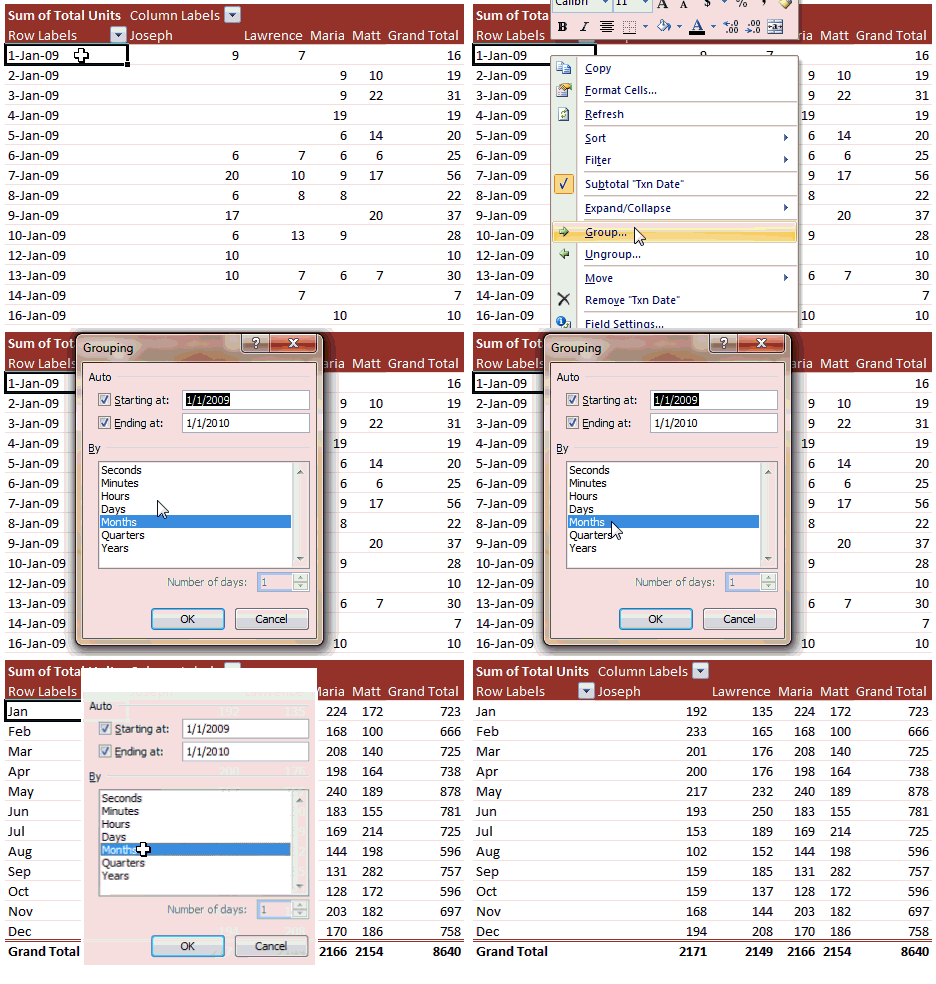
  1. First make a pivot table [video tutorial] with Sales person as column header, Transaction date as row header and “total units” as pivot values.
  2. Now select any transaction date, right click and select “Group”
  3. In the group dialog box, select “Months” for group by option. Press ok.
  4. Presto! your data is grouped by month. No more than 3 seconds and you are ready analyze the data by month and find trends.

I have made a small screen-cast to show how this can be done. See it here:
Grouping Dates by Month in Pivot Tables

Special cases for grouping dates in pivot tables

While the above example is simple, there are various things you can do when you are grouping data in pivot reports. Here are some special cases and how to get the grouping in pivot tables.

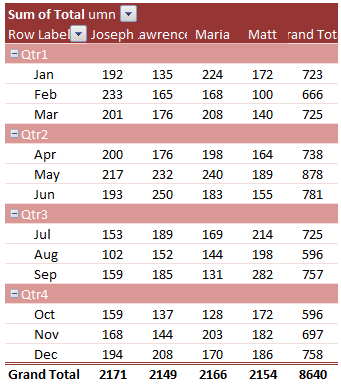
Group by Quarter & Month:
Group by Quarter & Month in Pivot Tables
To group the pivot tables by Quarter and Month,

  1. Select “group” option.
  2. Select both “month” and “quarter” in the “group by” option, Click ok.

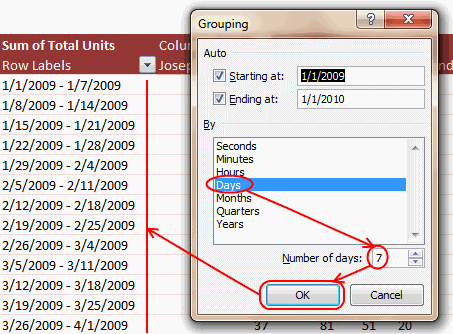
Group by Week:
Group by week in Pivot Tables
To group the pivot table dates by week,

  1. Select “group” option
  2. Select “day” in the “group by” option. When you do this, the “number of days” box will be enabled. Enter the number of days as “7” to group your pivot report by week.

Group by Hour of the day:

Group by hour of day in Pivot Tables
Assuming your data has dates along with the actual transaction time, you might want to analyze the sales by hour of day, to find out say “if one product is selling more than other during certain hours”.

To group the pivot table dates by hour of the day:

  1. Select “group” option
  2. Select “hour” in the “group by” option.

Collapsing & Expanding Pivot Table Groups:

When you group pivot reports by more than one “group by” you will see a little icon with + or – sign to expand or collapse the groups. Using this feature, you can easily deep dive in to a particular group to do further analysis. For eg. you can collapse all quarters and just expand Q2 to understand why the sales went up.

Another useful feature of these collapse / expand buttons in pivot tables is that, when you make a pivot chart, the collapsed groups are collapsed in the pivot chart too. And it is dynamic, ie, if you expand a group in the pivot table, the chart gets updated and shows more details.

Collapsing & Expanding Pivot Table Groups

Tell us how you use the group / un-group feature in pivot tables?

I am finding numerous possibilities with the group / un-group feature of pivot tables. I will learn new things and share them with you as we go along. Meanwhile, share your tips, experience and ideas using comments. I would love to learn from you.

Related Articles on Pivot Tables and Dates:

I suggest reading beginners guide to excel pivot tables, working with dates & times in excel.

Facebook
Twitter
LinkedIn

Share this tip with your colleagues

Excel and Power BI tips - Chandoo.org Newsletter

Get FREE Excel + Power BI Tips

Simple, fun and useful emails, once per week.

Learn & be awesome.

Welcome to Chandoo.org

Thank you so much for visiting. My aim is to make you awesome in Excel & Power BI. I do this by sharing videos, tips, examples and downloads on this website. There are more than 1,000 pages with all things Excel, Power BI, Dashboards & VBA here. Go ahead and spend few minutes to be AWESOME.

Read my storyFREE Excel tips book

Overall I learned a lot and I thought you did a great job of explaining how to do things. This will definitely elevate my reporting in the future.
Rebekah S
Reporting Analyst
Excel formula list - 100+ examples and howto guide for you

From simple to complex, there is a formula for every occasion. Check out the list now.

Calendars, invoices, trackers and much more. All free, fun and fantastic.

Advanced Pivot Table tricks

Power Query, Data model, DAX, Filters, Slicers, Conditional formats and beautiful charts. It's all here.

Still on fence about Power BI? In this getting started guide, learn what is Power BI, how to get it and how to create your first report from scratch.

31 Responses to “Beautiful Budget vs. Actual chart to make your boss love you”

  1. Harry says:

    Would be considerably easier just to have a table with the variance shown.

  2. Jomili says:

    On Step 3, how do you "Add budget and actual values to the chart again"?

    • Chandoo says:

      There are a few ways to do it.

      Easy:
      1) Copy just the numbers from both columns (Select, CTRL+C)
      2) Select the chart and hit CTRL+V to paste. This adds them to chart.

      Traditional:
      1) Right click on chart and go to "select data..."
      2) From the dialog, click on "Add" button and add one series at a time.

      • Neeraj Agarwal says:

        One more way to accomplish it is just select the columns into chart. Press Ctrl+C and then press Ctrl+V

        Regards
        Neeraj Kumar Agarwal

  3. TheQ47 says:

    Unfortunately, this doesn't seem to work for me in Excel 2010. The "Var 1" and "Var 2" columns cannot combine two fonts to display the symbol and the figure side-by-side.
    Secondly, there is no option to Click on “Value from cells” option when formatting the label options. The only options provided are Series Name, Category Name or Value.

    • Chandoo says:

      @TheQ47... the emoji font also has normal English letters, so if you use that font, then you should be ok. I am assuming your computer doesn't have that font or hasn't been upgraded for emoji support.
      Reg. Excel 2010, you can manually link each label to a cell value. Just select one label at a time (click on labels, wait a second, click on an individual label) and press = and link it to the label var 1 or var 2.

  4. Neeraj Agarwal says:

    I am using excel 2010, please explain how to apply Step 12

    Regards
    Neeraj Kumar Agarwal

  5. mariann says:

    Hi Chandoo,

    I just found your website, and really love it. It helps me a lot to be an Excel expert 😉

    Currently I am facing with a problem at step 11:
    Var1 Var2
    D30%
    A5%
    B0%
    B4%
    B7%
    C10%
    C13%
    D27%
    I42%

    Though at mapping table, I used windings, here formula uses calibra. How I can change it? I am able to change only the whole cell. In this case numbers will be Windings too.

    Thanks for your help!

    • Chandoo says:

      Hi Mariann... Welcome to Chandoo.org and thanks for your comment.

      If you wanted to use symbols from wingdings and combine them with % numbers, then you need to setup two labels. One with symbol, in wingdings font and another with value in normal font. Just add the same series again to the chart, make it invisible, add labels. You may need to adjust the alignment / position of label so everything is visible.

  6. […] firs article explains how you can enhance your charts with symbols. You can simply insert any supported symbol into your data and charts. To some extend you can […]

  7. Franciele says:

    You're a good person, thank you to share your knowledge with us, I will try to do in my work

  8. Ali says:

    Great visualization of variance. My question is that is this possible in powerbi?

    How would you go about it?

  9. NARUTO says:

    HELLO, WHY CANT I FIND VALUES FOR LABELS IN EXCEL 2013

  10. Amol says:

    Dear chanddo sir,

    What to do if we have dynamic range for Chart. How this will work. can you able to make the same thing works on dynamic range.

  11. Ricardo says:

    Sir Chandoo,

    Good Day!
    First, I'd like to say that I am very grateful for your work and for sharing all these things with us.

    I tried to do this chart but it seems that the symbols don't work with text (abs(var%),"0%") unless we keep the Windings font style.
    The problem is, it converts the text into symbol as well and you wont see the 0% anymore. I'm using Windows 7.

  12. MF says:

    WOW - Segoe UI Emoji
    This is the greatest discovery for me this month 🙂 Thanks for sharing.

    Here's my two-cents:
    https://wmfexcel.com/2019/02/17/a-compelling-chart-in-three-minutes/

  13. Renuka says:

    Sir This is awesome chart, and very easy to made because of your way to explain is very simple , everyone can do. Thank you

    one problem i am facing, I hv made this chart , but when i am inserting data table to chart it is showing two times , how can i resolve this

  14. renuka says:

    in this chart when i am adding new month data for example first i made this chart jan to mar but when i add data for the apr month graphs updated automatically but labels are missing for that new month

    • Chandoo says:

      Hi Renuka,

      Please make sure the formulas for labels are also calculated for extra months. Just drag down the series and set label range to appropriate address.

  15. Justine says:

    So I am playing with the Actual chart here - but amounts are bigger than your - you have 600 as Budget - my budget is 104,000 - is there a way to shorten that I am unaware of

    thank you - I LOVE YOUR SITE

  16. Arvind says:

    Thanks for the tips and tricks on Excel. In the Planned versus Actual chart examples, you use multiple values (ex. multiple Categories in above). How can this be done when we have only 1 set of values? For example if I have only this:
    Planned Actual
    SOW Budget 417480 367551

    How can I create a single bar chart like the one above?

  17. JEREMIAH KOOL says:

    Thank you Chandoo.
    This one is just perfect for my Quarterly Review presentation on Operational Budget against Actual Performance for the Hospital I'm currently working with.

    Just Subscribed today (10 minutes ago)

  18. Shawn says:

    Is there a way to make the table of data into a pivot table to be able to add a slicer for the graph due to many different categories and months?

  19. Mihail says:

    Hi, I tried to modify you template with something appropriate for me, and I found a problem. this template was modified by me started with excel 2010, then 2016 and finally 2019. Same thing - somehow appear an error - or didn't show the emoticons for positive percentage or doubled the emoticons for some rows. I suspect to be from excel. if is need it I can sand you my xlsx for study. Please help if you can.

  20. Saidatta Pati says:

    Hi Chandoo,
    Could you please check the Var Formula in Step1. You have mentioned budget-actual and when i did this i got different values but when reversed like actual-budget i got the actual value what you have demonstrated in step1.
    Please share your view.

  21. Dan says:

    This is a great chart (budget vs. actual). However, in trying recreate it, I cannot color in the UP Down bars individually, and they all become formatted with the same color. I'm using Office 365. Look forward to the feedback.

    Thanks.
    Dan

  22. sathik says:

    pls explain in detail step 7

  23. Arun says:

    While in the Excel sheet you have used following formula for Var
    Var = Actual - Budget
    But
    in the note, you have written
    Var = Budget - Actual

  24. aye myat maw says:

    Good Presentation and Data information.thank you so much chandoo.

Leave a Reply
