

Satisfaction Surveys help you measure your employees (or customer) attitude, opinion and satisfaction levels with your product or work place. Unless you are rich, probably you can not afford survey software tools and need a cheap alternative like excel based employee satisfaction surveys.
Today we will learn how to make a satisfaction survey and consolidate the data using excel.
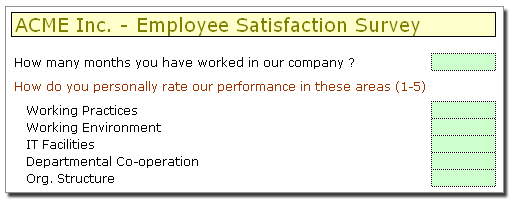
First make your questionnaire in one excel sheet
See the example above.
Now the fun part, send an email to your colleagues with the questionnaire
And go out, get a cup of coffee and learn excel between sips.
Ok, got the replies? well, move on to next step.
Create a new workbook and copy response sheets to this work book
How? Well, there is a simpler way to do. Open each response sheet and right click on the response tab, select “move or copy” and enable copy option and select the new workbook name.

Copied Everything? Time to Learn 3D References
No, don’t fetch your 3D glasses. 3D references are your way to refer to same cell in multiple sheet. Confused ? See this illustration:

So we will use the 3D formula references to compute average satisfaction level for a question like “how cool your company is?”. Assuming the sheets are arranged such that we have Shelly’s sheet first and Zack’s sheet in the end, and the question satisfaction is entered in cell D5, the formula will look like, =average(Shelly:Zack!D5)
Pretty simple, isn’t it?
That is all, you can use the same principles to create customer satisfaction surveys or other types where you need inputs from several parties in same format.
Of course, if you have internet and Google docs access at work, you can use the Google docs forms to do the same with more time to sip that coffee.
This post is part of our spreadcheats series, learn excel articles in this series and findout how you can be more productive.


24 Responses
Very spiffy!
I have made a few in house surveys using only Excel. Although I went the combo box route (for appearance) and then made the referring cells all white text.
One can use “Consolidate” under data menu….for the same purpose….
@Adam: thanks, using combo boxes is more elegant and easy to consolidate as they still return numerical value
@Ketan: good suggestion.
http://chandoo.org/wp/2008/05/13/creating-in-cell-bar-charts-histograms-in-excel/
Chandoo, in this page, the first picture shows that there is a red color in the in-cell chart. How did you get this?
@Sumeet… I have manually colored that particular bar. There is probably no automatic way to adjust part of cell content. I just did that to improve the effectiveness of the chart.
Why not make it even easier and use one of the free online survey services like Zoomerang? They have templates that are ready to go, send out the link to your participants and you can export the results into Excel.
It sort of defeats the purpose of using Excel for this purpose 🙂
By going with Excel you overcome a few issues with that of something like Zoomerang:
> Sticking to their templates
> Paying if you want to go over a certain threshold of respondents
> The need to complete the survey online
> Losing that professional look i.e. their website, their chosen style etc.
@Tanya: that is a good suggestion, provided the survey templates are free or in easy to use format. But if you are planning to send links, you might as well use google docs, as they are more elegant and easy to analyze.
@Adam: good point
Once again I have to refer to Chandoo.org for a quick & simple formula to use – this time I am summarising Year End worksheets.
THIS IS A MAGIC RESOURCE FOR SPREADSHEET JOCKEYS & REPORTS SQUIRRELLS…… B-) My one-stop shop for solutions.
…. forgot to add that the worksheet labels should not contain spaces for the formula to work correctly, i.e. Jan 2009 should be Jan2009
Hello,
I certainly agree with Tanya. Zoomerang is a reasonable tool for online survey and it can also work perfectly with excel worksheet. In addition, not every online survey product handles multiple styles of questions. Zoomerang does. And it’s free. http://snurl.com/zoomtypes
Great review using slideshow presentation….keep up the good work!
This is grand thank you. I have bi monthly employee slips to calculate employee pay checks and to accumulate hours worked for health benefits and accumulated safe work hours. This will allow me to do all of that quickly.
p.s. I really am a Ph.D. but an undergrad when it comes to Excel. Your website which employs examples is so very far ahead of other sites out there. Thank you. Next year I will sign up for school. A good sense of humor helps immensely. Thanks.
Bob t , Ph.D and PHD
For the sum, if you have loads of sheets, it could get tedious, so you could use theis tip from Lori in the Public.Excel newsgroup on Nov-3-2006
=SUM(‘*’!A20)
‘*’ referring to each sheet in the workbook.
This tip is amongst other tips to sum up same cells in all the sheets in a workbook in Ron de bruin site http://www.rondebruin.nl/linksum.htm
I only found it yesterday as I had exactly that issue!
Thanks Chandoo for widening every time perspectives on what can be done with excel!
Nice tip of 3d references.
never thought of such formula 🙂
@ Dashboard Pete: You can have spaces in the sheet names, but you have to add the superscript sign ( ‘ ) before and after the sheet references in the formula e.g. =SUM(‘First sheet:Last sheet’!C3). I sometimes struggle to remember the exact syntax (like today), in which case I open a blank workbook, build the formula on sheet one referring to sheets two and three, change the names of sheets two and three to the names I want to use (including spaces), and then copy the updated formula from sheet one into the workbook where I want to use the formula. Hope this helps 🙂
Is it possible to use SUMPRODUCT for consolidating different values ?
I can’t get it works.
Thanks
@Miguel
“Is it possible to use SUMPRODUCT for consolidating different values ?” – Absolutely
Have a read of: http://chandoo.org/wp/2009/11/10/excel-sumproduct-formula/
If that doesn’t help you’ll need to be more specific or post a file somewhere
Hi chandoo
I am able to select “move or copy” but i dont know how to “enable copy option and select the new workbook name”
@Guru
Select your cell or object and click Copy or Ctrl C
Goto the View Tab and Select Switch Windows icon and select the desired window
Goto where you want to paste and Paste
.
You can also toggle between all the open workbooks with Ctrl F6
before your paste
Hi Chandoo..
The 3D formula is too good, I never knew abt it.
how to I control the formula from being changed when somebody changes the sheet order?
I am aware of protecting sheets etc. Just wanted to know if you are coming up with any hidden gems!
Regards,
Prasad DN
Dear All,
Let me know,if we have only employee name .however employee code coming their if i m using vlookup…