

Long time PHD reader and mother of a lovely kid, Michelle, sent me a question in email that provoked me to write this post,
I was wondering how to tabulate large amount of information gathered through surveys. Where I work customers are constantly handed survey sheets in order for us to measure how the service -among other things- is being perceived. Now, to put all that info into a spreadsheet (plus charts) can be really tedious.
So far I manage to get the job done by assigning 1 to 4 values were 1 sucks and 4 is great and so there I go column after column (each column is one individual survey) filling my 1 to 4’s answers. I know there’s an easy version with VBA; problem is that I am a total ignorant in that area. Any suggestions?
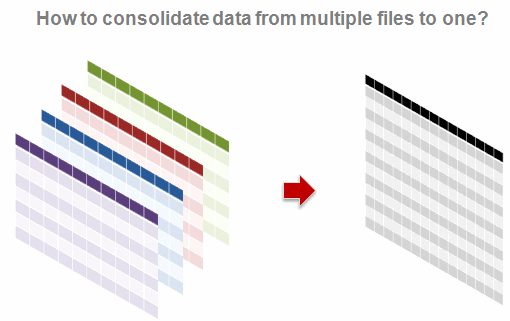
Few ideas that would make consolidation easy:
- Make sure all the source files are in the same format: make a template that your colleagues can use to input the data every month. This way you can use 3D references to summarize the data.
- Create a user form so that your audience can enter information in that instead of directly entering it in spreadsheet.
- Find out if the survey or other type data collection can be fed to a database. This way, every month we can import the data using data connections.
- If we actually end up with sheets with different data formats, spend sometime and study the anomalies. Then you can develop a small macro or find-replace routine that would clean the data. [related: clean data using excel]
- Try to save the files as CSV and open them in a regular expression capable editor like Notepad++. Now match and clean up data.
- All else fails, get a strong cup of coffee, put on some music, roll your sleeves and start alt+tabbing.
But more than these ideas, I am interested to know how YOU solve this problem.
I think this is a very common problem. Since I have very little experience in the area of consolidating data from multiple sheets in to one, I couldn’t give her any real advise. So now I am turning to you.
- Do you use any add-ins or macros to consolidate data? What is your experience like, what would you recommend?
- What shortcuts, ideas and cool things you use when working on data from multiple sheets?
- How do you usually clean / normalize the data?
Please discuss.


50 Responses to “How do you consolidate data from multiple sheets in to one? [open thread]”
Hi,
in my previous position as business controller I solve this problem through VBA and Access. The task I had to complete was to create and manage the customer portfolio for different sales representatives. The process was set up in this way. Given several Excel files for different sales divisions and within each division different kind of customer, the sales representative had to type in the customer he was interested in and some specification about the customer type. The creation of the complete customers list and its splitting was done quite easily but always keeping the same data structure for each file. It would be problematic to have different files with different layouts. To avoid mistakes and corruption of the files by the sales representative I protected the worksheets and created validation list (when possible) or user form to let people type in correctly the information. Once customers were selected I asked to the users to post the file on a collaboration portal (it can also be fine to have all the files in the same directory). To collect and consolidate all the files I used VBA and Access. In particular I wasn't interested in all the available informations in the Excel Files but just some of them, therefore I just focused on exporting cells containing typed-in values and unique customer number to match this information with master data.
Based on this work I created these articles where there are all the basics to create such kind of solution:
http://www.associatedcontent.com/article/1440467/excel_as_a_data_source.html
http://www.associatedcontent.com/article/1499225/adodb_connectivity_in_vb6_and_vba_introduction.html
In this context I wonder it anyone uses MS Infopath for these purposes.
Maybe the 'consolidate' option in the Data tab of the Ribbon is useful in this case?
1. I make a form/survey that looks like this:
Name _____
Age ___
Occupation ____ (chose from list)
etc
where the titles are in column A and the form fields in column B.
2. I put validation and validation lists on the form fields.
3. I protect everything except for the form fields.
3. I save the file as an Excel template.
4. I let people use the template, send me the files and save them in a directory.
5. I use a VBA-makro that loops through the files, read the values and add them in the bottom of a list.
In the list each survey is on an own row.
What I am particulary satisfied with is that I made it possible to change the form/survey over time and add/remove fields.
This is because I did not hardcode the location of the fields but instead use a function that reads each field in the form like this:
Function ReadField(NameOfField as String)
'Find row where column A is NameOfField and return the value in column B
'If not found just return nothing
End Function
Obviously having similarly formatted sheets as input in the process is a time saver.
There's a great free add-in that does multiple sheet/workbook consolidation : RDBMerge from Excel MVP Ron de Bruin
http://www.rondebruin.nl/merge.htm
There are also commercial add-in solutions... but the previous tool is so great I wonder why I would pay for something else.
You can also use the Consolidation tool integrated in Excel : Menu Data/ Consolidate...
There you can specify various data ranges, and the tool will consolidate them using the specified function. It works great (very quick) but uses no formula, so you have no audit trail.
Wonderful tool and just the thing I wanted to merge the files. However, the tool merges the content in a new excel file. I want to merge the content in the file which has a template same as that of individual files. Can I specify the name of the file where to merge the content and can I merge the content retaining the template? Please reply soon.
"5. I use a VBA-makro that loops through the files, read the values and add them in the bottom of a list."
This is how I would do it as well. In addition to step 5 I would include code that would clear the folder (move individual files to an archive so we have a record) so the directory is ready to receive a new set of surveys.
I did an application to do mass import of text files to excel and access. Copying the text files to an uploaded folder and clearing the import folder was one of the users favorite features.
1. import to some db(access/sqlite/mysql)
2. make the query (some group by, sum, etc)
3. make the pivot table in excel or just press the "analyze in excel" button from access
I just did this by hand yesterday for 11 months (each month a separate file) of 15 minute data logger results. In this case I still wanted each month in a separate sheet, just all in one file.
I opened all files, and went to work on moving the single tabs from each into one file, this had the benefit that the tabs were named by month, and as I moved them the redundant file closed itself.
@Pavel - do you know if its possible to design in InfoPath and generate output in say access or excel?
Hi!
Regarding CSV files there is a great tool out there called CSVed by Sam Franke. All I can say is WOW! It allows you to almost anything you want or need to do when editing a CSV file.
Here is the the URL: http://csved.sjfrancke.nl/index.html
I have used version 1.4.9 and a new version 2.0.1 is available.
Dave Venus
[...] PHD did a post recently about consolidating data. I do this every other week with timesheets, so I thought I’d share my story. [...]
Bob Phillips has a nice little routine posted out there somewhere. I think at http://www.ozgrid.com/forum. Uses the File Scripting Object so you'll need to set the reference in VBA through Tools..References. Post back if you need any help. The routine loops through all files in a folder, copies the specified data to last row of a specified workbook and worksheet. I get even greater control by creating a spreadsheet for my users and embedding some VBA for Outlook so they can just click a button and the spreadsheet is sent to me as an attachment. This way I can control the subject line and write a back-end process to hadle specific messages in specific ways.
Best,
w
We use MS Infopath to create the forms and aggregate with Excel. The integration of Outlook, Infopath, Excel and Sharepoint was our biggest consideration and it works very well. And it's all automated which was our priority.
I use the ETL tool Kettle ( http://kettle.pentaho.org/ ) which is part of the Pentaho BI suite. Its open source, its easy to learn, and once you have a workflow set up its repeatable.
Hi. To consolidate the tests data of multiples products into one file, I created a template and a macro that sends the info to a "database" file. All the data that I want to save are in a named range and my macro loops and copy all named range to my "database" file. The users only have to click one button and the operation takes 1 or 2 seconds max.
I also used the method of looping though files in a folder in the past.
Hi. I use Palo with an ETL tool like Talend or Kettle ... it's open source and even does allow the deployment of excel sheets via browser with Palo web. What more ... have a look at http://www.jedox.com!
the best, Lars
You could use Google forms, which would get the people filling in the survey, loading the data directly into a Google spreadsheet.
This can then be saved as a Excel spreadsheet, if needed
Consolidating data across spreadsheet I have only found one really effective solution - vba macros. In my case it required each of the source sheets to have in column A a common unique identifying code on each row of data which could be cross referenced so data could be vlookedup against this code from the final master collation sheet and then the vlookup formula converted to resultant (paste special value) to reduce file size and allow transferability of output sheet. NB when tried to publish resultant collated data to sharepoint hit a little known restriction of 230 columns max - very annoying.
To facilitate all of this had a column reference sheet which in col A had source column name, col b source sheet the named column was on and col C the column name which would be column output name (this allowed to change name to be more acceptable in output sheet).
Overall with col ref sheet and a master unique code list macros created from 8 differing source sheets one master collation sheet 200+ columns by 400+ rows in about 25 secs. Not bad - wish Microsoft would come up with a wizard to do such things instead of creating local bespoke solutions in VBA.
Only other collation I have done is when needing a questionaire completing I set up an Infopath form published to a SharePoint site and then got the recipients to complete via New in Sharepoint and on pressing submit button content published / sent to sharepoint datalist which autocollated it for me but still allow to see original form if need be. This was instead of excel and collating by macro which I too used to do until I discovered InfoPath / SharePoint combo.
Hope you find these comments of interest and support.
Best regards
MikeH
I agree with Edouard, RDBMerge is the best tool for this purpose, without any doubt.
http://www.rondebruin.nl/merge.htm
[...] Consolidation of data spread across multiple sheets is one of the most time consuming and frequently done process in Excel. In this article from tipsindeed, Gobish explains how to do this using only formulas. The formula based consolidation technique uses SUMPRODUCT, SUMIF, INDIRECT, ADDRESS formulas. Read more to learn about this. For more on Consolidation, refer to Consolidating data in Excel – How to?. [...]
I used a VBa macro to do this. I had to find 34 items with very specific criteria. In order to find which item ID #s I needed to pull I consolidated all the information about each item into a single workbook. Every item has a unique ID. Different sections and goups of people generate reports about each item containing different formats and different variables. I made one macro that would take all the different work books for whatever date range I specified (by code not by formula, I was in a time crunch and did not modify the code to be very flexible) and put the information into only one work book. I then used a macro to delete headers and blank rows so I had a contiguous data set. Then using my same consolodation macro I took all the dissimilar forms and put the masters into their own sheets within one huge work book. I then used VLOOKUP formulae to create a masterlist containing the item ID number and then all the different variables that we had logged. This took about 8 hours to come up with from scratch mostly and some nice code posted online. Here is the big macro that did the heavy lifting.
'Macro to compile workbooks of a single type into a master workbook of the same structure.
'Elements of macros copied from http://msdn.microsoft.com/en-us/library/cc837974(office.12).aspx#Y1233
'on 3.11.2011
'compiled by by Joe Longworth at Signature Genomics Laboratories, Spokane, WA
`
Sub MergeAllWorkbooksFromList()

    Dim myPath As String, FilesInPath As String

    Dim MyFiles() As String

    Dim SourceRcount As Long, FNum As Long

    Dim mybook As Workbook, BaseWks As Worksheet

    Dim sourceRange As Range, destrange As Range

    Dim rnum As Long, CalcMode As Long

    Dim FirstCell As String
' Change this to the path\folder location of your files. Select this cell, type in file path, and start macro
myPath = ActiveCell
' Add a slash at the end of the path if needed.
If Right(myPath, 1) <> "\" Then
myPath = myPath & "\"
End If
' If there are no Excel files in the folder, exit.
FilesInPath = Dir(myPath & "*.xl*")
If FilesInPath = "" Then
MsgBox "No files found"
Exit Sub
End If
' Fill the myFiles array with the list of Excel files
' in the search folder.
FNum = 0
Do While FilesInPath <> ""
FNum = FNum + 1
ReDim Preserve MyFiles(1 To FNum)
MyFiles(FNum) = FilesInPath
FilesInPath = Dir()
Loop
' Set various application properties.
With Application
CalcMode = .Calculation
.Calculation = xlCalculationManual
.ScreenUpdating = False
.EnableEvents = False
End With
' Add a new workbook with one sheet.
Set BaseWks = Workbooks.Add(xlWBATWorksheet).Worksheets(1)
rnum = 1
' Loop through all files in the myFiles array.
If FNum > 0 Then
For FNum = LBound(MyFiles) To UBound(MyFiles)
Set mybook = Nothing
On Error Resume Next
Set mybook = Workbooks.Open(myPath & MyFiles(FNum))
On Error GoTo 0
If Not mybook Is Nothing Then
On Error Resume Next
' Change this range to fit your own needs.
With mybook.Worksheets(1)
FirstCell = "A4"
Set sourceRange = .Range(FirstCell & ":" & RDB_Last(3, .Cells))
' Test if the row of the last cell is equal to or greater than the row of the first cell.
If RDB_Last(1, .Cells) = BaseWks.Columns.Count Then
Set sourceRange = Nothing
End If
End If
On Error GoTo 0
If Not sourceRange Is Nothing Then
SourceRcount = sourceRange.Rows.Count
If rnum + SourceRcount >= BaseWks.Rows.Count Then
MsgBox "There are not enough rows in the target worksheet."
BaseWks.Columns.AutoFit
mybook.Close savechanges:=False
GoTo ExitTheSub
Else
' Set the destination range.
Set destrange = BaseWks.Range("A" & rnum)
' Copy the values from the source range
' to the destination range.
With sourceRange
Set destrange = destrange. _
Resize(.Rows.Count, .Columns.Count)
End With
destrange.Value = sourceRange.Value
rnum = rnum + SourceRcount
End If
End If
mybook.Close savechanges:=False
Next FNum
BaseWks.Columns.AutoFit
End If
ExitTheSub:
' Restore the application properties.
With Application
.ScreenUpdating = True
.EnableEvents = True
.Calculation = CalcMode
End With
End Sub
Function RDB_Last(choice As Integer, rng As Range)
' By Ron de Bruin, 5 May 2008
' A choice of 1 = last row.
' A choice of 2 = last column.
' A choice of 3 = last cell.
Dim lrw As Long
Dim lcol As Integer
Select Case choice
Case 1:
On Error Resume Next
RDB_Last = rng.Find(what:="*", _
After:=rng.Cells(1), _
LookAt:=xlPart, _
LookIn:=xlFormulas, _
SearchOrder:=xlByRows, _
SearchDirection:=xlPrevious, _
MatchCase:=False).Row
On Error GoTo 0
Case 2:
On Error Resume Next
RDB_Last = rng.Find(what:="*", _
After:=rng.Cells(1), _
LookAt:=xlPart, _
LookIn:=xlFormulas, _
SearchOrder:=xlByColumns, _
SearchDirection:=xlPrevious, _
MatchCase:=False).Column
On Error GoTo 0
Case 3:
On Error Resume Next
lrw = rng.Find(what:="*", _
After:=rng.Cells(1), _
LookAt:=xlPart, _
LookIn:=xlFormulas, _
SearchOrder:=xlByRows, _
SearchDirection:=xlPrevious, _
MatchCase:=False).Row
On Error GoTo 0
On Error Resume Next
lcol = rng.Find(what:="*", _
After:=rng.Cells(1), _
LookAt:=xlPart, _
LookIn:=xlFormulas, _
SearchOrder:=xlByColumns, _
SearchDirection:=xlPrevious, _
MatchCase:=False).Column
On Error GoTo 0
On Error Resume Next
RDB_Last = rng.Parent.Cells(lrw, lcol).Address(False, False)
If Err.Number > 0 Then
RDB_Last = rng.Cells(1).Address(False, False)
Err.Clear
End If
On Error GoTo 0
End Select
End Function
haha that didn't format well at all!
Hi,
I'm looking for a macro that can attach more than 2 files and send it in one email.
I have already the macro to save 1 file, attach it to the email and sends the email automatically. The files are in 2 different worksheets.
If someone could give me a tip, that would be really great.
kind regards,
Maria
@Joe, I have applied the similar method...i wanted to know if we could read the file without using "Workbook.open"
@ Veronica:
I know that you can reference excel workbooks that are not open and manipulate them, but due to the nature of Excel you have to open the workbook in order to manupulate data in that work book. You can, however, prevent the workbook from appearing to be open. See this link. http://forums.devshed.com/visual-basic-programming-52/excel-vba-writing-data-to-a-closed-workbook-without-using-329061.html
JOE.... i need your help bro !
Sub CopySelectedMultiple()
Dim NextRow&, rng As Range
With Sheets("Sheet2")
For Each rng In Selection.Areas
On Error Resume Next
NextRow = .Cells.Find(What:="*" _ , After:=.Range("A1"), SearchOrder:=xlByRows, _
SearchDirection:=xlPrevious).Row + 1
If Err 0 Then NextRow = 1
On Error Goto 0
rng.Copy .Cells(NextRow, 1)
Next rng
End With
End Sub
can you modify it to Move the Selected Data to another Existing WorkBook "Database.xls" sheet1 in MY documents if the Database.xls is active ? or not...
@ 24
Does your macro work as intended? You just need to take the range that this Macro selecs and move it someplace in another book?
Right Joe I just need to Move the Selected Range(The way we select the range with the movie or with Shift+ Arrow keys) to move in another Book For.eg Database.xls which already exists in my Documents folder, Not in the New Book.
@ 26
So theres a fewways to do it.
1) First you would have the book you want to go to open, then you would change the VBA code in the design window each time you wanted to change the destination book.
2) You have the macro open the book from a given filepath and then the macro moves the data.
3) When the macro is activated you are prompted with the browser window much like when you open a file, you navigate to the destination folder, select the destination book, then the macro moves the data to the book you selected.
I don't really have time to write up all three, which would you like to use? Do you need to preserve the data at the source or is this more of a cut and paste situation?
2) You have the macro open the book from a given filepath and then the macro moves the data.(we can change the FILEPATH In his type macro as well) right!
ITS THE COPY PASTE SITUATION NOT CUT PASTE.
JOE Adding, and selection should has the option of multiple selection
Do you want the macro to make the multiple selection programmatically or do you want ot run the macro after you have made the selection yourself?
Multiple Selection MYSELF
'For Chandoo.org Question
'Joe Longworth
'8-9-2011
Option Explicit
Sub Move_Stuff()
Dim sourceBook As Workbook
Dim targetBook As Workbook
Dim targetPath As String
'make easy reference names for both the book data is coming FROM and going TO
Set sourceBook = ActiveWorkbook
'set the target workbook's filepath as a variable so it is easy to change later
targetPath = "\\siggen01\longworth$\insurance sheet.xlsx"
'copy the selected range
Selection.Copy
'open the target book
Workbooks.Open targetPath, Format:=2
'make easy reference names for both the book data is coming FROM and going TO
Set targetBook = ActiveWorkbook
'paste info into A1 on sheet 1
targetBook.Sheets(1).Range("a1").Activate
ActiveSheet.Paste
End Sub
Be careful, the filepath and file extensions must be exact with this method.
on Into A1 well in the 1st Available Empty Row..Otherwise it will Replace the previous data right so i'll not be able to create the database my friend 🙂
Not Into A1 well in the 1st Available Empty Row..Otherwise it will Replace the previous data right so i'll not be able to create the database my friend 🙂
targetBook.Sheets(1).Range("A65536").End(xlUp).Offset(1, 0).PasteSpecial
Will this work !
Sub MoveStuff()
Dim sourceBook As Workbook
Dim targetBook As Workbook
Dim targetPath As String
'make easy reference names for both the book data is coming FROM and going TO
Set sourceBook = ActiveWorkbook
'set the target workbook's filepath as a variable so it is easy to change later
targetPath = “\\siggen01\longworth$\insurance sheet.xlsx”
'copy the selected range
Selection.Copy
'open the target book
Workbooks.Open targetPath, Format:=2
'make easy reference names for both the book data is coming FROM and going TO
Set targetBook = ActiveWorkbook
'paste info into A1 on sheet 1
targetBook.Sheets(1).Range("A65536").End(xlUp).Offset(1, 0).PasteSpecial.Active
ActiveSheet.Paste
targetBook.Activate
MsgBox "Data transfer complete.", vbInformation, "Process Complete"
End Sub
IT is showing Error Based on End Sub
Sub CopyToSheets()
Dim stOrig As Workbook
Dim stDest As Workbook
Dim idName As Variant
Dim lnCont As Long
Dim idCont As Long
Dim i As Integer
Dim j As Integer
i = 1
j = 1
Application.ScreenUpdating = False
lnCont = 0
idCont = 0
'Set stOrig = Workbooks.Open("D:\Documents and Settings424\Desktop\test2.xlsx")
Set stOrig = ActiveWorkbook
Set stDest = Workbooks.Open("D:\Documents and Settings424\Desktop\test1.xlsx")
'lnCont = Application.CountA(stOrig.Columns(1))
lnCont = 10
For j = 1 To 10
For i = 1 To lnCont
If (stOrig.Worksheets("Sheet1").Cells(i, 1) = stDest.Worksheets("Sheet1").Cells(j, 1)) Then
stOrig.Worksheets("Sheet1").Rows(i).Copy Destination:=stDest.Worksheets("Sheet1").Rows(j)
End If
Next i
Next j
Set stDest = Nothing
Application.ScreenUpdating = True
Set stOrig = Nothing
End Sub
Sorry to be late to the party, but I recently came across another tool that may help solve the problem posited in this post. Granted, it works best when you can design your systems ahead of time (and may not be of much use for those who have a poorly formatted set of data already), but it could be a lifesaver for those who regularly consolidate spreadsheet data.
XLhub (http://www.xlhub.com) ties spreadsheets to a MS SQL Server database. It's an Excel plugin that provides a two-way connection, so updates to Excel spreadsheets are recorded in the database and updates in the database are pulled into the spreadsheet. XLhub keeps an audit trail, too, so if there's an error in the data, you can see who made the mistake and roll back to the point where you like the data.
If you have people taking survey data over the phone, for example, you could have each one use a spreadsheet that XLhub links to the database. Each of their additions would get centralized and would then be accessible to anything that can interact with MS SQL Server.
I have been deperately trying to collect the datas from different excel documents to a single document, that will get updated as soon as a new documents has been created.
The document will be used to capture the info entered into each documens and to save the info for history and tracking purposes. All the documents will be saved into one folder.
Please reply.
Late to the party: I just found this article by Diego O. from Microsoft, which might be an alternative to consolidating all those pesky csv/ text files into one, without hitting the 1m row limit in Excel. Very handy
http://blogs.office.com/b/microsoft-excel/archive/2008/04/30/append-multiple-text-files-into-a-worksheet-without-code.aspx
Any news on this topic for Excel 2013?
I have a different situation. I have a master file which i use to update several other "child" files. The master file contains daily price movement data of different stocks. Each file that I need to update contains this data in a consolidated way. These files need to be sent to clients as per their subscription (whichever scrip's data they have subscribed to).
So all files need to be updated with today's data for further analysis by clients.
Is there a way to update all files based on data from master file without opening each file.....?
Hi,
I am looking for a macro that can do the following for me.
I have multiple worksheets with the same set of rows where the % work complete and Planned % work complete changes every week.
I would like to collate this data per summary section from each worksheet into a master sheet and then use this to create charts.
Each summary task has a unique ID across all worksheets.
I have a macro that pulls data from Project to excel every Friday.
I have four common columns in all worksheets:
Track, Unique ID, Planned % Work Complete and Actual % Work Complete. In the Master sheet that I want to generate, I would like to have the Track and Unique ID and append the Planned % Work Complete and Actual % Work Complete columns for each week.
Thanks.
hi ,
i have mutiple of excel sheet and i want to to collate data of all excel sheet into one master sheet using macro but i dont have any good solution or macro for that.
Please help me on that because it is too necesary for me to in 2 days..
Thanks
Munendra Rathore
Hi,
I need to extract data from an online survey form to excel spreadsheet.
I want to create a macro which imports the survey results directly into excel, by just using a command button maybe. Please help.
Note: This is not via Google forms.
Thank you!
I'm trying to consolidate data in multiple sheets of a Workbook. Data will be like below, 4 quarters on column, below that weeks (13 weeks in a quarter) and below every week there will be 2 columns (budgeted and actuals). The rows include Categories. Similarly 10 worksheets are available for each account. So need a consolidated sheet which can plot a table like below.
JAS 15
Category Week 1 Week 2 Week 3 Week 4 Week 5 Week 6 Week 7 Week 8 Week 9 Week 10 Week 11 Week 12 Week 13
C1 - - - - - - - - - - - - -
C2 27 27 27 27 27 27 27 27 27 27 27 27 27
C3 - - - - - - - - - - - - -
C4 - - - - - - - - - - - - -
C5 - - - - - - - - - - - - -
C6 - - - - - - - - - - - - -
Output Required,
Filter 1: Worksheetname
Filter 2: Week Number
Category Week1 Weeek2 Week3.....
Budgeted
C1
C2
.
.
.