

I am obsessed with unique values, I guess it has something to do the quality data of I get to work with. So much so that it is the first excel post I have written on this blog, way back in 2006. Today I want to share with you all one more way (Not again man, you did that 2 weeks back) to extract unique values. I promise that I wont propose another unique idea to extract unique values (remember, I can still write about ways to remove duplicates… 😛 )
Ok, enough introduction already. Here goes another unique items extraction technique, this time using Pivot Tables.
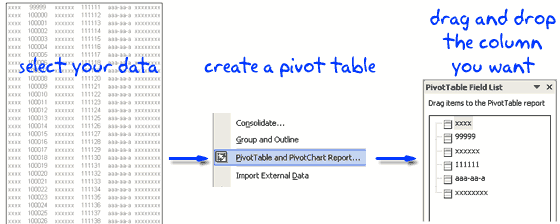
1. Just select the data from which you need to extract unique items
2. Create a Pivot Table (in Excel 2003 menu > data > pivot table and in Excel 2007 Insert > Pivot Table)
3. Drag and drop a column in the pivot table and you will instantly see all unique values for that column.
4. Copy the values and use paste special to extract the values.
Why I love this technique:
It is scalable and works really well with large data. If your data changes just refresh the pivot. Also, when you need to extract unique values for multiple columns this technique is really good, for eg. unique customer names, product names, cities from monthly sales report. Despite the manual step of creating the pivot tables, this method is highly reliable.
Also checkout other ways to filter unique items or eliminate duplicates:
> Getting unique items using data filter and formulas
> Use advanced data filters to find unique items
> Eliminate Duplicate Entries in a List using Formulas
> Get Unique items using Excel 2007 built in features
What is your favorite way of extracting unique items ? Or you are happy with with few duplicates here and and there ?


27 Responses
Hi Chandoo,
just a small question out of curiosity – how did you make the hand-writing text in your images? Do you use a tablet?
Thanks and thank for spreading this great tip.
Jiri
This is a great technique for automation too – I use it often. You can use this technique to develop the list of unique items from a dynamic data set to feed to a dropdown list.
Hi chandoo,
Hope you are doing good….actually i was trying my hands on excel dashboard tip as given in your advanced excel tricks column at the bottom right of your home page……
I am facing one problem……i have done formatting of few cell in my data sheet…for e.g. made few cell in percentage format, few in currency $ format…..
now when i wrote offset formulae in dashboard sheet it doesn’t picks data as formatted in data sheet.
any help would be so very appreciated…. also m an infant when it comes to dashboard so go easy on me…..
Also apology for posting question on wrong topic…..
@Jiri: I use the Akbar font, you can find it here for free: http://www.wobblymusic.com/groening/akbar.html
@AlexJ: Totally, it works really smooth and good when you need unique values for multiple data columns
@Azmat: what do you mean by formatting data ? Are you merely changing the data format using format dialog or applying some formulas like text(). In the later case, the numbers will become strings and thus can result in failure of dashboard calculations.
I recommend posting a comment at the original post or writing a detailed context here so that Robert or me can respond to you.
To reduce the server load I have adjusted comment settings so that you can only post comments in the first 6 months since the post date. I should be reverting this back once I figure out another thing that can be removed instead of this feature.
Thanks for prompt response chandoo….
Let me rephrase it…..few cell in my data sheet have percentange format…..(yes from format dialouge)….but when offset picks it in dashboard sheet it as normal text……i mean with decimal values and all…though i formatted it as percentage with only 2 decimal place….hope i have cleared the things instead of causing confusion…..
Al rite…now on will post on original topic….
That is you’ll never post about unique values again until you find another unique way to do it !
After digging further into it this is what i have found……in the dashboard you have posted format for a column is same throughout…however in my case……for few cels for e.g. E12, E13, and E15 can be percentage and for E20, E21 can be currency……
Any way out of this??
@Chandoo
Thank you for indicating me an AKBAR font – it´s really eye-catching. I will try out it.
@Hui.. 🙂 you got it
@azmat: that might be difficult, to have different formats for cells in same column. Also you need to understand that formatting doesnt change underlying values, it just shows the value in whatever format you have asked (2 decimal places). but when you use that cell in formulas, you still get the entire value, the way you entered it.
btw, which post are you referring to in particular. Post a link here…
Do u mean to say if i have entered a value in data sheet in say time format and when i call that value through offset in dashboard it will still be in time format……
but it’s not happeing in my case….
IT’s making excel dashboards ( part 1 of 4) ……
http://chandoo.org/wp/2008/08/20/create-kpi-dashboards-excel-1/
i will send you the sheet via email so you can check
if you have entered in time format, the value will be immediately converted to date time number format (which is a decimal number) it will no longer be in “09:00 AM” but some number like 34234.123234. This happens for date / time because the way excel stores and represents them internally. For other numbers the data you have entered is same as the data you get in formulas
But usually excel is smart and able to convert time values to time format. Not in cases like these where we use offset and thus it may not know underlying value format. Anyways, upload the file somewhere and leave a link here so that Robert can also chip in…
Azmat, Chandoo,
sorry for chipping in late. you should have posted his comment(s) to the KPI-dashboard post and I would have seen them earlier.
Now, here are my 2ct:
If I understand Azmat’s requirement correctly, he has a data table where in one column e.g. the first 5 rows are formatted as currency, the next 5 as percentages, the next 5 as dates, and so forth.
As Chandoo already explained, this will not work with the KPI-scroll-dashboard. The OFFSET-formulas bring back the numbers and display them in the format that has been chosen for the dashboard table. OFFSET does only fetch values, not formats.
Well, there is a workaround for this problem.
But first of all, let me say this: I do not know the exact context, but I simply cannot think of a situation where this would be necessary.
What are you trying to do? The first 10 rows show the EBITDA in millions, the next 10 rows the EBITDA margin in %? I don’t think this would be a clean data organization and a user-friendly visualization. Wouldn’t it be better to organize the different data types in different columns (as we did in the KPI dashboard series) or to use one separate table for every data type?
Well, as already said, I do not know the exact context and maybe I am just suffering from a lack of imagination. Or I misunderstood Azmat’s requirement.
Anyway, here is the workaround:
You can use the function CELL to get back the format of a cell. If A1 is formatted as percentage with 2 decimal places (0,00%), CELL(“Format”, A1) brings back “P2” as a text. If A1 is formatted as a number without decimals (#.##0), CELL would bring back “.0”.
Knowing this, you can create a small lookup table helping you to assign the format string “0,00%” to “P2”, “#.##0” to “.0”, and so forth.
Finally you change the formulas on the dashboard to display the numbers fetched from the data worksheet as text using the function TEXT, the function CELL and a VLOOKUP-function to find the right format string for the result of the CELL-function.
Here is an example for download. For simplification, I only filled the first 25 rows of the first column with data:
http://www.box.net/shared/ct4o0ponsl
The shortfall: you are having texts on the dashboard now. So you can’t do any direct calculation with the data displayed on the dashboard (SUM or AVERAGE, etc.). You would have to transfer them back to values (function VALUE).
If you are already using Excel 2007 you do not need the TEXT-function and the lookup table. You can use conditional formatting based on the results of the CELL-function.
Hey Robert……..Loads of thanks for taking time and anwering to my query……….also let me apologize for posting query in wrong topic………
well u got my requirement rightly understood………
i have taken your advice and changed my data accrodingly……
thanks again for responding….
Azmat,
you are welcome. Thanks for your feedback.
If you have any further questions on the kpi dashboard series, please post your comments there and I will be happy to respond.
I wrote an article on my blog with a example file for downloading about finding unique rows from multiple columns, not only a single column.
http://www.get-digital-help.com/2009/01/14/automatically-filter-unique-row-records-from-multiple-columns/
The problem is that the formula is not very userfriendly if someone wants to use it. I thought i would try simplify the formula and make it more userfriendly in a coming blog post.
So why not use pivot tables instead? It is not totally automatic. There are a few extra steps to get the desired result using pivot tables.
This example worked beautifully for me! Thank you so much! You are not a dork in my book! Thanks!
@ Oscar and Chandoo, both are great ideas, but arrays and pivots always fail for me in their usefulness. Any idea when microsoft will cheat and copy the functionality of Gdocs Unique, filter and sort array functions? specifically, when will they offer something like continue(…)
Is the issue that we are all using spreadsheets as a database function?
can you please explain how to make pivot table as below
example
s/no. truck no. labor1 labor 2 labor 3
1 560844 ramu ganesh latheef
2 45835 jaya hjkj guihio
@Rahul
Can you ask the question in the Chandoo.org Forums
http://chandoo.org/forum/
Please attach a sample file to aid the process
Hi ,
Using Pivot method work fine. Thanks.
I have found one more method…
In Excel 2010, Data->Remove Duplicates where you can select the range of data and mention which column to look out for duplicates.
Thanks,