


Update: As of Sept 3rd, 2010, this code or approach no longer works. Twitter has taken themselves too seriously to disable a working protocol in lieu of complicated oAuth. I am keeping the post intact for amusement and knowledge of xmlhttp works.
Twitter is fun. You can stay in touch with your friends and followers, 140 characters at a time.
Out of curiosity I opened the twitter api documentation today to see if it is possible to build an excel based desktop client to post messages to twitter.
It turns out that, doing this using twitter api is relatively simple. So I went ahead and built an excel sheet using which you can post messages to your twitter account. Interested? Read on
Create a new MS Excel file and make a data entry form like this
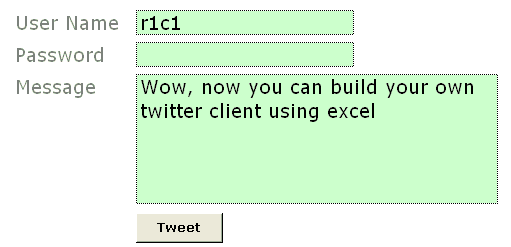
You can insert the button using form controls. Go to menu > view > toolbars and select “forms”.
Now select the button control and draw it on your sheet.
Excel will show a dailog asking which macro to run when that button is pressed. Enter the name as “tweetThis” or something cool.
Make sure you adjust the text color of password field same as background. That way your colleague (say hello to her from PHD) cannot look over your shoulder and know your twitter password.
PS: if you are using Excel 2007, form controls will be available in “Developer” tab of ribbon. If you don’t see developer tab, you must turn it on from “excel options”. Press office button and select excel options. I guess the option will be in “Advanced” area.
Create named ranges for your data
(this step is not mandatory)
We need just 3 fields of data to post a message to your twitter account. User name, Password and Message . Select each of the 3 cells and create named ranges for them. Name them something meaningful like “tusername”, “tpasswd” and “tmessage”. To create a name for selected cell, just press menu > insert > name > define (press the create name button in excel 2007)
Now, the fun part, writing macro code to post your message to twitter
The actual code is no geek stuff. We will use XMLHTTP object to do our work.
What is xmlhttp? it is the same object your browser uses to dynamically receive and send data from websites. It is the stuff behind all those cool AJAX powered sites.
First, right click on the “tweet” button you have created and select assign macro option. In the window it would show your macroname (tweetThis). Select it and click on edit button. This will open VBA Editor. Don’t freak out. 🙂
Our code needs to do the following stuff:
- Create an xmlhttp object
- Use twitter API’s post method and post the message
- Get the status and display it in debug window (just so that we would know if something went wrong)
- Close the xmlhttp object
I have written the below code, but I am sure you can write your own looking at how simple it is.
Sub tweetThis() Dim xml, tUsername, tPassword, tStatus, tResult Set xml = CreateObject("MSXML2.XMLHTTP") 'get the username entered by you in named range tusername tUsername = Range("tusername") 'get the password entered by you innamed rangetpasswd tPassword = Range("tpasswd") 'get the message entered by you innamed range tmessage tStatus = Range("tmessage")xml.Open "POST", "http://" & tUsername & ":" & tPassword & "@twitter.com/statuses/update.xml?status=" & tStatus, False xml.setRequestHeader "Content-Type", "content=text/html; charset=iso-8859-1" xml.Send tResult = xml.responsetext 'you can view Twitter’s response in debug window Debug.Print tResult Set xml = Nothing End Sub
Finally, enter your user name and password and a test message and test your code
If everything is fine, you should be able to tweet from that spreadsheet. Here is a sample message if you don’t know what to tweet:
Wow, http://chandoo.org/wp just posted a cool new way to make your own twitter client
You can easily extend this code to check someones status message, DM or message someone or analyze twitter stream. For processing twitter data you can use DOM parser objects from VBA.
Download Twitter from Excel Application and Play around with the code
Go ahead and download the twitter from excel app and learn by opening the code etc.
That is all. Do you like this ?
Cool, then please Tweet About This!, add this to your delicious bookmarks, stumble this page.
If you are new to PHD, I encourage you to sign up for our e-mail updates or add this blog to your reading list because we post cool and fun excel and charting stuff almost every weekday.
Check out other cool excel and spreadsheet stuff
Track your investments using Excel
Build an expense tracker using google docs
Make your own Amazon Deal Tracker in Excel
Findout when that iPod is available for cheap. Learn xpath and track almost everything


42 Responses to “Prevent Duplicate Data Entry using Cell Validations”
Hi Chandoo, I need you help in the following problem.
I'm trying to get a direccion from a found result. With this dirreccion I will want the before cell value. For example, If result of a find is 38 localized in cell $C$2, I need to get previus value (cell $B$2 ), maybe Andrés.
Do you know some way to do that?
Thank you for you help.
Hi Chandoo
Thanks for this. One thing though: In my pre-2007 version of Excel, the COUNTIF function doesn't recognise a semicolon (;), but requires a comma.
Is the semicolon an Excel 2007 thing?
Jair... I am not sure I understand what you want. what do you mean by Dirreccion?
@Lincoln: I am sorry, often I forget that I am using European version of excel where the delimiter is ; instead of ,. I have corrected the formula now.
Thanks for this nice tip, i used to do a find all after filling every new items which was cumbersome.
Do you know a way to extend this validation search to other tabs/sheets ?
Thanks for you attention. I'm trying to get of value continue from a found value. Let me show a example:
Name Years
John 35
Maria 28
Teresa 32
If I search the max years, the result is 35, but I need that result to be John. Do you know how I can do it?
@Subbu.. you can easily extend the validation to other sheets by pasting the data validations. See the latest article here: http://chandoo.org/wp/2009/10/28/copy-data-validations/
@Jair.. you can use the large() or small() formulas to do this. for eg. =index(A1:A3,large(B1:B3,1)) will get you the name of the person with highest "years". More help here: http://chandoo.org/excel-formulas/large.html
Hi, I don't know if I'm using bad the formula or its performance is diferent for my Office version. Large() formula return the value in the cell, in my example 35. The index() formula use a range, row and column. I'm using the large() as number of row, and it is bad because into the range don't have row 35. This is my perception. What do you think?
Hi, I going to prove, with this solution by JLD http://jldexcelsp.blogspot.com/2008/07/extraer-direccion-de-celda-en-matriz.html
Hello,
I am trying to attempt data validation in Excel Mobile, but the DV tool isnt available. I want to prevent duplicates is all, any advice on acheiving this in Excel Mobile? Thanks..
@Jair... my french aint that good. it starts at "merci" and ends at "beau coup".
Anyhow, you need to merge the large with vlookup to do this. I am not sure if you have solved the problem. Otherwise let me know with details and I can write the formula in comments.
@Chad... I have never used excel mobile, so I have no idea. May be they have not implemented data validations in excel mobile.
Any excel mobile users out there?
Hi Chandoo, the proposed solution by JlD is interesting. He created a macro to get values when the matrix is not one dimensional, how on my problem. This fuction for me.
I would like to share you my work, how can I upload?
@Jair.. sorry for such a delayed reply.. you can upload the files to skydrive and link them here. Or you can email them to me at chandoo.d @ gmail.com and I will upload them somewhere. But it could take forever if you email files to me as I am a bit lazy.
[...] Day 31: Advanced Data Validation Tricks in Excel – Part 2 [...]
Hi,
Can you help me in Microstrategy?
Br,
Moin
really wonderful article. I feel it is implementing Primary Key concept into spreadsheets.
Hi article on data validation. Excel is a very versatile platform to work with and we use it for all kinds of data tabulation. In fact this must have been the most rudimentary data management tools I must have worked with and knowing such tips only adds functuionality to our user experience. Great article. looking forawrd to read more.
Hi Chandoo,
Thanks for such a nice idea.
I tried copy paste the data into the validated area, but the pop-up msg (warning msg) doesn't came. Is it something that we need to update the data manually each time,.
Do we have any option where we can bulk upload the number and it throws a warning message that the data already exits and do we want to continue with this ?
Please do reply me.
Thank you.
Regards,
Vasanth.
It was really useful chandoo...thanks a lot...
Tried this in excel 2010 and it did not work?
Could the newer excel have changed that much?
@Leo
It works fine in Excel 2010
The formula used above =COUNTIF($B$4:$B$11,B4)<=1
only applies to the range B4:B11
Did you adjust the range to your data?
This page helped me accurately to find solution of my question. thanx
we want to prevent duplicate entries in three columns combined, using data validation, i.e. say, column A has first name and Column B has middle name, Column C has last name. the first name can be duplicate, middle name can be duplicate, last name can be duplicate, but not all three at the same time.
I want to prevent duplicate entries in three columns combine, using data validation, i.e. say, column A has first name and Column B has middle name, Column C has last name. the first name can be duplicate, middle name can be duplicate, last name can be duplicate, but not all three at the same time.
Hi, I've tried above validation method to prevent duplicate value from entering into the cells. It's work, when user key in the data into the selected range. However, it's not working when user copy-&-paste the info into the same range.
Please advice. Thanks.
Hi Chandoo,
Does it work in Excel 2007?
Please Reply
thanks chandoo........
it does not work when data is copy pasted...any solution for this??
hi i m shaloo and i want to know in excel if i write duplicate no.then it says or show about we are write duplicate no.
Hi Chandoo
I've tried using this with a Named Range, which is actually a column in a Table as DV wont accept a table reference, and it wont work.
Also tried using Offset to specify the Named Range, but that wont work either.
Is it possible to use Named Ranges with DV?
Thanks
Kris
I have tried the above formula on a table column. The Error box does not pop up, there is only the small ! next to the cell with the duplicate. The column I am working with is formulas that produce a date. Is the reason it doesn't work that the cells contain formulas rather than data?
The formula works but only if I enter data in cell above it. So for example, if I have "123" in B11 it does not allow me to enter "123" in B10, B9, B8, etc. But I can still enter "123" in B12. Please help! 🙂
Great tip.. thanks a lot
I have 21 years of experience working as data entry assistant. I constantly read several blogs to keep myself up-to-date with the advances in data entry profession. I really enjoyed this blog post. From my several years of experience, I agree with you 100% when you say, “ We all know that data validation is a very useful feature in Excel. You can use data validation to create a drop-down list in a cell and limit the values user can enter. ”
Keep blogging. I will come here again.
--data entry assistant
Hi,
This is really very helpful.
Thank you
how can i assign two validation on a single cell
one is for list validation (means the data should be from that range)
second i want to prevent them from repetition
how can i do this ?
P7 to P506 have GR# which are for list
i want to prevent C column to not to repeat and should be from the P column
@Junaid
Can you please post the question in the Chandoo.org Forums
http://forum.chandoo.org/
You have to register to be able to post questions
Please attach a file so that a specific answer can be delivered.
i made an account but there is no option available to post questions ??
where can i ??
@Jubaid
Goto http://forum.chandoo.org/
Goto Ask an Excel Question
Post New thread
Type your question
Attach a file
Please attach a file so that a specific answer can be delivered.
friend can any one tell me the formula
exname location qty
gaurav 1 1
rofan 2 5
sandeep 3 6
gaurav 4 3
rofan 5 4
sandeep 6 8
gaurav 7 9
If this is a data.
if i want a formula by which if i type gaurav then all the location and qty should be shown in a new page.
i had 5,00,000 sku so if i punch one name i can get the entire details
@Gaurav
Can you please post the question at the Chandoo.org Forums
http://forum.chandoo.org/
Please attach a sample file for a quicker more targeted response
IF(ISERROR(INDEX($B$3:$C$9,SMALL(IF($B$3:$B$9=$B$12,ROW($B$3:$B$9)-ROW($C$2)),ROW(A1:C1)),2)),"",INDEX($B$3:$C$9,SMALL(IF($B$3:$B$9=$B$12,ROW($B$3:$B$9)-ROW($C$2)),ROW(A1:C1)),2))
please explain
YOUR COUNTIF FORMULA IS REALLY HELPFUL AND WORKS. I TRIED SEVERAL SITES BUT THEIR FORMULA DOES NOT WORK. ONLY YOU HAVE GIVEN A RIGHT FORMULA!
THANK YOU!!!!!