

In yesterdays post – Find Quarterly Totals from Monthly Data, we have learned how to use SUMPRODUCT formula to find totals by Quarter from a set of monthly values. The approach is fine, but has one glaring draw back.
It only works when you have data for one year.
In that post, Martin said,
…
Ever since i read this post, I am struggling with a table that has the same layout as the example, and I wanted to add the totals per year and per Q, years as rows, Qs as columns.
…
So, you want to get the totals like this:
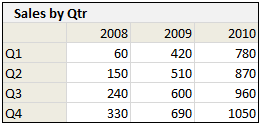
Of course, the easiest and quickest option is to use a pivot report with grouped dates. It takes a few clicks and you have the data.
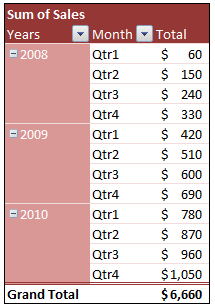
- Make a pivot table with your multi-year data
- Now add months to either “rows” or “columns” area.
- Sales to the “values” area.
- Right click on row and select “Group”
- Select “Quarters” and “Years” [learn more about grouping dates in pivot reports]
- And your report is ready.
But if prefer a formula version, like Martin does, then,
Assuming you have quarters in a column and years in a row (cells F4:H4), like this:

And monthly data in the range: B4:C39,
The formula will be,
=SUMPRODUCT((ROUNDUP(MONTH($B$4:$B$39)/3,0)=ROWS($E$5:E5))*($C$4:$C$39)*(YEAR($B$4:$B$39)=F$4))
How this formula works?
Today is Friday and I am not in a mood to explain how this formula works. But I will give you some clues,
- The Red portion finds if a month is in Q1 [ROWS($E$5:E5) is used to get running numbers – learn more about this technique]
- The Green portion finds if a month is in the given year
- The Blue portion is the actual values
Now, run to the espresso machine, get a latte and figure out why this works.
Download the example file:
I have enhanced yesterdays file with multi-year data and added both pivot report and formula based quarterly totals in the file. Go ahead and download it. Play with the file to learn how this works.
Share your tips and ideas:
We have excel rockstars like Daniel Ferry telling us some really awesome ways to improve the formula yesterday. I encourage you to share more tips and ideas on how you usually handle situations like these.


6 Responses to “Using Lookup Formulas with Excel Tables [Video]”
H1 !
this is my very first comment.
Can you use same technique with Excel 2003 lists ?
thanks 😀
Thanks, Chandoo! I like seeing the sneak peak of what's to come on Friday too 🙂
@Damian.. Welcome to chandoo.org. Thanks for the comments.
Yes, you can use the same with Excel 2003 lists too.
@Tom.. You have seen future and its awesome.. isnt it?
[…] Using Tables – Video 1, Video 2 […]
[…] Using Tables – Video 1, Video 2 […]
Hi, is there a vlookup formula for the second example (IDlist)? I used a similar formula to look up the ID for the person, but the reverse way (look up the person with the ID) comes up N/A.