

This is a guest post by Sohail Anwar.
August 29, 1994. A day that changed my life forever. Football World Cup? Russia and China de-targeting nuclear weapons against each other? Anniversary of the Woodstock festival?
No, much bigger: Two Undertakers show up at WWE Summerslam for an epic battle. Needless to say: MIND() = BLOWN().

And thus begun one boy’s journey into understanding the phenomenon of Multiple Occurrences.
My journey continued, when just a few years later my grandfather handed me down a precious family heirloom: A few columns of meaningless data that I could take away and analyze in Excel. You may laugh but in the 90’s, every boy only wanted two things 1) Lists of pointless data and 2) To be as bad ass as this guy:

Ohhh yeah.
All good but how best to deal with multiple occurrences? Well, it broadly involves a cunning collusion of SMALL, LARGE, IF and our good friend the Array formula. To explain, let’s have a look at one of granddad’s prized pointless lists:
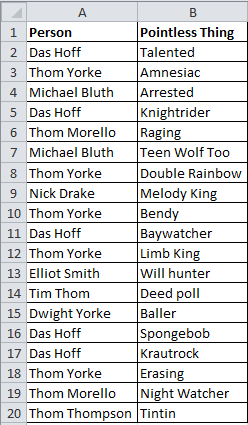
All kinds of repetition of names exist here, so how, for example, can we look up the pointless things about ‘Das Hoff’?

A typical VLOOKUP or INDEX/MATCH combo will give us the first entry (‘Talented’), but what about the rest? The following ARRAY formula will saves us:
SMALL(IF(Lookup Range = Lookup Value, Row(Lookup Range),Row ()-# of rows below start row of Lookup Range)
Entered with Ctrl + Shift + Enter because it’s an Array formula
In this case:
SMALL(IF($A$1:$A$20=$E$2,ROW($A$1:$A$20)),ROW()-2)
Bear in mind this will give us the position numbers of the multiple occurrences in our main list. That’s a good start. Now we drag this formula down so we end up with another list since our need to find multiple occurrences will necessitate creating another shorter subset of the main list, even if there are just two entries. How far do we drag it down? It doesn’t matter too much but enough to capture the likely number of multiple occurrences. we’ll come back to this point in a bit.
I just want to bring your attention to the last part of our SMALL formula, in this case ROW()-2. This creates a rank; think of it as 1st occurrence, 2nd occurrence…as you are dragging the formula down.
Why did I put Row()-2? Well I placed it in a cell which is in the 3rd row and as a rule the first instance of the formula you write, you want the Row()-x to equal 1 (assuming your lookup range starts from row 1). So if your looukup range is in A1:D20 and your first SMALL formula is in cell E5 then you will write ROW()-4 at the end .
Let’s see what happens when we put the formula in E3, search for ‘Michael Bluth’ and drag down to E7:
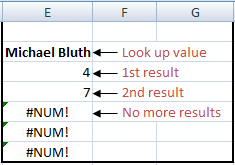
We can visually see there are just two entries in the main list and their position numbers have come through nicely (4 and 7). Beyond that we are met with the #NUM! error. So from here, we need to do two things
- Utilize the position number to give us value or related value from the list (i.e. do what the lookup is supposed to do!)
- Conceal the errors.
To accomplish (1) we can just put this whole thing into an INDEX formula, define an array size (same vertical dimensions as our main table), use our SMALL formula to provide the row number, then define whatever column number we want, in this case we want column 2:
INDEX($B$1:$B$20,SMALL(IF($A$1:$A$20=$E$2,ROW($A$1:$A$20)),ROW()-2),1)
Which yields:
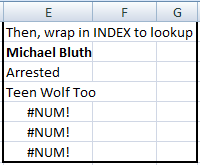
Now, the final bit involves wrapping all this in our trusted friend IFERROR for some easy tidying up:
IFERROR(INDEX($B$1:$B$20,SMALL(IF($A$1:$A$20=$E$2,ROW($A$1:$A$20)),ROW()-2),1),"")
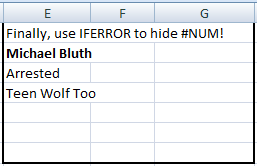
Ta da! Let’s have a quick recap of how we evolved the formula.
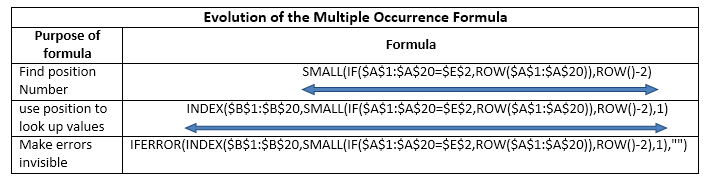
What else can we do?
Let’s extend this bad boy formula and make it really work for us. Here are some select ways I have extended the Multiple Occurrence formula to help extract from challenging text data.
Please download the workbook, since it contains the examples for your learning pleasure.
Note: Temporarily for this next section, I am going to ignore the IFERROR and the INDEX parts purely to make the formula slighter shorter and thus a bit easier to read. Instead, what we will get are the position numbers (which are good enough to demonstrate how the formulas work). Relax, in the final section, I’ll bring them back in!
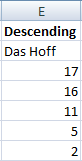
Descending List
Okay, not very exciting, but if we wanted our list to be in a descending order, we simply switch the SMALL with LARGE!
LARGE(IF($A$1:$A$20=$E$2,ROW($A$1:$A$20)),ROW()-2)
Partial Text Search
What if just want to look for part of the text? Easy!
SMALL(IF(IFERROR(SEARCH($G$2,$A$1:$A$20)>0,FALSE),ROW($A$1:$A$20)),ROW()-2)
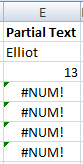
The urge to use a wildcard just won’t work due to the mechanism of an Array. Arrays require like for like comparisons and a partial text won’t correspond to a range. So we need to create TRUE and FALSE outputs, which is what wrapping the SEARCH(…)>0 in an IFERROR does.
Left side of Text
Let’s say we are looking for a first name in a cell with a full name, we can do:
SMALL(IF(LEFT($A$1:$A$20,LEN($I$2))=$I$2,ROW($A$1:$A$20)),ROW()-2)
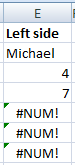
Some of you are thinking, well this can be achieved with a partial text search and most of the time you are right. But I routinely deal with tens of thousands of rows of data with varying text and used to fall foul of not preparing for every permutation or combination. It’s subtle but it can be very useful.
Partial text in the right side
‘Now you’re just being silly Sohail! Who needs this?’ I’ll stand by what I said, when you work with lots of data and need to extract all kinds of things, this sort of formula soon finds a place! Unfortunately I can’t reproduce data that I’ve worked with to show you the reality of needing something like this. It’s not often but once in a while it comes and it’s quicker then VBAing!
SMALL(IF(IFERROR(SEARCH($K$2,RIGHT($A$1:$A$20,LEN($A$1:$A$20)-SEARCH(" ",$A$1:$A$20)))>0,FALSE),ROW($A$1:$A$20)),ROW()-2)
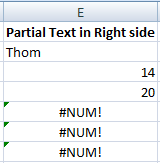
So we’re just searching for things past the first space, this sort of thing would need to be extended as more spaces crop up but you get the point.
Multiple Occurrences and Multiple Criteria!
What?! This is more confusing than making Time Traveling Flux Capacitors.

Okay, to make this work, let’s increase our data set, I’m going to throw in a region column for all the patriots in da house.
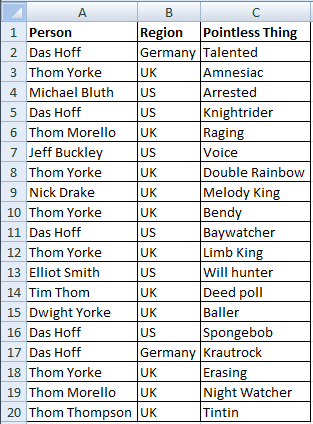
So now things are getting interesting. ‘Das Hoff’ is a great example; we can see from a visual inspection he covers two regions (discussing the dual German and US citizenship of the Hoff is out of the scope of this article, but just know how awesome he is!). How can we lookup the two different occurrences of ‘Das Hoff’?
Easy, but first if we harken back to the ultimate VLOOKUP trick I suggested the use of CHOOSE in an array to create ‘virtual’ helper columns, the good news is since we are in an Array format, its pretty straightforward do this without messing with VLOOKUP or CHOOSE. So we simply concatenate the Person and Region ranges and we concatenate the Person and Region lookup cells:
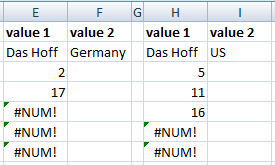
=SMALL(IF($A$1:$A$20&$B$1:$B$20=$E$2&$F$2,ROW($A$1:$A$20)),ROW()-2)
So now if we look up ‘Das Hoff’ in ‘Germany’ and ‘US’ we get:
Das ist gut, nein? Ja, Über gut.
Let’s go a step further; what if we wanted to separately lookup the First and Last names? Easy, same concatenation but also concatenate a space in between, like so:
=SMALL(IF($A$1:$A$20=$K$2&" "&$L$2,ROW($A$1:$A$20)),ROW()-2)
So if we are searching for the first name ‘Thom’ and surname ‘Morello’ we get:
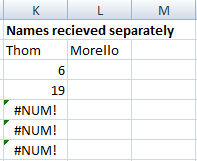
There you have it. Multiple Occurrences WITH Multiple Lookups, take that to the bank!
Autofiltering without an Autofilter!
So, now we have seen the power of what can be done with Multiple Occurrences, how else might we use this in our work? Well, in the Chandoo tradition of creating awesome dashboards let’s build a bit of interactivity in a dashboard. Now I’m not going to build a dashboard, the web’s finest materials on dashboards can already be found on Chandoo.org! No point me recreating. What if we want to create a makeshift Autofilter in the middle of a dashboard/report? We can use everything we’ve learned about Multiple Occurrences and with a bit of conditional formatting we can cook up something pretty decent.

How about we poach the multiple criteria technique from the previous section: First Name, Surname and also Region as drop downs (by using simple data validation lists) to control a table of formulas:
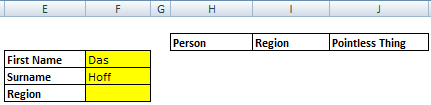
Let’s just look at the formula in each column of the table:
Column 1: Person
IFERROR(INDEX($A$1:$C$20, SMALL(IF($A$1:$A$20&$B$1:$B$20=$F$3&" "&$F$4&$F$5, ROW($A$1:$A$20)),ROW()-2),1),"")
Column 2: Region
IFERROR(INDEX($A$1:$C$20, SMALL(IF($A$1:$A$20&$B$1:$B$20=$F$3&" "&$F$4&$F$5, ROW($A$1:$A$20)),ROW()-2),2),"")
Column 3: Pointless Thing
IFERROR(INDEX($A$1:$C$20, SMALL(IF($A$1:$A$20&$B$1:$B$20=$F$3&" "&$F$4&$F$5, ROW($A$1:$A$20)),ROW()-2),3),"")
The only difference between these is the Column number in the INDEX formulas. Now, I am fully aware of the absurdity of having your search criteria (Name and Region) appear in the results table but it’s cool, I’m just illustrating with minimal pointless made up data. Let’s try using this:
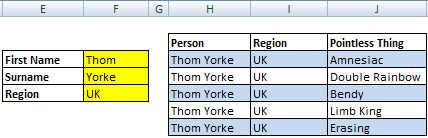
Selecting Thom, Yorke and UK gives us a nice chunky result. And how did we get it looking so slick with expanding/contracting borders and alternating colored rows?! Easy, let’s take a closer look at the conditional formatting:
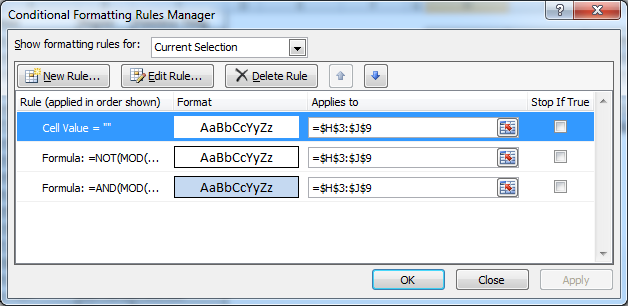
Pay close attention to the order of the conditions, it won’t work properly otherwise. The formulas used are:
For the first condition, I have selected ‘No Color’ for fill:
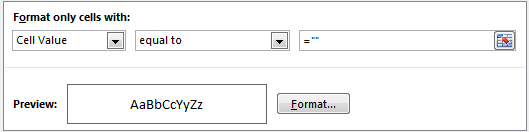
For the second condition, the formula is:
=NOT(MOD(ROW(),2)) – Choose a white fill AND complete Border around the cell.
For the last condition, the formula is:
=AND(MOD(ROW(),2)=1,H3<>"")
The last thing is to turn the grid-lines off or at least paint the cells in and around the table white. Have a look in the workbook if it doesn’t make sense.
Download Example Workbook
Click here to download Multiple Occurrences workbook. It contains all the examples. Play with the formulas to learn more.
Conclusions
So there you go. I hope you have taken away a number of things about the value of extracting multiple occurrences from a list and a technique for enhancing interactive reporting. If there is one thing I really wanted to convey during this article, its how much I love the Hoff and we can never have enough occurrences of this Germanic demigod. If you enjoyed this article then please share it and let’s get a discussion going in the comments to see what other multiple occurrence madness we can come up with!
Added by Chandoo
Thank you so much Sohail for another wonderful, intelligent & useful article. I had loads of fun reading & learning from it.
If you enjoyed this, please say thanks to Sohail in the comments section.
Keen to learn Advanced Formulas?
Check out Formula Forensics & Array Formula pages.
About the author: Sohail Anwar is a Londoner who has spent over 10,000 hours applying Excel in his professional life and earns well over 6 figures as a result. Now he is on a mission to teach professionals how to massively increase their earnings by learning and applying Excel like never before. Find out more about Sohail on Earnwithexcel and connect with him on LinkedIn.


37 Responses to “Quickly Change Formulas Using Find / Replace”
Chandoo,
this is a really cool stuff what I use quite often. In addtion this method also could be a good choice to switch the reference type of the formulas from relative to absolute or vice versa. (just simply replace the $ in the same way).
Andras
@Andras: you are right, we can use find / replace to change references, reference types etc. Now, only if they had regex in find/ replace, we could so much more 🙂
@Tony Rose: Thank you. This is very useful and powerful feature. I even use it for cleaning up data. While formulas are good, they are not the solution for every problem. Often when I need more powerful cleanup / changing, I copy paste the stuff to text editors like notepad++ and then use their find/replace to do the dirty task.
What if i have to change the formula from ='Analysis'!C1 to 'Analysis 1'!C1?
I tried doing it using Find /Replace but could't. Encountered some errors.
And is there a way to change this using VBA???
Hi,
Did you ever get a reply to this?
Thanks
Ollie
to make your life easier, suggest you to avoid (Space) in worksheet names whenever possible. Consider (underscore) instead.
As the first formula wouldn't have the single apostrophes (since there's no space) need to include that in replace. So, search for:
Analysis
and replace with:
'Analysis 1'
This could be the most useful tips I've seen in a while. I use this all the time and can instantly change 400 formulas with a few clicks. Like so many other functions in Excel, I don't know what I would do without this one.
Keep 'em coming!
[...] on formulas: 5 areas where mouse kicks keyboard’s butt | Edit formulas in bulk using Find / Replace | Excel Formulas Online [...]
THANKS BRO
You, sir, are a god among men...
This is really cool. Your just save me hours of work. Thanks.
Thanks so much for this fix! It saved me tons of work. I'm muddling my way through and this really helped!
Oh... My... God!
This tip just saved me about 2 hours every month! I can't believe how easy it is to use. Now, can somebody tell me who I should call to get a refund for the previous 100 hours I spent manually changing formulas cell by cell?
Thanks so much!
THANK YOU!!!
THANK YOU!!!!
You saved me hours, I had a sheet that has more than 500 formulas, and i needed to replace the year in all of them, you saved me hours
Awesome info on replacing cell addresses in formulas. I have never heard about Ctrl+` before. Thank you!
I have something inside a formula like:
=sum(A1, A2*10) all over I now need to get rid of the *10 {=sume(A1, A2)} I thought to use the find replace trick above but with a blank in the replace but it then outputs just zeros. I thought I could trick it by doing *1 but then it just turns into =*1) with none of my references. Does anyone have an idea how to do this?
The Ctrl+ trick is cool.
@T
Instead of replacing with a blank try replacing
*10)
with
)
Thank you! This literally will save me hours and hours of time, and that's without losing my sanity in the process!
I have Sheet(1), Sheet(2), Sheet(3), etc ... Sheet(100).
Then there's a summary tab where I want to recap information on all those different sheets. Is there anyway to create a formula on the Summary tab to get ='Sheet(1)'!B$29 copied down for all 100 sheets without having to change each sheet # within the formula by hand?
@Brigitte
If you have a list of the sheet names in A2:A100
In B2: =INDIRECT("'"&A2&"'!$B$29")
Copy down
or if you don't have a list of the sheets names you can make it up on the fly
=INDIRECT("'sheet("&ROW()-1&")'!$B$29")
Copy down
Thanks for the suggestion. However, I copied your formula right back to my file and it didn't work. So I did it another way. I put the tab/cell reference in one cell and then did an =INDIRECT() to capture that information.
K2="'Sheet("&L2&")'!B$29" which has a value of 'Sheet(1)'!B$29
B2=INDIRECT(K2) which now has a value of 40 (contents on Sheet(1).
Thank you!!!!
Thank you ..
Hi, Out of all the formulae, I wish to replace the formula which has generated 0 value with blank space? I am unable to do it with find and replace function,
Please suggest.
Thanks.
Chandoo, you literally just saved me about 2 hours of work. I had a document with a daily report in two formats. The second formate just linked to all the appropriate cells in the other format (different sheets). This was 180 references that needed to be changed and I had to make this for a 4 week period (aka 28 different sheets at 180 references to change per sheet).
Thanks so much.
I have tried this way and without using the Ctrl-` formula view
Either way, I am trying to do something simple, but it won't let me.
I have a bunch of cells with a simple math formula like
=-(0.5*20)
various values in each cell, multiplied by 20
I simply want to change the multiplier globally from 20 to 25. But when I tell it to find *20 and replace it with *25, it replaces the entire cell contents with *25, rather than just replacing the *20 portion of the cell contents.
Can anyone assist with this? Seems so simple, but Excel isn't letting me do it.
Search/Replace 20 or 20) with a cell Reference eg A1 or A1)
Then put the value 25 in A1
By using a * in the search it replaces all the text
how to find a specific cell's value in a column & replace replace it with another cell value i actually need a method to replace a data in ca column and replace with the value i have in a specific cell can i give a [ location ] of data to what i need to find and then give row or column range to where i need to find and the given value & then give a [ location ] of data to what i want to be replace with the find and replace by row & column range & than by specific criteria and than by specific location.
please help.
how to find a specific cell’s value in a column & replace replace it with another cell's value.
i actually need a method to find a specific cell's data in a column and replace it with the value i have in a specific cell.
can i give a [ location ] of data to what i need to find and then give row or column range from where i need to find the given value & then give a [ location ] of data to what i want to be replace with.
find and replace by row & column range & than by specific criteria and than by specific location.
please help.
how to find a specific cell’s value in a column & replace it with another cell’s value.
i actually need a method to find a specific cell’s data in a column and replace it with the value i have in a specific cell.
can i give a [ location ] of data to what i need to find and then give row or column range from where i need to find the given value & then give a [ location ] of data to what i want to be replace with.
"find and replace by row & column range & than by specific criteria and than by specific location."
in more than 100 sheets in entire workbook
please help.
This is a great tool, does anyone knows an easiest way??
I'm working with a system that has over 59000 references... so every time the replace all is activated. I lose an entire day.
i actually needs to find cell number "D12" in column "D" and replace with Cell Number "B8" for example
find what = Cell Number "D12" John McNamara
find Where = in Column "D"
Replace with = Cell Number "B8" Bieber D'Souza
Replace Range = Column "D"
In which Sheet = All Sheets in Work Book (more than 100 Sheets)
Note: in every Sheet Cells Number "D12" & "B8" containing Different Employ Name but the find rang and replace rang are same in every sheet and find what cell number and replace with cell number are same also.
please help!
thank you. saved lot of time.
Thank you from the bottom of my heart!
Hi, I am trying to figure out how to use RE to find and replace several values in a column. Using find and replace does not work because of the values I am working with. I have a column with hundreds of rows that have a description of several operating systems and other info, which looks like this: Windows Server 2008 R2 Member Server Security Technical Implementation Guide; Windows 2008 Member Server Security Technical Implementation Guide; Solaris 10 10 SPARC SECURITY TECHNICAL IMPLEMENTATION GUIDE; and Windows Windows 2003 Member Server Security Technical Implementation Guide.
I need to be able to find and replace (or basically curtail the descriptions) to be Windows 2008 R2; Windows 2008; Windows 2003; and Solaris 10. BUT when I run find and replace with just *2008*, it finds every instance, including the ones with R2 at the end. I need it to only change the ones with 2008 to Windows 2008 and the ones that have 2008 R2 to Windows 2008 R2. I know it is possible, but I have no clue on how to write a macro to do this.
Thanks for your help,
Gerard
Wickedly efficient workaround. Excel really is a powerhouse program, all you have to do is dig into it. Ctl ~ exposes the formulas, and Ctl H allows for the multi edit. Brilliant, Chandoo!