Journey of Hurricane Sandy – Animated Excel Chart

Share

Facebook
Twitter
LinkedIn

Hurricane Sandy has taken front seat in all major news channels, papers, websites even in far off places like India. I hope & pray that our readers in US East coast are safe.

Today, lets understand the journey of Hurricane Sandy in this animated chart, prepared by Chris from Excel365.net.

Hurricane Sandy Journey – Animated Excel Chart
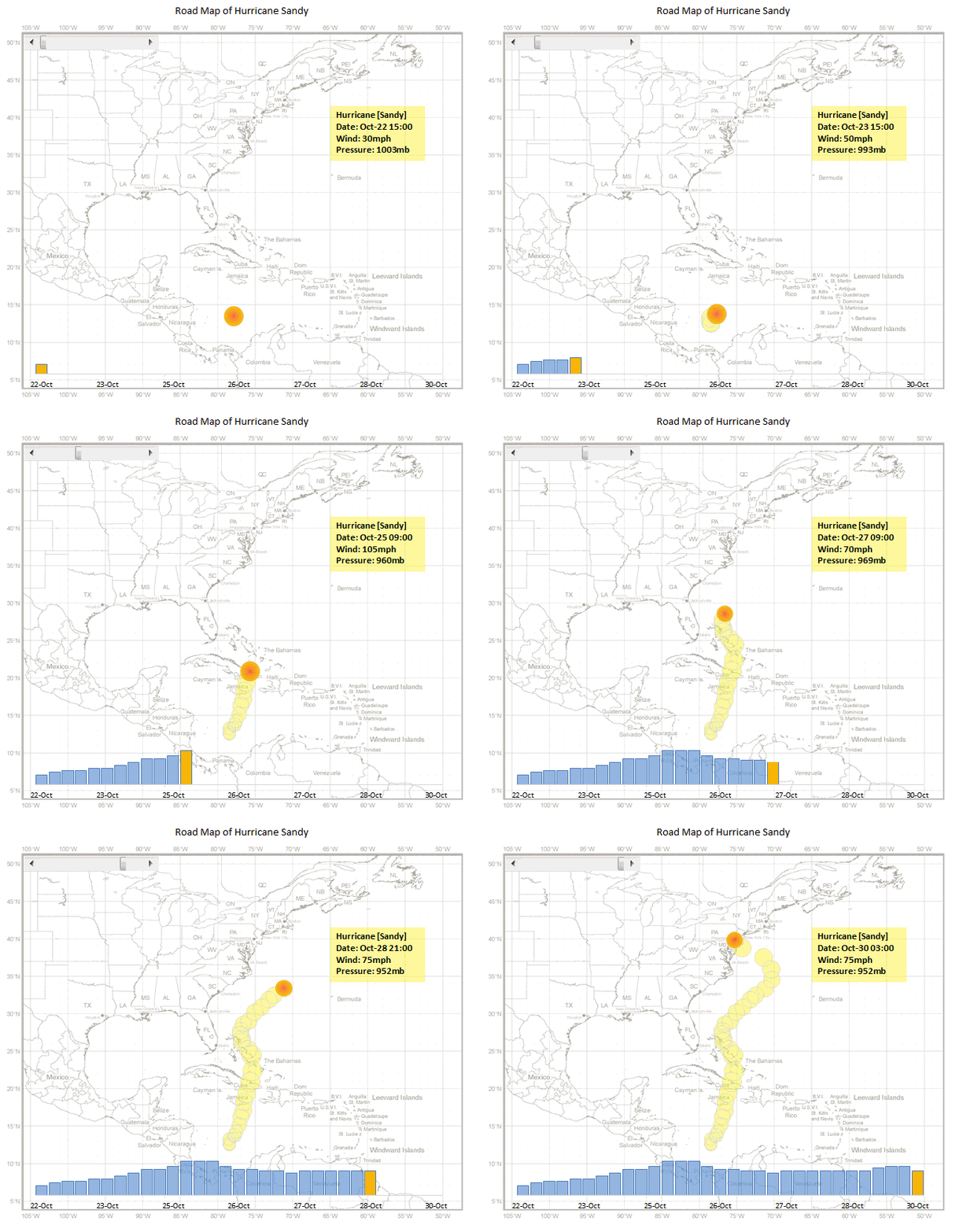
Journey of Hurricane Sandy - Animated Chart in Excel

How is this animated chart made?

The basic ingredients of this chart are:

  • An outline map of Americas
  • Data of the storm since it was tropical depression (22nd October) to the time it crossed the coast (30th October)
    • Lat & Long of the storm
    • Wind speeds
    • Pressure
  • A scroll bar form control that shows only a subset of this data
  • A VBA macro that animates the chart

Since all these techniques are previously discussed on Chandoo.org, I am going to list down the process in high-level with links to learn more.

  1. Set up a scroll bar form control
  2. Based on scroll bar position extract first n values only in to another table. Learn more: OFFSET formula *
  3. Use an outline map & bubble chart to plot circles along storm’s trajectory. Learn more: Olympic medals by country since 1900
  4. Change scroll bar values from 1 to ‘n’ using a vba macro, when triggered. Learn more: Creating a clock in Excel
  5. You are done!

* Chris uses #N/A based technique instead of OFFSET ranges in the chart.

Download this and play with it

Click here to download the workbook & learn by breaking it apart. Examine macros & charts closely and add new techniques to your toolbox.

Do you love this? Say thanks to Chris

I really loved this idea. Very intuitive and timely. Thank you so much Chris for sharing this and teaching us something new.

If you loved this, say thanks to Chris. Check out his website (it is in Chinese) for some useful tricks.

Facebook
Twitter
LinkedIn

Share this tip with your colleagues

Excel and Power BI tips - Chandoo.org Newsletter

Get FREE Excel + Power BI Tips

Simple, fun and useful emails, once per week.

Learn & be awesome.

Welcome to Chandoo.org

Thank you so much for visiting. My aim is to make you awesome in Excel & Power BI. I do this by sharing videos, tips, examples and downloads on this website. There are more than 1,000 pages with all things Excel, Power BI, Dashboards & VBA here. Go ahead and spend few minutes to be AWESOME.

Read my storyFREE Excel tips book

Overall I learned a lot and I thought you did a great job of explaining how to do things. This will definitely elevate my reporting in the future.
Rebekah S
Reporting Analyst
Excel formula list - 100+ examples and howto guide for you

From simple to complex, there is a formula for every occasion. Check out the list now.

Calendars, invoices, trackers and much more. All free, fun and fantastic.

Advanced Pivot Table tricks

Power Query, Data model, DAX, Filters, Slicers, Conditional formats and beautiful charts. It's all here.

Still on fence about Power BI? In this getting started guide, learn what is Power BI, how to get it and how to create your first report from scratch.

11 Responses to “Fix Incorrect Percentages with this Paste-Special Trick”

  1. Martin says:

    I've just taught yesterday to a colleague of mine how to convert amounts in local currency into another by pasting special the ROE.

    great thing to know !!!

  2. Tony Rose says:

    Chandoo - this is such a great trick and helps save time. If you don't use this shortcut, you have to take can create a formula where =(ref cell /100), copy that all the way down, covert it to a percentage and then copy/paste values to the original column. This does it all much faster. Nice job!

  3. Jody Gates says:

    I was just asking peers yesterday if anyone know if an easy way to do this, I've been editing each cell and adding a % manually vs setting the cell to Percentage for months and just finally reached my wits end. What perfect timing! Thanks, great tip!

  4. Jon S says:

    If it's just appearance you care about, another alternative is to use this custom number format:
    0"%"

    By adding the percent sign in quotes, it gets treated as text and won't do what you warned about here: "You can not just format the cells to % format either, excel shows 23 as 2300% then."

    • Steven Peters says:

      Dear Jon S. You are the reason I love the internet. 3 year old comments making my life easier.

      Thank you.

  5. Jon Peltier says:

    Here is a quicker protocol.

    Enter 10000% into the extra cell, copy this cell, select the range you need to convert to percentages, and use paste special > divide. Since the Paste > All option is selected, it not only divides by 10000% (i.e. 100), it also applies the % format to the cells being pasted on.

  6. Chandoo says:

    @Martin: That is another very good use of Divide / Multiply operations.

    @Tony, @Jody: Thank you 🙂

    @Jon S: Good one...

    @Jon... now why didnt I think of that.. Excellent

  7. sajith says:

    Thank You so much. it is really helped me.

  8. Winnie says:

    Big help...Thanks

  9. Chris Fry says:

    Thanks. That really saved me a lot of time!

  10. Texas says:

    Is Show Formulas is turned on in the Formula Ribbon, it will stay in decimal form until that is turned off. Drove me batty for an hour until I just figured it out.

Leave a Reply