

This is a guest post by Krishna, a football lover & one of our readers. He is also a student of Chandoo.org online VBA classes.
The wait for lifting the most valued priced in football for Germans was finally over. For a football fan, world cup is best time that is scheduled every four years and that if your favorite team lifting the trophy is like your crush is going on a date with you. 🙂
A sneak-peek at the final dashboard
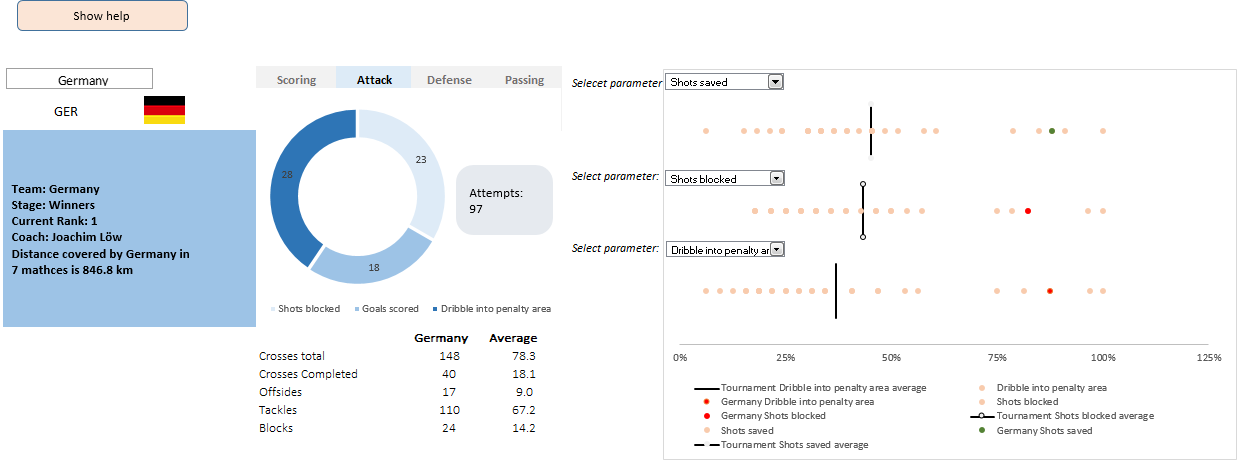
Here is the final dashboard (it has more functionality than depicted). Click on it to enlarge.
Download the dashboard workbook
Click here to download the workbook. Refer to it while reading this article for most benefit.
How it all began…?
So, after the world cup, I have thought to analyze this tournament using excel. And also Chandoo’s podcast session 13 made me more excited to start on this.
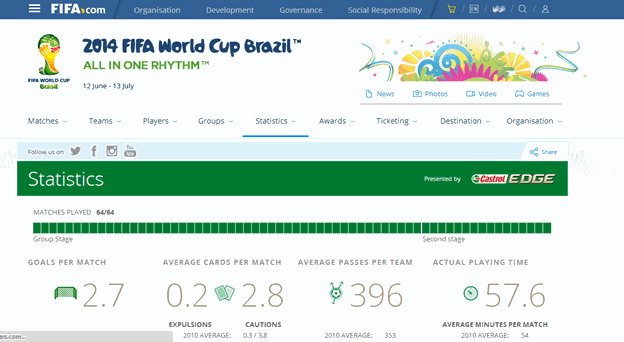
I have started the by searching for information over net and thanks to FIFA for having all the information at one place.
1. Planning of dashboard
I have made some dashboards and I think one of the essential steps to do is to plan what all needs to be represented in our dashboard. Having a checklist helps me to focus more on making it more interactive and creative rather than digging out for the data. In this dashboard, I wanted to show analysis of individual teams, matches played, and comparison of teams. However, I have added the top performers of World Cup in later stages.
2. Collecting data
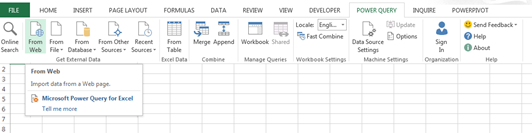
Having all the data on single site is great, however exporting to excel might seem a bit cumbersome because of formatting issues. So, it’s better to use PowerQuery (a Microsoft add-in) to extract the data from sites. (I came to know about PowerQuery, PowerView and PowerPivot though Chandoo podcast session 3, an interview with Mike Alexander). This provides us the data in tabular form and that saves a lot of time in formatting, especially when you copy from web.
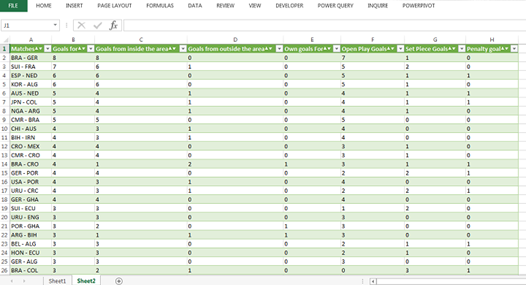
Once, I have the data for goals scored, I have collected data for other parameters as well and the stats are matched for the respective matches between the teams using Index-Match.
Now, we have the data related to matches played between the teams.
Similarly collect data for the teams. (FIFA.com has huge resource of information collected for this world cup)
3. What makes a team
Now, we need to make the right graphs for data representation.
For the first part of the dashboard (performance by teams) there are four areas that I wanted to show independently. I was tired of using the form controls. So, I have used the select cells control which requires a small macro and some form of conditional formatting to do the magic. For more on this technique refer to Interactive Sales Chart tutorial.
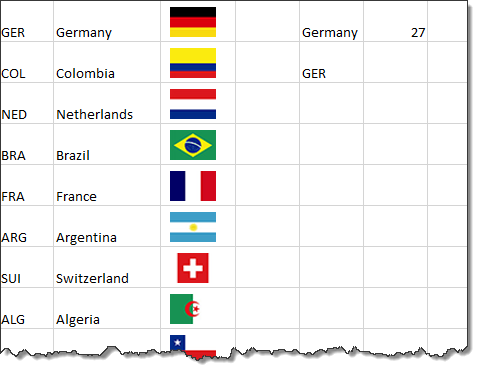
Now for the country selected there should be a flag. Here I have named all the flags with abbreviation of each country. A macro code is used to select the country flag which is the ‘Flag’ (selected cell) cell.
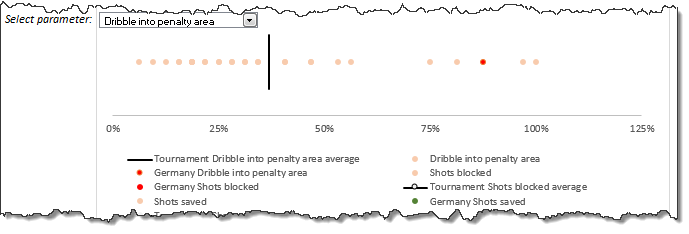
Scatter plot in the dashboard
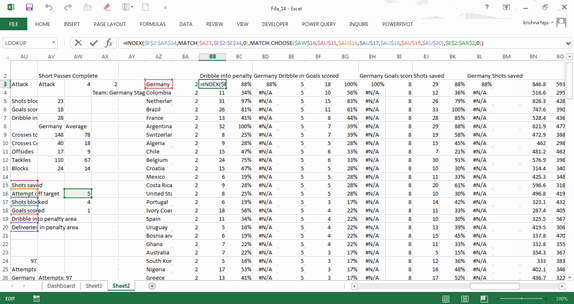
The chart on the right is scattered plot, where the data points are selected as per the categories selected in the drop-down. I have used Index, Match and Choose functions to select the data points for the all the teams. The pic below is for the “Dribble into penalty area” that is under “Attack”.
INDEX($E$2:$AR$34,MATCH($AZ3,$E$2:$E$34,0),MATCH(CHOOSE($AW$16, $AU$15,$AU$16,$AU$17,$AU$18,$AU$19,$AU$20), $E$2:$AR$2,0))
Which is
INDEX($E$2:$AR$34,MATCH($AZ3,$E$2:$E$34,0),MATCH(CHOOSE($AW$16, $AU$15,$AU$16,$AU$17,$AU$18,$AU$19,$AU$20), $E$2:$AR$2,0))
INDEX($E$2:$AR$34,MATCH(Germany, Teams selected,0), MATCH(Dribble in to penalty area, row headers,0))
INDEX(Data table,1st row,19th column) = 28
Similarly the data points required for the graph are populated.
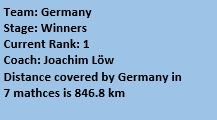
Now, for finishing, add a small box that gives few details about the team. Here, we need to accommodate all the data in the box that can be done using CONCATENATE or just simply use “&”
For e.g.,
=”Team: “&linkedCellFlag &CHAR(10) &”Stage: ” &INDEX($E$3:$F$34,MATCH(linkedCellFlag,$E$3:$E$34,0),2)
linkedCellFlag :named range for the selected team and Char(10) is required to provide ample space to goto next line.
The output will be (if I selected Germany):
Team: Germany
Stage: Winners
And similarly use & to add the data into the cells
So putting all together the final output is (yes I am a bot bad in choosing the right color scheme)
4. Match vs. Match ()
So now moving on to the next phase of the dashboard, the analysis of matches played.
Here, when I select two teams, say, Germany vs. Argentina, the match stats for corresponding teams must come up. Here, there are two things that we need to check:
- When I select Germany as my first team, I need to select all the teams against whom Germany played in this World Cup
- When selecting the match like GER vs. ARG, we need to have the same result even though I have chosen ARG vs. GER
To solve these two situations I have used the following method:
- Make a matrix of the teams played against every other teams as shown below. I have sorted the teams based on groups and using IF,MATCH, IFERROR populate the array as shown below
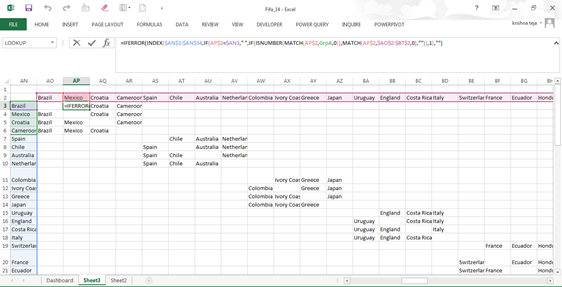
Formula used:
IFERROR(INDEX($AN$3:$AN$34,IF(AP$2=$AN3,” “, IF(ISNUMBER(MATCH(AP$2,GrpA,0)), MATCH(AP$2,$AO$2:$BT$2,0),””)),1),””)
For case of the selected cell, if, Brazil = Mexico, <<blank>>, If Brazil is part of Group A, then value of the team in header Row (AO2:BT2)
Similar procedure is followed for the other matches
For the drop down,
The index number (for eg., Brazil is the 1st team in the drop down bar, hence it has number 1) of the team selected and MOD (number,4) is evaluated. Corresponding teams are added from (i) (if the selected team is Spain, index number is 5, then teams are Chile, Australia and the Netherlands). Similar process is done for teams proceeded into later stages of the tournament is done.
Evaluation of the match
For the matches, when we select the teams, let say, Brazil vs. Croatia, here the home team is Brazil and away team in Croatia. So the index number assigned is “1-3”. I have defined the index number for each of the teams using CONCATENATE, INDEX, MATCH functions.
=CONCATENATE(MATCH(LEFT(F40,3), $AM$3:$AM$34,0),”-“,(MATCH(RIGHT(F40,3), $AM$3:$AM$34,0)))
F40= BRA-CRO
Hence, the formula becomes
CONCATENATE(MATCH(BRA),$AM$3:$AM$34,0),”-“,(MATCH(CRO),$AM$3:$AM$34,0)))
CONCATENATE(1,”-“,3)
Which gives 1-3
In case, I have selected to Croatia first and Brazil second, then I would have it as “3-1”, which doesn’t match with the list of matches. Hence in that case, we need to invert the number to “1-3”.
So finally, got the numbering right, which leaves us to lookup values for each category. So when I have seen initially, the list is too long. So I have decided to subgroup them.
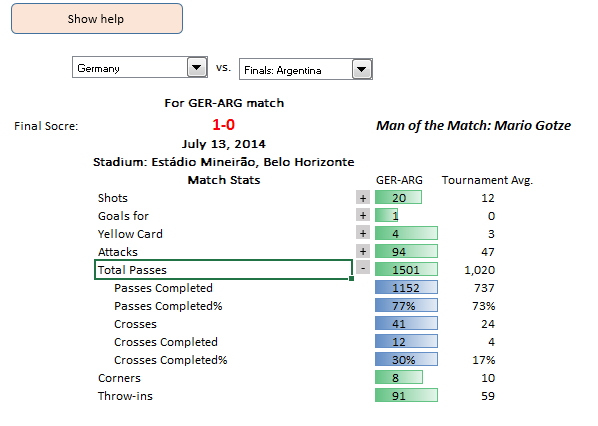
On an average the match stats that most of us look are shots, goals, suspension, attacks, procession. However, showing many statistics is often too dangerous. So, I have adjusted to the top stats and sub stats can be viewed if one like to. For example, one wants to look in-depth about goals scored, total attacks and total passes then small box in Column AG (the one highlighted) can be used to hide the rows or show the rows accordingly. A small macro to hide/show rows is sufficient for the same.
5. Where do the teams stand
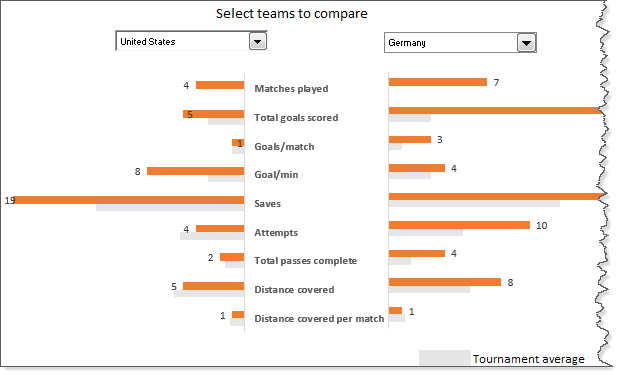
Now the third part to compare any two teams in the tournament and compare with tournament average. So this would be just a graph with all the data available. So I thought of animating the graph.
Before animation, an important thing to note is to check for the dimension of the variables we are analyzing. Since, all the data is coming on the same graph, plotting goals scored (e.g. 18) and total passes complete (e.g. 4200) in same would not help us. Hence, use total passes complete (in 100s) is to be checked. Similarly for other parameters.
For animation of the graph, I have done a similar as mentioned Chandoo in Excel VBA classes. (That course is really awesome. If you are looking to know more on excel VBA, I recommend you to join)
Top 5 teams
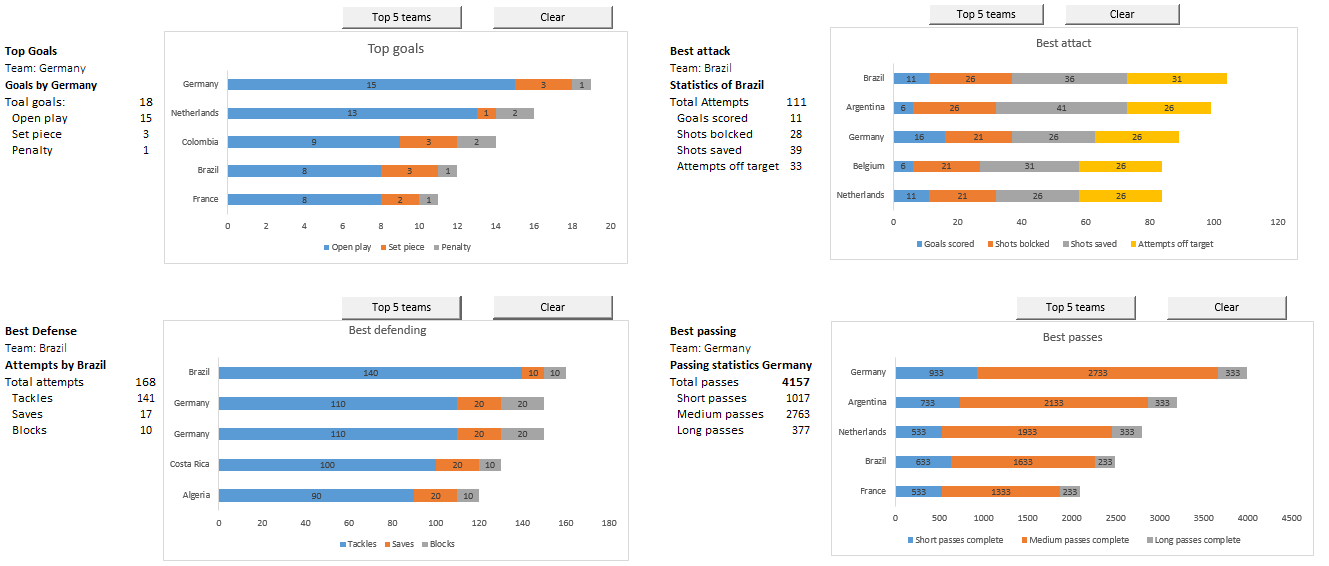
And at last, the comparison of top 5 teams. This is done using INDEX,LARGE formula.
INDEX($E$3:$N$34,MATCH(LARGE($I$3:$I$34,1),$I$3:$I$34,0),1)
In I3:I34, there are values of total goals scored by a team. Here we get Germany
In similar way we can check out for the remaining by substituting 1 with other numbers.
The charts are animated in the similar way as done in the previous graph, although an additional dimension is added.
So this is it. Make final touches by specifying the appropriate hyperlinks to the each section and maintaining the formatting is essential.
Thanks Chandoo for encouraging me to write a guest post.
Added by Chandoo: Thank you Krishna
Many thanks to Krishna for sharing his dashboard file & explanation with all of us. Your work is a proof of how much we can accomplish with Excel.
If you like this article,please say thanks to Krishna.
Want to learn how to create dashboards like these?
Then check out:


10 Responses
Hi Krishna,
Great Work….thank you for sharing the explanation.
Regards
SReeKHosh
Hi Krishna
Good Work I really like this and the explanation. I shall be looking at using some of these techniques at work in the dashboards I do!
Regards Tallulah
Hi, the dashboard is pretty awesome but if you go to Dashboard!A115 you’ll see that the Best Defending chart has Germany as 2nd and 3rd place. That might happen because you use the total as key to lookup for the country name, I guess.
Hi Krishna
An excellent and very informative post
It will be great if you could do one for the British EPL
Regards
Raj
Nice work indeed, thanks Krishna.
Thanks all. Hope you guys find it useful.
@Bonalume: Thanks for pointing out the error. I will make necessary changes for the rectifying.
@Raj: I am planning for UCL next 🙂
This is very good . it shows what can be achieved using Excel . its good way to get all students of different fields interested in Excel & Data analysis using football.
Thanks for sharing this with us and making us understand power of excel.
I can only say WOW!!!! at this point of time..!!!!!!
cool, thanks
Hi Krishna,
I really liked your dashboard but I have a quick question, I’m trying to do a text box like you did in one of my project and I couldn’t find how to do it . I want to aggregate some informations in a text box like you did.
Thank you 🙂