

Camera tool is your way of creating visual reference in an excel sheet. It is one of the useful and hidden features of excel. Here is how it works. You specify a rectangular area in your workbook and camera tool creates a mirror image of that area as a drawing object. You can move it or resize it. And whenever the contents of original rectangular area changes (charts, drawings or cell values) the mirror image changes too.
How to add camera tool to standard toolbar?
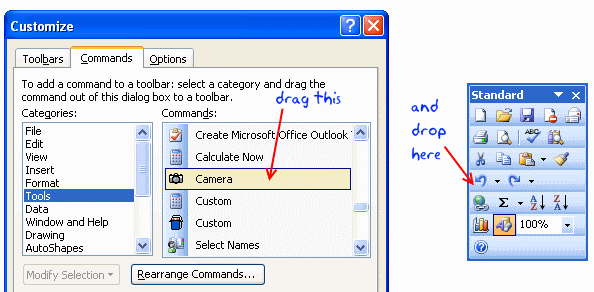
In order to use camera tool, you must add the tool to a tool bar in excel menu area. Here is how you can do that:
- Go to menu > tools > customize
- In the dialog go to “Commands” tab and select “tools” in categories.
- Scroll down in the commands area until you see a little camera tool
- Now drag and drop this in your tool bar as shown below
How to use excel camera tool?
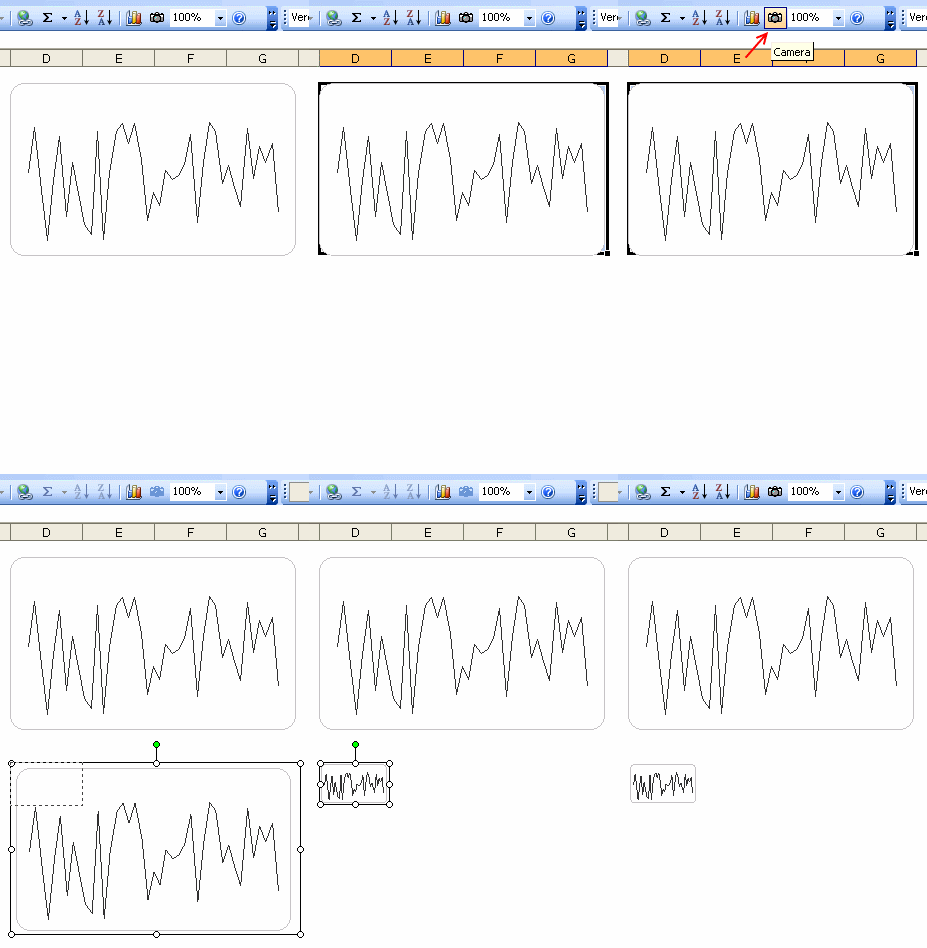
We will use camera tool to create a micro-chart in excel.
- First make a normal chart.
- Now select the cells surrounding the chart
- Click on camera tool
- Now click any where in the worksheet and excel places a snapshot of the range you have selected
- Resize it until you get the microchart effect.
- Bingo !
- Btw, excel adds a border to the camera tool output. You can remove it by using drawing tool bar
Bonus tip: Alternatives to camera tool
Another alternative to camera tool is to use the image and indirect references technique we have learned in conditionally hide or show charts post.
Read earlier spreadcheats as well.


41 Responses
In Excel 2003 you can also invoke the camera by copying the area you want to view, then hold the Shift key while you press the Edit menu. When you do that you get a “Paste Picture Link” option.
When you show people that it can seem like magic.
Cool trick. Have never used it and tried it for the first time. Its neat!!!! Thanks!!!
Nice feature. Thanks for sharing knowledge. 🙂
@Dan… That is fantastic. I never knew about this wonderful way of getting camera snapshots. Thanks for letting us know about this 🙂
@Aerogeek: you are welcome.
@Struzak: Thanks and welcome to PHD blog 🙂
You may use any shape or text box too and link the data of desired cell thru function bar. If you want to rotate the data with the rotation of the shape, need to apply same therapy as mentioned by Dan.
Check it out !
Much better than the Camera command. That sounded great but when pasting 2nd shot, the 1st updates to the same. Result: 2 shots of the same thing!
@Megs.. I am not sure I got your question… Camera tool gives a live preview, so when the underlying range changes, the camera image too.
Hi,
Excelent site!!
I`m using these technique with a graphic, but, I have two problems ( with Excel 2003):
1.- The snapshot loose resolution when a resize to small size.
2.- After I place the snapshot in the new location (other sheet), the plott area, always resize by itself, to the small size posibble.
🙁
@MV… thank you and welcome to PHD.
1. you should try to preserve the aspect ratio of the original range in the resized camera tool output to avoid poor fidelity.
2. The plot area resize could be due to some other issue (like opening an excel 2007 chart in 2003). I have never experienced such an issue with camera tool outputs.
An extension to Dan’s idea,
copy the cell values and paste special as link in power point (Paste Special > Paste Link > MS Excel Worksheet Object). The values in the power point will change when changed in excel. This can be used when dashboards have to be presented everyweek ( or everyday ?!) , but you are lazy enough to paste a snapshot from excel to powerpoint every time your presentation is due
Hi, what an awesome site,
It’s a bit late but, I encountered a problem with print preview. Every time I did that, the camera box will be resized to a small box, so it messed everything up. Do you know what can cause it?
I read on another topic that it can be caused by printer driver, but so far i still having the same problem.
Thanks
hi this is interensting but i wondered
does the camera tool exsist in excel 2010? or has it been superseeded by another command i woudl really love to try it out
thanks very mcuh
Slow reply sorry- it is still in 2010- you need to add it to the Quick Access Toolbar- look under all commands and it is listed as Camera.
Thanks
You can copy and paste as a picture which does a better job as it doesn’t have the border around the graph.
I think difference between using camera tool and copy-paste picture method is
When you use camera tool your picture is dynamic and it changes if source changes.
With Copy-paste method the picture is Static.
Correct me if I am wrong.
– Joshi
P.S. Thanks Chandoo & Hui for sharing KNOWLEDGE
Nice post, Chandoo…
The below is the basic difference among camera tool, Copy as picture – past
e, copy as picture – bitmap – paste.
1. Camera tool is like a mirror image as chandoo explains in the post. If you change the source data the image also changes.
2. Copy as picture option displays image once you paste the data. This image is like a transparent image. You can able to see the data back side of the image.
3. Copy as picture – Bitmap option displays image once you paste the data. This image is not transparent. Means, you can not able to see the data back side of the image.
Camera tool is so useful when you are doing auditing. You can create interactive images also with camera tool. http://lostinexcel.blogspot.in/2012/08/How-to-make-interactive-images-in-ms-excel-camera-option-vlookup-indirect-formula-data-validation-define-name.html
Regards,
Saran
http://www.lostinexcel.blogspot.com
Hi Everyone,
This is mentioned as an alternative the image hack which can be used to create dropdown menu and return different images eg. 3 different charts from another hidden sheet.
The Camera tool seems cool but I don’t understand how I would use it in practice? Could someone explain a useful example for this tool please? ps I am an MI Reporting Analyst.
Thanks
Agreed that Camera tool is VERY USEFUL…however, sometimes run into the following issue and wonder if anyone knows how to address (or if there is a way to address):
How can you embed the Camera shot within the chart so Camera shot is included as you move the chart around, copy/paste the chart and/or print the chart itself (rather having to print the page)?
Try selecting both the chart and the camera image and then Group them together.
They will move and size together, but you have to be careful when selecting the group, you have to select then move or size with the group’s frame not the chart area. It takes a little fiddling, but I was able to get it to work in Excel 2013.
Is there a keyboard shortcut for using Camera?
Dear Chandoo,
For quite some time i am visiting your site to learn some excel tricks and to get solution to the problems I face at work. And this one also helped me to get some insight on how to use camera to paste picture as link… Thank a lot… and hope to see some more of this kind….
This is very useful tool in Excel.
Thanks
Is there any way to prevent excel from resizing the camera image if someone double clicks on it?
Thanks
Hi Chandoo..
This is an awsome site.. Thanks for all your effort…
I have question , please help me
Is there any shortcut in excel where we can merge selected cells.
@Unni
Alt+H M M
This maybe different in Non-English versions of Excel
is its possible to create a moving snapshot through camera function. i mean If i moving left to right in the sheet, the snapshot should also moving.
Dear chandoo,
While searching how to lookup a photo from an excel workbook to another sheet in a bigger size, I found your blog and felt very much interesting. I am working in an interior decorative co. where plenty of photos are being stored in an excel sheet. Is it possible to retrieve a particular data with the staff photo displayed in bigger size than actual stored size by using Index or vlook up function in excel or by camera function? Please advice
Regards
Shani
@Shaniwafa: thanks for your comments and appreciation of my work. You can use either filters or camera links with a some more code to get this. See these examples:
https://chandoo.org/wp/product-catalogs/ (shows how to use pictures in filters)
https://chandoo.org/wp/cricket-worldcup-dashboard/ (player pictures are shown thru formula driven picture links)
Or use Power BI to build this. That way, you can load any image from URLs. See this example
https://chandoo.org/wp/introduction-to-power-bi/
Hi, Camera picture from Pivot table. but when Pivot table expand how to expand camera picture too… is there any solution. Thanks.