

Sawadee Krup folks. Today, we begin a new series on Chandoo.org – Making a Customer Service Dashboard using Excel. This 4 part tutorial teaches you,
Designing Customer Service Dashboard
Data and Calculations for the Dashboard
Creating the dashboard in Excel
Adding Macros & Final touches
Customer service is one area where a lot of data is collected regularly. Understanding all this and making business decisions is quite complex task. This is where dashboards shine.
Sneak-peek at the Final Dashboard
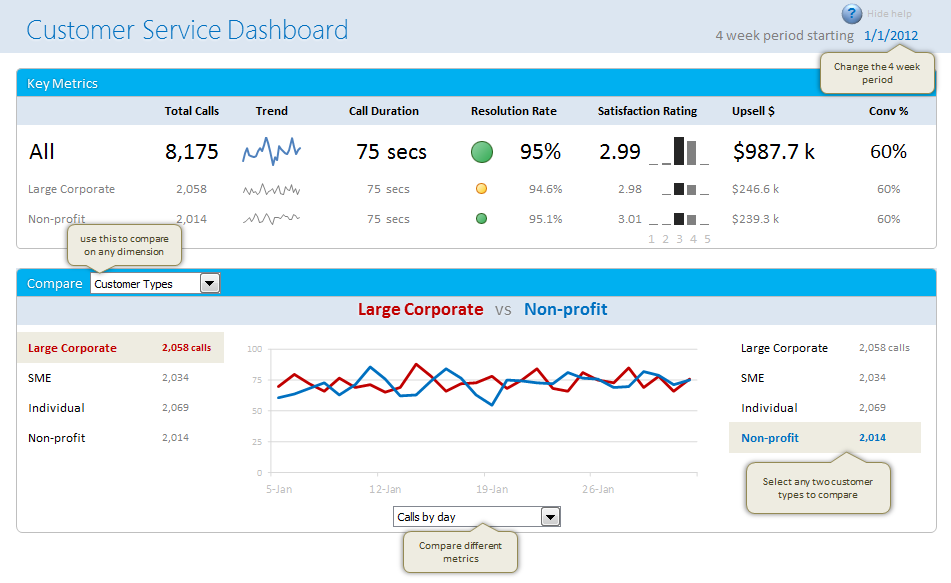
Before we jump in to the tutorial, let me show you the final dashboard. Click on it to enlarge.
What do we want in our customer service dashboard?
The very first step in making our customer service dashboard is to ask “what do we want in this dashboard?”
The answer to this question changes from company to company & individual to individual. In our case, lets assume, we are designing a customer service dashboard for a large computer manufacturer – LCM inc.
The context of our dashboard
A bit of context on LCM’s call center,
- The call center services 6 different product categories – Monitors, Desktops, Laptops, Accessories, Software and Misc.
- The call center receives calls from 5 regions – North, South, East, West and Mid-west
- The call center services 4 types of customers – Large corporates, SMEs, Individual customers, and non-profits.
- And LCM has 6 agents to take care of the calls – Agent Bond, Harry, Smith, Mary, Vinod and Neo
- During each call, the LCM agents try to up-sell a product in the same category of the call (for ex. if we get a call related to monitors, we try to sell another monitor to the customer, just like in real world!)
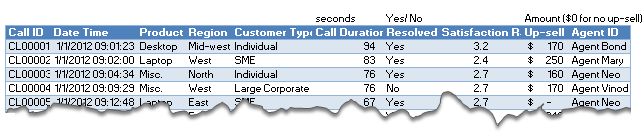
Below you can see the data collected for each call:
What are the goals of our dashboard?
Now that we know the context & how our data looks like, lets understand what should our dashboard do.
We need to answer this question from the perspective of the end users of this dashboard – in this case, the customer service head of LCM.
I have never been customer service head of a large call center. All my experiences with call centers involve waiting on the call listening to horrible music over and over and over… So I will just use my imagination and say that our dashboard should,
- Provide a view of key metrics (KPIs) for the 4 week period starting from a given date.
- Like call volume, durations, resolution rate, satisfaction ratings, upsell $s
- Allow for comparison between any two values of a dimension
- Like Monitors vs. Desktops, Agent Bond vs. Agent Smith, North vs. South
- Allow for comparison based on any metric
- Like Call volume by day, resolution rate by day, upsell by day etc.
- Show everything in single view
Designing a rough sketch of the dashboard
Based on all these needs of our customer service head, lets design a dashboard. This is where we get creative. For this part, I rely on a technique that is so natural that even my 2 year old son uses it. I doodle.
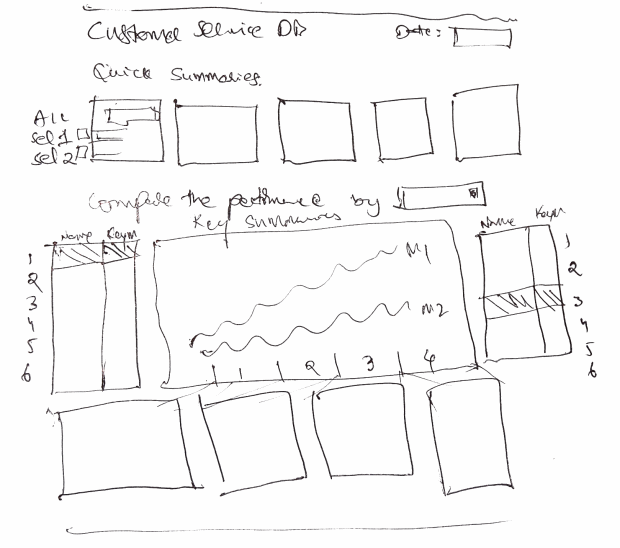
So lets doodle our dashboard on a blank paper. This is what I came up with. Feel free to draw your own based on what our boss wanted.
Customer Service Dashboard – Design #1
This is my first attempt.
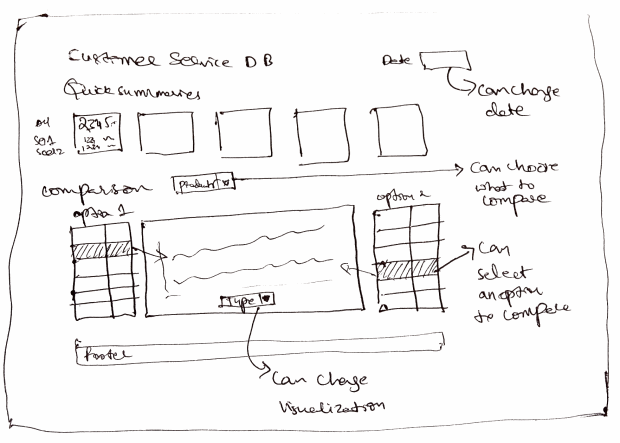
Customer Service Dashboard – Design #2
This is what I got after I have refined the design a bit and made it compact so that we can fit everything in single view.
Validating your Design
This is where we take the rough sketch and discuss it with colleagues & boss. We make sure that all our dashboard goals are met by this design. We also validate whether our data can support this design (for example, we may want to show certain metrics, but our data may not allow this.)
In our case, I validated my sketch with what we mentioned in the goals section and made sure everything is met.
A demo of Final Dashboard
Since I have already made the final dashboard, here is a quick demo of how it works:
[Watch the demo on our YouTube channel]
What next? – Getting Data & Calculations in place
Now that we are done with the design, next step is to get our data and all the calculations (formulas, named ranges, validations, pivot tables) in place.
How would you design a customer service dashboard?
Customer service is one area where dashboards are used quite often. Have you ever designed dashboards or one page reports in this area? If so what is your experience like? How have you designed the dashboard? What Excel techniques and ideas have you used? Please share using comments.
Also, if you were to design the dashboard for LCM inc., how would you approach it? Please share your ideas using comments.
References & Related Learning
If you are looking for examples, information & tutorials on Excel dashboards, you are at the best. At Chandoo.org we have elaborate examples, tutorials, training programs & templates on Excel dashboards, to make you awesome. Please go thru below to learn more:
- Customer Service Dashboard Example
- KPI Dashboards in Excel – 6 part tutorial
- Excel Dashboards – Information, Examples, Templates & Tutorials
- Excel School Dashboards Program – Learn how to create this and other dashboards in Excel in detail
Special thanks to NY Times:
I must thank New York Times’ 2012 Money Race visualization. I have used the comparison idea for this dashboard.


27 Responses to “9 Box grid for talent mapping – HR for Excel – Template & Explanation”
Great stuff! I can understand how to add a slicer to the pivot table, but how do you implement the departmental selector on the 'Filter' formula scheme?
Just saw this on your Youtube channel, and it’s areat idea...!
An easy way to overcome the "ugliness" of pivot tables and get it to look nice (in the format of the Output sheet), would be to simply build a sheet with the nice map at the top, a pivot underneath it and a slicer next to formatted map and then reference each of the 9 cells in the formatted map to the “related” cell in the Pivot.
Keep up the good work!
/Claus
Thanks Claus. That is a great idea 🙂
Hi Chandoo,
This is great! Curious how to make additional columns operate the same as the Department column (ex. have a "manager column") that would allow you to sort a 9 box by manager, area, or team in addition to department?
Feel free to email me if needed! mfry01@minnetronixmedical.com
Happy New Year
Madison Fry
I am curious about the smae thing. I would like to populate the 9 box with other views as well by adding additional columns. IE., I would like to add location, region, etc. Thank you.
This is great, thank you!
How can i see the whole data set of all the teams in the output table. Need a formula that will pick up all the employees
Hello,
Love the template. Thank you. Question - the drop down to pick a department on the Output tab does not seem to work on the downloadable template. Am I doing something incorrectly?
Thank you!
Hi Heather... Thank you. I am using Excel 365 to make the calculations. If you are using an older version of Excel, then the drop-down filter won't work.
Hi
I was able to follow your 9 box grid and modified based my needs. However, you tutorial did not show how to you create the filter for the "Pick a department. Can you kindly share how to create that filter that updated the grid. Thank you.
I am working on this project but I am struggling with the data validation for the department. I copy the worksheets data entry and output as the managers want to see different tabs for each managers.
I updated the source reference for each tab but It does not update the grid based on the new source. The list was updated but it does not populate the grid based on the performance and potential listed.
In addition the hyperlink Update Data and View Talent Map no longer works. Can you please help me.
I keep getting this error message in the pivot table:
This formula is invalid or incomplete: 'The expression is not valid or appears to be incomplete. Please review and correct the expression.
The following syntax error occurred during parsing: Invalid token, Line 1, Offset 14, ‘.
Hi, I used your 9-box excel template with excel 365. First off, thank you so very much. It is incredibly helpful!! My only question is that the boxes aren't big enough for all of the employees (specifically the middle which we call 'Core Employee'). Is there a way to make the boxes larger? Even though it is in excel, I am not able to increase row height (like I normally do in a speadsheet). Any ideas? Thanks again, Jody
Hi Chandoo,
Thanks for the great content. Re. 9 box grid, pls advise how do I increase the size of the box to accommodate more names?
Hi Chandoo,
I figured it out. Excel 365 has the format row height on the ribbon. Thank you
Merci Chandoo pour le modèle proposé,
j'ai une question et un souhait est il possible de développer davantage ce modèle en insérant la photo de chaque employé.
Hi Chandoo!
Great tutorial and tool, thank you! Your tutorial didn't include how to create additional filters on the "Output" tab. Could you please share how you did it?
Can this be done exactly in google sheets?
Hi Chandoo,
Thanks for the video it was really helpful. Is there any way to multi select the dropdown to display multiple or all departments rather than just one at once?
Hello Prish
I have Microsoft 365 and I am struggling to make the boxes larger/unable to increase row height; any idea how you made this work? Specifically in the Output tab where the map is?
Many thanks
Hello Jody, I have Microsoft 365 and I am struggling to make the boxes larger/unable to increase row height; any idea how you made this work? Specifically in the Output tab where the map is? Many thanks
Is there a way to change the 9 box wording descriptions, i.e. Work Horses, to our own internal langauge?
You can edit the file. The descriptions are textboxes.
Hi Chandoo, this is awesome and has worked perfectly. Due to a big organisation the 9 box grid on the output file is too small. I tried adjusting using the row/width ribbon under the format ribbon however it doesn't seem to work. Is there an easier way to adjust this?
Thanks!
When I drag the formula, it doesn't work, and the order I use with the data changes. In the beginning, the order is it is " candidates," " potential," and " performance," but when it goes to another column, it is " Potential," Performance," and "Candidates."Can you help me? Thank you very much, sending love from vietnam
Hi- I am working on the 9 grid project and I am trying to expand the box since I have over 100 names on a few of the columns. How do I do that?
Hi, Thank you this is great stuff and really useful.
As well as department as demonstrated on your clip, how can I display all candidates on the grid at once?
Many thanks in advance