Thermo-meter chart with Marker for Last Year Value

Share

Facebook
Twitter
LinkedIn

During a recent training program, one of the students asked,

Thermo-meter charts are very good to show how actual value compares with target (or budget). But how can we add another point for say Last Year value to the chart with out cluttering it.

Something like this:

Thermo-meter chart with Marker for Last Year Value

Sounds interesting? Read on.

Step 1: Create a bar chart from your data

Assuming you have data like this,
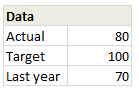
data for thermo-meter chart in excel

Select and create a bar chart from it. We need 3 bars (in different colors). If needed, use the Switch Rows / Columns  button from Chart > Design ribbon. Once done, you should have something like this:
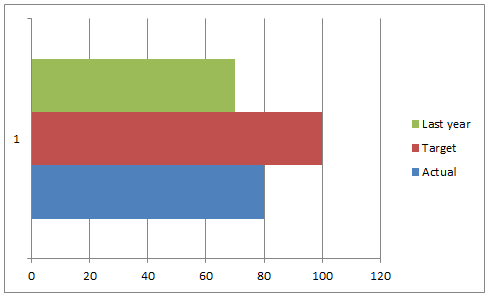
Thermo-meter chart with last year marker - step 1

Step 2: Add Error bar to Last year series

Select the last year series & Add % error bar. Now, select the error bar and press CTRL+1 to format it.

  1. Set error percentage to 1% (for smaller chart sizes, you need 2 or 3%)
  2. Remove error bar caps.
  3. Go to line style and set begin style as a dot
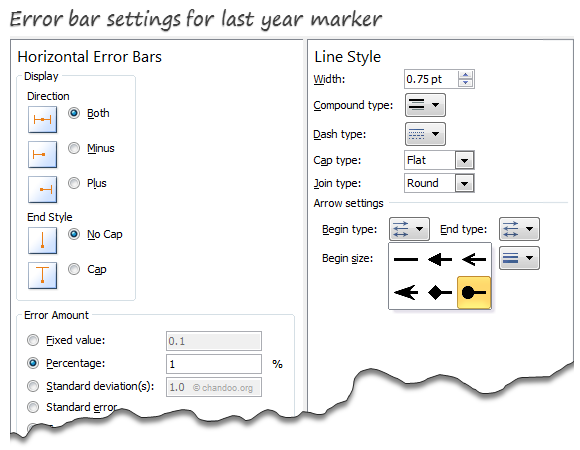
adding error bar and customizing it - step 2

At this stage, your chart should look like this:
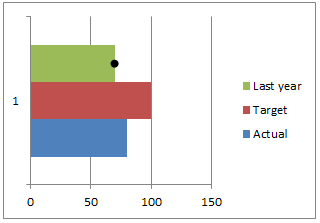
thermo-meter chart after step 2

Step 3: Overlap series & Remove fill colors

This is easy. Select any series and press CTRL+1 to format it. Set series overlap to 100%.

Then select last year series and set its fill color to none.

Select Target series & set fill color to none.

Set outline to the same color as actual series and make line thickness as 1 pt.
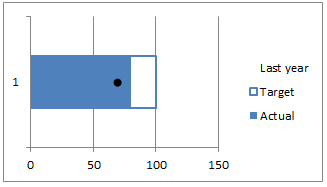
Step 4: Clean-up

Finally, remove legend, grid lines, axes and re-size the chart.

Congratulations! you have just made a custom thermo-meter chart.

Download thermo-meter chart template

Click here to download the workbook & play with it. Examine how the chart is made and see what additional customizations can be made.

Do you use Thermo-meter charts to compare actual with targets?

I think thermo-meter charts are the easiest way to compare actual with target. I use them often in my dashboards & reports.

What about you? what kind of charts do you use to compare actual with target (or budget) values? Please share your techniques and ideas using comments. Go!

Compare Actual with Target values? Check out these

Please see these articles to learn how to compare actual with target values.


Facebook
Twitter
LinkedIn

Share this tip with your colleagues

Excel and Power BI tips - Chandoo.org Newsletter

Get FREE Excel + Power BI Tips

Simple, fun and useful emails, once per week.

Learn & be awesome.

Welcome to Chandoo.org

Thank you so much for visiting. My aim is to make you awesome in Excel & Power BI. I do this by sharing videos, tips, examples and downloads on this website. There are more than 1,000 pages with all things Excel, Power BI, Dashboards & VBA here. Go ahead and spend few minutes to be AWESOME.

Read my storyFREE Excel tips book

Overall I learned a lot and I thought you did a great job of explaining how to do things. This will definitely elevate my reporting in the future.
Rebekah S
Reporting Analyst
Excel formula list - 100+ examples and howto guide for you

From simple to complex, there is a formula for every occasion. Check out the list now.

Calendars, invoices, trackers and much more. All free, fun and fantastic.

Advanced Pivot Table tricks

Power Query, Data model, DAX, Filters, Slicers, Conditional formats and beautiful charts. It's all here.

Still on fence about Power BI? In this getting started guide, learn what is Power BI, how to get it and how to create your first report from scratch.

8 Responses to “Pivot Tables from large data-sets – 5 examples”

  1. Ron S says:

    Do you have links to any sites that can provide free, large, test data sets. Both large in diversity and large in total number of rows.

    • Chandoo says:

      Good question Ron. I suggest checking out kaggle.com, data.world or create your own with randbetween(). You can also get a complex business data-set from Microsoft Power BI website. It is contoso retail data.

  2. Steve J says:

    Hi Chandoo,
    I work with large data sets all the time (80-200MB files with 100Ks of rows and 20-40 columns) and I've taken a few steps to reduce the size (20-60MB) so they can better shared and work more quickly. These steps include: creating custom calculations in the pivot instead of having additional data columns, deleting the data tab and saving as an xlsb. I've even tried indexmatch instead of vlookup--although I'm not sure that saved much. Are there any other tricks to further reduce the file size? thanks, Steve

    • Chandoo says:

      Hi Steve,

      Good tips on how to reduce the file size and / or process time. Another thing I would definitely try is to use Data Model to load the data rather than keep it in the file. You would be,
      1. connect to source data file thru Power Query
      2. filter away any columns / rows that are not needed
      3. load the data to model
      4. make pivots from it

      This would reduce the file size while providing all the answers you need.

      Give it a try. See this video for some help - https://www.youtube.com/watch?v=5u7bpysO3FQ

  3. John Price says:

    Normally when Excel processes data it utilizes all four cores on a processor. Is it true that Excel reduces to only using two cores When calculating tables? Same issue if there were two cores present, it would reduce to one in a table?
    I ask because, I have personally noticed when i use tables the data is much slower than if I would have filtered it. I like tables for obvious reasons when working with datasets. Is this true.

    • Ron MVP says:

      John:
      I don't know if it is true that Excel Table processing only uses 2 threads/cores, but it is entirely possible. The program has to be enabled to handle multiple parallel threads. Excel Lists/Tables were added long ago, at a time when 2 processes was a reasonable upper limit. And, it could be that there simply is no way to program table processing to use more than 2 threads at a time...

  4. Jen says:

    When I've got a large data set, I will set my Excel priority to High thru Task Manager to allow it to use more available processing. Never use RealTime priority or you're completely locked up until Excel finishes.

Leave a Reply