

It is not too sunny here, but I am going to put on my business man hat. At the end of each month, I ask myself if my business (chandoo.org that is) has performed better or worse. One simple way is to look at previous month’s numbers and then I know how good the latest month is.
But thanks to awesome people like you, my business is growing every month. So mere comparison with previous month’s values is not enough. I would like to know, for eg. if the latest month is,
- The best month ever
- The best month in last 12 months (trailing 12 months)
Now, it would be a shame if I have to find these answers manually. So I write an Excel formula. That is right!, a formula to tell me if the latest month’s value is all time best, best in last 12 months.
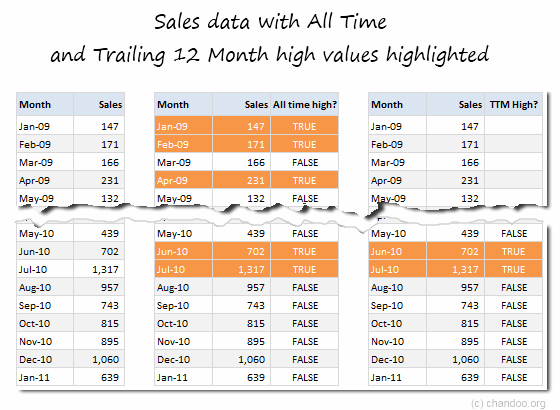
How to write such formulas?
Oh, the formulas are really simple. More so, if you compare it with the effort it takes to make a month all time best in sales (or any other metric).
Assuming we have a bunch of sales numbers by month in the range B6:C30,
To test for All time high condition:
- In cell D6, write =C6=MAX($C$6:C6)
- Drag the formula to fill remaining cells in column D
- Now you will see a bunch of TRUE and FALSE values. TRUE means the corresponding month’s sales is an all time high.
 Tip: See how we are using $C$6:C6 in the MAX. This style of referencing is called as mixed cell referencing. By using this, when you fill the formula for remaining months, the range inside MAX grows. Thus for each month we get the maximum sales value thus far. more ».
To test for Trailing 12 month high condition:
- We will test this condition in column E.
- In E17 (trailing 12 month high can not be calculated for first 11 months…) write = C17=MAX(C6:C17)
- Drag the formula to fill remaining cells in column E
- Now you will see a bunch of TRUE and FALSE values. TRUE means the corresponding month’s sales is a trailing 12 month high.
Tip: The range C6:C17 is relative. Thus when you fill the formula down, it changes to C7:C18, C8:C19… referring to previous 12 months. more ».Download Example Workbook
I have prepared a simple example file. Download it to understand these formulas.
How do you analyze your sales data?
Apart from the above techniques, I also use line charts & trend lines to understand the sales trend. Also, I use pivot tables to segment my sales based on product, customer type, region etc. Since my business is new, I do not have previous year values for many products. But where possible, I compare sales from last month same year to see how well the product has grown / shrunk. I do not set any targets at monthly level as I aim to enjoy the process. So I do not use bullet charts or target vs. actual charts per se.
What about you? How do you analyze sales or similar data? What metrics do you use to gauge the performance? Please share using comments.


9 Responses
I often look at the percentage of members that make up XX percent of sales or profits. You’ll often find that an 80/20 rule applies. Your top couple deciles of customers (or your top couple deciles of products) contribute the majority of your sales/profits. This type of analysis can be helpful when trying to determine how to target a promotion, or how to allocate marketing resources. Mixed references (described in this post) come in handy here for tallying up the top XX% of customers, products, profits, transactions, etc. (You just have the rank them first.) Plotting this information (e.g. % of profits vs. % of customers) on an x/y scatter plot is also useful — and you can jazz up the chart with some dynamic markers, titles, and, perhaps, a scroll bar form control.
I am more into measuring performance and quality of production for a bunch of people in my organization. To measure their performance and set targets for future, I prefer using trend lines and line charts. In the qualitative aspect I make time based comparisons (such as with their own performance, with other individuals and with the group as well).
I must say, I have learnt a lot from chandoo’s site. I am fairly new to it but our association has done wonders in my style of working.
Thank You Chandoo!
I am a step forward to become AWESOME IN EXCEL!
Thx! I didn’t know =C6=MAX($C$6:C6) could work with two “=”. My old school of teaching was
=IF(B14>=MAX($B$2:B14),”True”,”False”)
Thank you very much for teaching me something new.
hi Chandoo,
Do you have a 2003 version of this file? Thanks!
Arman
Instead of asking for earlier version of file.. I suggest.. you use
File Converter (free download from microsoft site).. which will let you open .xlsx files in office 2003 and word files, etc.
http://office.microsoft.com/en-us/excel-help/use-office-excel-2007-with-earlier-versions-of-excel-HA010077561.aspx#BMfileconverters
@ Fiaz…Thanks!
I added All Time Low and TTM Low columns to the tables and altered the formulas to C6=MIN($C$6=C6) for All Time Low.
For the TTm Low column, the formula needed to start with =K17=MIN($K$17:K17) in K17 because the “empty” cells above are treated as zeroes making them the lowest of the range.
I also added a line chart that plotted the data from the first table of data.
Hi everyone,
Am still on my way to learn more about excel from your awesome web site , i have selected the month and the sales as well as the high values (true and false column) and pressed f11 to create a chart but i was wondering how i can show in the chart that a specific month was high i mean true , is this possible or not ?
Appreciate your quick response